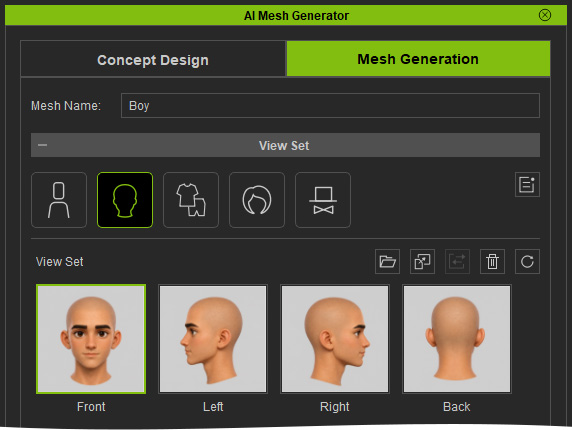
High-Res 4-View Head Template (New for v5.2)
In AI Studio, go to Templates > Custom Tools to explore all 6 template tools. Click the High-Res 4-View Head template to open it.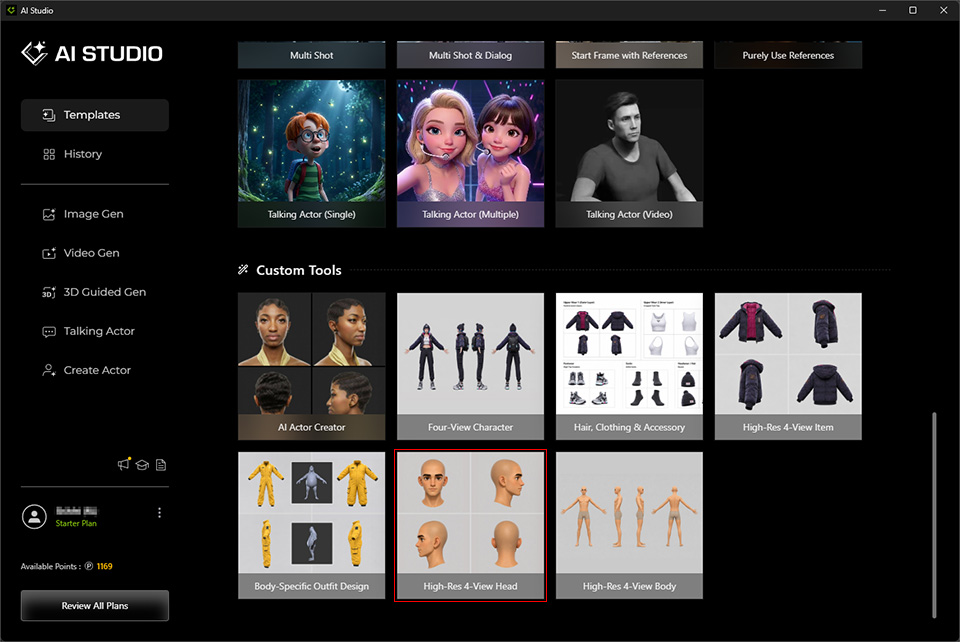
The High-Res 4-View Head template generates a high-resolution (2880 × 2880, 4K) image containing front, left, right, and back views of character's head from any character images or photos. The image can be used as source images of head for the target images in the View Set of Character mesh type in AI Mesh Generator.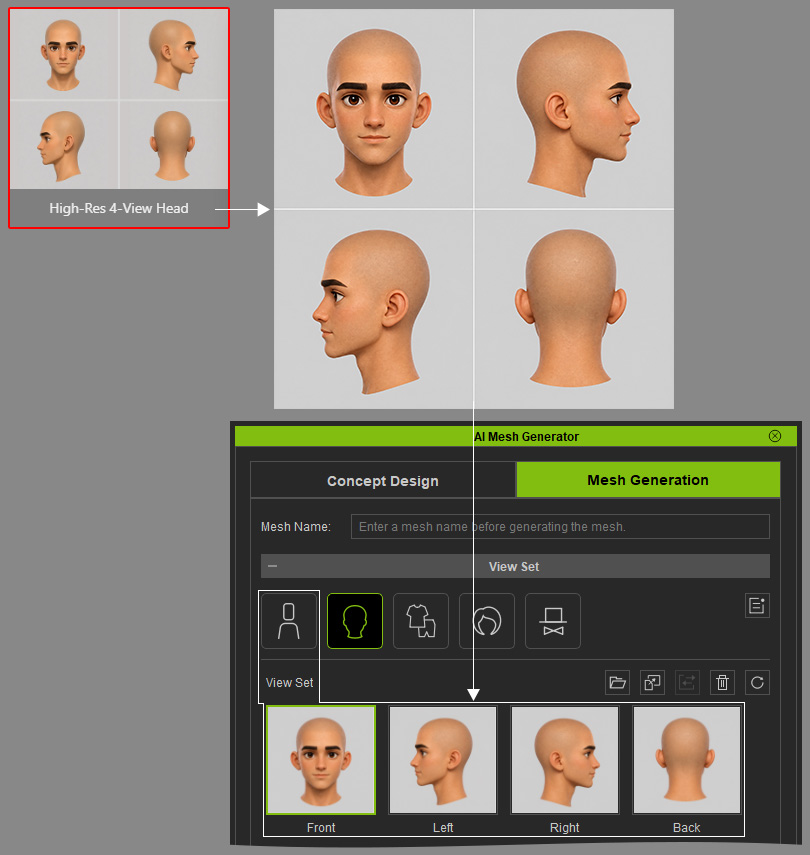
Replace Reference Images
- After the template opens, AI Studio automatically goes to Image Gen > Edit > Custom (under the Operation section).
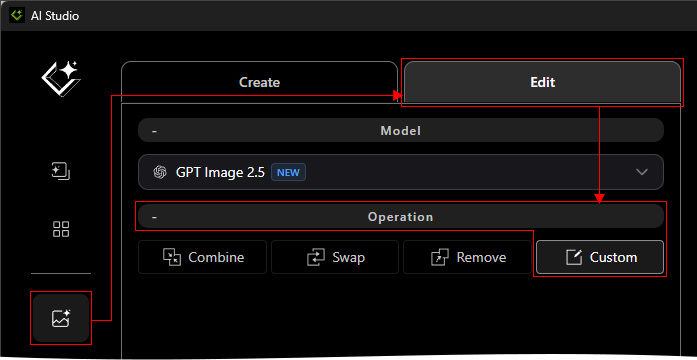
- Replace Image 1 and Image 2 with images of the character you want to generate. You can remove either image, but at least one reference image is required.
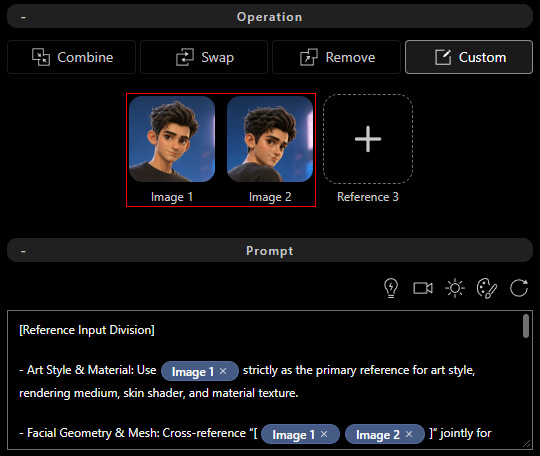
- The Image 1 should ideally be a front-facing or near-front-facing photo with clearly visible facial features.
- You can use one or multiple reference images to provide the character's head appearance. Ensure the images depict the same character for consistent results.
Update the Prompt
- The prompt is preconfigured. Do not modify its content except for the image references in the Facial Geometry & Mesh section. Make sure the image references match the number of reference images used above.
- One reference image:
Facial Geometry & Mesh: Cross-reference "[ Image 1 ]" Jointly for facial geometry, likeness, and 3D mesh.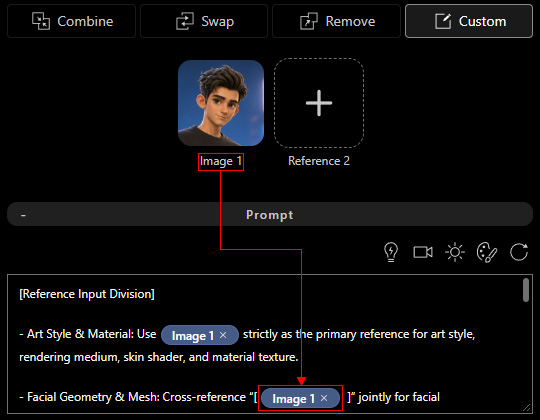
- Two reference images:
Facial Geometry & Mesh: Cross-reference "[ Image 1 Image 2 ]" Jointly for facial geometry, likeness, and 3D mesh.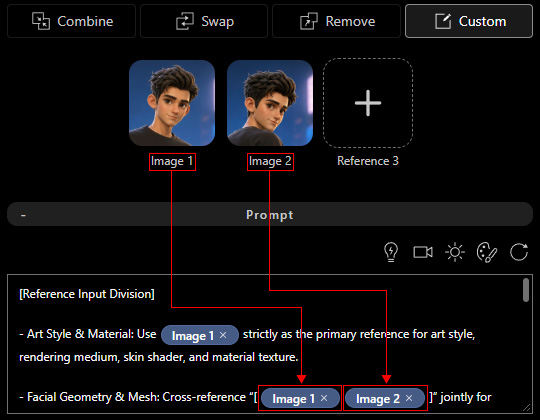
- For additional reference images, follow the same pattern and include all corresponding image slots.
- One reference image:
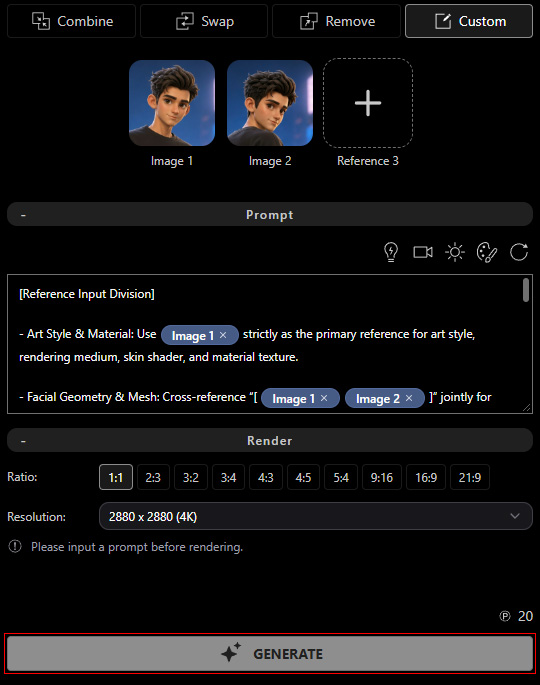
- Click GENERATE to generate a four-view character's head image. If you are not satisfied with the result, click GENERATE again to generate another image.
Copy Each View
- Activate the Select tool.
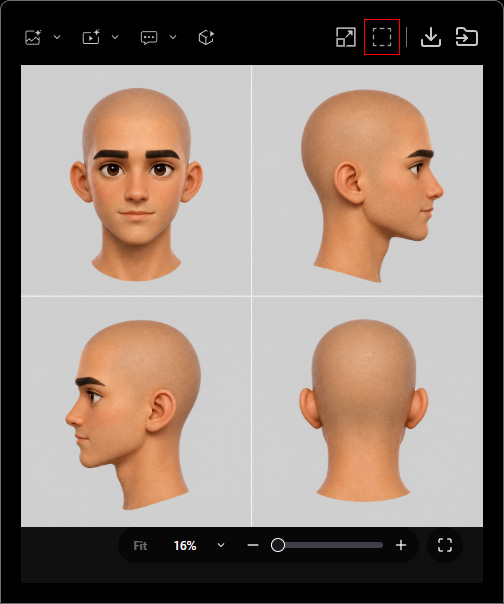
- Select one view from the generated four-view image.
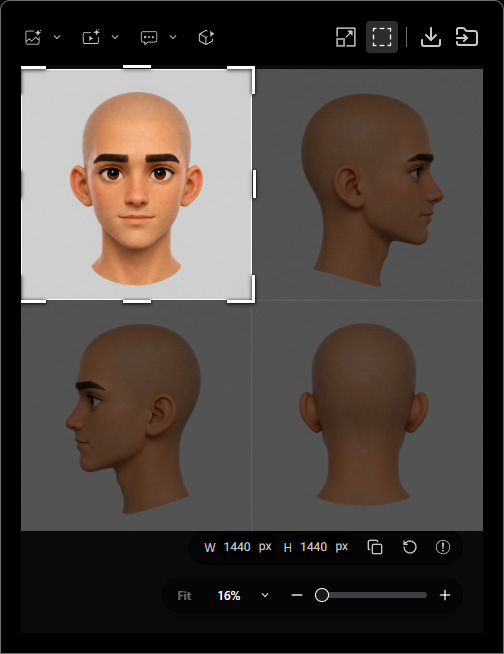
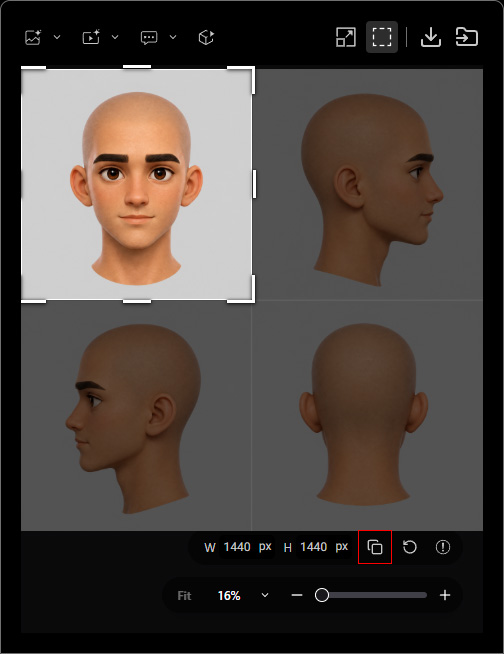
- Click Copy to Clipboard below the selection, or press Ctrl + C, to copy the selected view to the system clipboard.
Import Views into AI Mesh Generator
- Open AI Mesh Generator and go to the Mesh Generation page. Enter the Mesh Name.
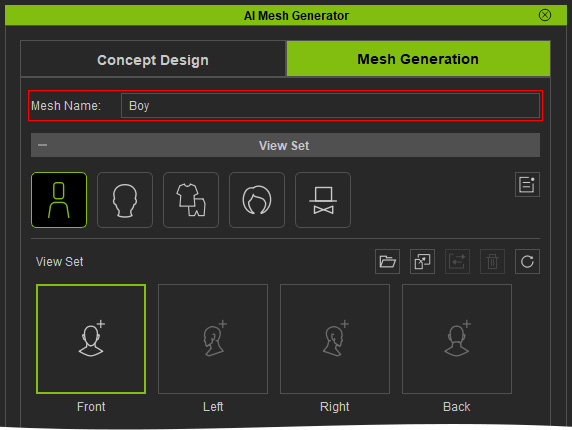
- Make sure that the Mesh Type setting matches the one copied in the AI Studio. In this example, select Head Only.
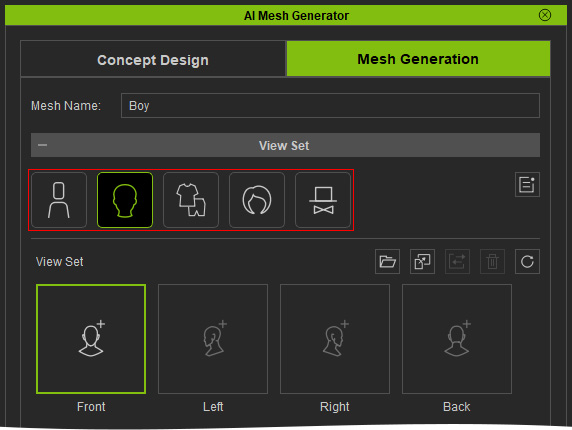
- Under View Set, select the slot corresponding to the one in step 8 (Front, Left, Right, or Back).
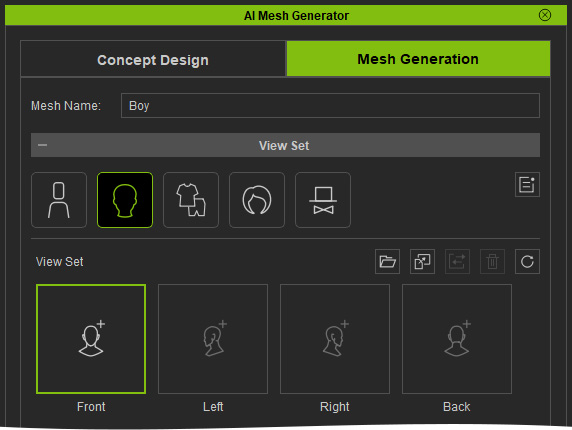
- Click Paste image from clipboard, or press Ctrl + V, to paste the copied view.
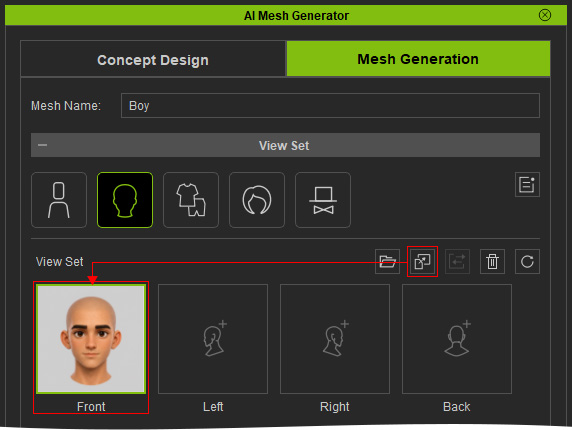
- Repeat for the remaining views. A Front view is required; the other views are optional.