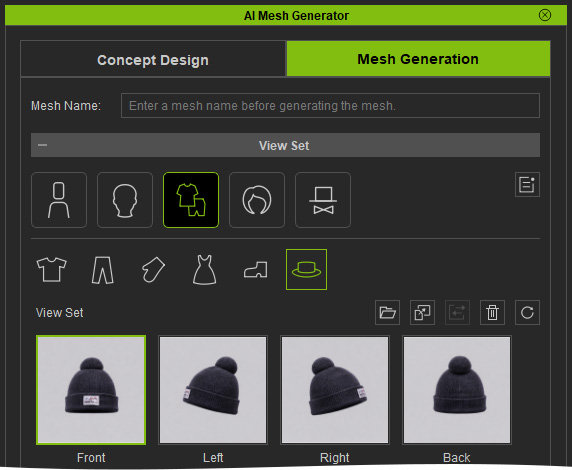
High-Res 4-View Item Template (New for v5.2)
In AI Studio, go to Templates > Custom Tools to explore all 6 template tools. Click the High-Res 4-View Item template to open it.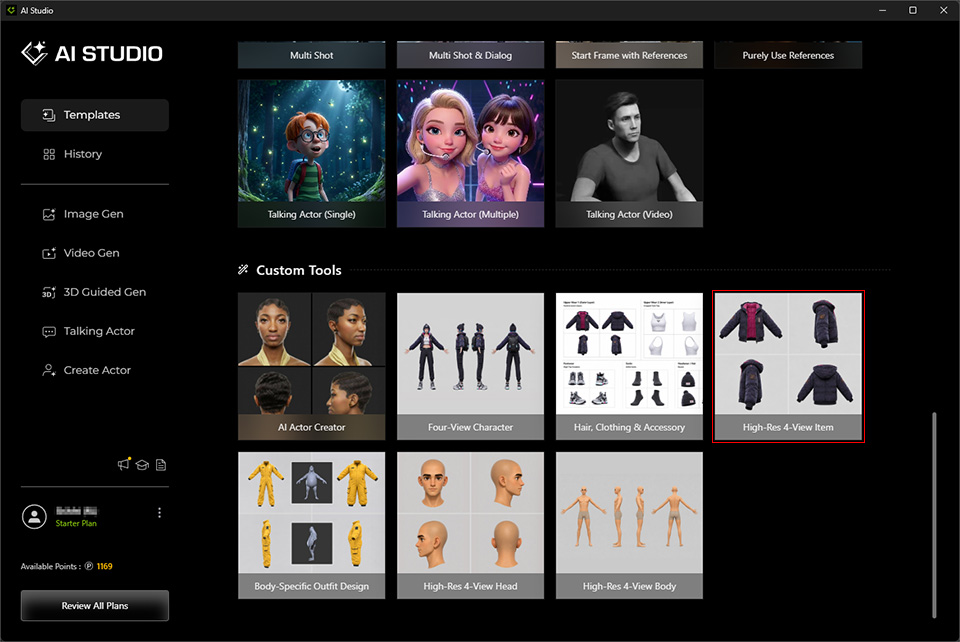
The High-Res 4-View Item template generates high-resolution (3840 × 2160, 4K) four-view images of individual items for use with the Clothing, Hair and Accessory mesh type in AI Mesh Generator. The high-resolution output helps preserve fine details when generating 3D meshes.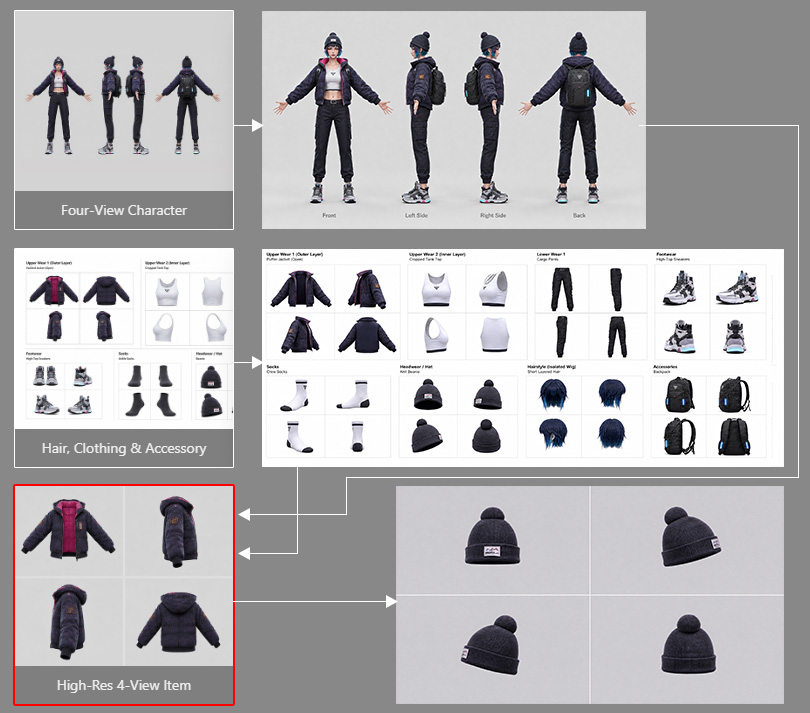
Replace Reference Images
- In Image Gen > Edit > Custom, locate the Operation section and replace the reference images as follows:
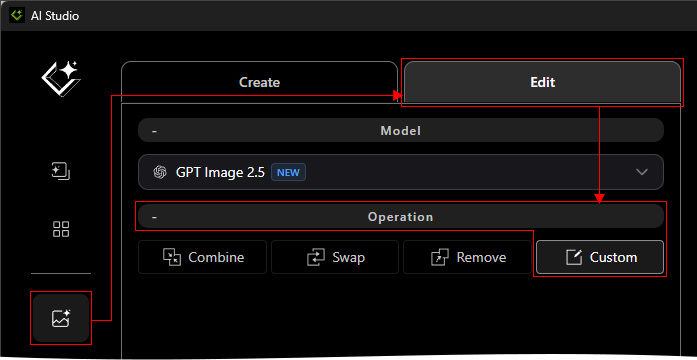
- Drag and drop images from the History list (or any custom character four-view image) to replace the Images:
- Image 1: Use the four-view character image generated by the Four-View Character template.
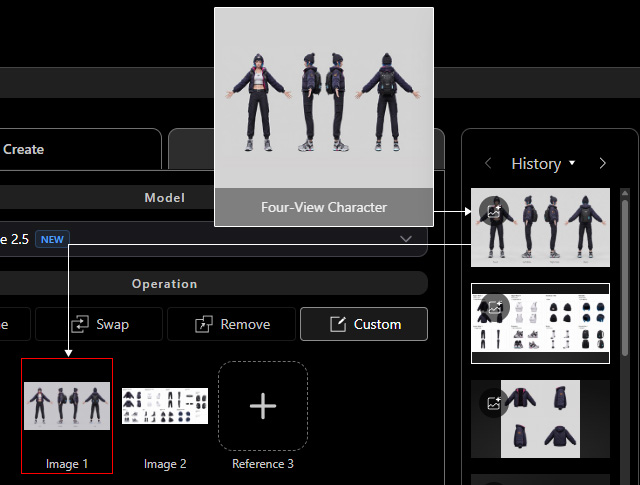
- Image 2: Use the exploded-view image generated by the Hair, Clothing & Accessory template. This image contains individual items such as outerwear, innerwear, pants, hats, hair, socks, shoes, and accessories.
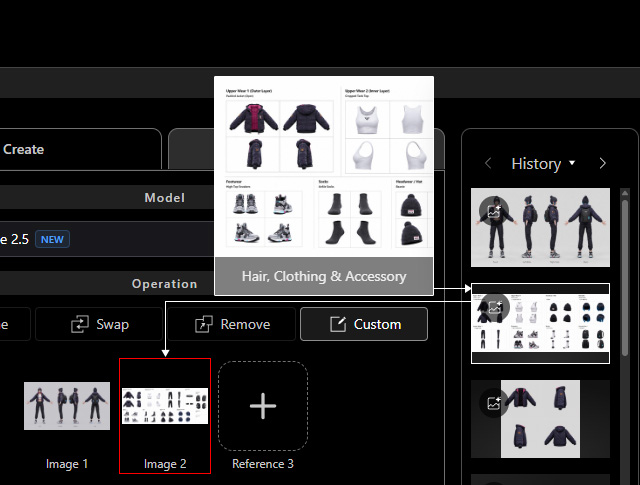
- Image 1: Use the four-view character image generated by the Four-View Character template.
Update the Prompt
- The prompt is preconfigured. Modify only the item name in the following prompt:
- Observe the first paragraph: An isolated 3D asset breakdown sheet of ONLY "[ Upper Wear 1 ]" from Image 1 on a clean light-gray background, 16:9 aspect ratio with a balanced 2x2 grid layout.
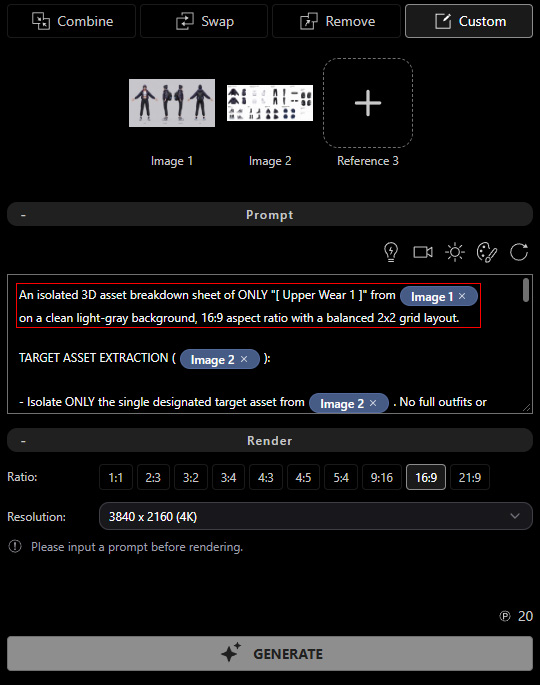
- Replace UPPER WEAR 1 with the built-in name of the item you want to generate, as shown in the exploded-view image.
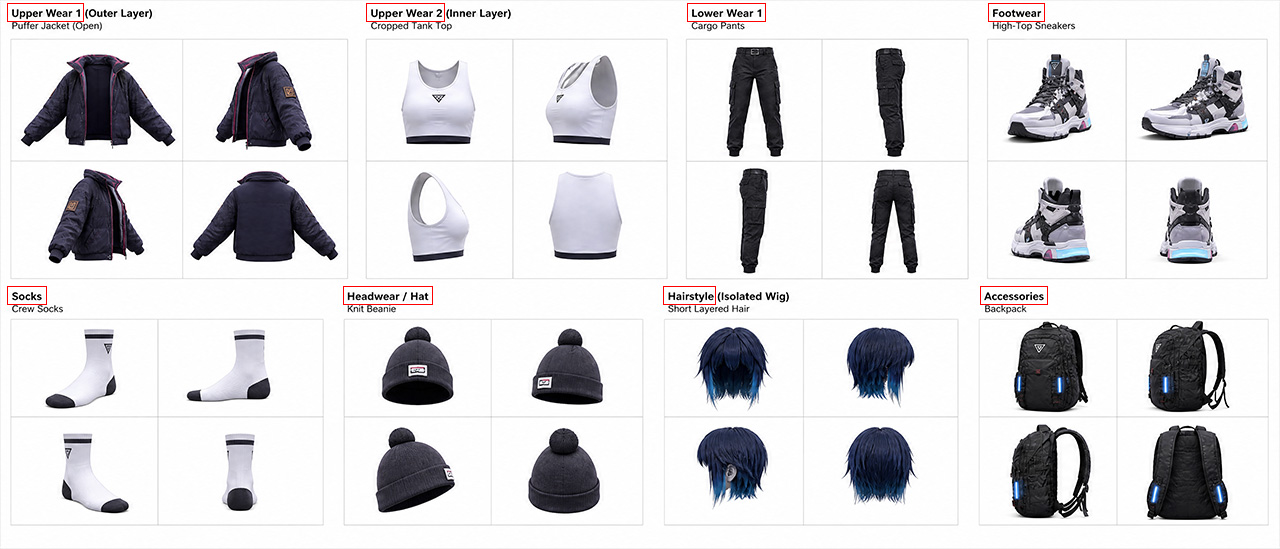
For example, use Headwear or HAT to generate the hat.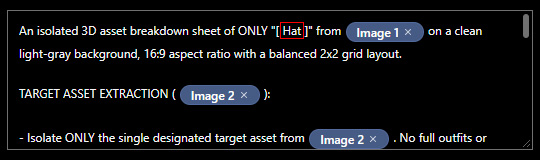
- Do not modify any other part of the prompt.
- Observe the first paragraph: An isolated 3D asset breakdown sheet of ONLY "[ Upper Wear 1 ]" from Image 1 on a clean light-gray background, 16:9 aspect ratio with a balanced 2x2 grid layout.
- Click GENERATE to create the four-view image. Generate again if you are not satisfied with the result.
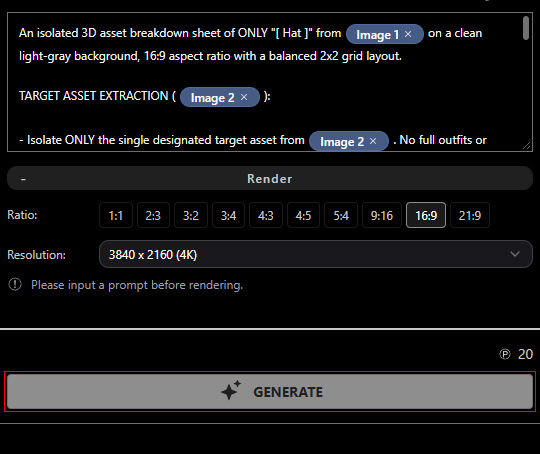
AI Studio will generate an Outfit Breakdown Sheet. It is ready for the High-Res 4-View Item template.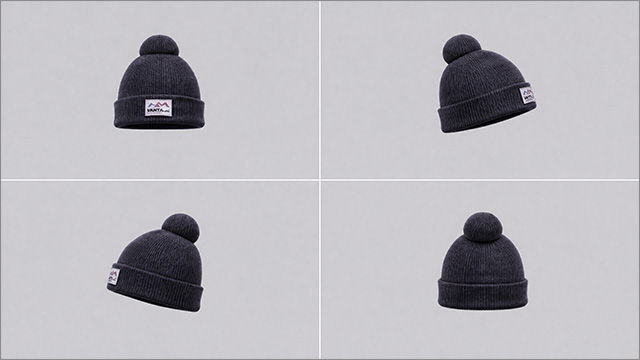
Copy Each View
- Activate the Select tool.
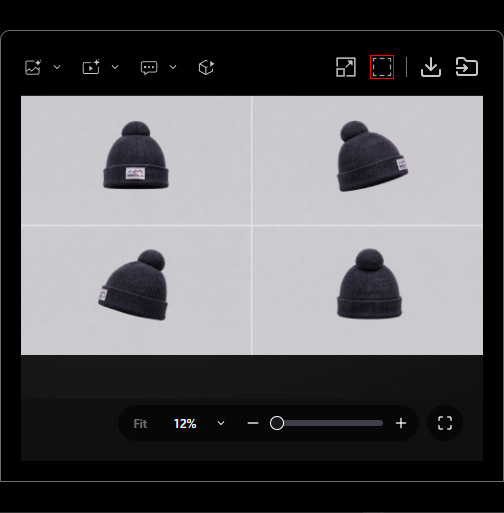
- Select one view from the generated four-view image.
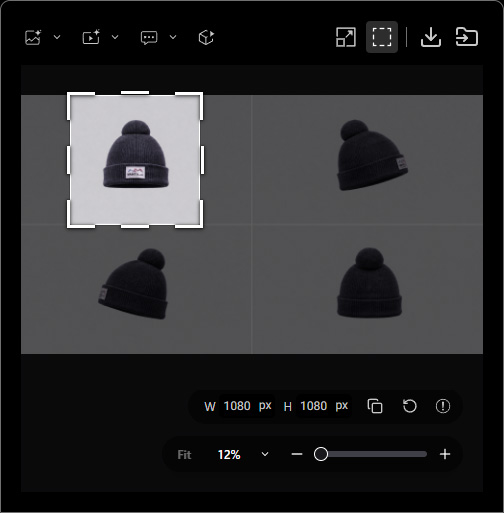
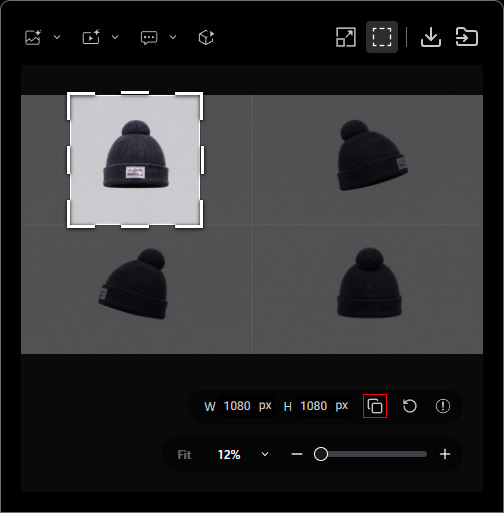
- Click Copy to Clipboard below the selection, or press Ctrl + C, to copy the selected view to the system clipboard.
Import Views into AI Mesh Generator
- Open AI Mesh Generator and go to the Mesh Generation page.
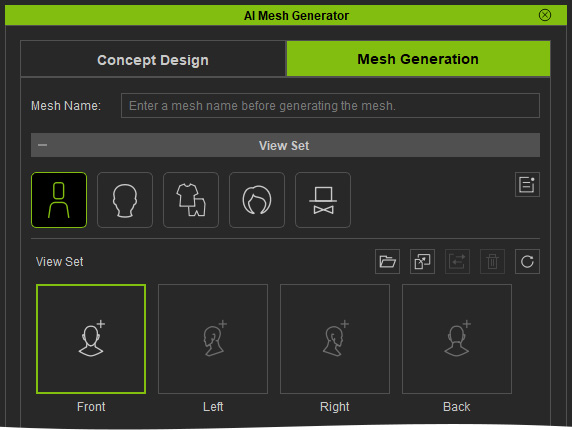
- Set the corresponding Mesh Type and Part. Under View Set, select the corresponding slot: Front, Left, Right, or Back.
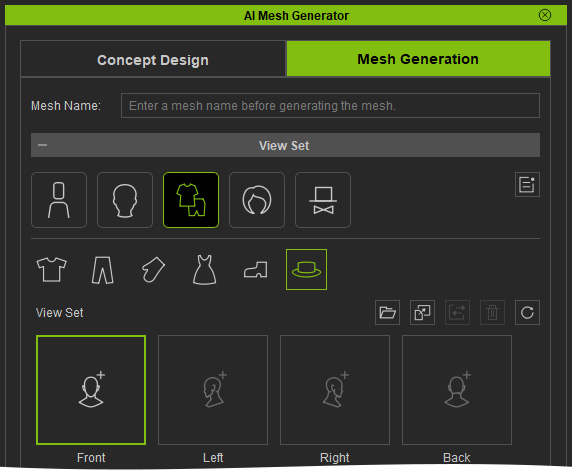
- Click Paste image from clipboard, or press Ctrl + V, to paste the copied view into the selected slot.
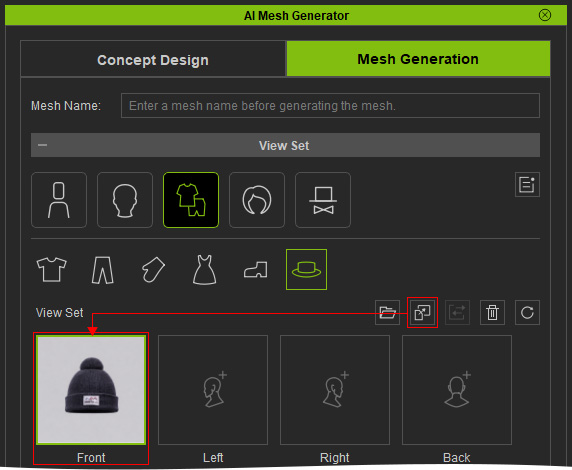
- Repeat for the remaining views. A Front view is required; the other three views are optional.