Loading Concept Design Projects (New for v5.2)
There are two ways to load a previously generated Concept Design project back into the Concept Design page: through the Task Queue panel or by loading the project folder directly.
Loading a Project from the Task Queue
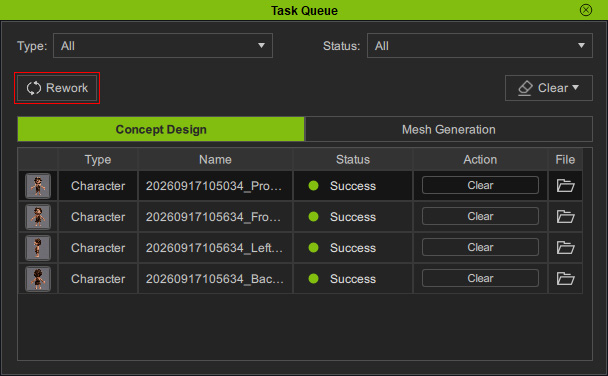
Use Rework to restore a completed Image Task and its settings to the Concept Design page.
- Open the Task Queue panel and switch to the Concept Design tab.
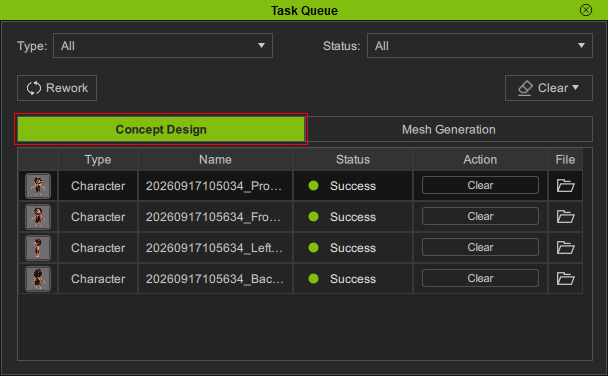
- Select the Task you want to rework.
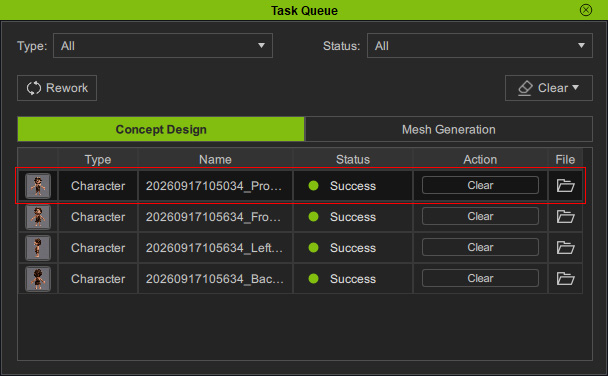
- Click Rework at the top of the panel.
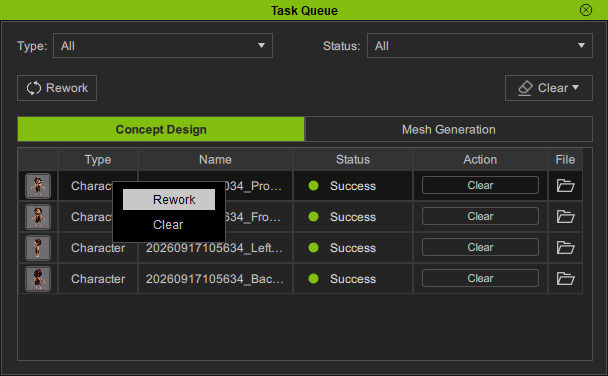
- Alternatively, right-click the Task and select Rework from the context menu.
- The Task's settings and generated images are restored to the Concept Design page.
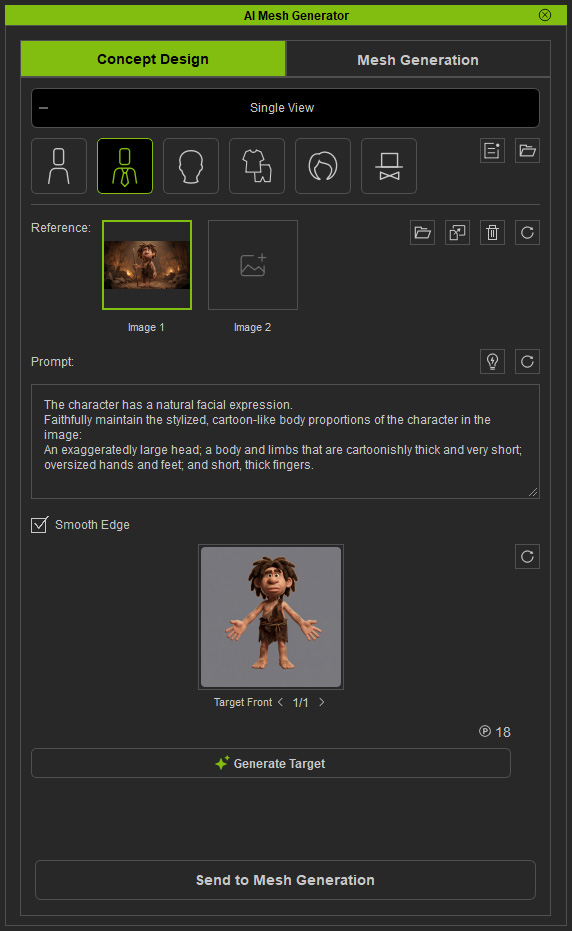
- Mesh Types and Parts
- Reference Images
- Prompt Text
- Smooth Edge Setting
- Target Front View (including its REF Front)
Loading a Project from the Project Folder
You can also load a Concept Design project directly from its project folder.
- Open the Task Queue panel and switch to the Concept Design tab.
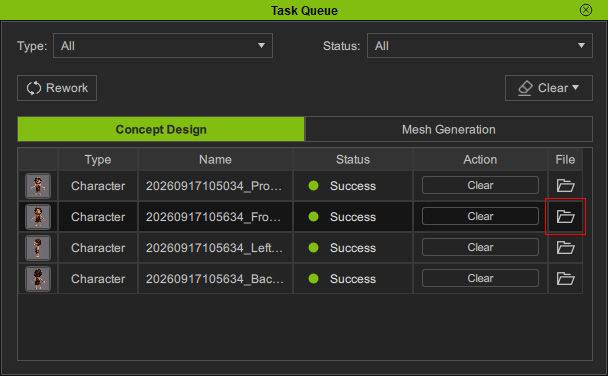
- Locate the Task you want to load and click Find File to open the Task's project folder.
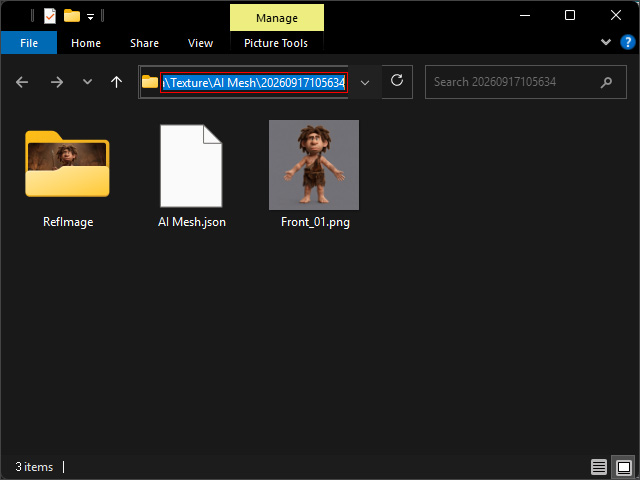
- Copy the path of the project folder.
- Launch AI Mesh Generator panel and switch to the Concept Design page, then click the Load Concept Design Project button.
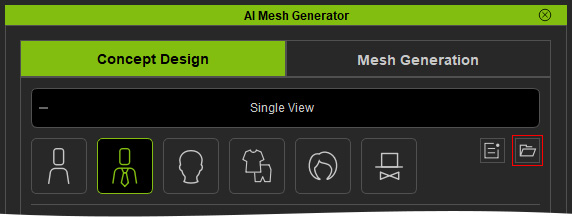
- Enter or paste the copied project folder path.
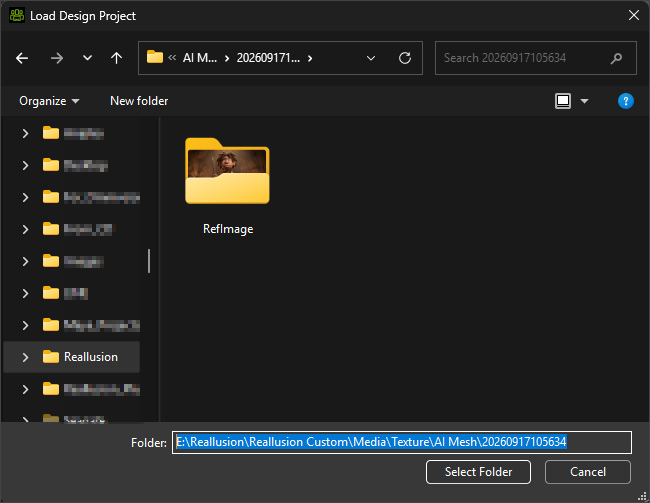
- The Task's settings and generated images are restored to the Concept Design page.
- Mesh Types and Parts
- Reference Images
- Prompt Text
- Smooth Edge Setting
- Target Front View (including its REF Front)
