Preserving Eye and Mouth Borders with Keep Borders
Keep Borders preserves the current shape of the eye socket and mouth opening during brush editing.
Aligning Eye and Mouth Borders
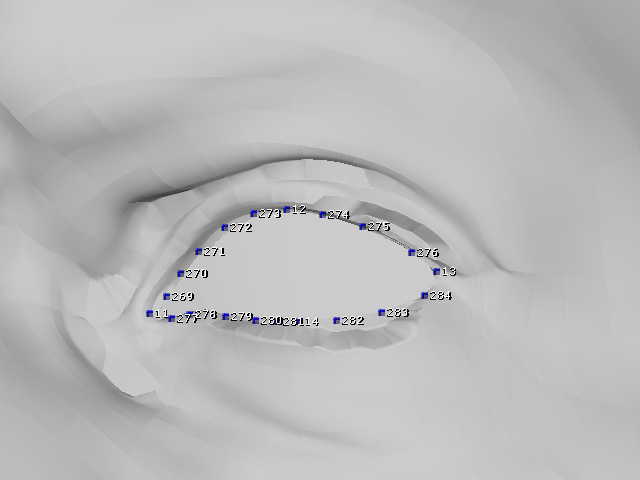
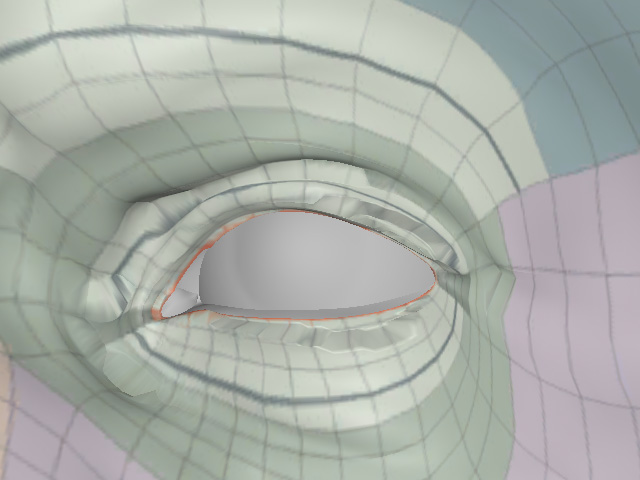
The accuracy of the eye and mouth borders in Refine Mesh depends on the Align Points assigned in the Align Points step. Detailed Align Points around the eye sockets and mouth opening allow the CC5 HD character to conform more accurately to the imported model. With more Align Points, these areas may align correctly.
|
|
|
Extra align points manually added |
Accurate eye socket border |
Using Keep Borders
Enable Keep Borders only after the eye sockets or mouth opening of the CC5 HD character have been accurately aligned with the imported character model.
- Make sure the CC5 HD character eye socket or mouth opening is accurately aligned with the corresponding area of the imported character model. In this example, the eye socket is aligned first.
- Enable Keep Borders.
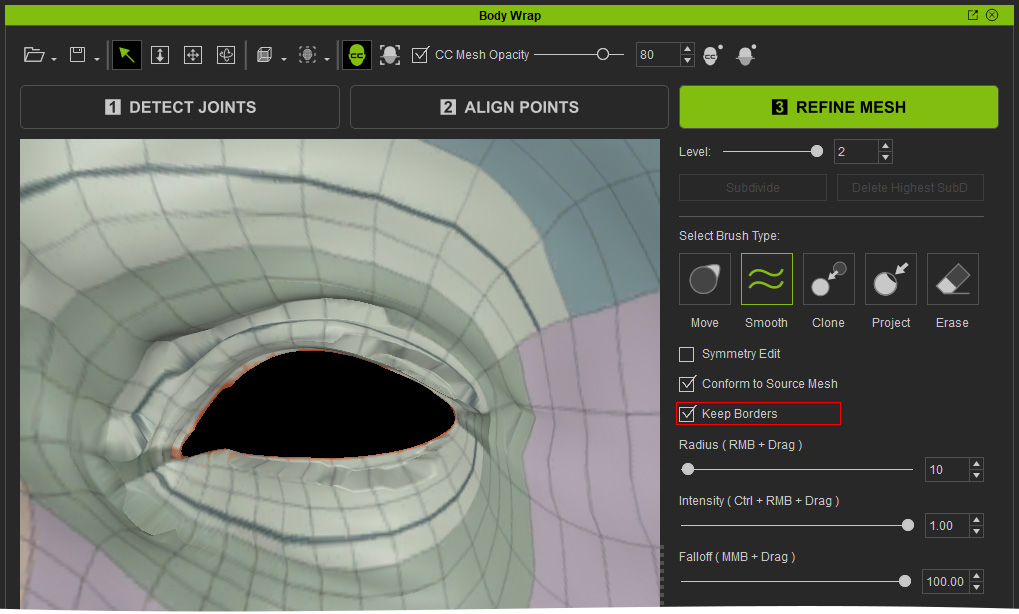
- Select a brush that supports Keep Borders (Move, Smooth). Then brush over the wireframe around the eye socket to refine the surrounding surface.
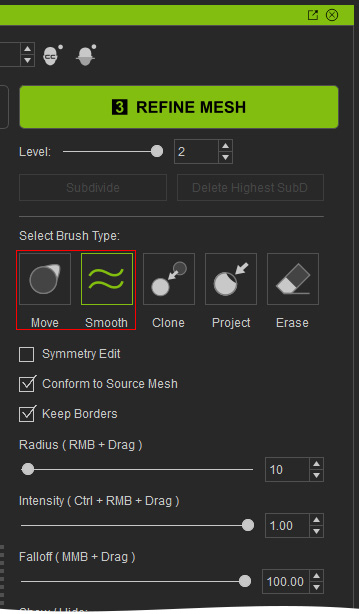
- With Keep Borders enabled, the eye socket border remains unchanged while the surrounding surface is moved or smoothed. Without it, brushing over the border may cause the vertices to shift and the surrounding topology to become distorted.
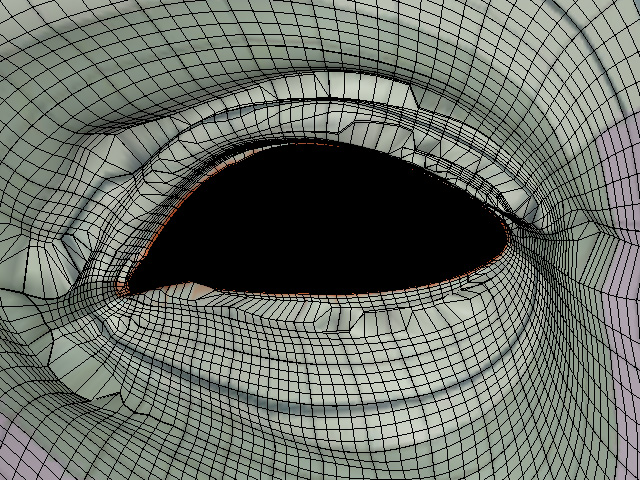
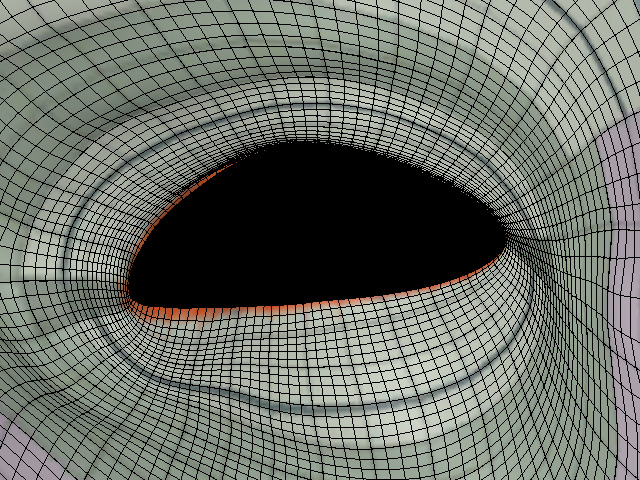
Before
Keep Borders Off + Move & Smooth Edit
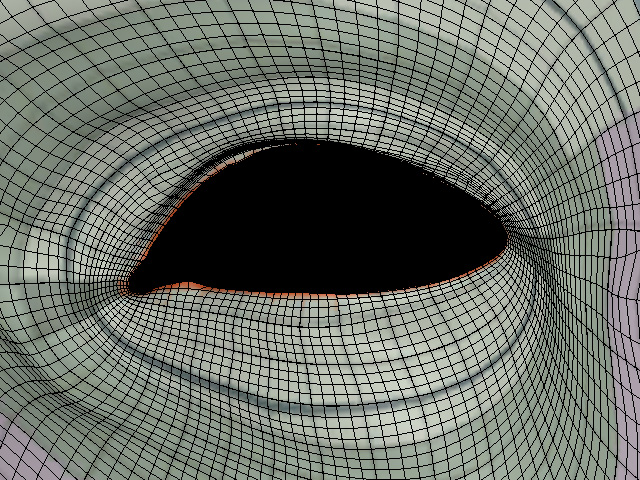
Keep Borders On + Move & Smooth Edit
 Tip:
Tip:
Keep Borders preserves the eye socket and mouth opening borders in their current state. Therefore, make sure these areas are correctly aligned before enabling the option.
