Adjusting Subdivision Levels
The Subdivision setting increases the mesh density of the CC5 HD character, allowing it to capture more detailed surface features of the imported character model. Use higher subdivision levels when the source model contains details that cannot be represented at Subdivision Level 0.
 Note:
Note:
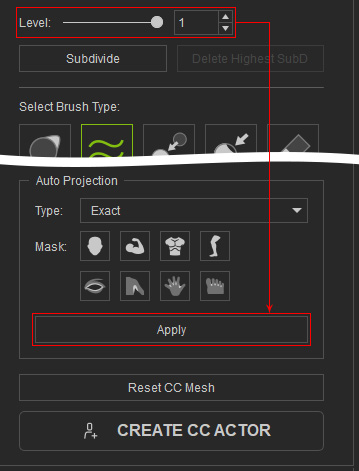
After increasing the subdivision level, click Apply in Auto Projection to reapply the projection and display the additional surface details. See Using Auto Projection for more information.
Adjusting the Subdivision Level
- Switch to the Refine Mesh step.
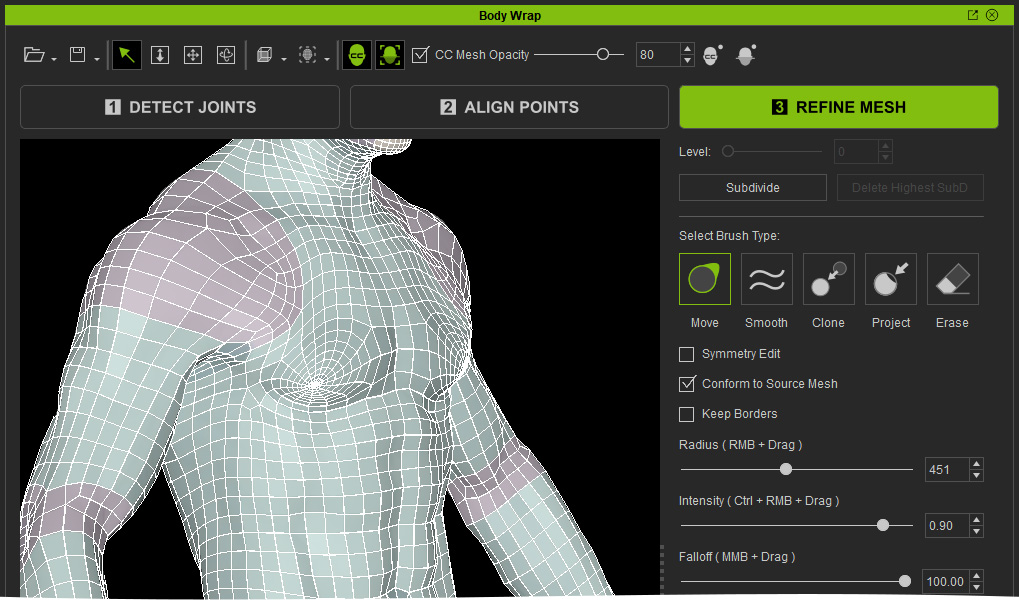
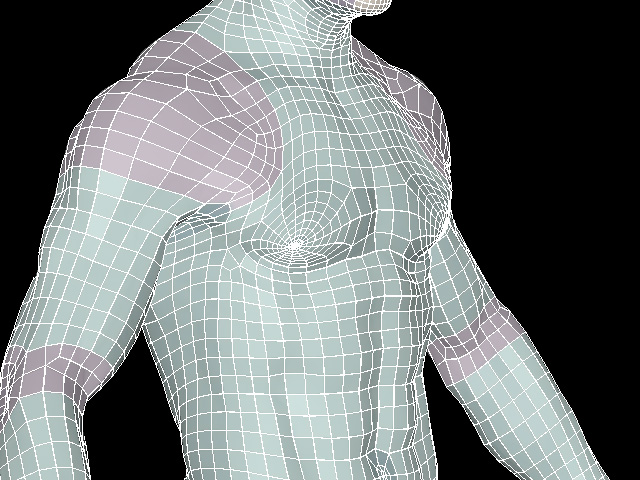
- Check the CC5 HD character's surface in the Viewport and identify details that are not sufficiently represented.
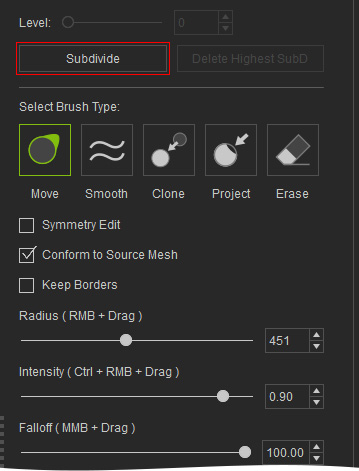
- Click Subdivide to increase the subdivision level from 0 to 1.
- Click Apply in Auto Projection to reapply the projection and update the CC5 HD surface with the additional details.
- Check the result in the Viewport.
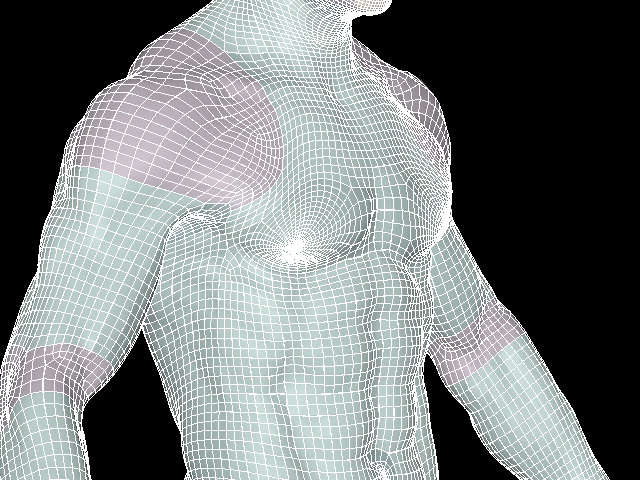
- Repeat step 3 and 4 again.
- Check the result in the Viewport to see the additional mesh detail.
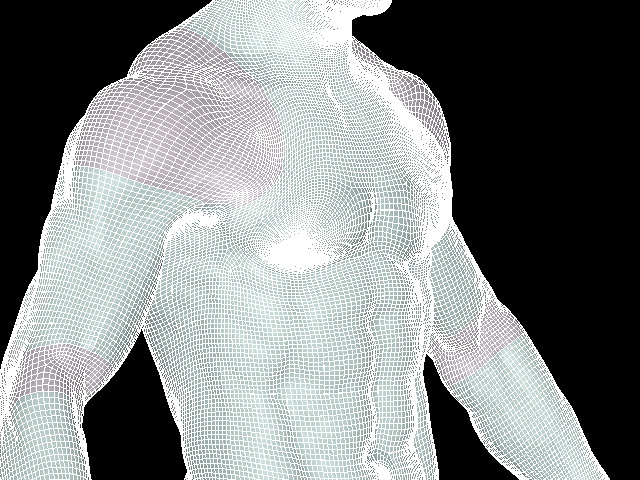
Tip:
Higher subdivision levels provide more geometry for capturing fine details, but also increase the mesh density. Use the lowest level that provides sufficient detail for your needs.
