Synchronizing the Preview Cameras
The camera synchronization controls allow you to synchronize the preview cameras in the left and right viewports, making it easier to compare corresponding areas of the CC5 HD character and the imported model. You can synchronize camera operations, calibrate the views based on their current positions, or quickly reset the right viewport to match the left viewport.
Sync Camera
The Sync Camera checkbox synchronizes camera operations between the left and right viewports. When enabled, camera operations performed in either viewport are applied to both preview cameras, including Pan, Orbit, and Zoom.
Calibrate Camera
Calibrates the preview cameras based on their current views and automatically enables Sync Camera for synchronized camera operations.
To calibrate the cameras for a specific body part:
- Move the left viewport to focus on a body part. With Sync Camera enabled, the right viewport follows, but the body part may move out of view because the imported model differs from the CC5 HD character.
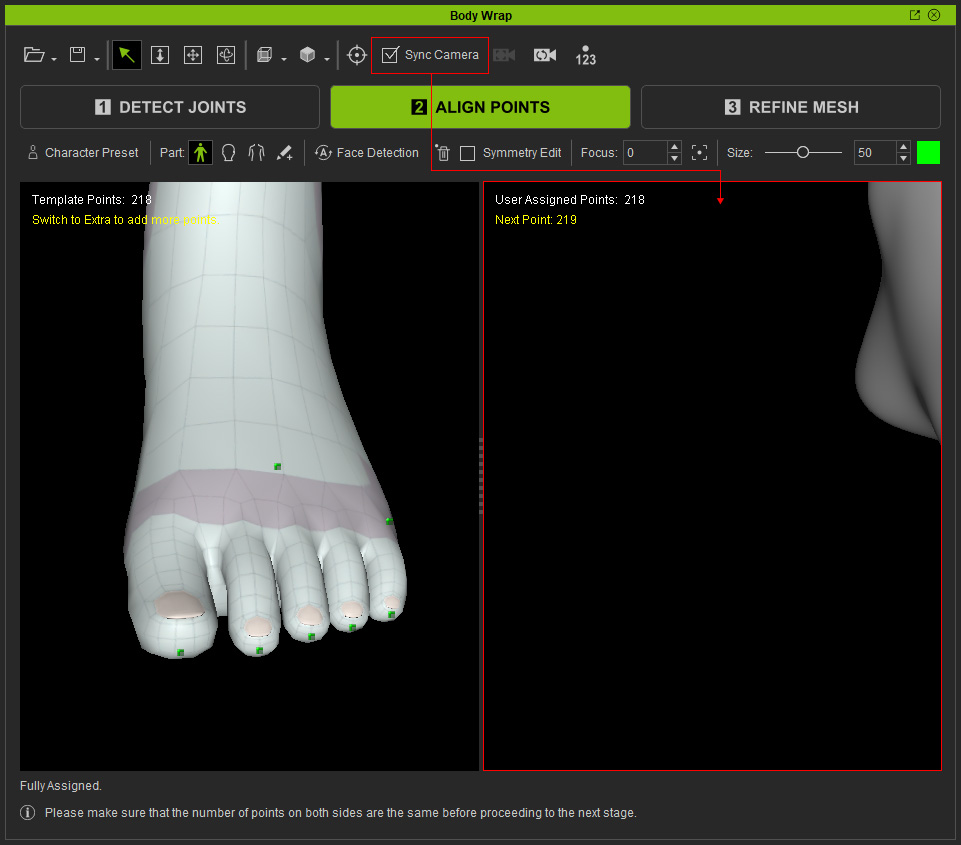
- Disable Sync Camera.

- Adjust the camera in either the left or right viewport to focus on the desired hand or foot.
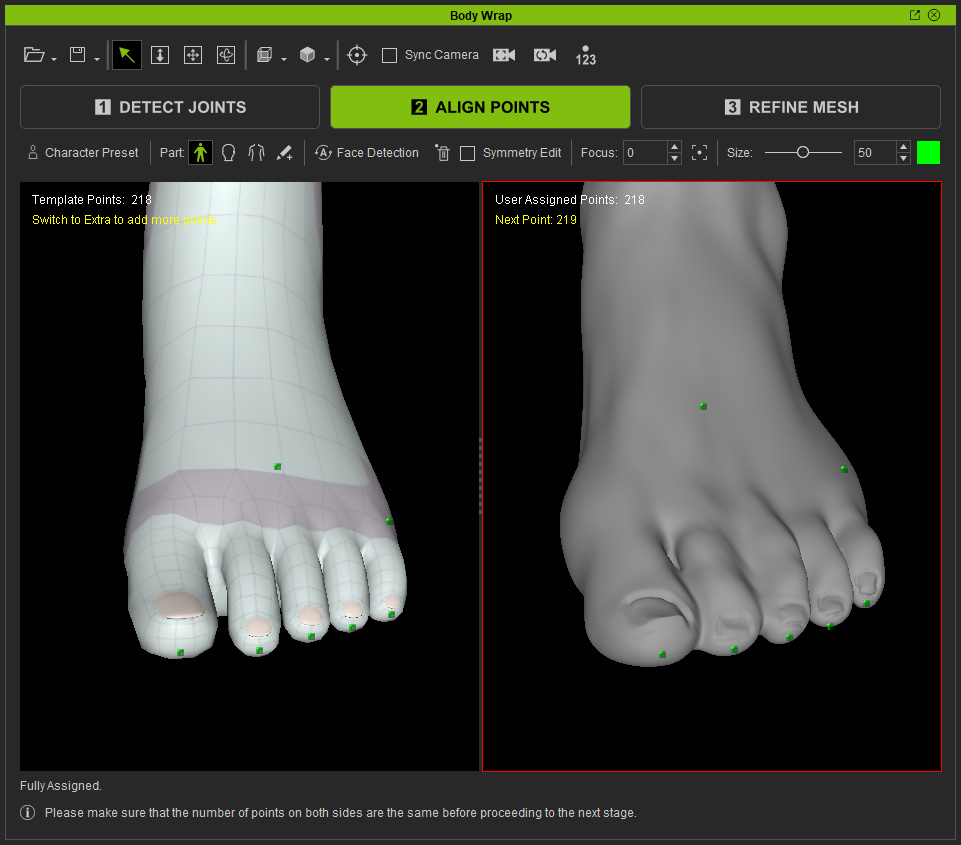
- Click Calibrate Camera.

- Sync Camera is automatically enabled, allowing you to Pan, Orbit, and Zoom both viewports together while maintaining the calibrated views.
Reset Camera
Use Reset Camera to quickly restore the right viewport to the same camera view as the left viewport when the right view becomes difficult to follow.
- When the Syn Camera is deactivated and the left viewport is adjusted to the desired camera view.
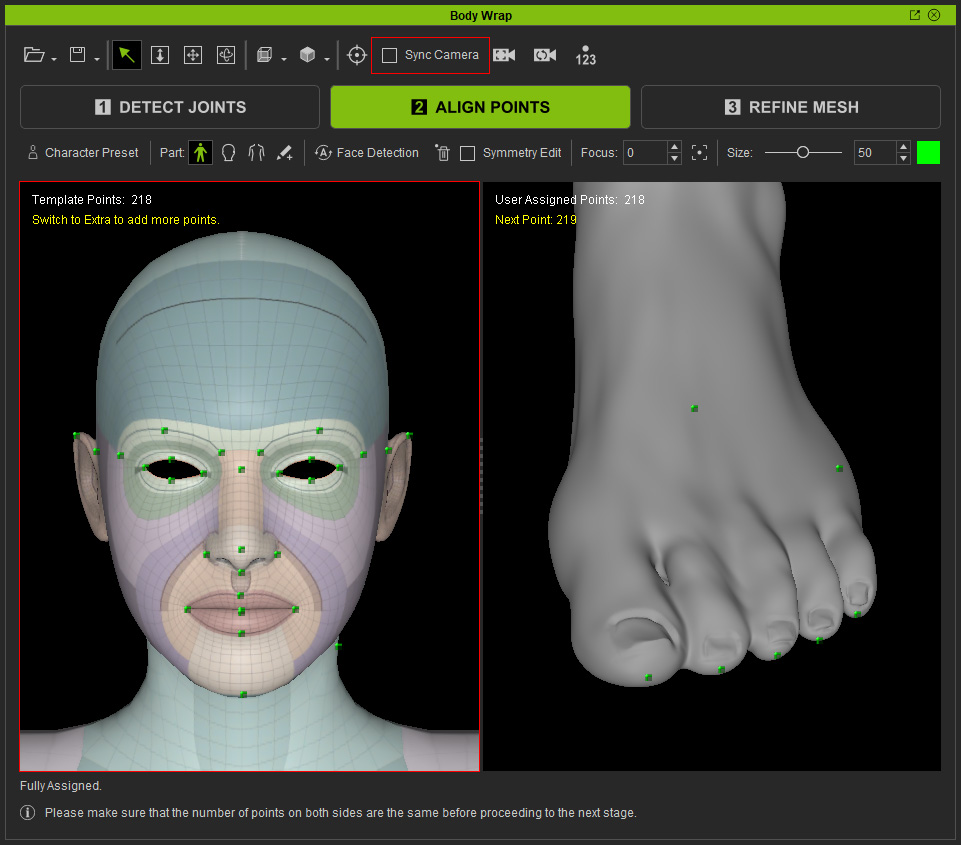
- Click Reset Camera.

- The Sync Camera checkbox is automatically enabled, and the right viewport is aligned to the current view of the left viewport.
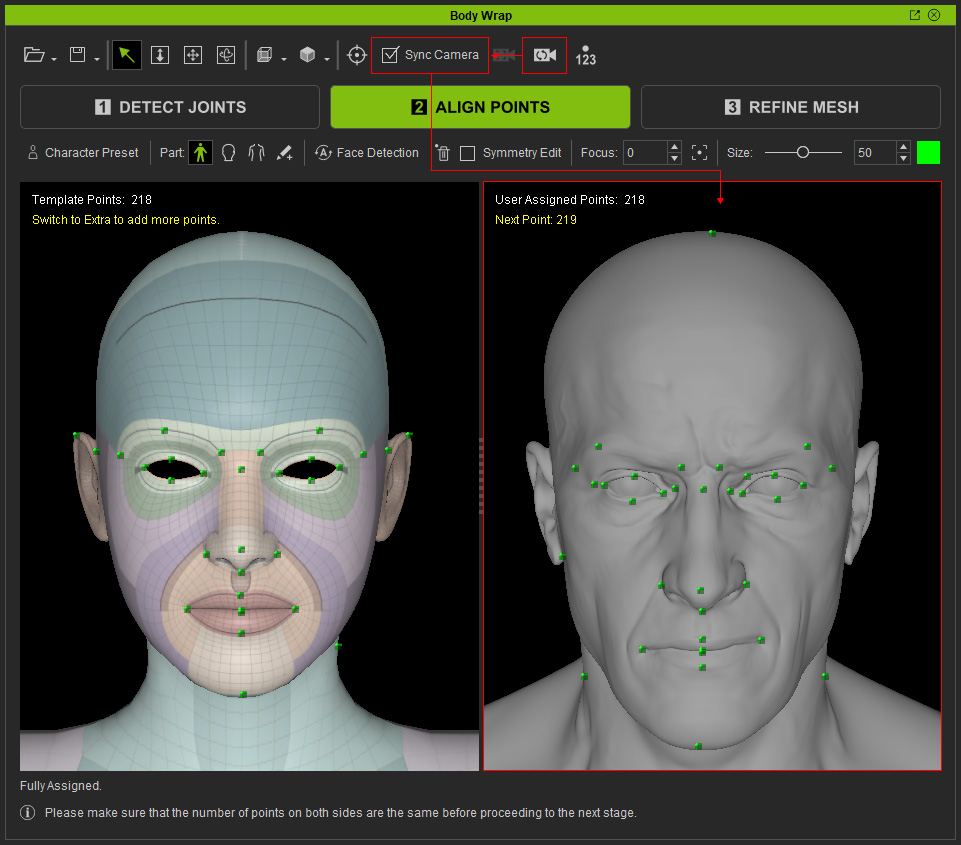
- Pan, Orbit, or Zoom in either viewport to operate both preview cameras simultaneously.
