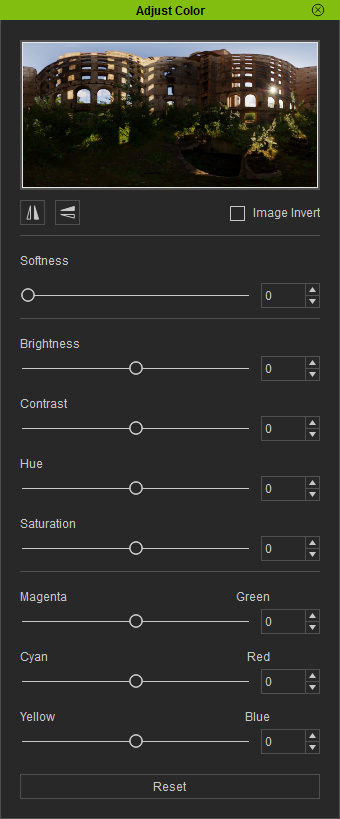
IBL can be adjusted by using the parameters available in the Adjust Color panel.
To show the Adjust Color panel, click the button.
Color Adjustment
Modify the color settings of the IBL image to quickly change the tone of the scene.
Create a new project and optionally apply a custom IBL image (in this case, the default IBL
image is used).
Adjust the parameters in the Adjust Color panel.
Note:
If the IBL image is in
HDR
or EXR format, then the
Brightness,
Contrast, Magenta-Green,
Cyan-Red and
Yellow-Blue sliders will be disabled.
You are able to set the texture and
transformation of the sky dome to
be the same as the one for IBL
for consistency of light and environment.
Please refer to the IBL and Sky
section for more information.
Using External Image Editor
You can also adjust the IBL image with any external image editor.
Given a project in which all the lights are out.
Activate the Activate IBL box to use the default
IBL.
In the Image Based Lighting section, click the
Launch button to invoke the external image editor (in
this case, Photoshop).
Modify the image.
Save the image and switch back to Character Creator.
Repeat steps 2 and 3 until you are satisfied with the results.
Note:
IBL does not create shadows.
You may set
Transform keys for the
IBL sphere
to adjust the location, angle, and size of the light source.
Softness of IBL
The image applied for
IBL sometimes maybe too sharp,
especially when you are using an HDR image, which can cause the
IBL
look like it is projecting textures onto objects.
Character Creator provides a softness feature to help you
blur the IBL image.
 button.