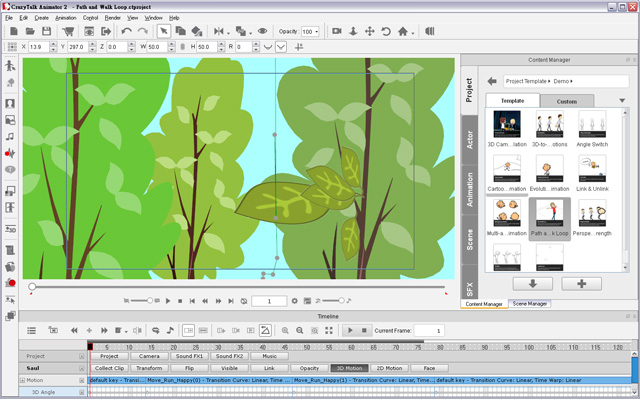
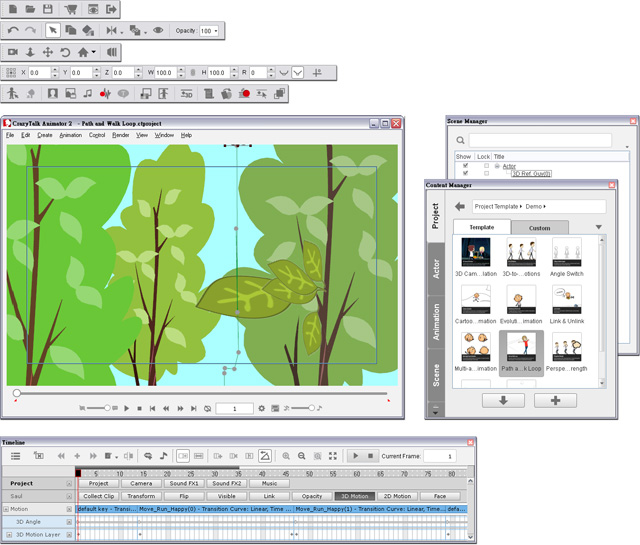
All the panels in CrazyTalk Animator, such as Tool Bars, Content Manager and Scene Manager and Timeline can be docked or undocked. By docking the panels, you can quickly access the tools or templates without having to hover the mouse too far; while by undocking the panels, you can get a wider and clearer working area for better viewing custom projects. You may double-click the panel zone to dock or to float a panel.
After the panels are docked,
the tools on the Tool Bars,
the templates in the Content Manager,
the objects in the Scene Manager
and the features in the Timeline can be easily accessed.
When the panels are undocked,
they float above the main program and the working area enlarges to present a better view.
You may then move the panels elsewhere to prevent from hindering the working area.
If you are using dual-display environments,
then you may move the panels to one display while keeping the main program on the other.
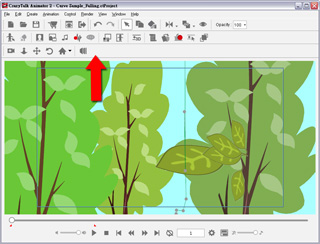
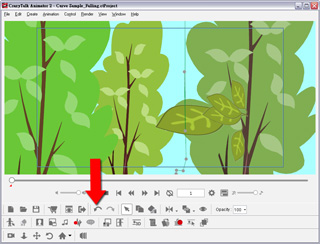
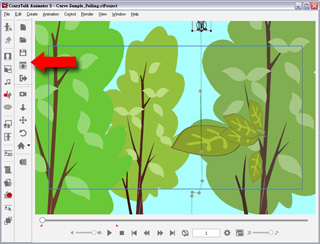
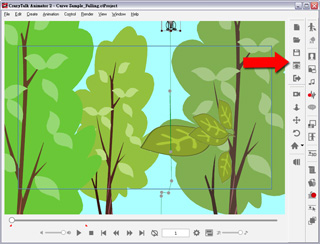
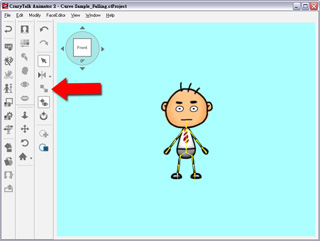
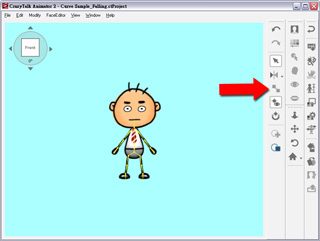
The tool bars can be docked to the top, bottom, left and right of the main program when you drag and drop it into the area. You may access the Window commands from the menu to show/hide the tool bars.
|
|
|
Docking Top. |
Docking Bottom. |
|
|
|
Docking Left. |
Docking Right. |
|
|
|
Docking Top. |
Docking Bottom. |
|
|
|
Docking Left. |
Docking Right. |
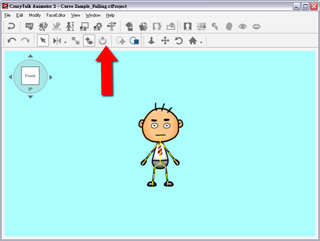
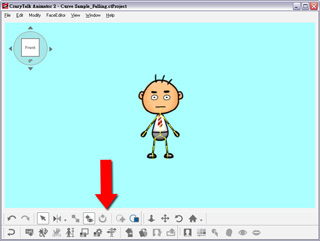
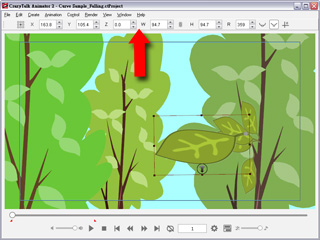
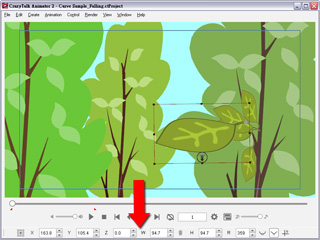
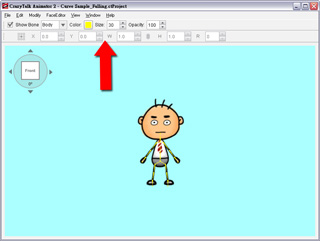
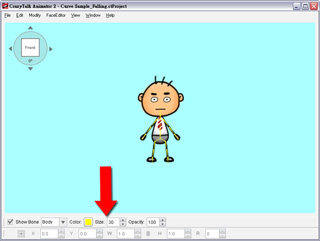
The property bars can be docked to the top and bottom of the main program when you drag and drop it into the area. You may access the Window commands from the menu to show/hide the property bars.
|
|
|
Docking Top. |
Docking Bottom. |
|
|
|
Docking Top. |
Docking Bottom. |
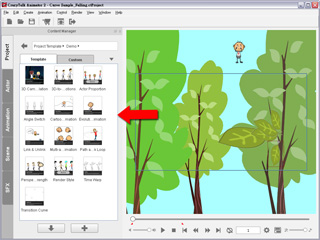
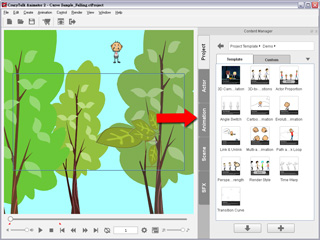
The Content Manager can be docked to the left and right of the main program when you drag and drop it into the area. You may use F4 to toggle the visibility of the Content Manager panel.
|
|
|
Docking Left. |
Docking Right. |
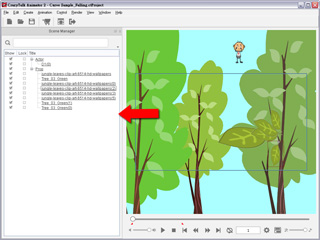
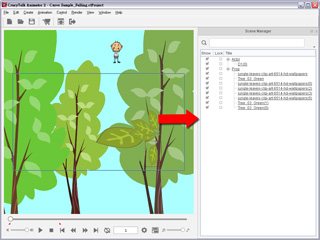
The Scene Manager can be docked to the left and right of the main program when you drag and drop it into the area. You may use F5 to toggle the visibility of the Scene Manager panel.
|
|
|
Docking Left. |
Docking Right. |
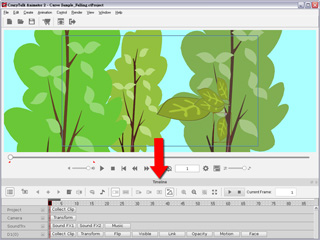
The Timeline can be docked to the top and bottom of the main program when you drag and drop it into the area. You may use F3 to toggle the visibility of the Timeline panel.
|
|
Docking Bottom. |