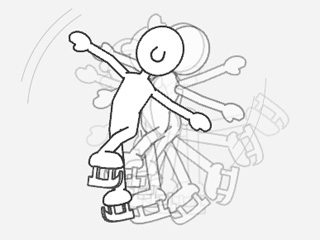
Blending Motion Clips (New for 2.1)
When applying motions one after the other, you will often come across a problem where the last frame of the first clip doesn't match the first frame of the second clip. The character may be in two completely different poses, and this can cause a problem when transitioning from one clip to another. In order to blend the poses, you need to use the Blending feature on the
Timeline.
Each clip contains a transition area at the beginning. Find out how to use this area to blend two clips together below.
|
Note:
|
-
It is highly suggested that you use either two 2D motions or two 3D motions for the best blending effect.
-
Although blending can be performed between 2D and 3D motions, the results may not always be ideal or accurate.
|
Smoothening Transition for Motions in Identical Directions
-
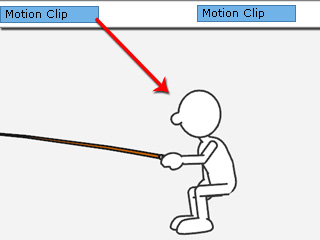
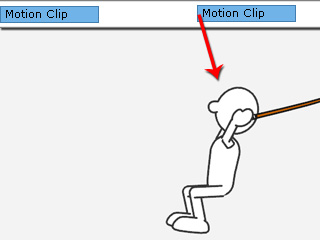
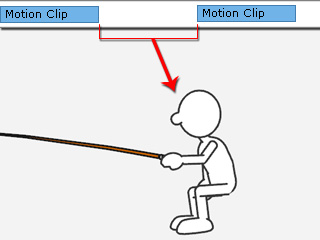
Apply two motion clips to your scene. The illustrations below show the poses of the character at the end and start
frames of the two clips.
-
The interval pose of the character remains the same as the last pose of the previous clip.
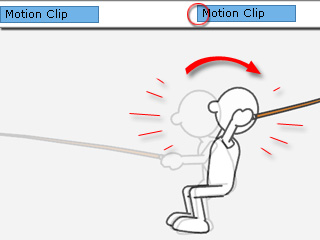
It will suddenly snap to the pose of the second clip
when the playhead encounters it.
|
|
|
Still interval pose (without blending)
|
Snapping to the second pose with a sudden change
|
You may play back to view the motions without transition effect.
-
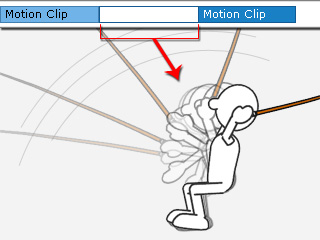
Select the later clip and notice the blank transition area before the clip.
(Empty rectangle)

-
Drag the left edge to decide the start timing for the transition.

-
The character will now gradually change its pose during the duration of the transition area.
|
Note:
|
|
The blending area can overlap the previous clip if you want
the blending effect to happen earlier.
|
Smoothing Transitions for Motions with Different Directions
When a character has two motions that are in different directions, the hopping
issue will be even more obvious because both the directions and the motions suddenly
change when the play back runs to the start frame of the latter clip. To solve the
hopping issue, simply add transition effects between two motion clip and the hopping
issue will be alleviated tremendously.
-
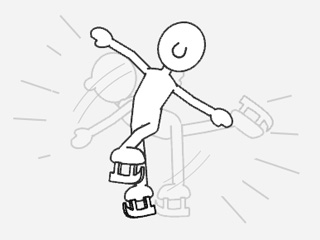
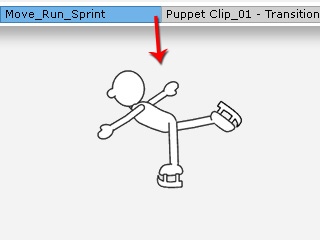
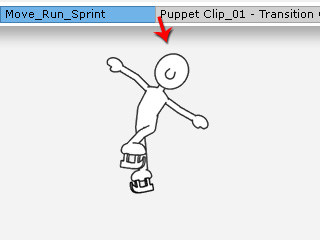
In this project the character has been given two motions (in this case, a skating in 270 degrees and a frontal posing motions
are created).
|
|
|
The first running motion is at 315 degrees.
|
The second running motion is at 0 degrees.
|
-
Play back to view the result.
The hopping issue is very apparent during the transition.
-
Drag the blending edge of the latter motion clip ahead to overlap the previous
motion clip a little bit.

-
Play back to view the result. The hopping issue will turn out to be less drastic
and the motions appear to be continuous.