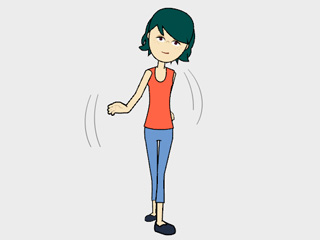
Removing Motions of Body Parts
CrazyTalk Animator provides a lot of built-in motion templates for characters. However, sometimes you maybe need to make
small adjustments to specific body parts from motion templates to generate a new custom motion,
especially when you need to keep some body parts to be motionless or in an
absolute gesture. To do this, you may utilize the
Remove Motion feature to remove certain body part motions and add Motion Layer keys.
Removing Body Part Motions from a Motion Clip
-
Apply any one motion template from library to a character.
-
Open Timeline (Shortcut: F3). Click the Motion button of the character to show its motion track.
You will see that the motion clip is stored inside the track.

-
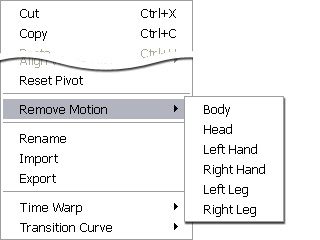
Right-click on the clip, select Remove Motion and pick the body part
(in this case, the Right Hand) from which you wish to remove motions.
You may optionally repeat the same steps to remove motions from other body parts.
-
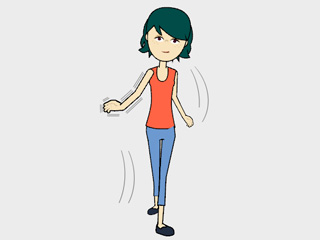
Play back and the motion of the body part is removed from the original motion clip.
Adding Motion Layer Keys to Produce New Motion
After motions of body parts are removed, you may then use the Edit Motion Layer panel to set new poses in body parts to generate
new motions.
-
Click the
 3D Motion Key Editor button.
-
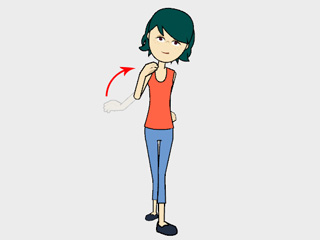
Modify the motionless body parts to create an absolute
posture.
-
Optionally attach a prop to the body part in the composer mode.
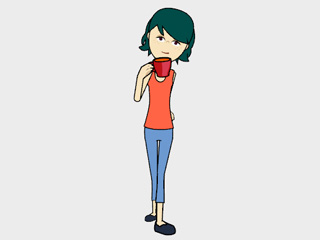
-
Back to the Stage Mode and play back to review the newly generated motion.
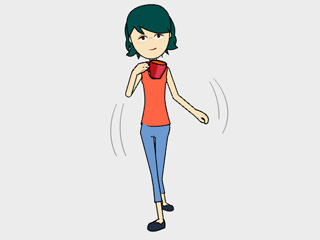
|
Note:
|
-
If you only set motion layer keys, then you will get an offset motion instead of an absolute pose.
Use Remove Motion on an existing motion clip before setting motion layer keys, and the body parts whose motions were removed
will have an absolute pose.
|