Setting Pivots
It is highly recommended that you set your pivots according to our template, and name them properly. Please refer to the downloaded DrawPlus Actor Naming List_Sprite_Pivot_Pose.xls to find the correct names for the pivots.
|
Note: |
|
If you delete the pivot by accident, you
can copy data from the other pivot and change the pivot name to restore the pivot you deleted. |
For best accurate pivot location and smooth joint motion, please follow the steps below:
1.Make sure your lower torso pivot is
right in the center of the lower torso sprite.
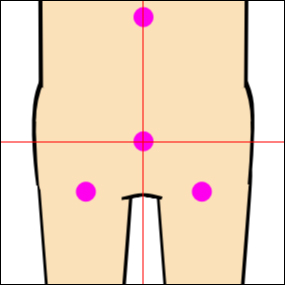
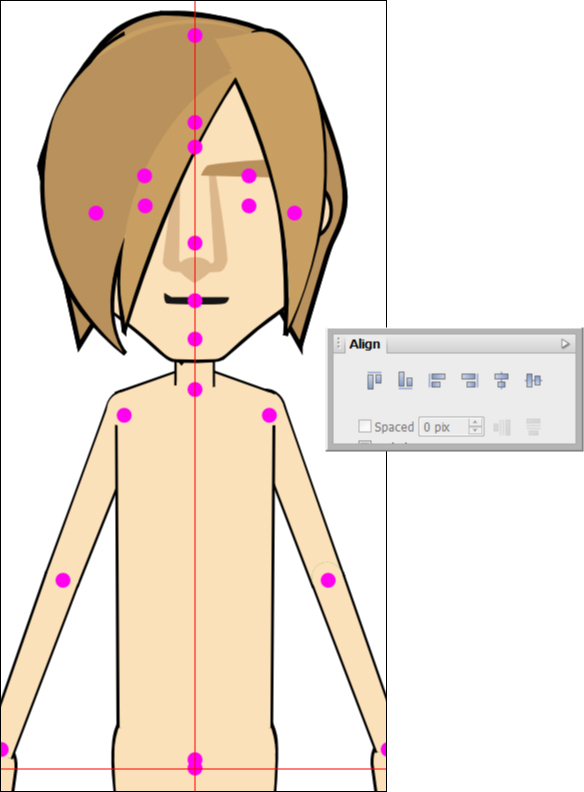
2.Create certain straight lines by
aligning pivots. The straight lines are:
o Body Perpendicular Line: this line is formed by the head
nud, face, neck, and upper torso
pivots. They must be on a straight line. You can set precise values (especially
the X value) by keying in the properties panel.
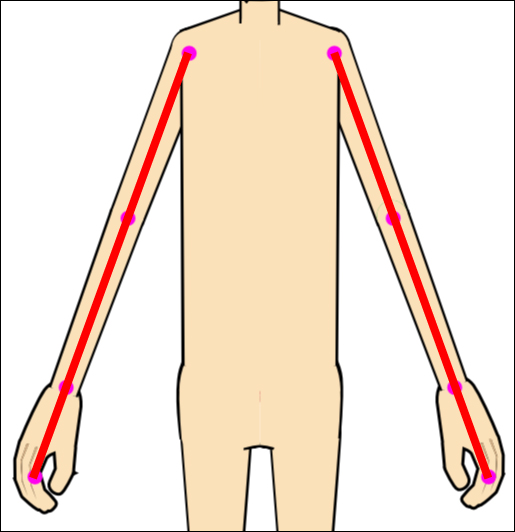
o Hand Straight Lines: The hand pivots should form a
straight line, and they are arm, forearm, hand and Hand
nud pivots.
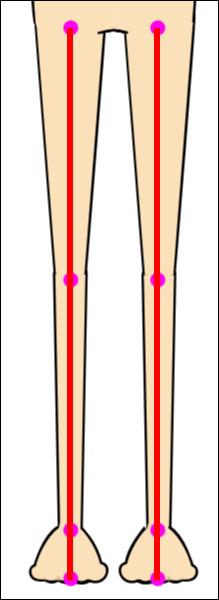
o Foot Straight Lines: The thigh, shank, foot
and foot nud pivots should also form a
straight line.
3.Regulate the pivots in the Top
and Bottom views; To avoid mistakes, please
place the pivots in the correct position in the Top and Bottom
view according to our template.
o The ear pivots must be higher
than the face pivot.
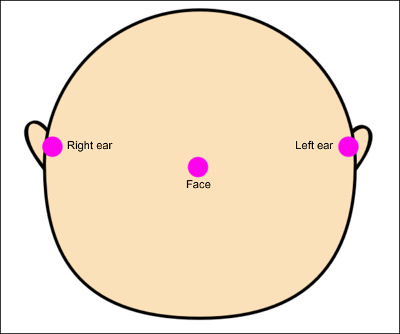
o The back hair pivot must be
above the face pivot.
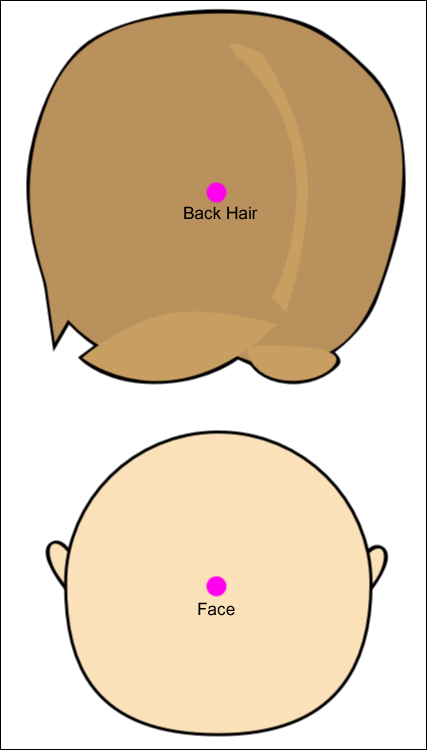
o The hand nud
pivots must be lower than the hand pivots.
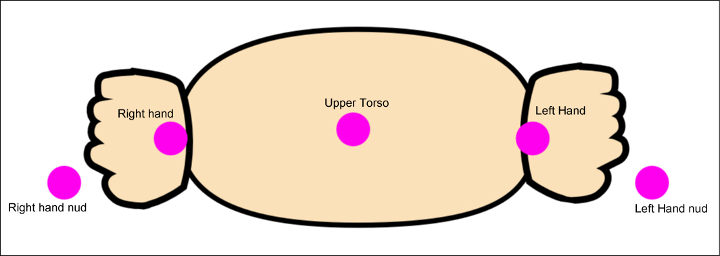
o The foot nud
pivots must be below the foot pivots.
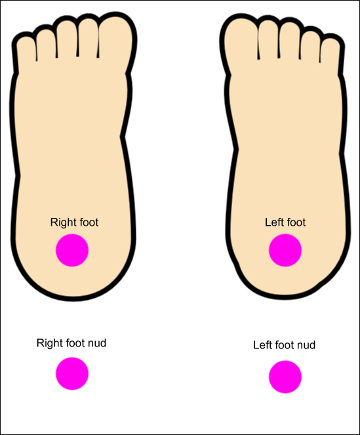
|
Note: |
|
o Please note that the character's
sprites in these two views are separated, however CrazyTalk Animator 2
will automatically assemble the elements together. In Flash, you can leave
the sprites separated so they are easier to draw. o The straight lines mentioned in
the previous steps must be kept in the Top and Bottom view as
well. |