Applying High Quality Hair
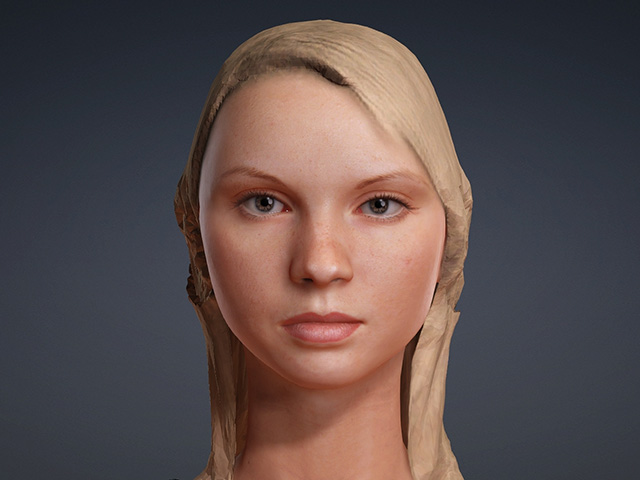
When generating a character, you can choose to apply auto-generated mesh hair for background use. However, this may be too low-poly for main characters, so it is recommended to generate a hairless character and apply higher-quality hair content afterward.
To quickly find and apply a matching hair item, make use of the Smart Search tool.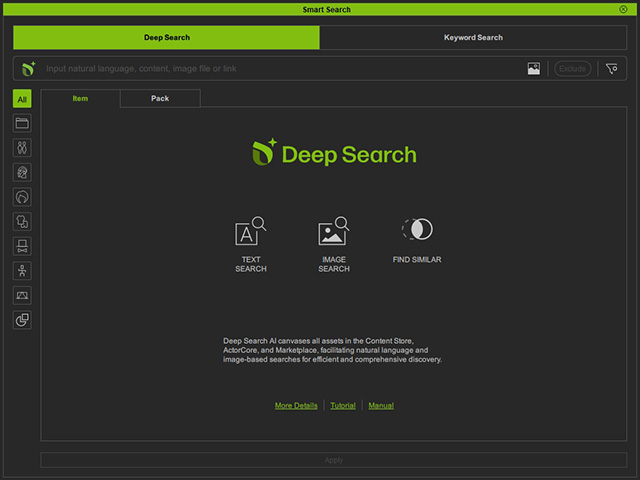
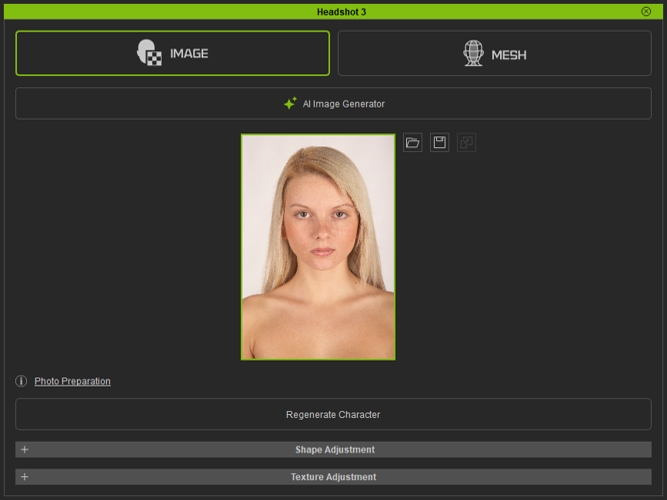
- After generating the character, the source image will remain in the Headshot 3 panel.
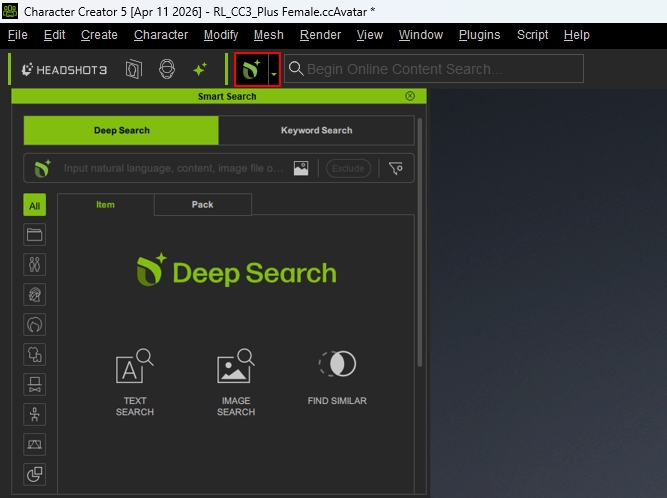
- Open the Smart Search tool from the toolbar.
-
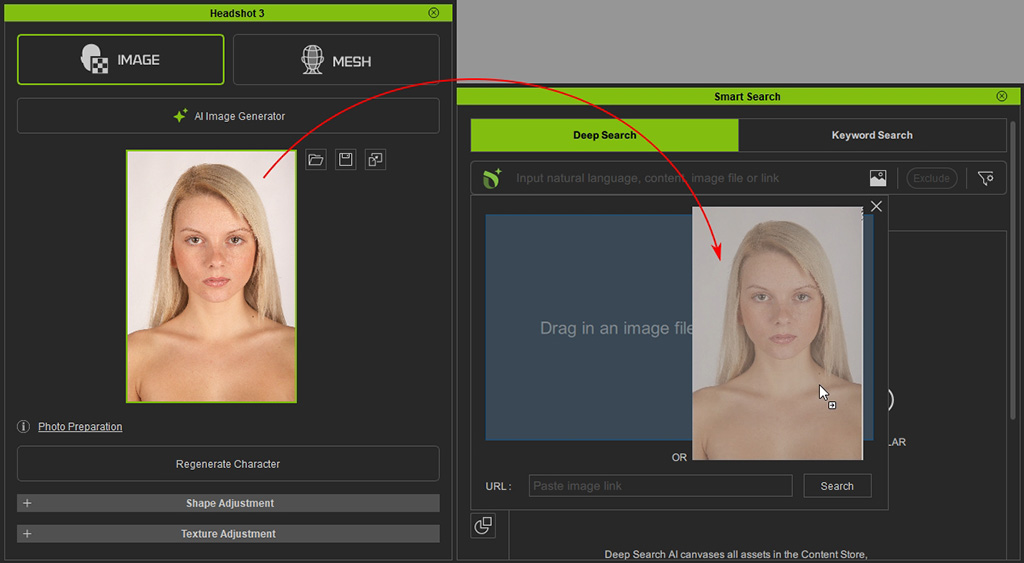
To search for related hair content, drag the source image from the Headshot panel to Smart Search as shown below.
-
In Smart Search, hover over the tiny photo on the left of the search bar to enlarge the image for better observation.
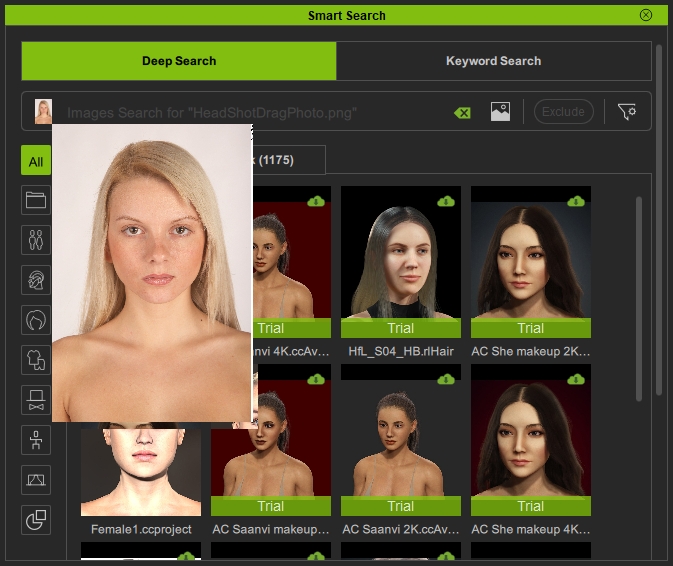
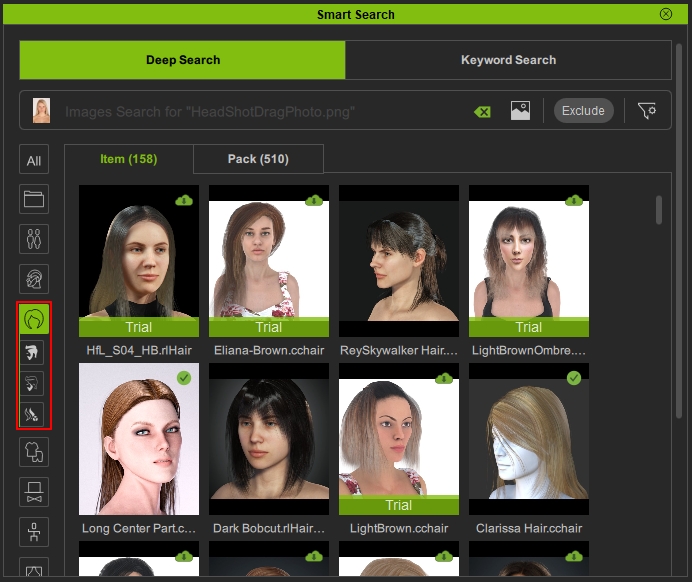
- Choose the Hair icon on the left to see only hair related items.
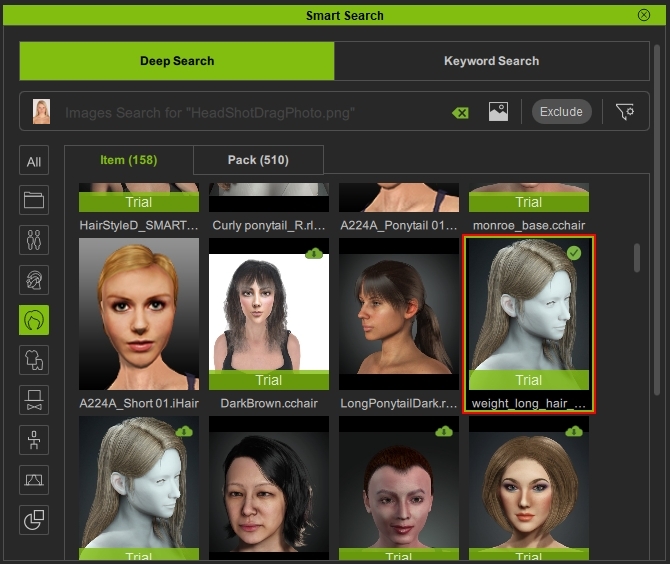
- Find the desired hair style, double click to download the selected content.
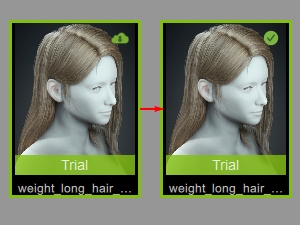
- The icon on the top right changes once it finishes downloading. Double click the content again to apply it to the character in the viewport.
- The following table is a comparison between Low Poly Mesh Hair and Content hair.
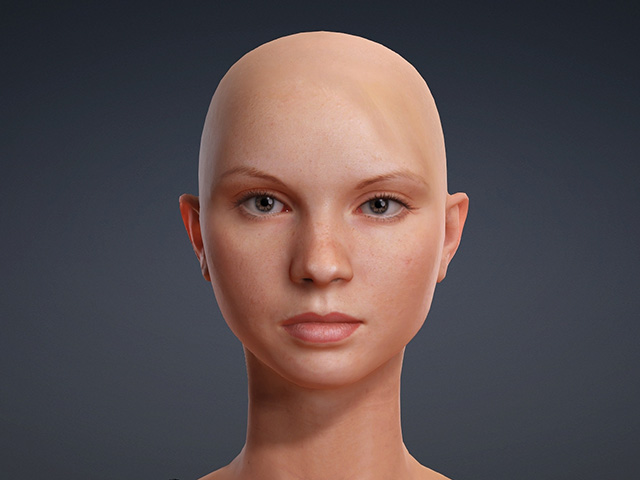
Hairless (Default)
Generated Low Poly Mesh Hair
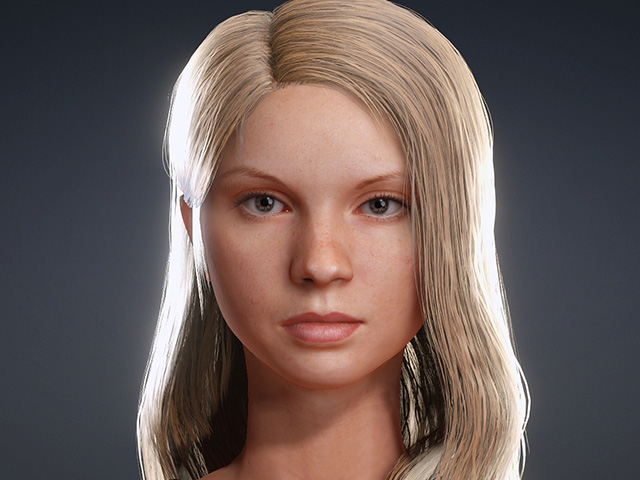
Content Hair applied from Smart Search
