Generate Character User Interface
Generate Head
First step to start generating character with Headshot is import a Front sided head photo, providing an image matching the source photo guidelines helps increase the accuracy of generated head mesh. Having a side image of the character is optional but providing it can achieve a better result. View Quick Guide for a step-by-step guide on generating a character.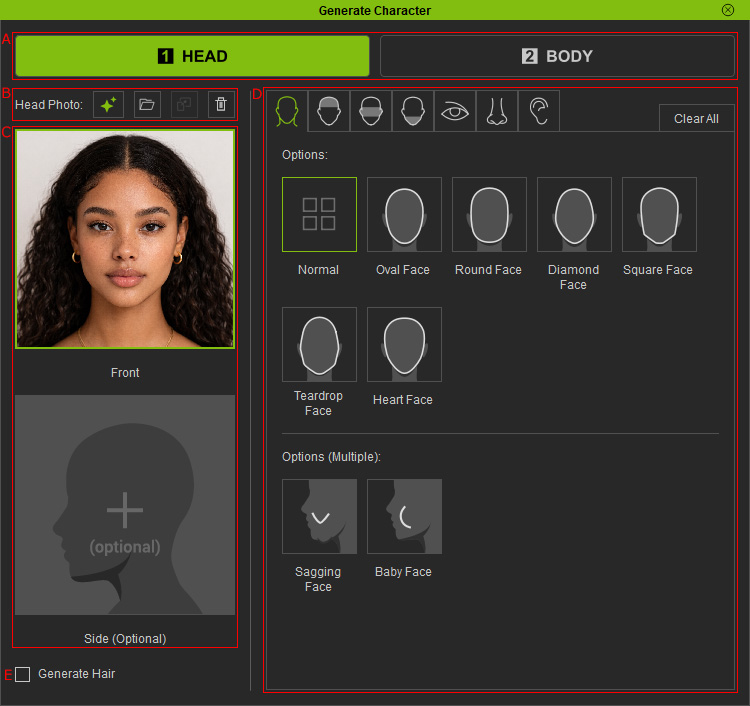
-
Head / Body Tabs
Toggle between Head / Body tab.
-
Image Tools
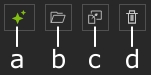
- AI Photo Generator
- Load file
- Paste from clipboard
- Delete the selected photo
-
Image Preview
Import and store the front image and side image correspondingly.
-
Preset Morphs
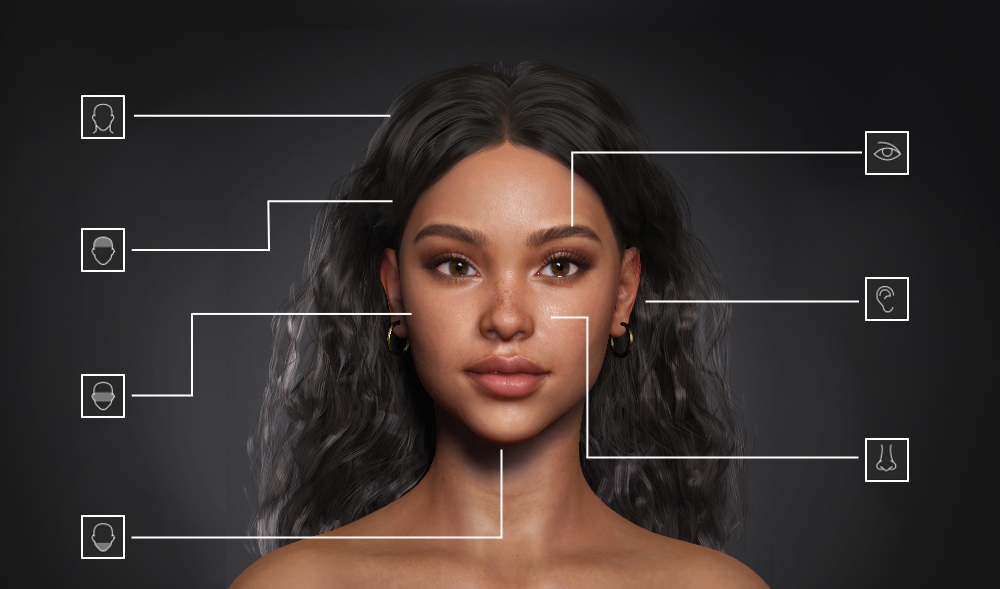
This section lets you shape facial structure by selecting morph presets that match the reference image, adding depth and side-profile features that automatic detection may miss. Selected presets affect their corresponding morph sliders and can be further adjusted after character generation. , view Preset Morphs for more information.
-
Generate Hair (Low Poly mesh)
Enable this option to generate mesh hair when creating the character. This is mainly used for automatically generated characters viewed from a distance, allowing the character to appear complete while reducing memory usage.
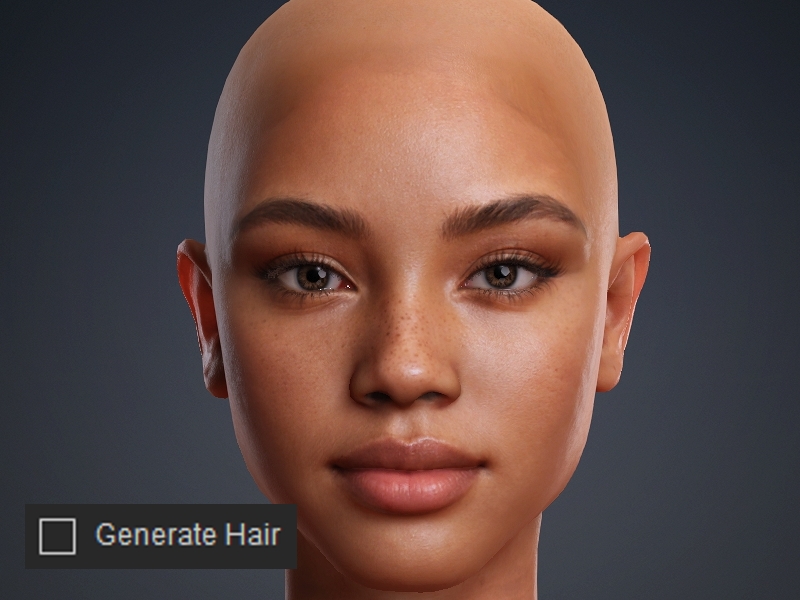
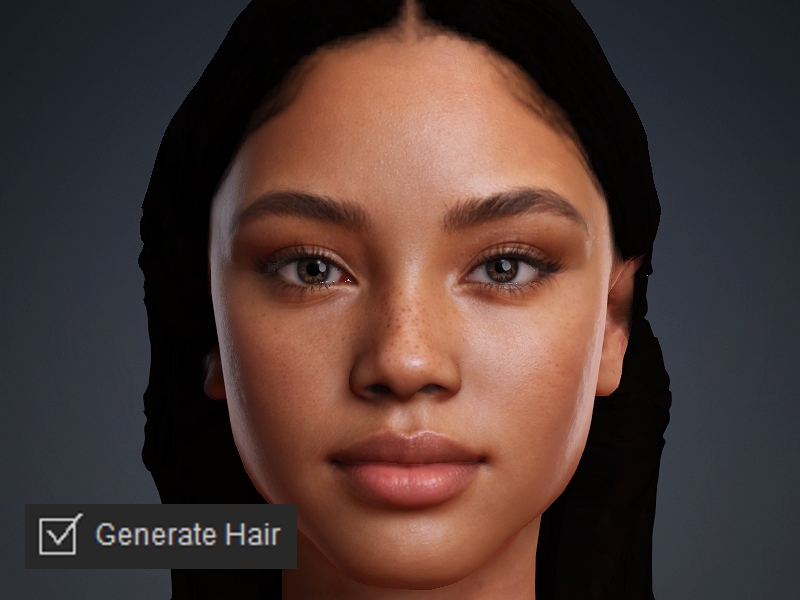
Generate Hair = off (Default)
Generate Hair = on
Generate Body
After adjusting head settings, head to body tab to continue the generation process.
There are two ways to generate the character’s body, either by importing a reference photo and let the system create one for you, or choose a preset body types.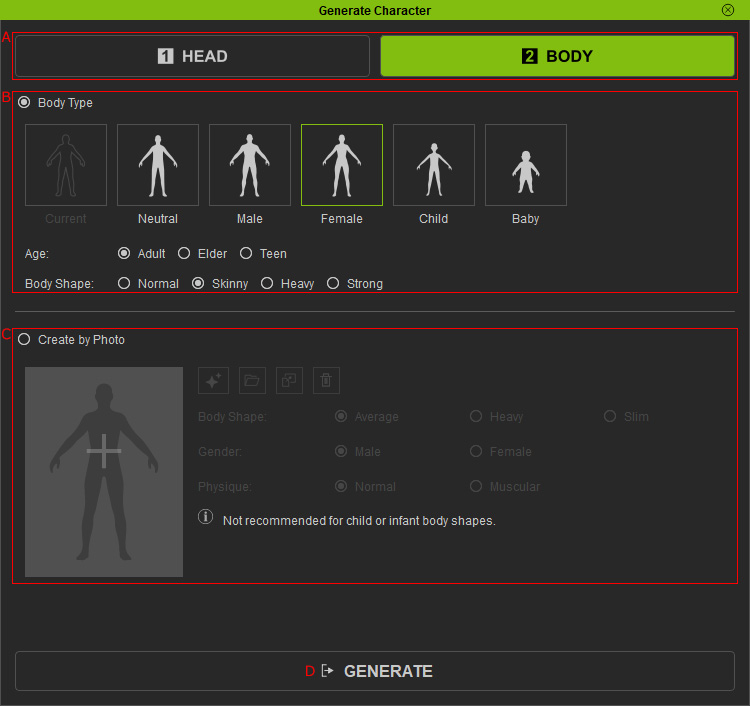
-
Head / Body Tabs
Toggle between Head / Body tab.
-
Using body type presets
Click a body type preset and its corresponding Body Shape to apply an appropriate body type to your character.
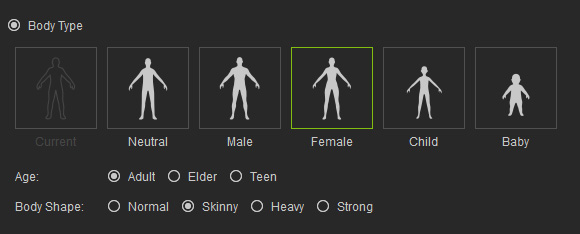
For more information, visit the page Body Types.Note:Some body shape options are restricted depending on the selected age group. The Strong body shape is disabled for Child, and all body shape options are disabled for Current, Neutral and Baby.
-
Create by photo
Import a full-body image that matches the guidelines described on the body source image page, and choose the appropriate conditions to achieve better results. For Child and Baby body types, using Body Type Presets is recommended for improved performance.
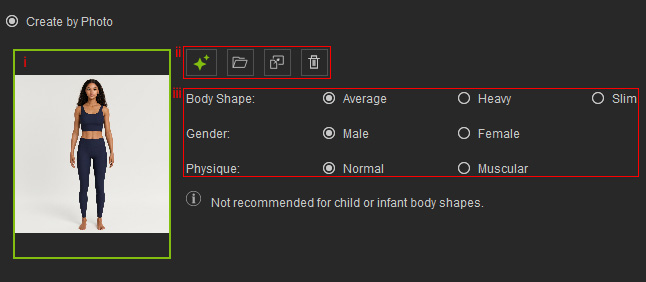
- The thumbnail of the image loaded for body generation.
-
- AI Photo Generator
- Load file
- Paste from clipboard
- Delete the selected photo
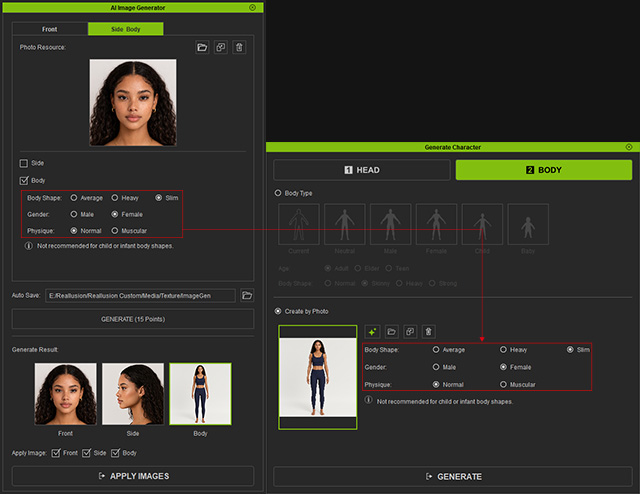
- Selecting the correct attributes helps the system produce a body that better matches the expected age group and physique.
- Body Shape - Determines the overall body shape: Average, Fat, or Thin.
- Gender - Sets the character’s gender: Male, or Female.
- Physique - Specifies the level of muscularity: None or Muscular.
Note:If the Body image is created with the AI Image Generator, the attributes selected will be saved and sent back here upon application.
-
Generate
Click to start the character generation process.
