Using Mirror Settings
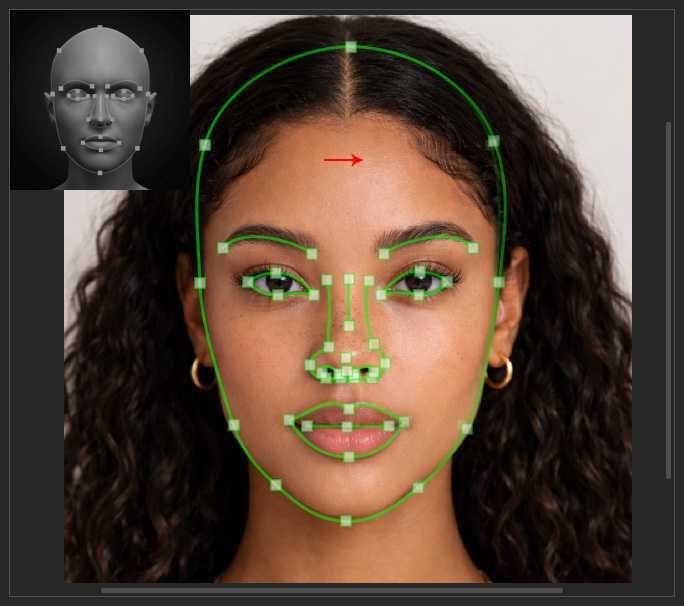
In the Refine Face panel, there are mirror settings for you to simultaneously adjust the control points on both sides or copy and paste the position of control points from one side to the other.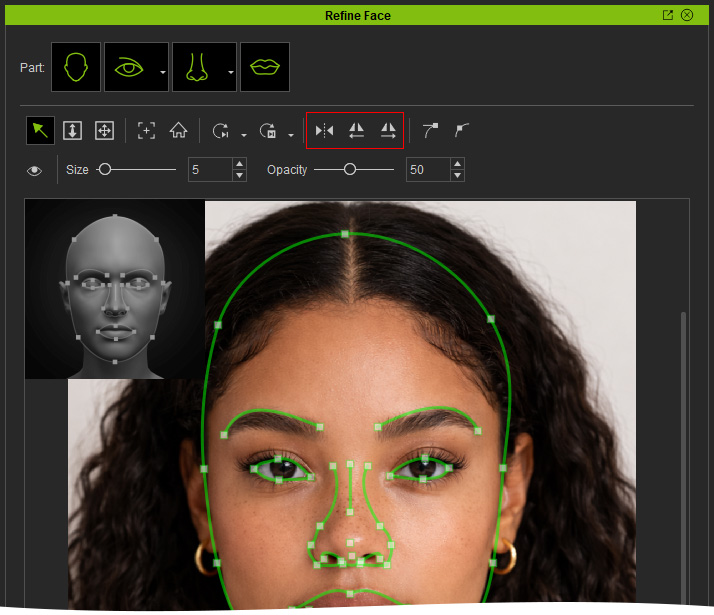
Mirror Control
When you press down the Mirror Control button, the control points on both sides will move simultaneously even if you only modify one of them.
- Select the character generated by Headshot.
-
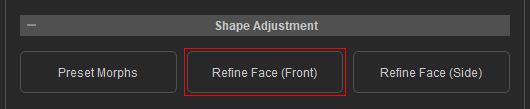
Goto Headshot 3 > Shape Adjustment > Refine Face (Front).
- Activate the Mirror Control.
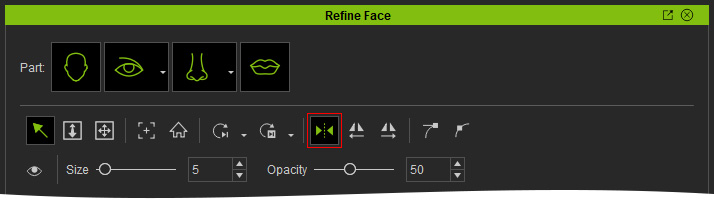
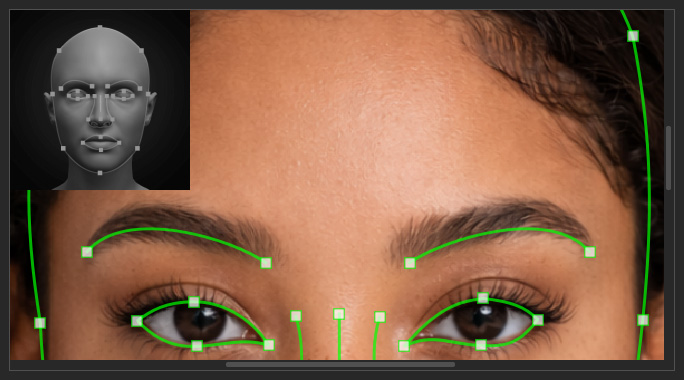
- Pick one of the control points you want to edit. In this case, the starting point of the Brow Ridge.
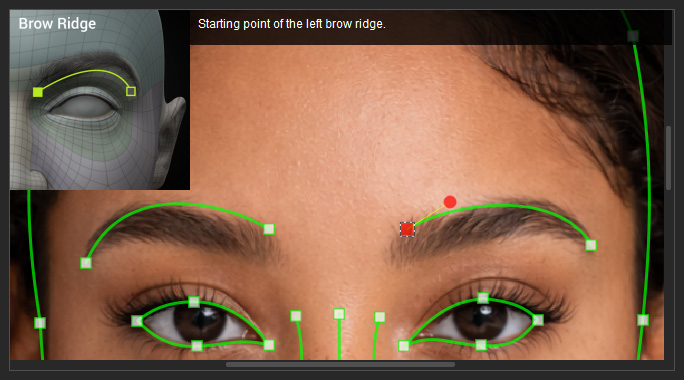
- Hold and drag the control point on the photo to position its Anchor point. As you can see the control point on the opposite side is moving simultaneously in mirror symmetry.
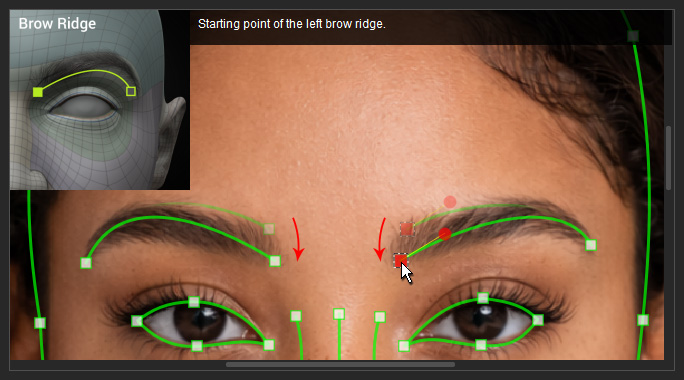
-
Hold and drag the Bézier handles of the control point on the photo to adjust its curvature. As you can see the Bezier Curve on the opposite side is moving simultaneously in mirror symmetry.
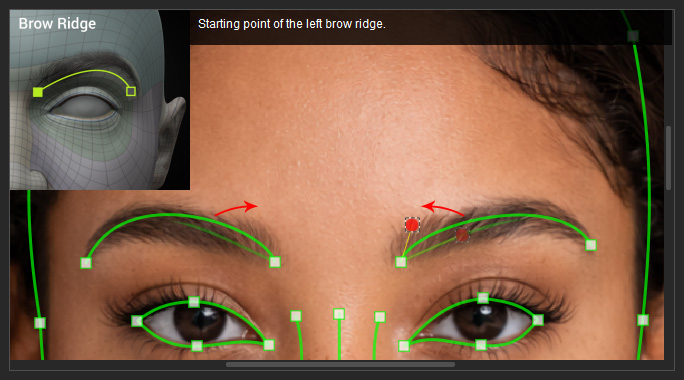
- Repeat the same steps until the Brow Ridge curves align with the boundary between the eye socket and the brow bone.
Copy and Paste Control point From One Side to the Other
Refine Face provides mirroring tools that copy control points from one side of the face to the other. Sometimes, when the control points are generated, control points on one side of the face are more accurate than the other. Copy-Pasting control points speed up the process of refining both sides of the face.
- Open the Refine Face panel and refine the control points on the side that best aligns with the facial features in the reference image.
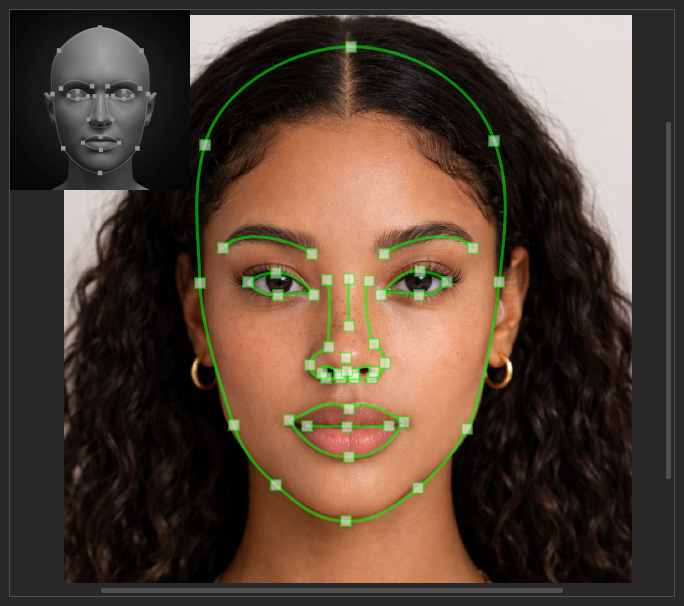
- Click Mirror Left to Right or Mirror Right to Left to copy the control points to the opposite side. Vice Versa if the other side has more accurate control points.
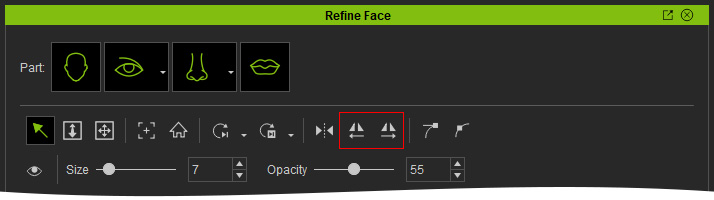
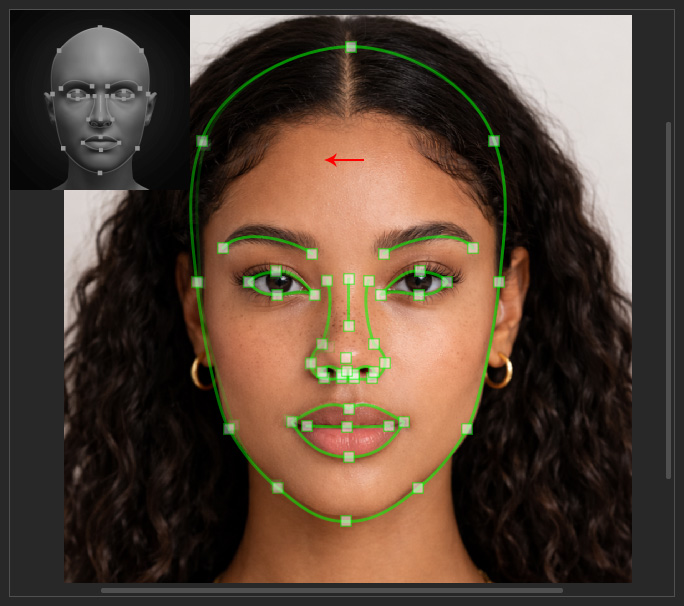
Mirror Right to Left
Mirror Left to Right
- Continue refining the curves and click the Apply All button to see the result.