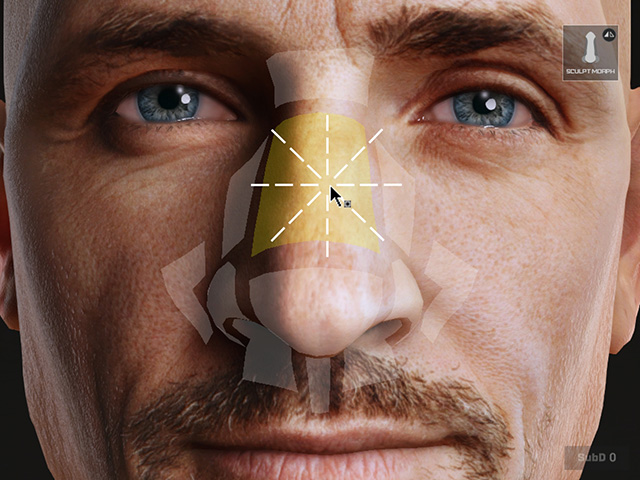
On-Screen Sculpt Morph Design - Front
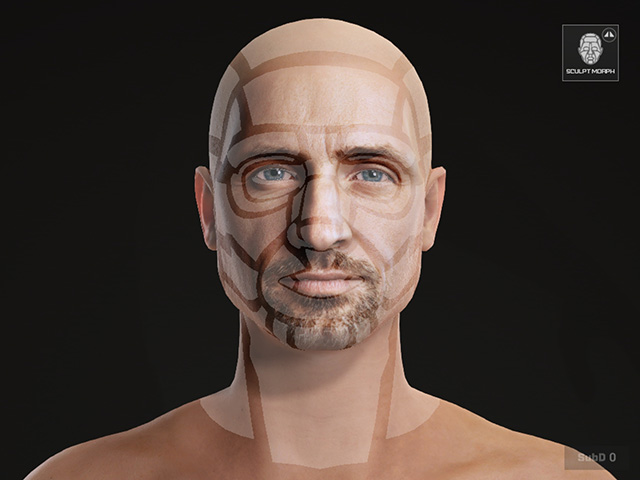
The On-screen Sculpt Morph Design works as a visual aid that allows users to edit the face and head shape directly within the viewport. It is divided into six areas representing different anatomical parts of the face and head. Each area offers both front and side editing options: the front view adjusts width, height, and depth simultaneously , while the side view affects depth only.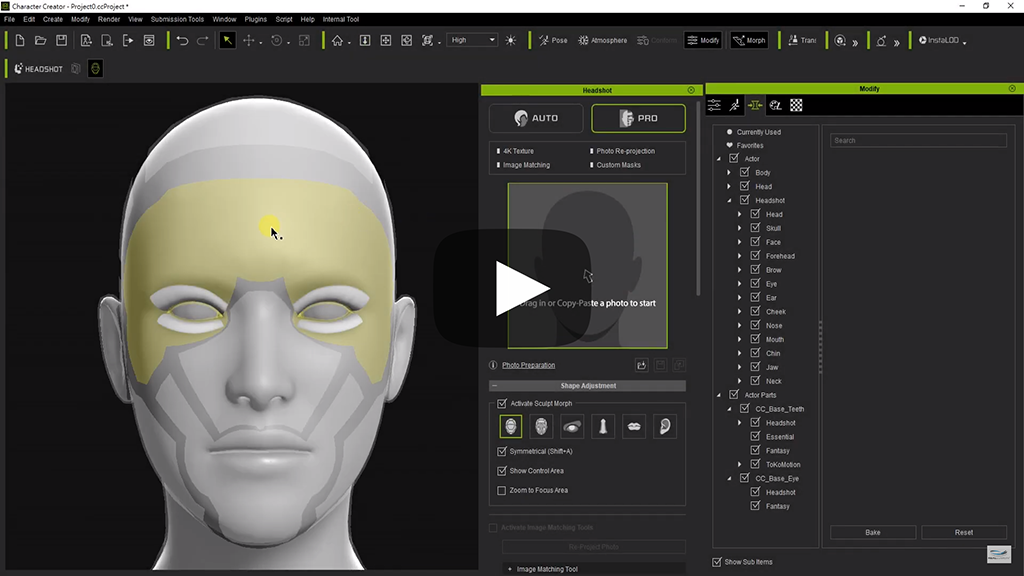
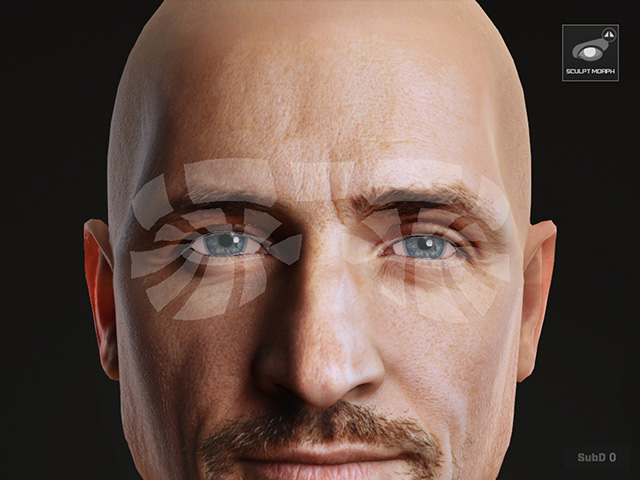
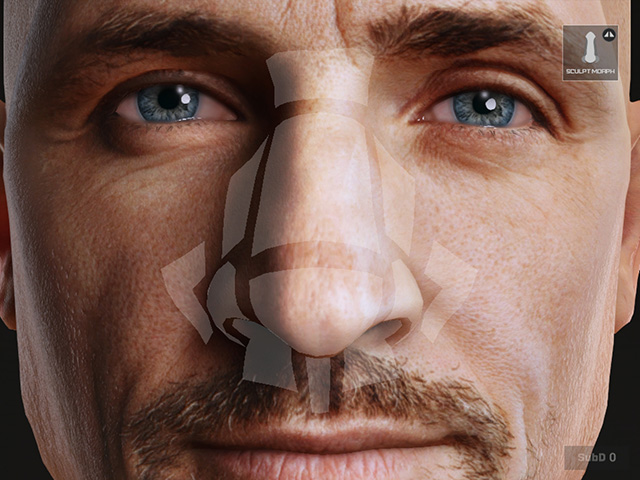
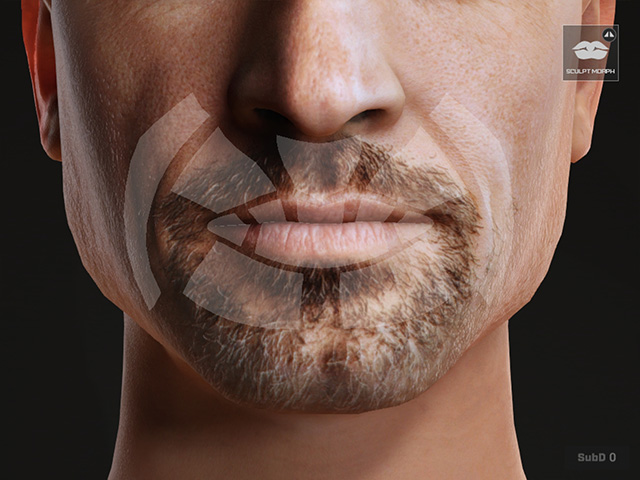
The six levels of Sculpt Morph tool are: Contour, Face, Eyes, Nose, Mouth and Ears.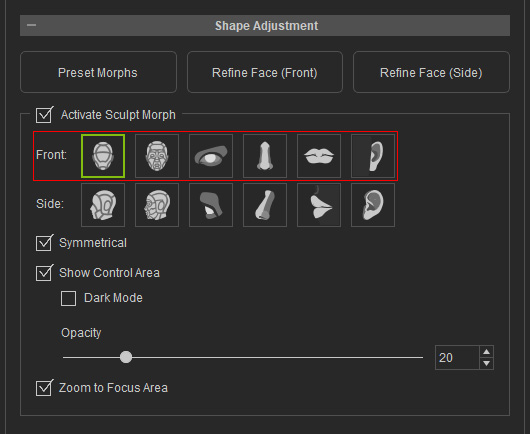
- Contour:
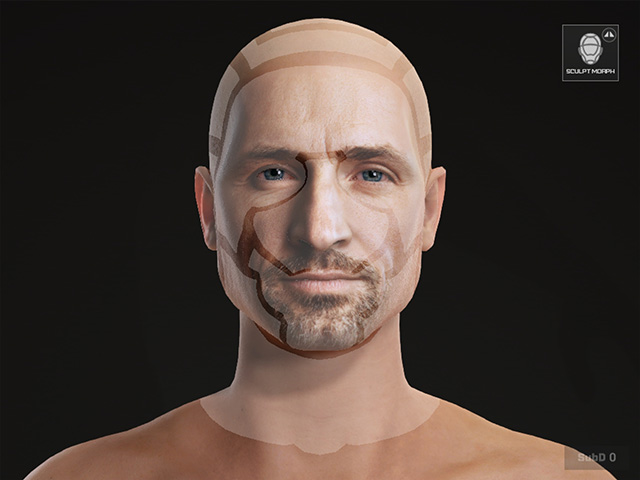
- Face:
- Eyes:
- Nose:
- Mouth:
- Ears:
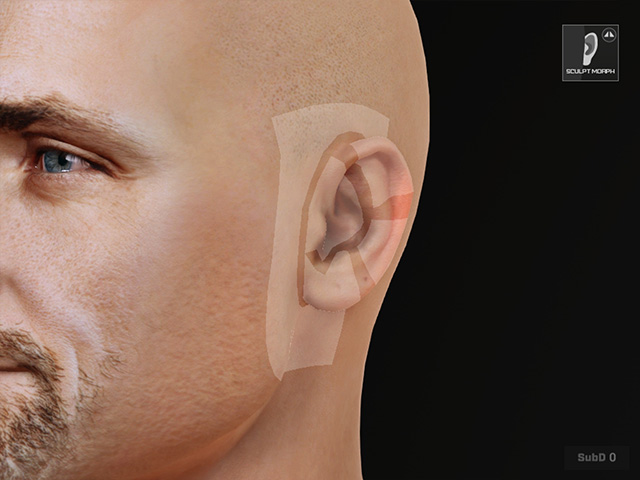
Basic Morphing
To enable the Sculpt Morph tool, click on Activate Sculpt Morph inside the Shape Adjustment tab. Once Sculpt Morph is activated, select the level region in Front view and move the mouse to one of the areas, hold down the left mouse button with horizontal or vertical movements to morph the mesh.
Image mode is designed for producing a high quality face from the photo. Refine Face for major refinement, Sculpt Morph and Morph Sliders will then be heavily relied on for producing a hyper-realistic digital human head mesh. We suggest that you make adjustments on the large areas of the head first (e.g. head shape and face shape) and then focus on modifying the small details of the face features (e.g. Ears, Eyes, Nose and Mouth).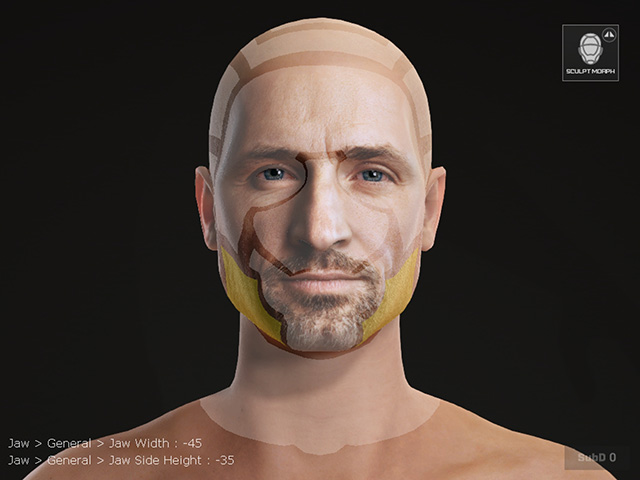
Let's have a look at the screenshot above for further description regarding the UI of Sculpt Morph. On the top right corner there is an icon indicating one of the six areas of Sculpt Morph you are currently working on. On the left down corner there are lines of texts which show the morph sliders in sync with the Sculpt Morph tool.
Below are examples of how Sculpt Morph works:
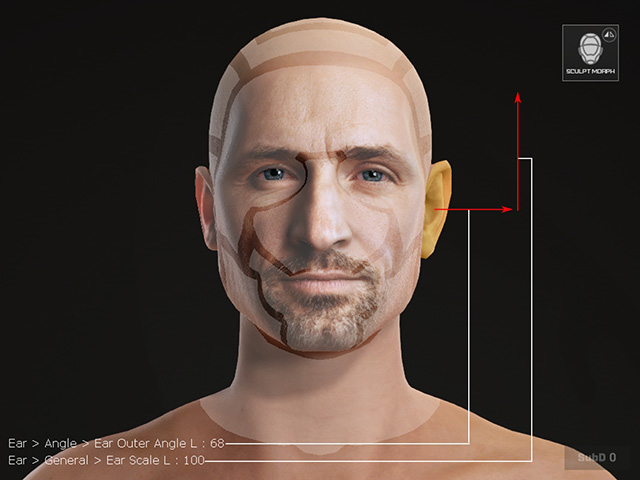
|
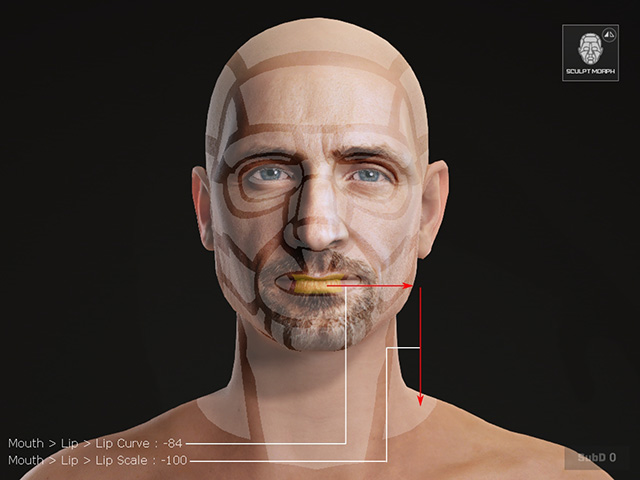
|
Advanced Morphing
Image Mode performs well on generating the head and face shape of the person in the photo. Sculpt Morph alone with Headshot Morph 1400+ are a fantastic combination to quickly improve the result even better. We suggest that you make adjustments on the large areas of the head first (e.g. head shape and face shape) and then focus on modifying the small details of the face features.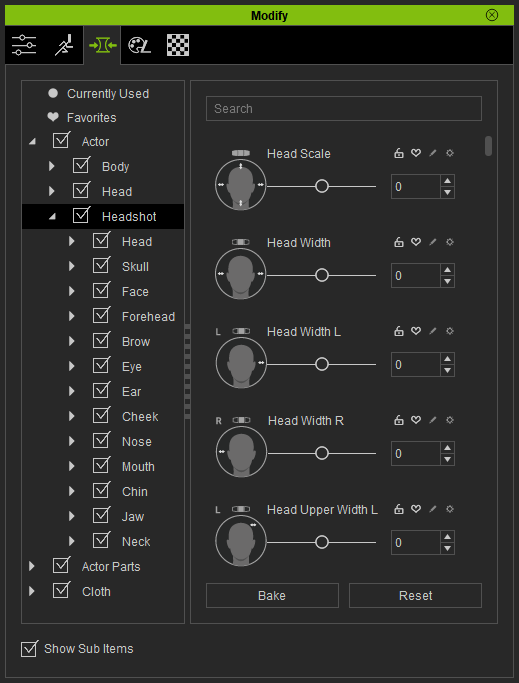
Resetting the Morphs
In order to reset the morphs, you can either:
- Double-click on the names of the morph sliders.
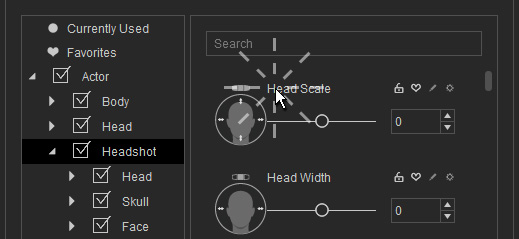
- Double-click on the morphing
control areas within the view-port.