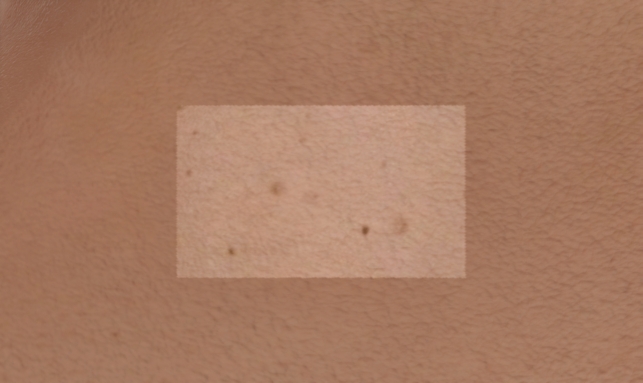
Brush Blending Modes
Inside Brush Settings within Brush Tool, there are 11 brush blending modes to choose from in different circumstances.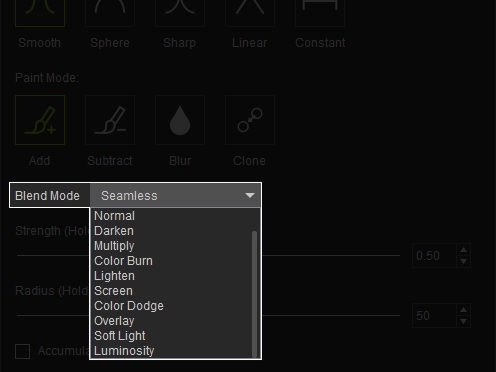
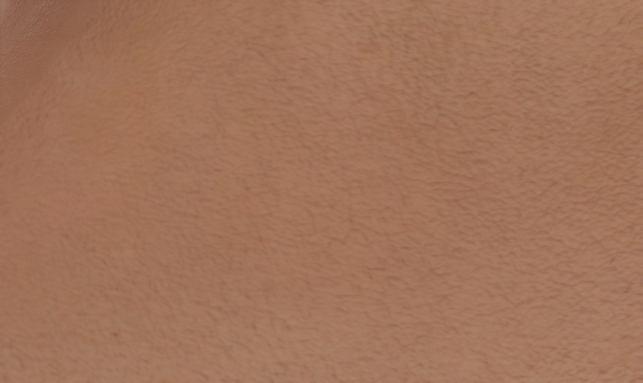
- Default: Default clean skin surface.
- Normal: Applies the source texture directly to the target area. Use this mode to add texture elements directly.
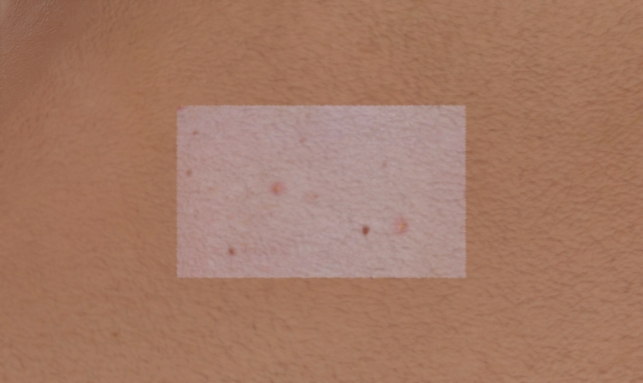
- Seamless: Blends the source texture smoothly with the surrounding area. Use this mode to merge skin details, repair texture gaps, or reduce visible seams.
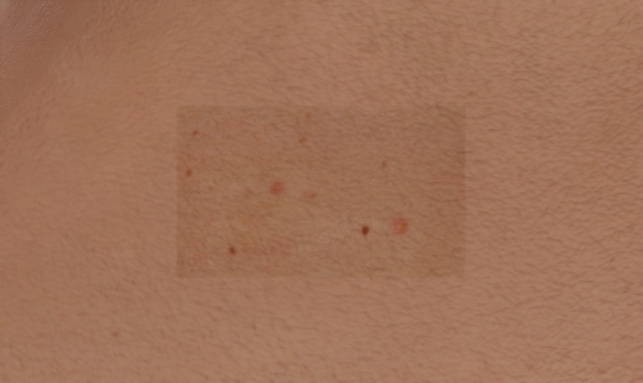
- Multiply: Darkens the target texture using the source texture. Use this mode to add shadows, wrinkles, freckles, scars, or other dark details.
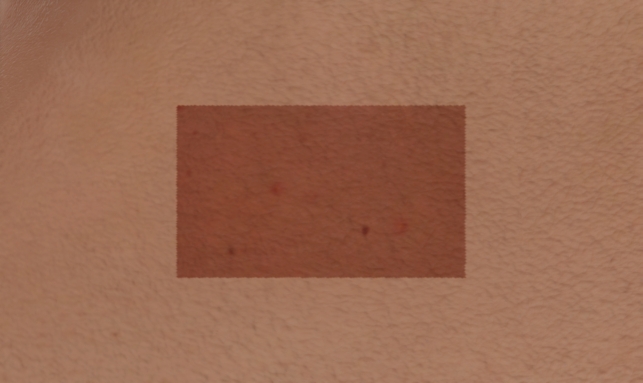
- Screen: Lightens the target texture using the source texture. Use this mode to add highlights, brighten skin, or enhance reflective areas.
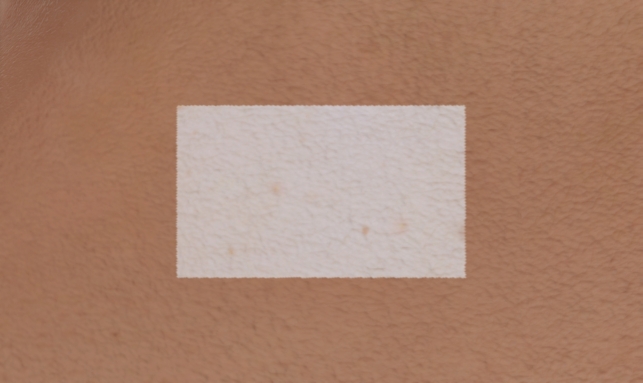
- Overlay: Enhances contrast while preserving underlying texture details. Use this mode to emphasize skin pores or texture depth.
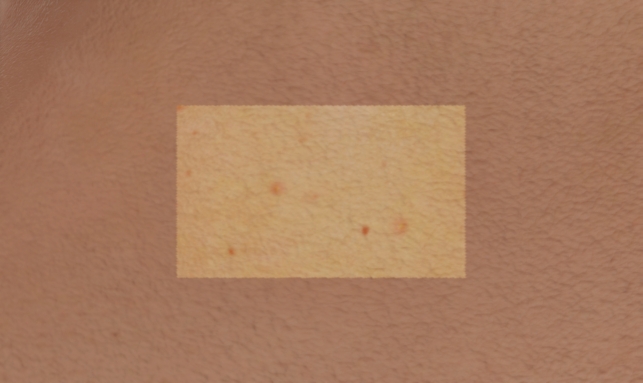
- Soft Light: Applies subtle lighting adjustments to the target texture.
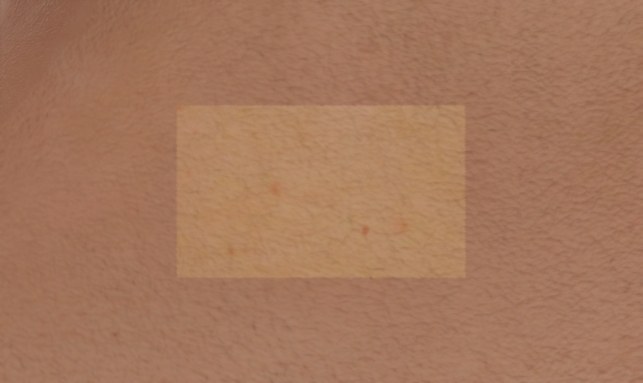
- Darken: Retains darker details from the source texture. Use this mode to add and enhance moles, facial hair, dark spots, or shadow effects.
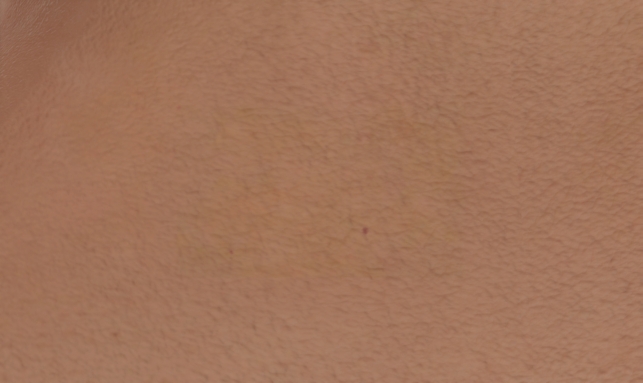
- Lighten: Retains lighter details from the source texture. Use this mode to add highlights, bright skin features, or light-colored details.
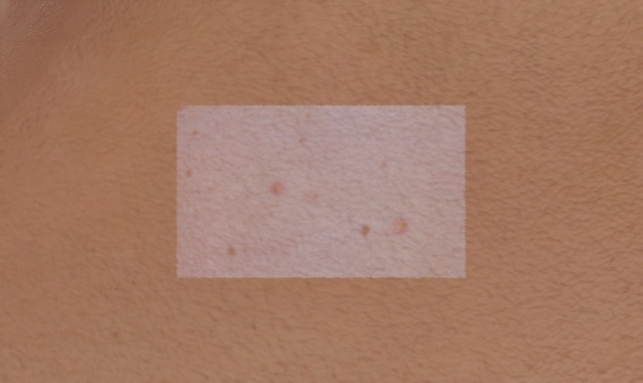
- Color Dodge: Brightens the target texture and increases highlight intensity.
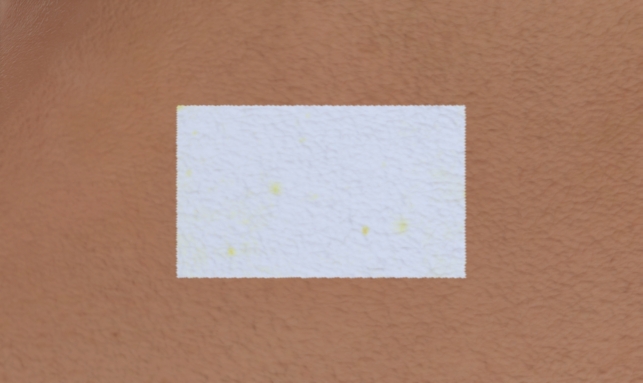
- Color Burn: Darkens the target texture and increases shadow contrast.
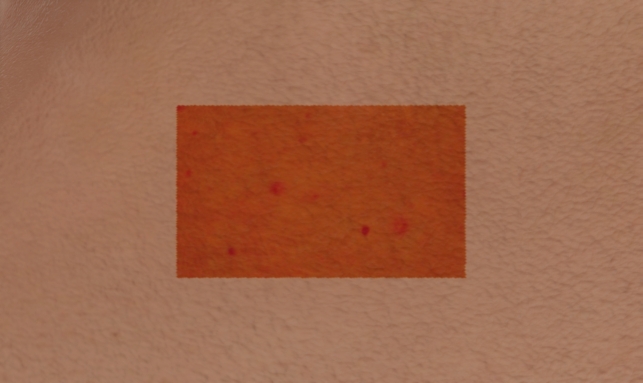
- Luminosity: Applies the brightness information of the source texture while preserving the original color. Use this mode to adjust skin lighting without affecting color.