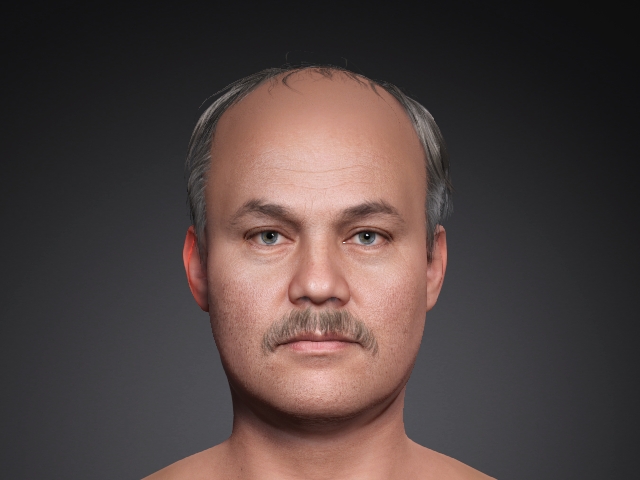
Changing Source Image with AI Image Generator
You can send the source image to the AI Image Generator for quick automatic modification, then reproject it onto the generated character in just a few clicks.
- Prepare your character.
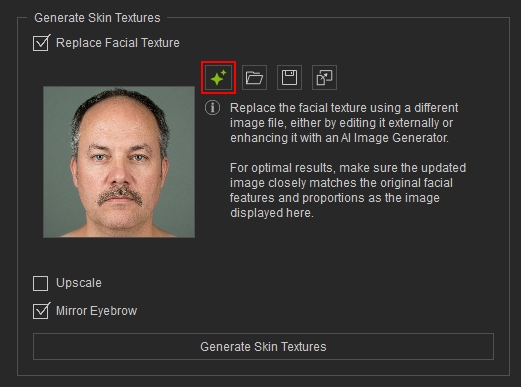
- Click the green star icon to send the cropped image directly to the AI Image Generator.
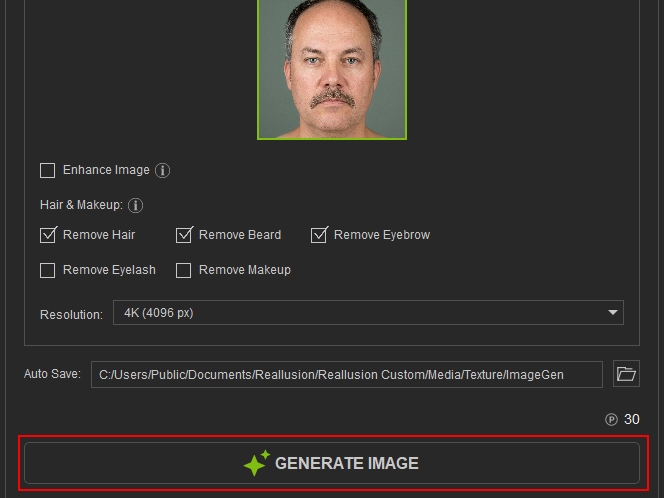
- Select the modifications you want to apply, such as refined 4K upscale, removing eyebrows, makeup, or hair. In this example, Remove Hair, Remove Beard, Remove Eyebrows, and 4K Upscale are selected.
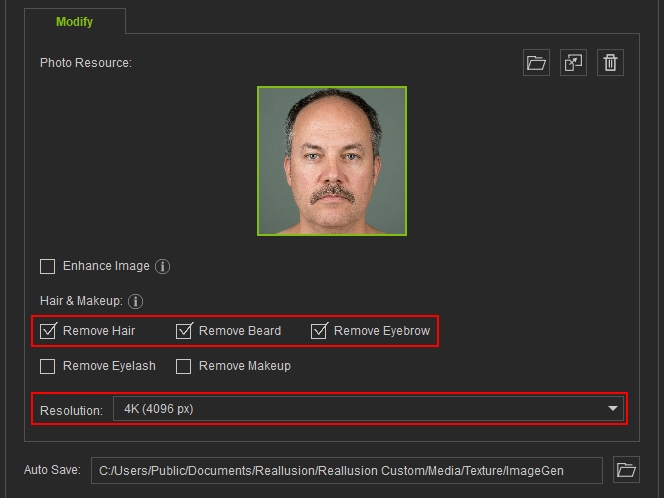
- Click Generate to start the generation process.
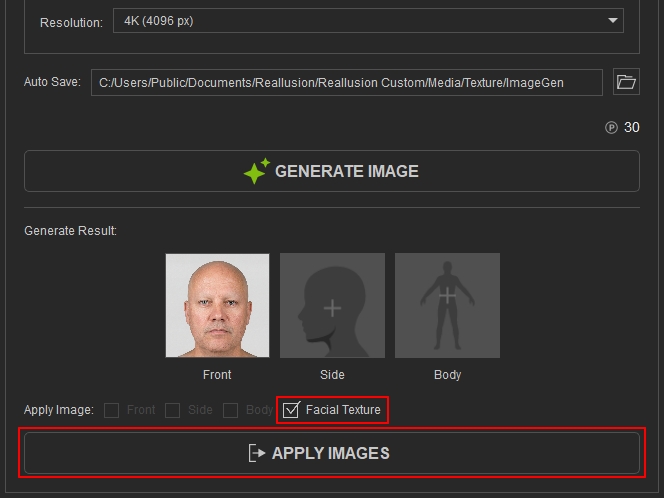
- Make sure the Facial Texture checkbox is selected and click the Apply Images button.
- Go back to the Generated Skin section and click Generate Skin Textures.
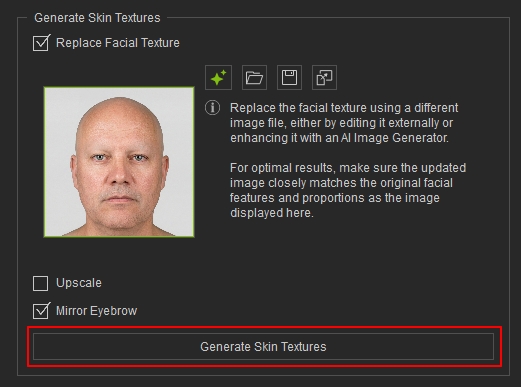
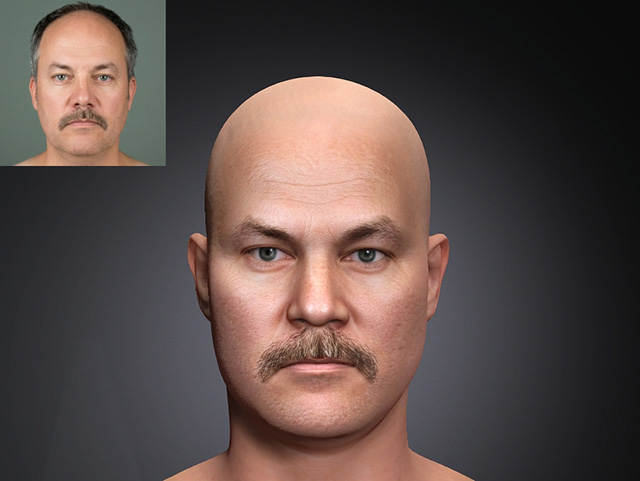
- The updated source image is now reprojected onto the character.
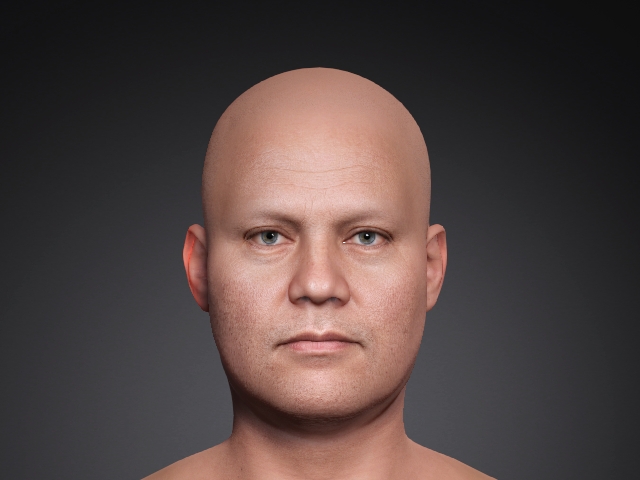
- You can then apply hair, eyebrows, and facial hair elements to the high-resolution projected texture for a more complete result.