Image Plane Settings
|
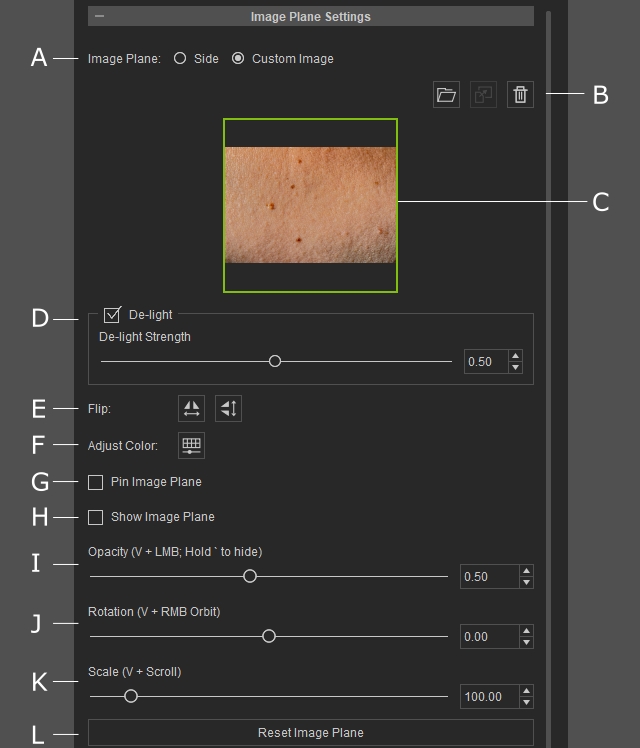
A |
Side / Custom |
Switch between the Side image workflow and the Custom image workflow. |
|
B |
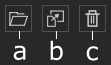
Image Tool |
Load, paste, or remove images from the image plane.
|
|
C |
Image Display |
Displays the loaded image. Images can be loaded by:
|
|
D |
De-Light |
Enable De-Light to reduce lighting and shadow information in the image. Adjust the slider to set the De-lighting strength. |
|
E |
Flip |
Flip the stencil image horizontally or vertically. |
|
F |
Adjust Color |
Open the Adjust Color panel to modify the color properties. |
|
G |
Pin Image Plane |
Pins the image plane to the viewport so it follows camera zooming and panning. |
|
Show / Hide Image |
Toggle the visibility of the image plane. |
|
|
Opacity |
Adjust the transparency of the image. |
|
|
Rotation |
Adjust the image's rotation angle. |
|
|
Scale |
Adjust the size of the image. |
|
|
Reset Image Plane |
Reset the image plane's rotation, position, and scale to their default values. |