Applying Camera Blueprint
Unreal provides its own camera system, however, the cameras it generates do not have the ability to receive the animations of the cameras from iClone. Due to this reason, iClone Live Link plug-in provides camera's blueprint in order that the custom cameras are assigned with the ability to receive the streamed animations from iClone.
- In iClone, apply a camera.

- Rename the camera and keep the name in mind.

- In Unreal, go to the All Classes library, scroll down until you see the Camera and Cine Camera Actor template.

Apply either one of the cameras into the current level. This camera will be driven by the iClone camera afterward.
- Make sure the camera is selected.
- Click the iClone Live Link button in the toolbar and choose the Apply Blueprint to Selected Camera(s) command.
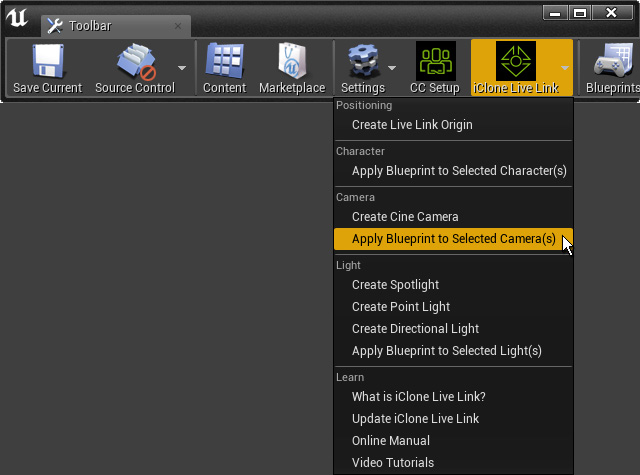
This step assign the ability to the camera for receiving streamed animations from iClone. - Open the Detail panel. Set the camera's Subject Name in the Live Link section to the name you set in step 1.

Now the camera is ready to be driven by the camera in iClone. - Go to iClone, have iClone and Unreal well-connected.
- Open the Live Link plug-in panel, switch to the Link mode and make sure the
left circle of the camera is activated and click on the Active Link button.

- Start to animate the camera in iClone. As you see the camera assigned with the same name in Unreal will be animated as well.
- If you switch the viewport of Unreal to the controlled camera, then you can see through the camera animated by iClone's.
