Webcam Live Streaming Performance for CC Characters
If you want to use a webcam for real-time facial motion capture of a CC character in Unreal Engine, you can follow the steps below.
Environment Setup
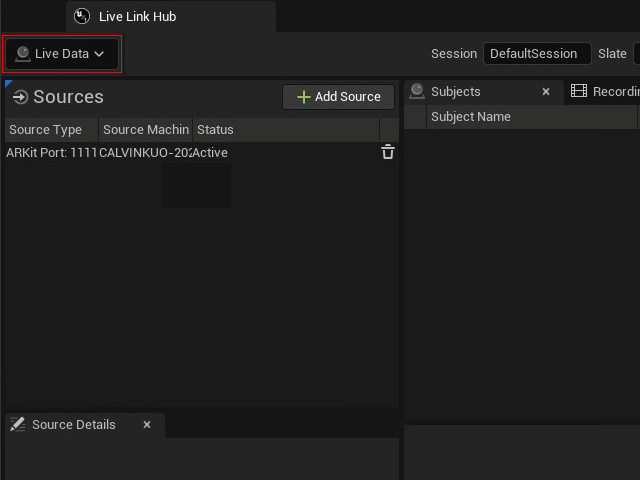
- Open Live Link Hub in Unreal Engine. Make sure it's under the Live Data Environment.
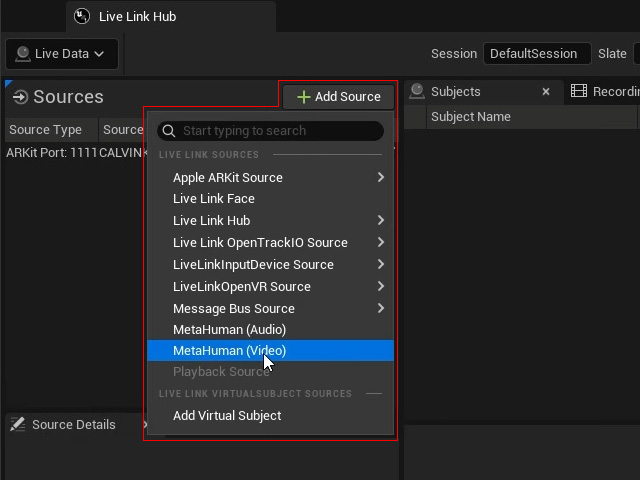
- Click the Add Source button and select Metahuman (Video) as the source.
A new item will be added into the Source list.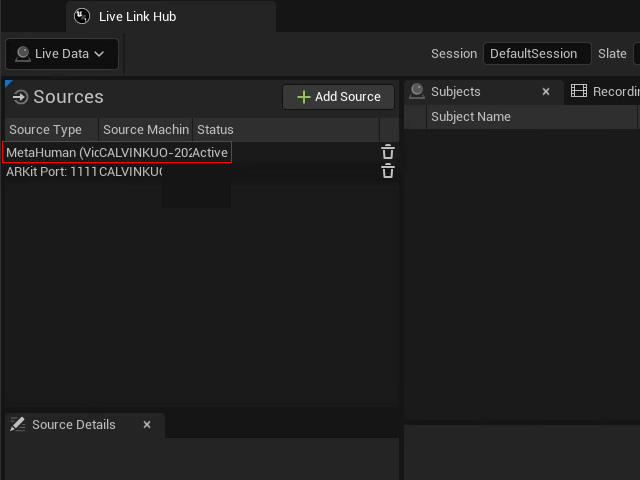
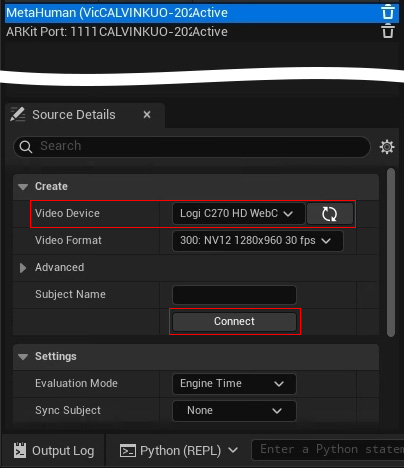
- Select the new source and in the Source Detail panel, set the video device to the webcam that you are using and click the Connect button to establish a live link.
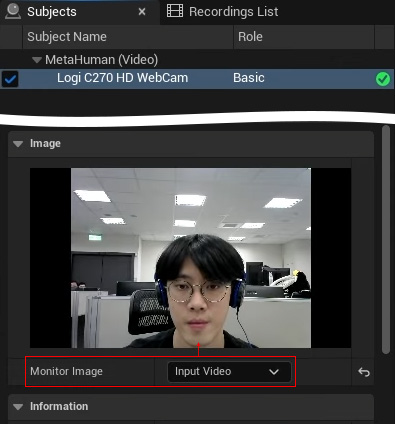
- In Subject panel, select Input Video for the Motion Image drop-down menu to view the recording perspective (leave the other settings unchanged).
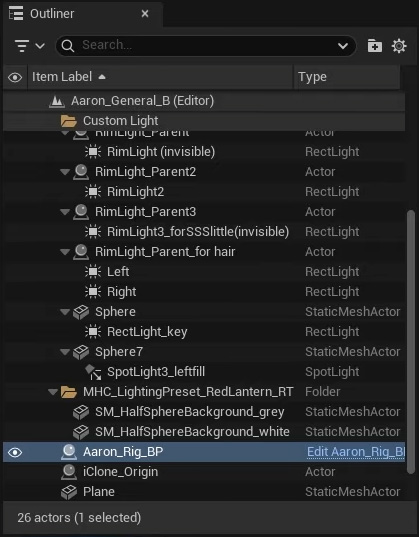
- Return to the viewport and make sure the custom character blueprint is selected in the Outliner panel.
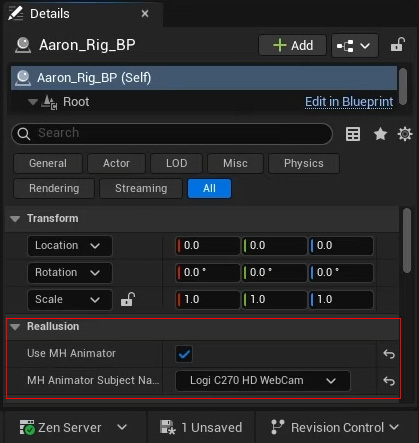
- Activate the Use MH Animator checkbox and choose the webcam from the MH Animator Subject Name drop-down menu in the Detail > Reallusion section.
- You can leverage live mocap so the CC character can perform in real time. In addition to live performances, you can also record the motion.
Recording Live Streaming Mocap Animations
- Make sure the step 5 and 6 in the previous section are completed.
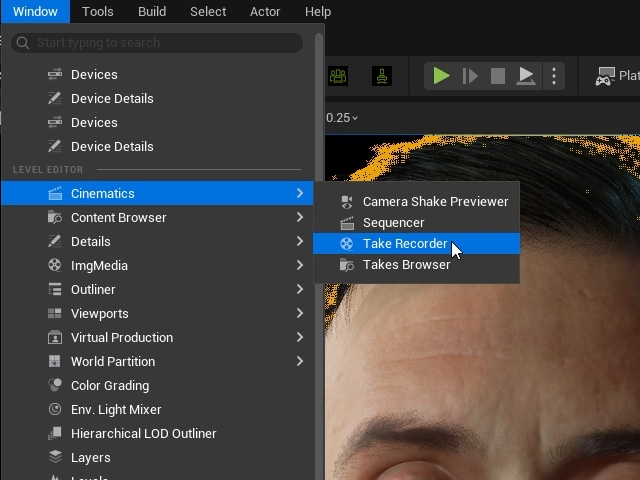
- Go to Window > Cinematics > Take Recorder to create a new level sequence.
- Drag and drop the character's blueprint to the Take Recorder. Then click the red button of the Take Recorder to start recording.
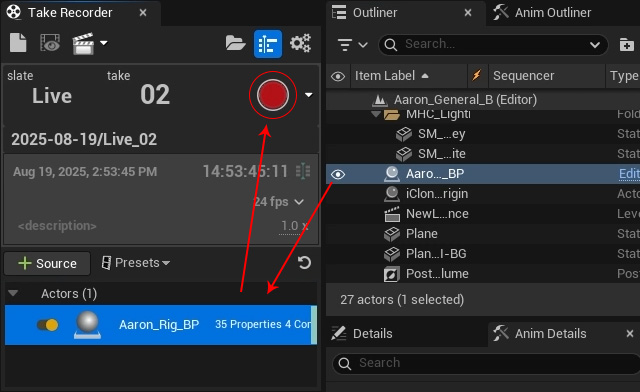
When the recording is finished, click the gray button to end the webcam connection. - A cinematic file will be created containing both the level sequence and animation sequence.
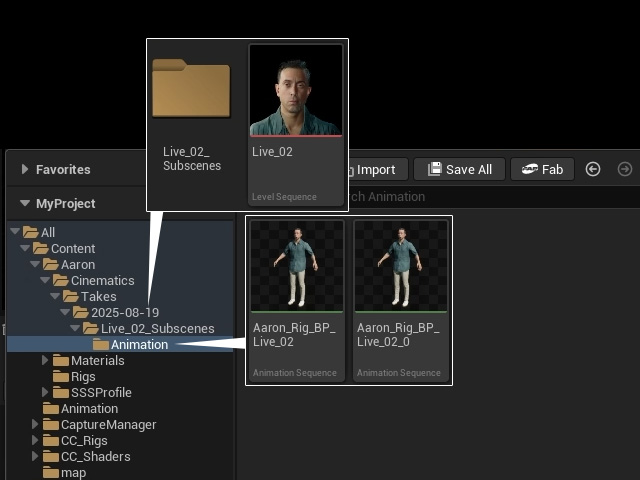
- Double-click on the animation sequence to open for review the recorded results.
Applying Captured Animations to Sequencer
- In the Sequencer, click the Add button and choose Add Actor Track > Add 'Aaron_Rig_BP' to add the character's blueprint to the sequencer.
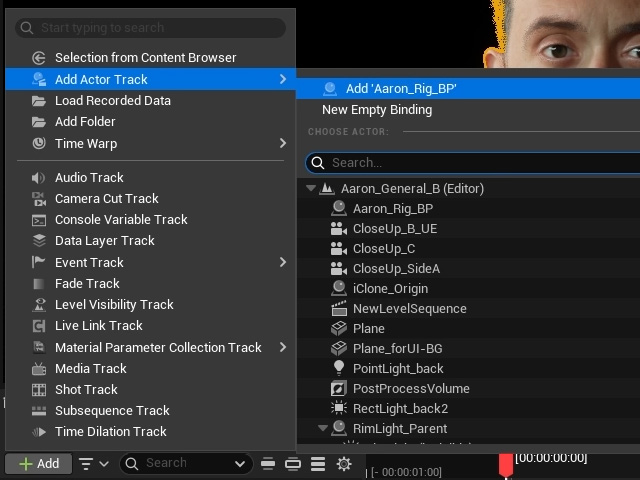
This character is set up with CC control rig by default. However, in UE, using animation sequence together with control rig may lead to unexpected behavior.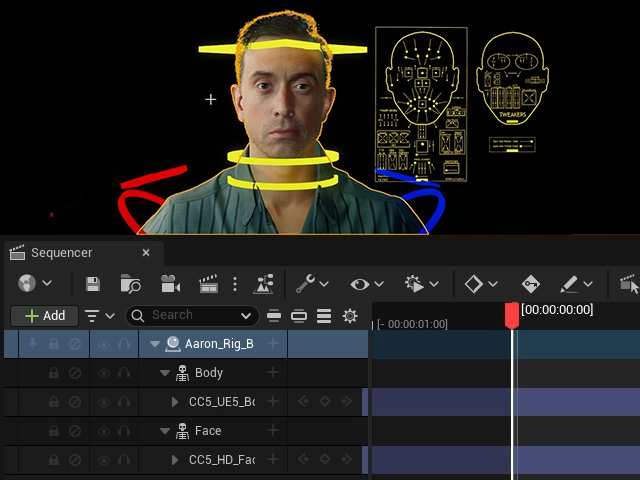
- Remove the default control rigs for face and body.
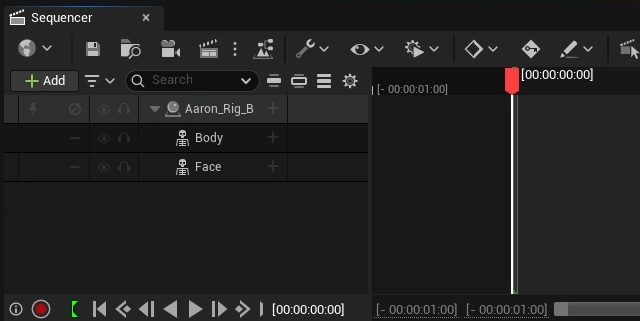
- Click the Add button and select Animation > [character's animation sequence in step 4, previous section] to reapply it to have it transferable to the CC character.
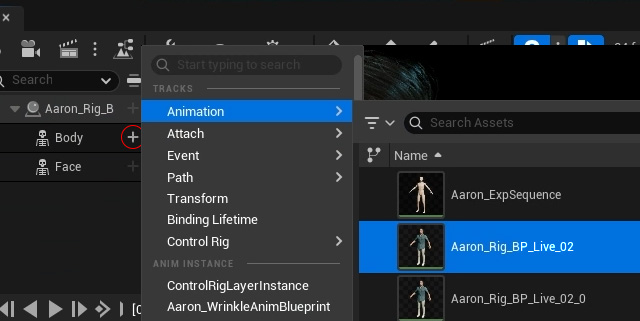
The animation sequence will be added to the character.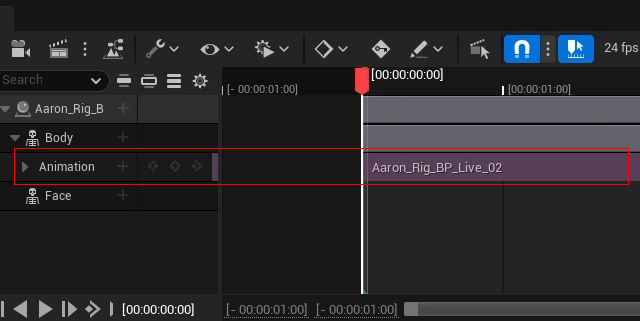
- Repeat the same step to add the animation sequence to the Face.
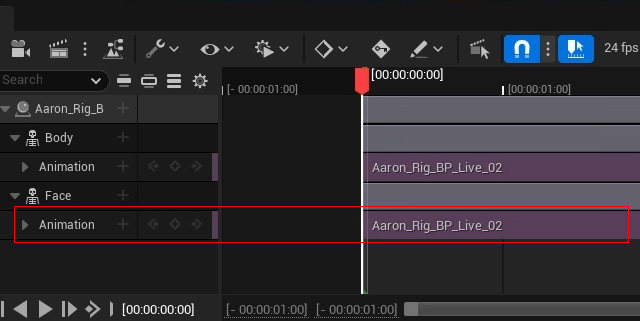
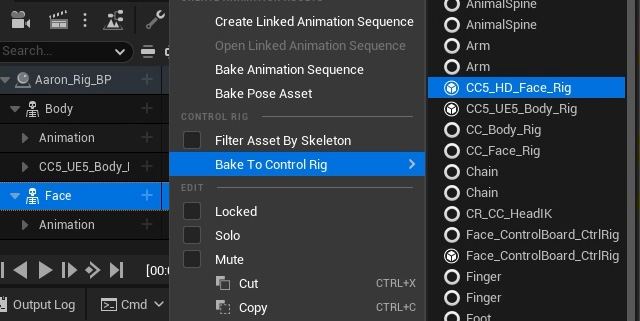
Playback to view the animation result. - If the Control Rig is used to refine the facial animation, right-click on the Face track and select Bake To Control Rig > CC5_HD_Face_Rig.
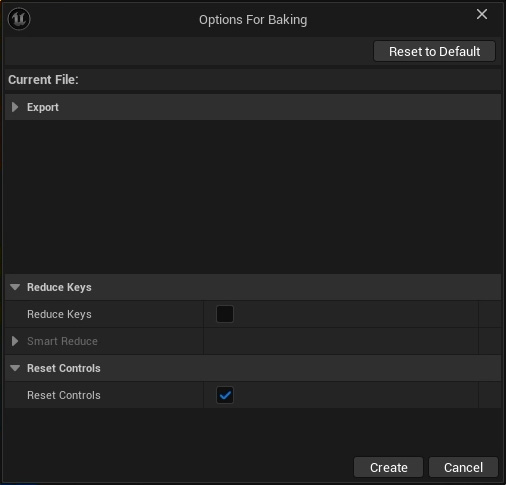
- Click the Create button of the Options For Baking panel.
The motion will be baked to the CC5 HD Face Rig and generate animation keys for the control rig track for fine-tuning.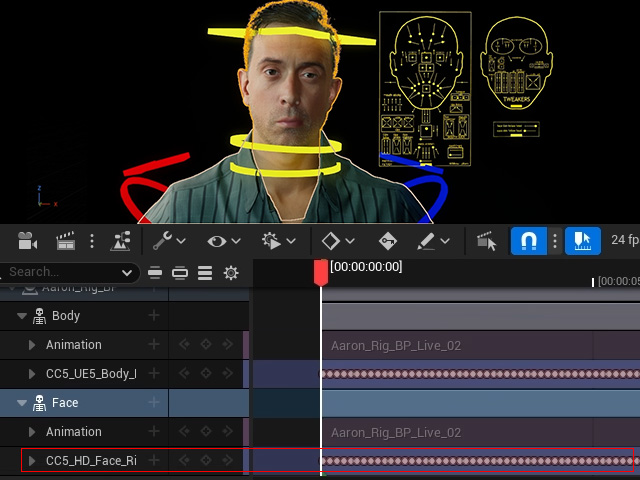
Playback to view the animation result.
