Viewport Manipulation
To pan, zoom in or zoom out the MP Node Graph viewport, follow the points in this section.
- Pan (middle or right mouse button): Hold down the middle or right mouse button to pan the viewport.
- Zoom In / Out (mouse wheel):
- Roll the mouse wheel to zoom in or out at the cursor position.
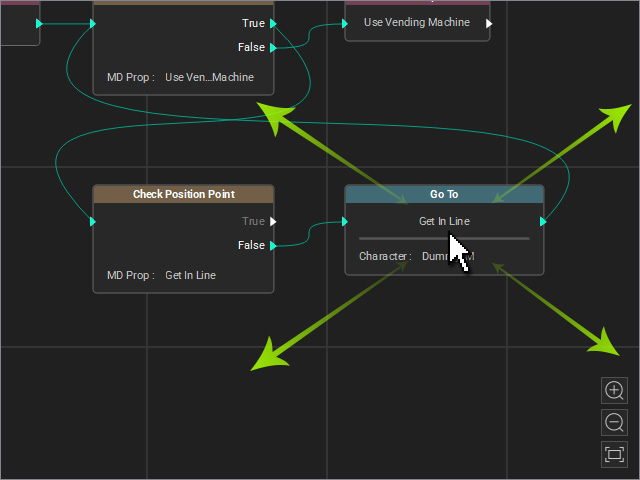
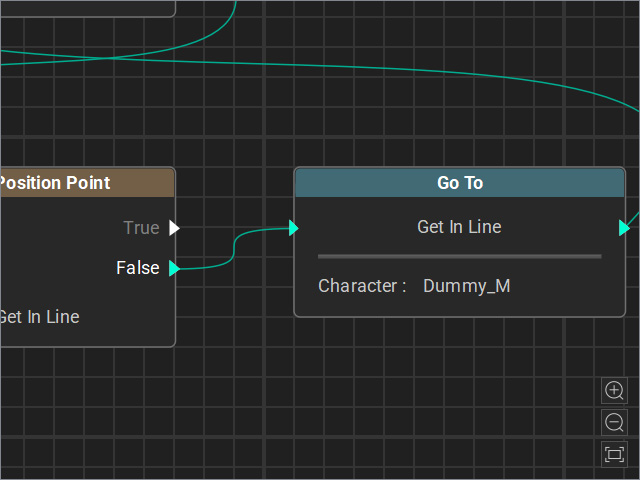
Roll the mouse cursor on a specific position.
System will zoom in or out to the mouse cursor position.
- Click the "+" button to zoom in to the viewport center.
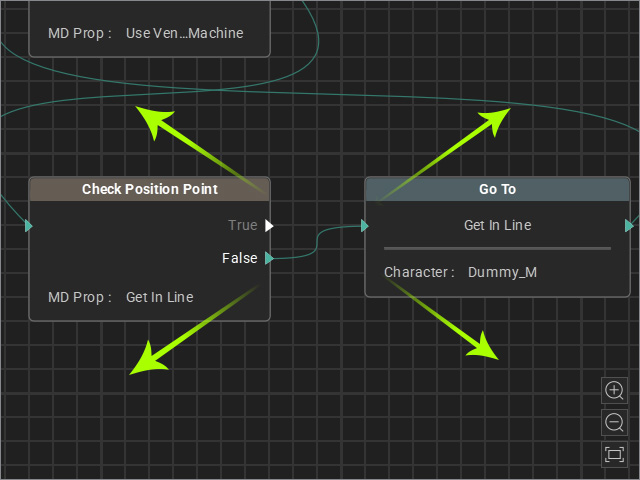
- Click the "-" button to zoom out to the viewport center.
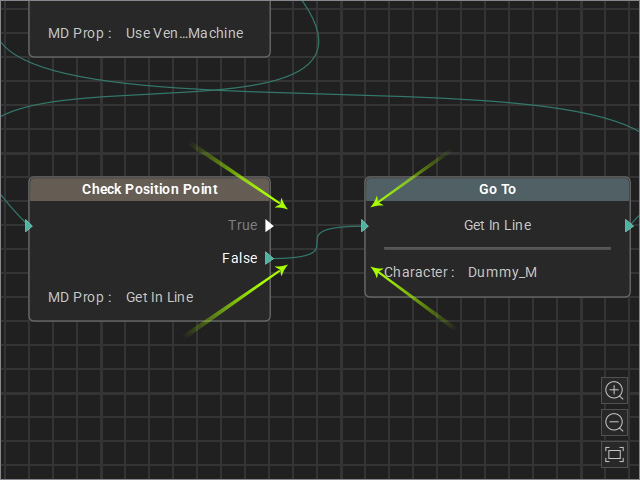
- Roll the mouse wheel to zoom in or out at the cursor position.
- Fit View:
- No nodes selected: If no nodes are selected, click the Fit View button to zoom and fit all nodes in the viewport.
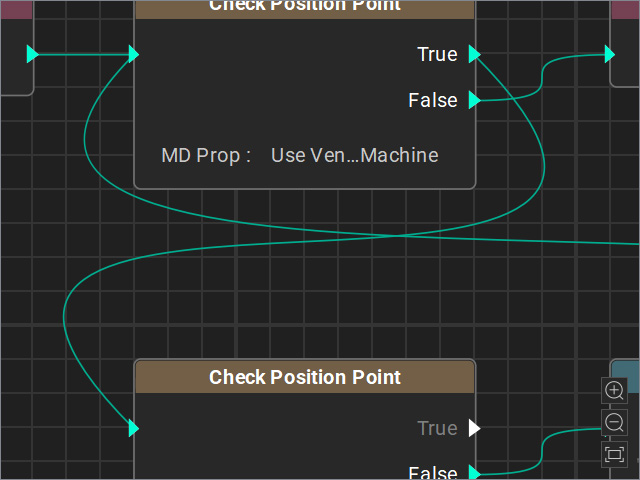
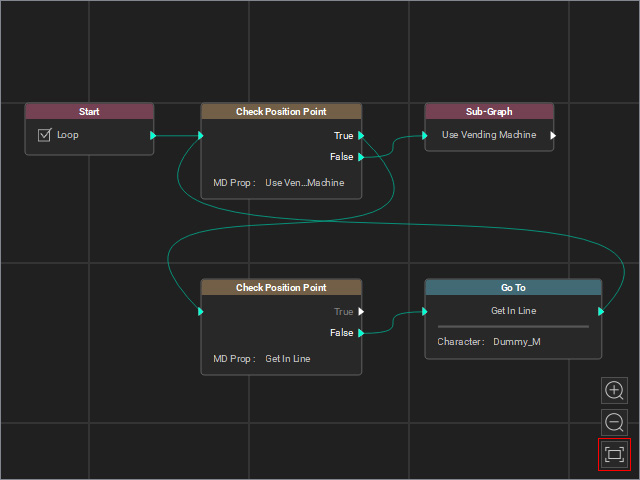
No nodes are selected.
Click the Fit View button to zoom and fit all nodes in the viewport.
- Some nodes selected: If some nodes are selected, click the Fit View button to zoom and fit the selected nodes in the viewport.
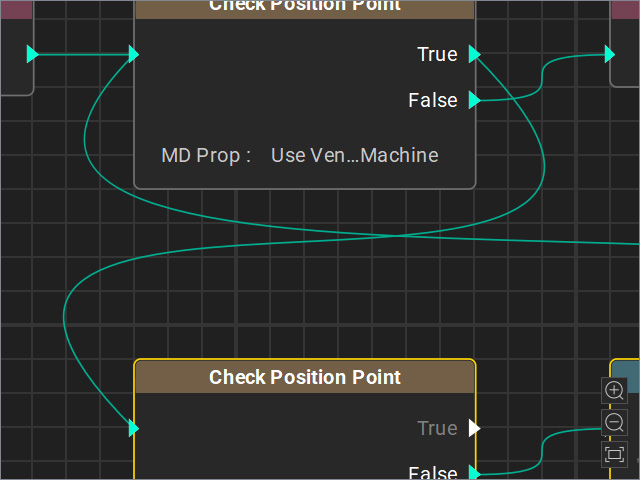
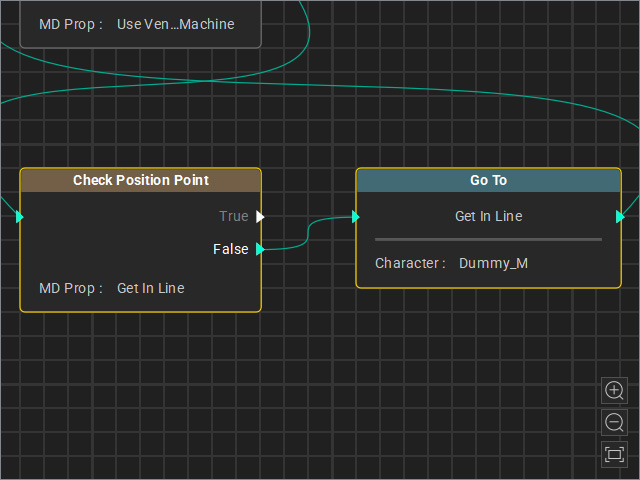
Multi-select nodes by Ctrl+click on desired nodes.
Click the Fit View button to zoom and fit the selected nodes in the viewport.
- No nodes selected: If no nodes are selected, click the Fit View button to zoom and fit all nodes in the viewport.
