Integrating Nodes to Sub-Graphs
When the node connections are finalized or meant to be reused, you can convert them into a Sub Graph to keep the layout clean and make them easier to select and duplicate.
Making Sub-graphs by Right-click Menu
- Prepare a node graph.
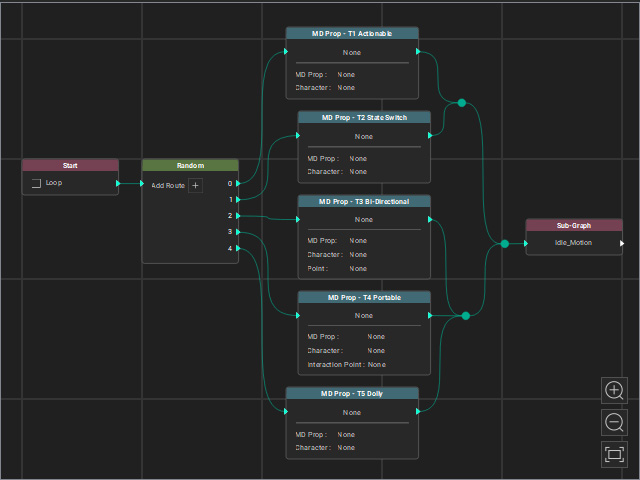
- Select the desired nodes, including the joints.
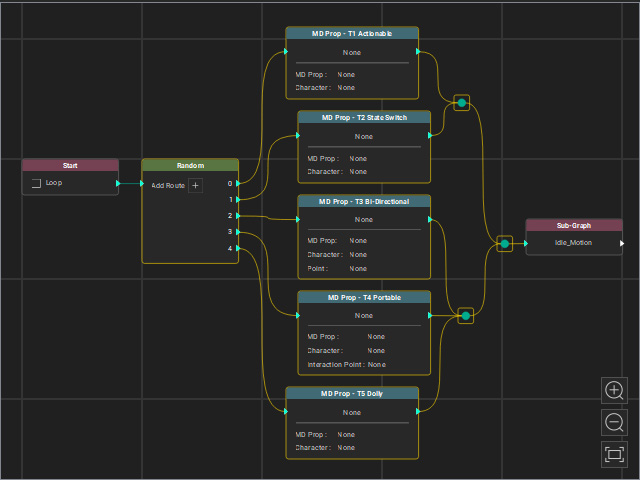
- Right-click one of the selected nodes and choose the Convert to Sub-Graph command from the context menu.
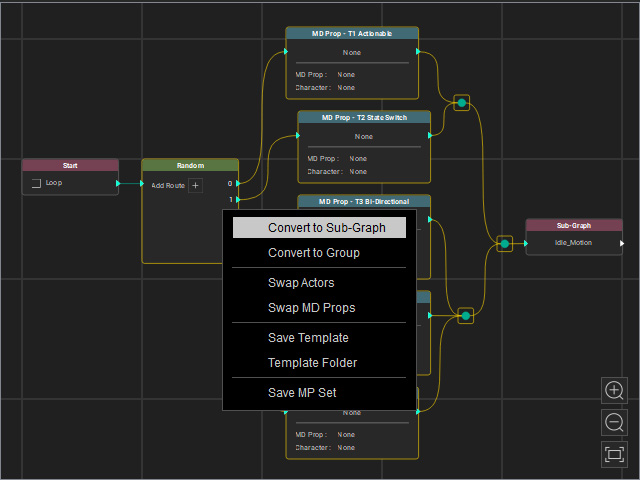
The selected nodes will be converted to a new sub-graph.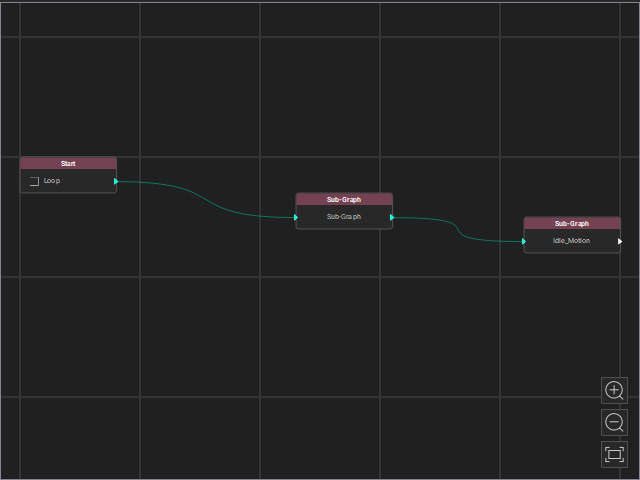
- Double-click on the new sub-graph to open it.
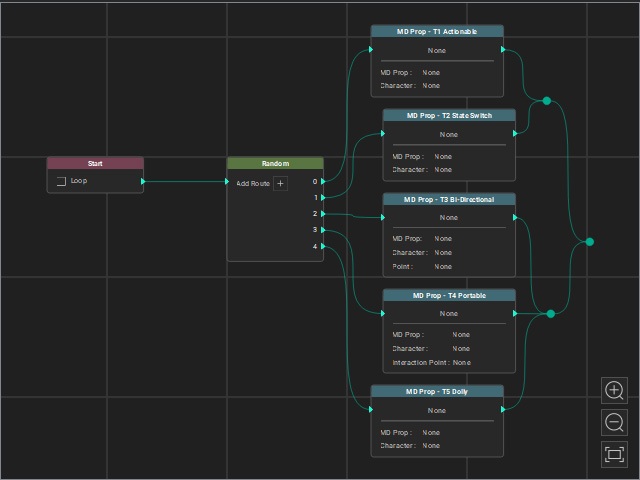
- Delete unnecessary nodes to well organize the sub-graph layout.
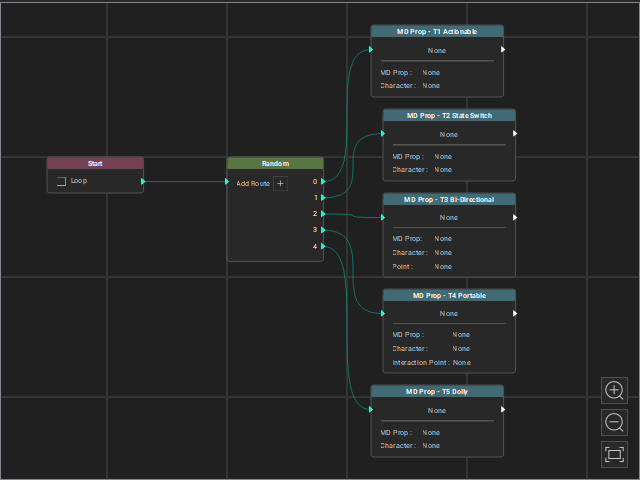
- You can click the Level button to exit and return to the base level.
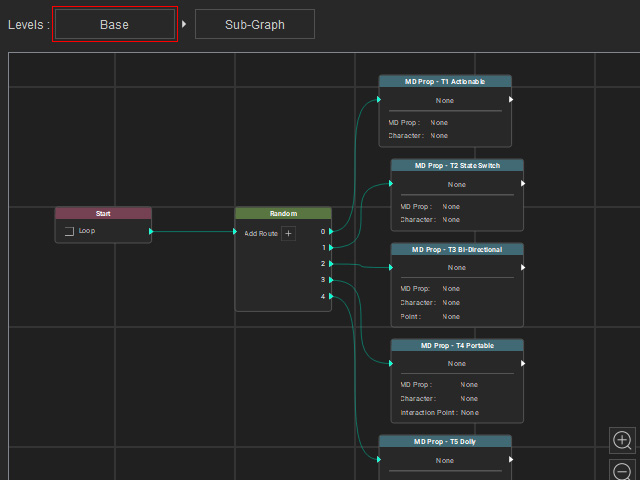
- Reorganize the graph, as you can see the layout becomes clean and neat.
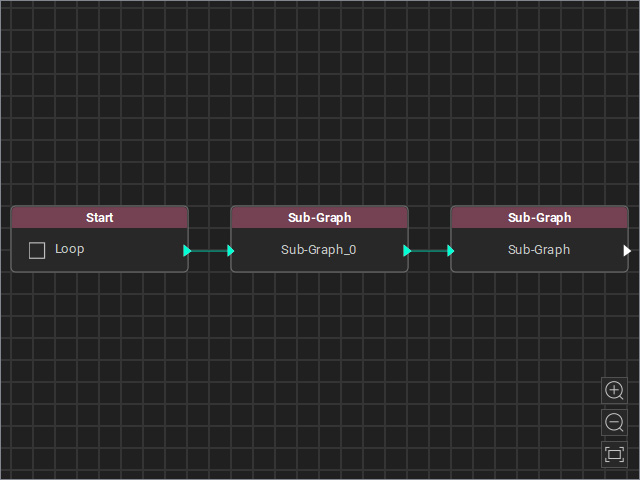
Make Sub-graph by Using Sub-Graph Node
- Prepare a node graph.
- Right-click on the space of the MP Node Graph viewport. Choose Composition Node > Sub-Graph.
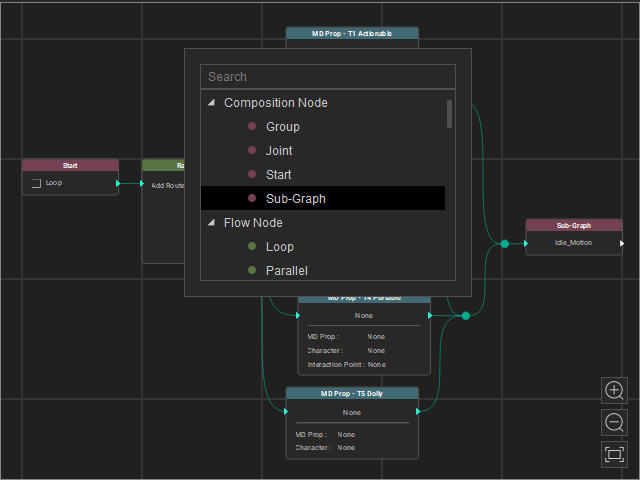
An empty sub-graph node will appear.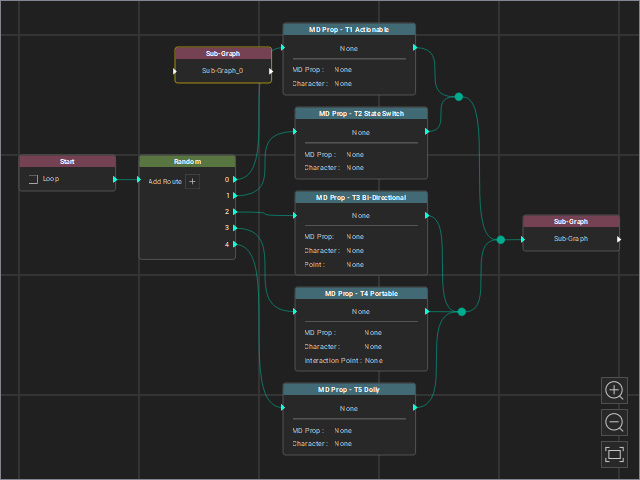
- Select the nodes you want to add into the sub-graph node.
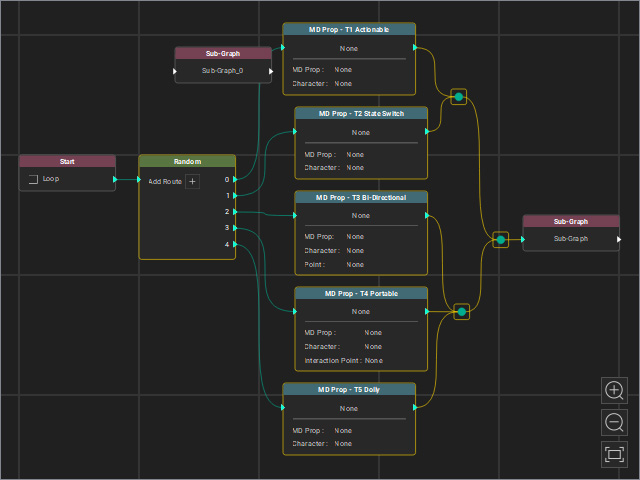
- Cut the selected nodes (Ctrl + X).
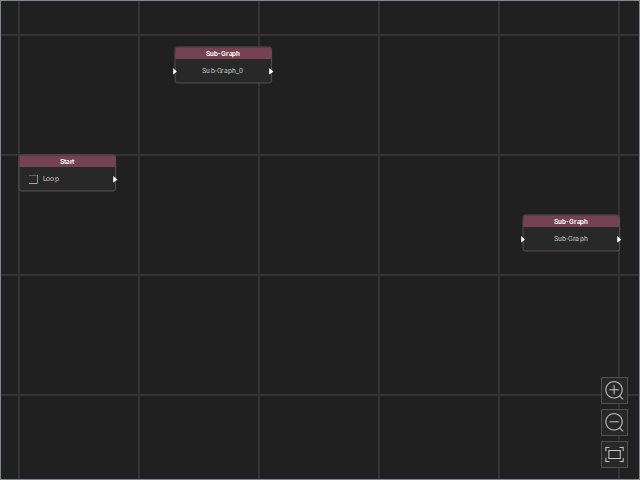
- Double-click to open the empty Sub-Graph node.
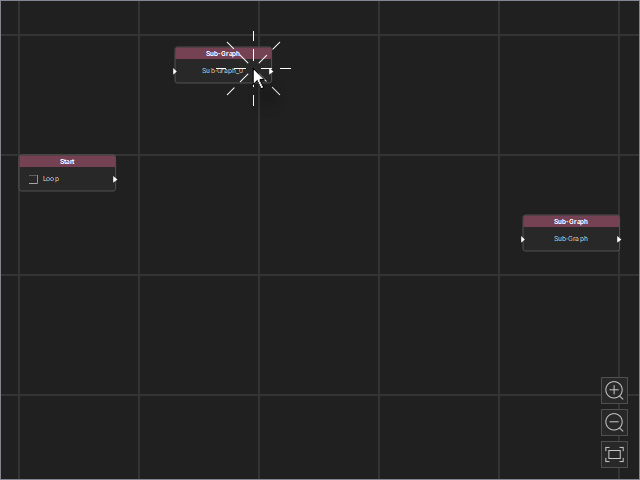
The sub-graph will be open with a Start node in it.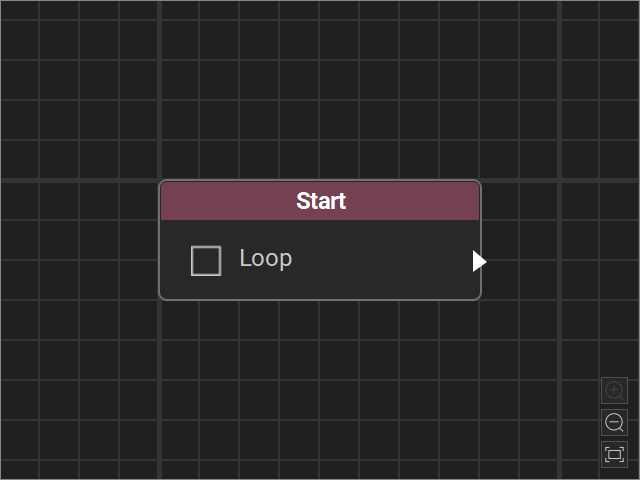
- Paste the cut off nodes (Ctrl + V).
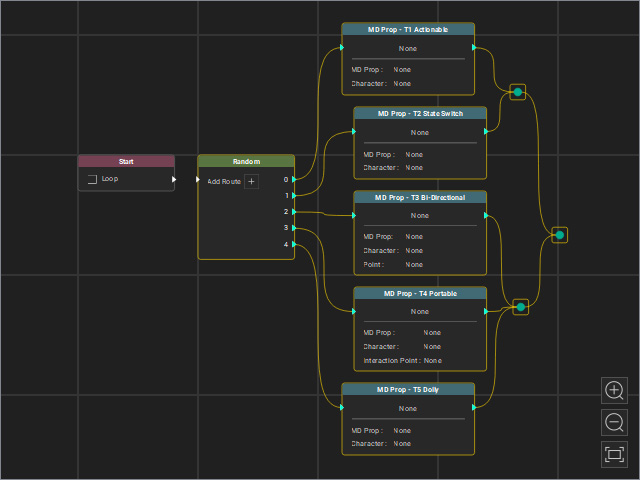
Connect the nodes to the Start node and remove the unnecessary joint nodes.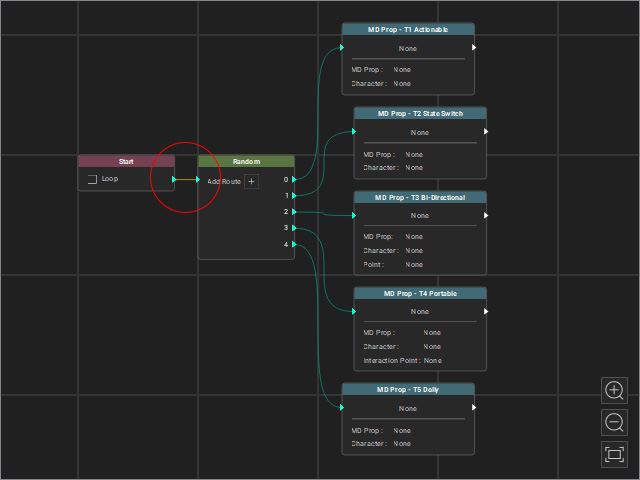
- Click the Base button on the Level toolbar to return to the base level view.
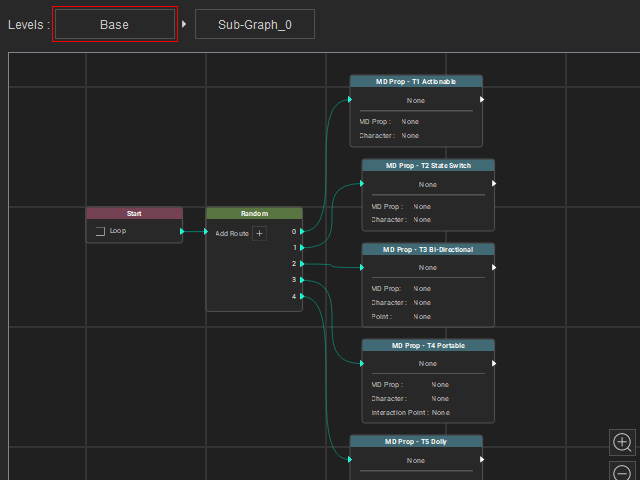
- Connect the nodes.
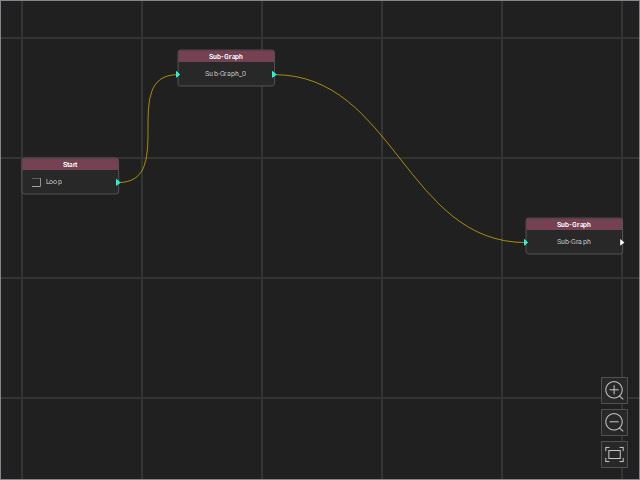
Reorganize the graph, as you can see the layout becomes clean and neat.
Sub-graph Settings
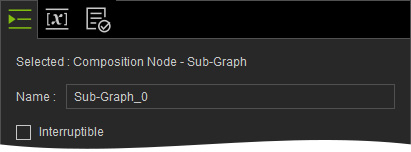
- Name: You can enter the Sub-graph name in the Name field.
- Interruptible:
