Saving and Loading MP Sets
If you have an ideal MP Set and MP Planning Graph already set up and want to reuse them in other projects, you can use the Save / Load MP Sets feature to save the current MP Set as a file and apply it directly in other projects. This eliminates the need to rebuild everything and saves a significant amount of time.
Saving MP Sets
- Build a MP Set with MP node graph completely setup.
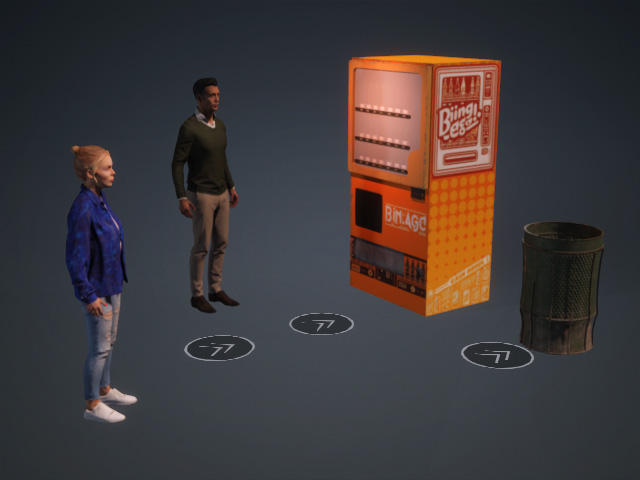
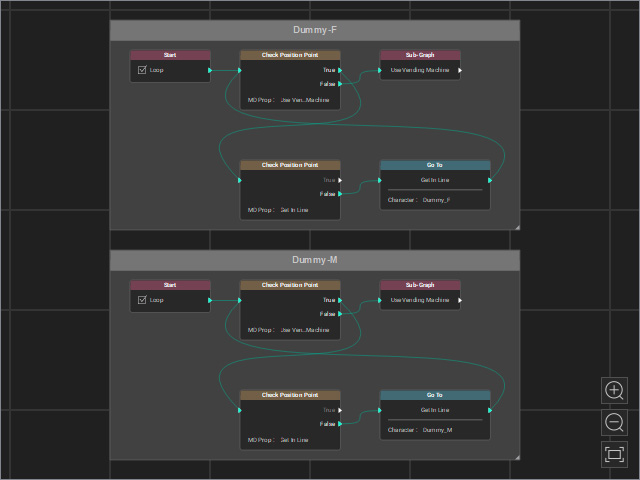
MP Props and characters in a project
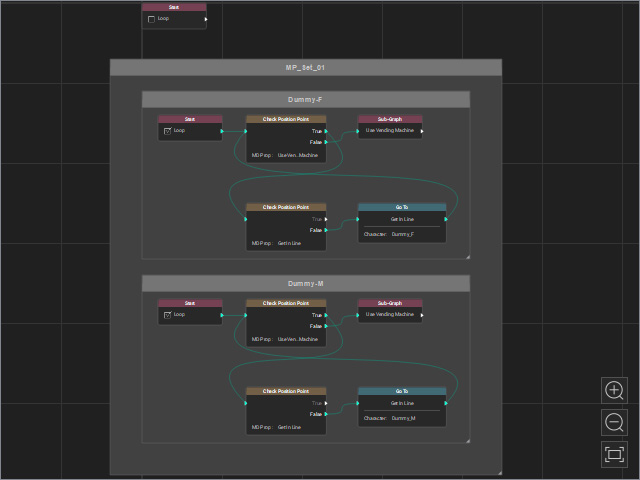
Well structured Motion Planning graph.
- Save the mp props and motion planning graph as a file.
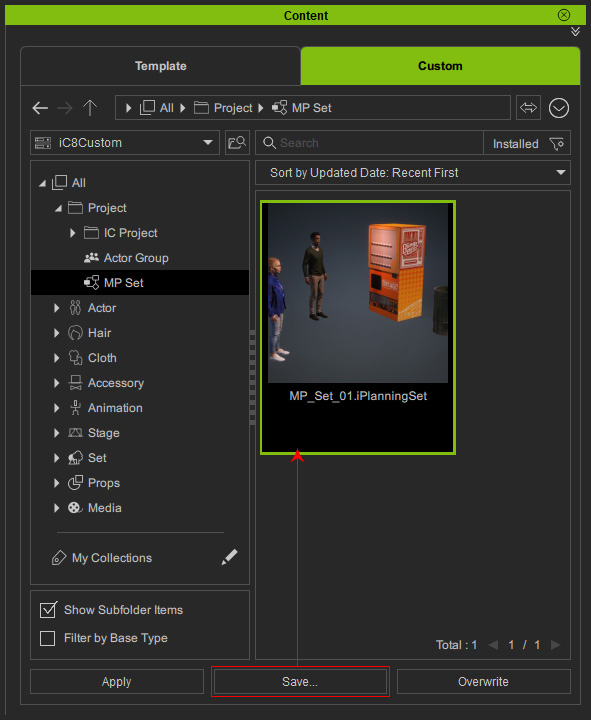
- Content Manager: Go to the Custom > Project > MP Set library and click the Save... button to save the items as a file (*.iPlanningSet).
- MP Node Graph panel: Click the Save MP Set button.
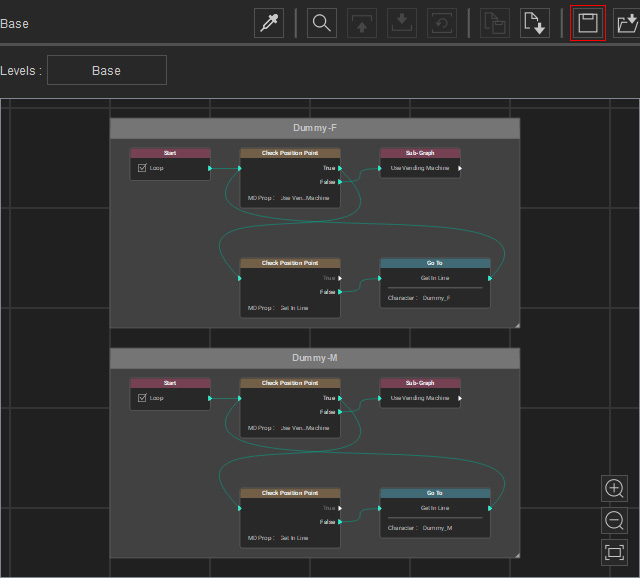
Choose a directory for saving the items as a file (*.iPlanningSet).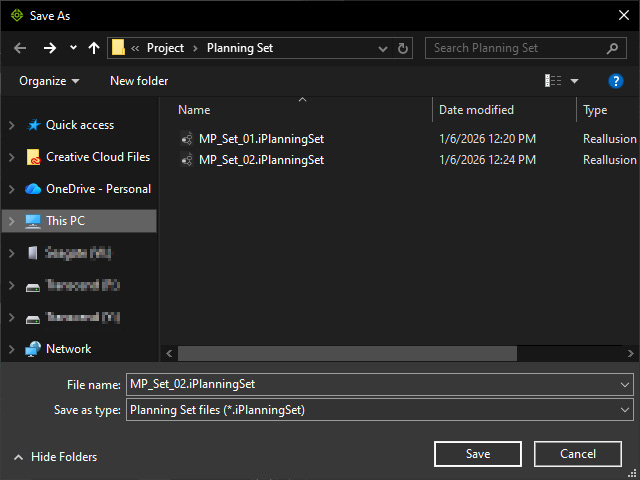
- Content Manager: Go to the Custom > Project > MP Set library and click the Save... button to save the items as a file (*.iPlanningSet).
Loading MP Sets
- Create a new project.
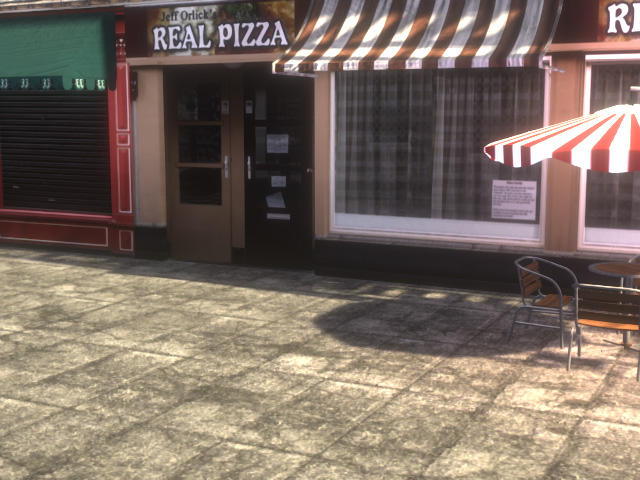
- Load the previously saved MP Set file.
- Content Manager: Go to Custom > Project > MP Set in the library and apply the file (*.iPlanningSet) by double-clicking, dragging and dropping, or clicking the Apply button.
- MP Node Graph panel: Click the Load MP Set button.

Choose the previously saved file (*.iPlanningSet).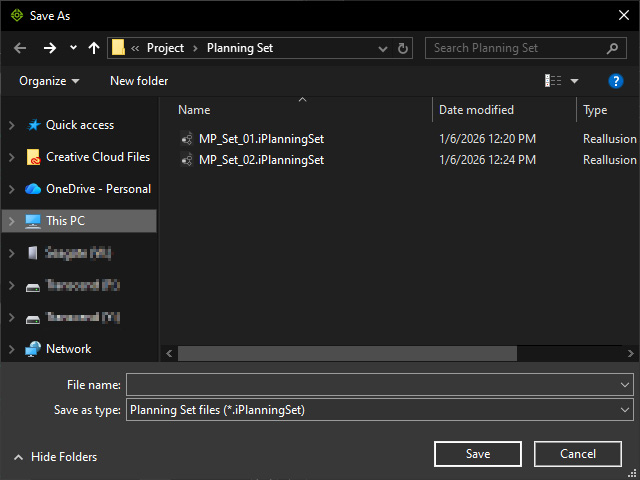
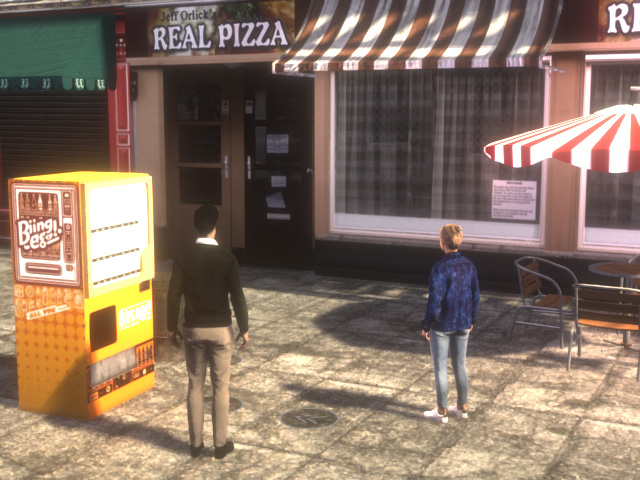
- Transform the MD props and the characters.
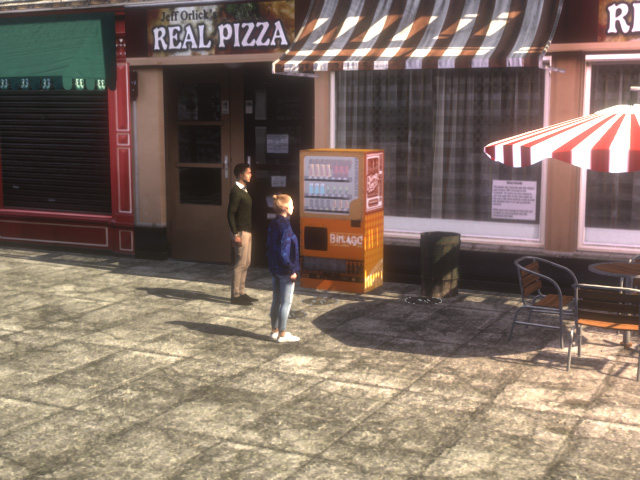
- Start the Go MD mode to play the Motion Planning graph.
