Synchronizing Mocap FPS
After capturing body, facial, and hand motions, the resulting clips may sometimes appear unnaturally fast or slow. This is typically caused by mismatched frame rates between the motion capture software, Motion LIVE, and the iClone project settings. Follow the steps below to correct these timing discrepancies.
- Capture a motion via a recording device, like Vicon, in
conjunction with the Motion LIVE plugin. Refrain from making FPS adjustments for the time being.
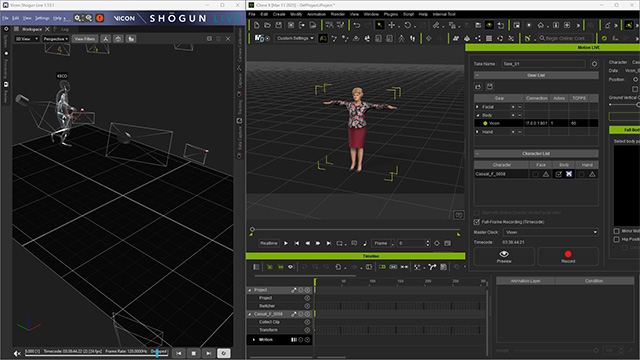
- Select the captured motion and playback the animation for
preview.
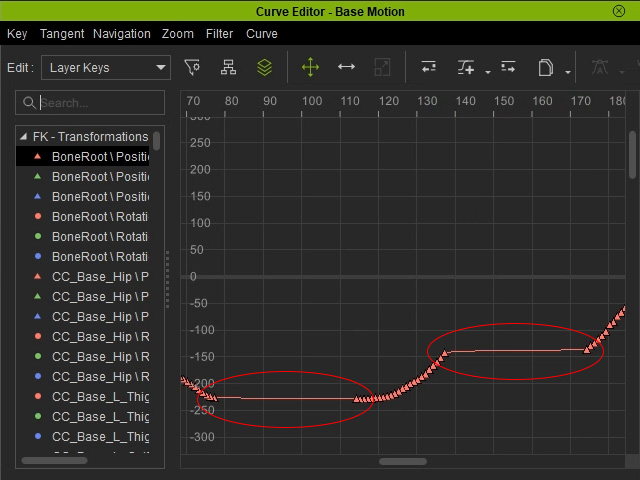
- Open the Curve Editor to see how the motion is
ill-timed, with two plateaus for the motion curves.
-
Take a look at the timecode fps within the mocap software.
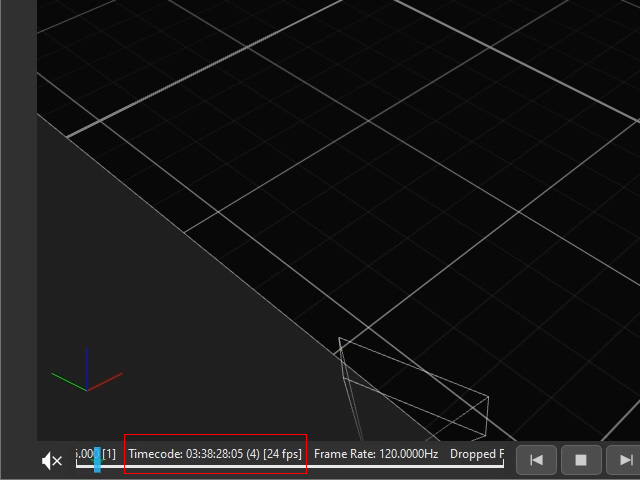
- Enter the TCFPS number for the device in the Motion Live plugin
to synchronize it.
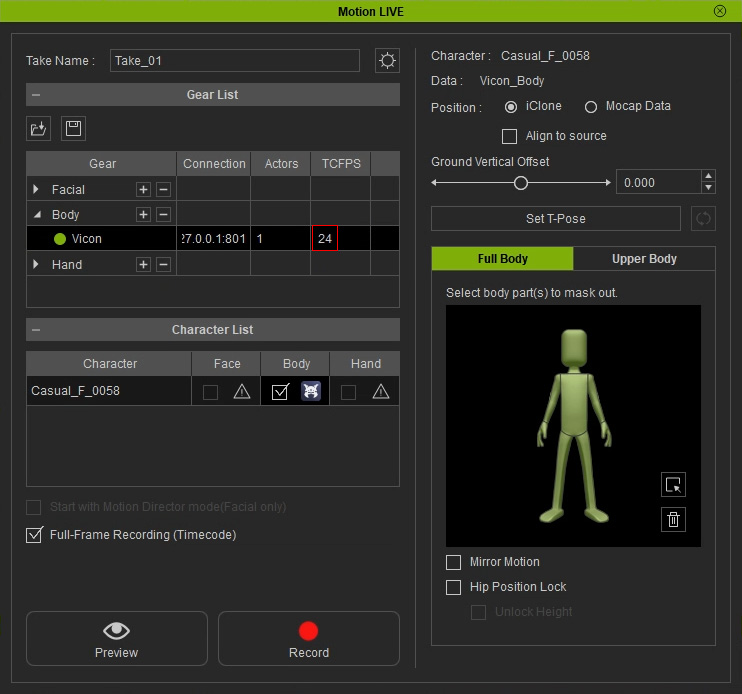
- Capture the motion again to remove the timing issues.
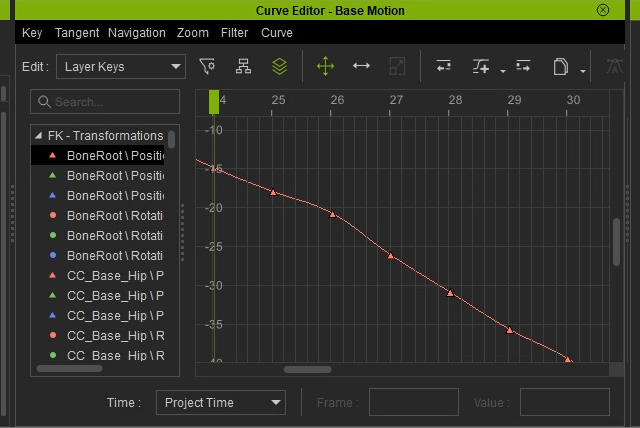
- Check the Curve Editor to view the rectified motion curve.
However, notice that the keyframes do not align with timeline units.
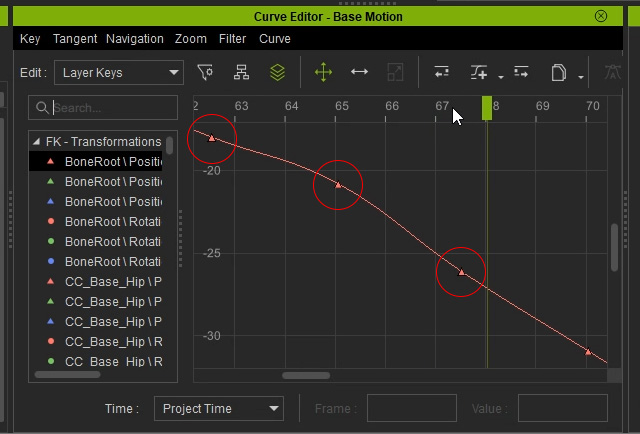
- Open the Project panel, set the project FPS to the same value.
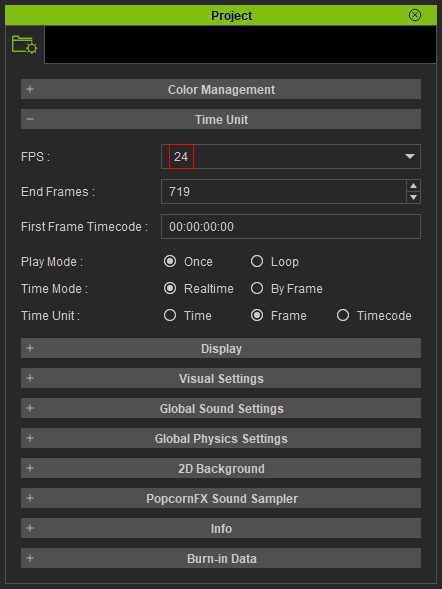
The keys will now be distributed properly according to the units of the timeline.