Device Settings - NaturalPoint OptiTrack
Motion LIVE plug-in supports NaturalPoint OptiTrack mocap device, which provides a complete mocap solution for production studio. Not only can you capture performances by one actor, multiple actors are also allowed.
For Sending Streaming Data to iClone
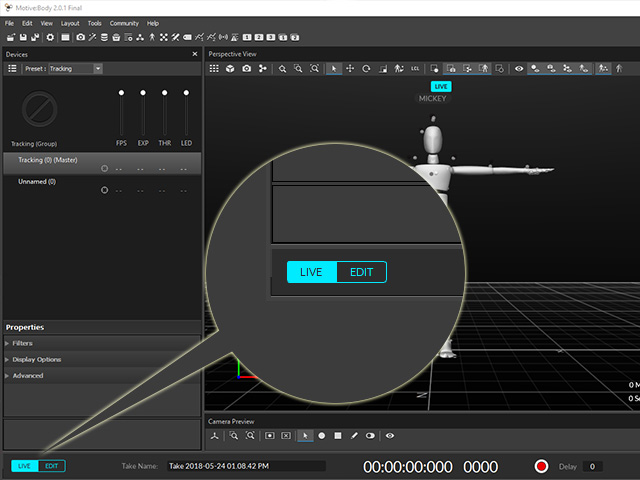
- After your actors has put on the sensors and Motive is launched, set to Live
mode for broadcasting the data stream.
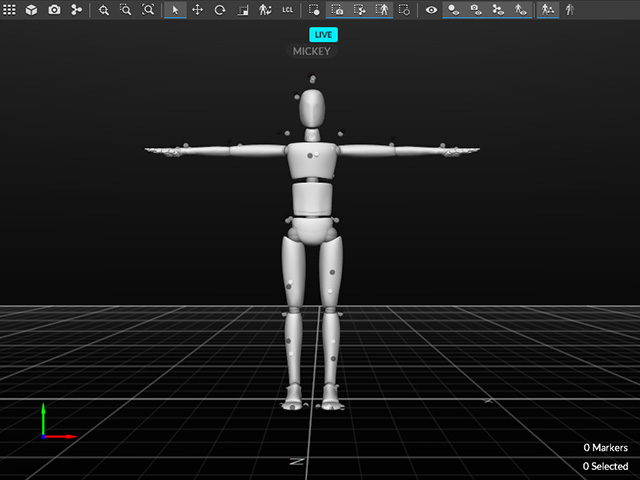
- Calibration with the T pose.
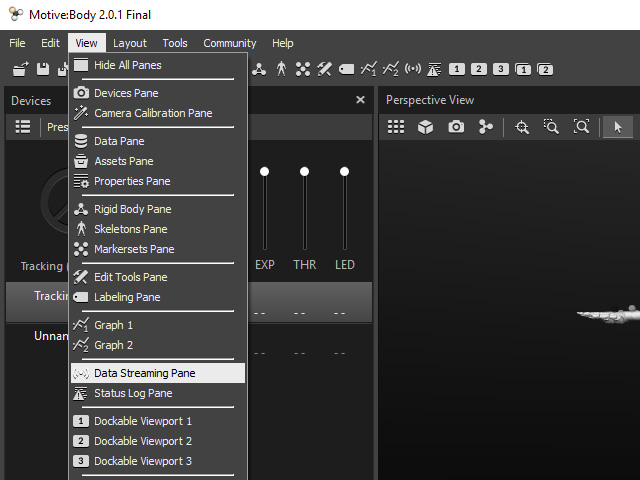
- Go to View >> Data Streaming Pane.
-
Click the ... button at the top-right corner of the Streaming panel to show all settings for broadcasting data
stream.
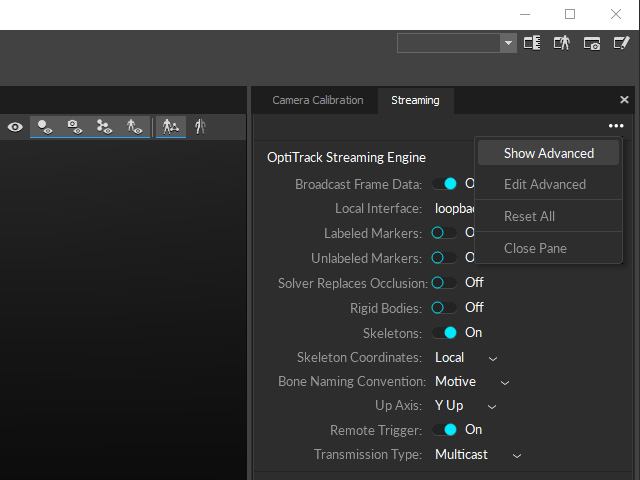
- Adjust the settings as shown below.
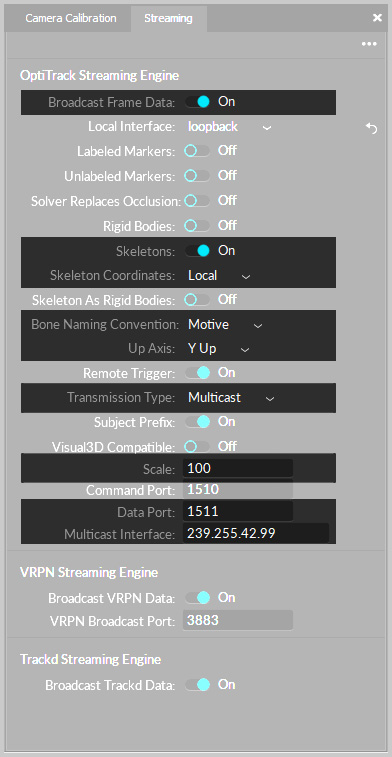
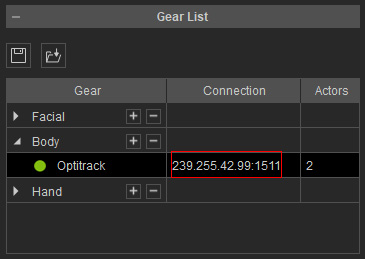
- To connect the Motion LIVE plug-in, add the gear to the Gear List and set the IP:Port to the same one at previous step.
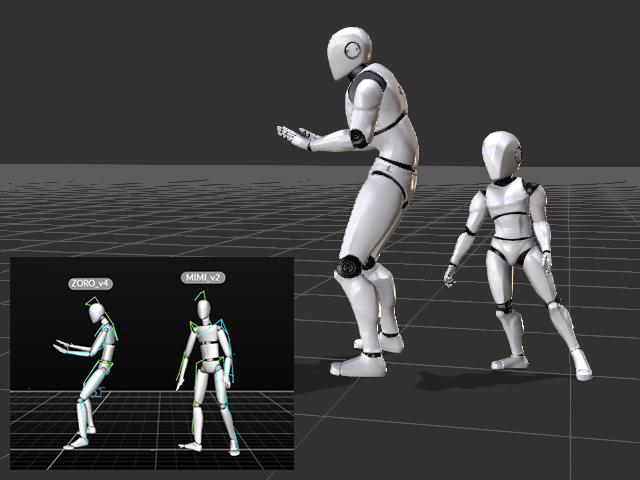
- Now the OptiTrack streaming data can be transferred to iClone characters.
OptiTrack FPS Setting
To set the fps for
OptiTrack (Motive3), click the gear icon.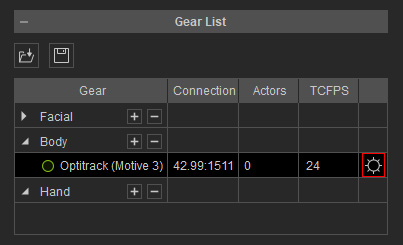
- Select the Frame Rate value for OptiTrack.
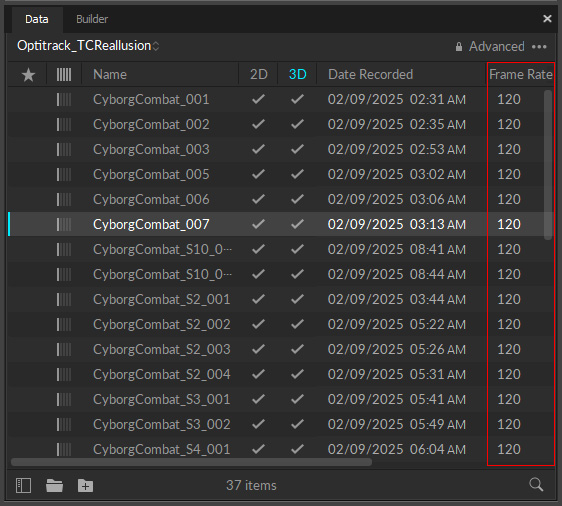
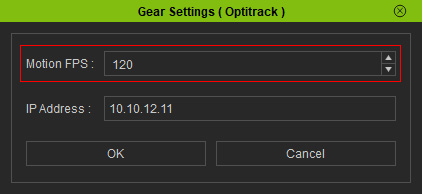
- Click the gear icon in the OptiTrack panel and type in the fps
value in the Motion FPS field.
More About OptiTrack
- Standalone Program: Motive
- Calibration: Regular T pose
- Native Data Format: *.tak
- Export: *.FBX (with Timecode)
- NaturalPoint Official Website
- OptiTrack Main Page
