Device Settings - Rokoko Smartsuit Pro V 1.19 (New for V 1.1)
Motion LIVE V 1.1 plug-in supports Rokoko Smartsuit Pro V 1.19 mocap device, which provides a complete mocap solution for production. Not only can you capture performances by one actor, multiple actors are also allowed.
Please make sure you have installed or upgraded the Rokoko Profile V 1.19 for Motion LIVE plug-in.
Settings in Rokoko Studio V 1.19
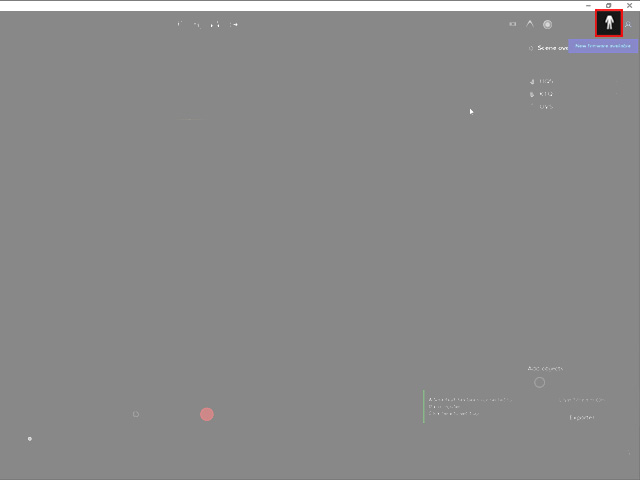
- Click the Configure your Smartsuit button.
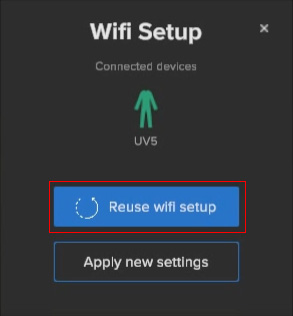
- Click the Reuse wifi setup button on the Wifi Setup panel.
- Adjust the settings in the next page of the panel. Click the Settings Applied button and close the panel.
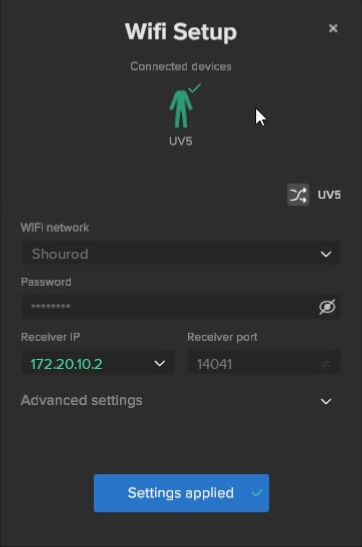
- WIFI network: Make sure you type in the correct domain name on which the Rokoko SmartSuit, Gloves, AP and computer that Motion Live plug-in are mounted or installed.
- Password: Type in the correct password for accessing the wifi domain.
- Receiver IP: The address of the Wifi Server device.
- Receiver Port: The port that for transferring captured motion data.
- As you can see the dummy in the 3D window appears dissected. It is because the Body Calibration has not been performed.
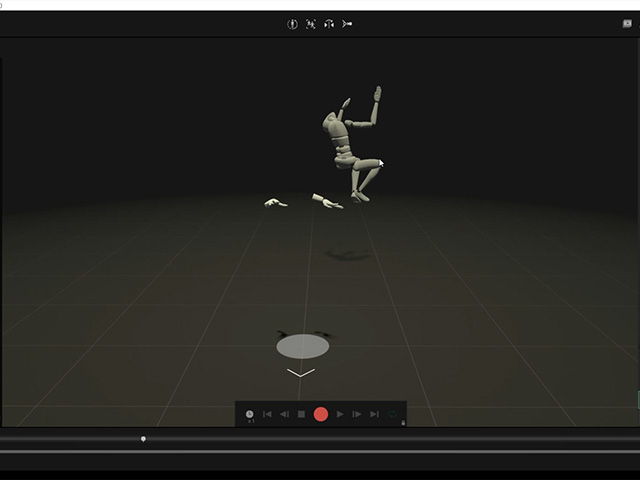
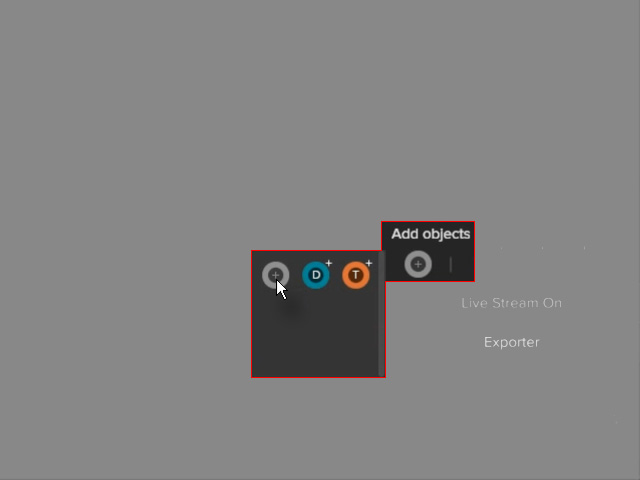
- Before calibration, it is highly recommenced that you click the Add objects button; then click the Create a new profile button to add a new character.
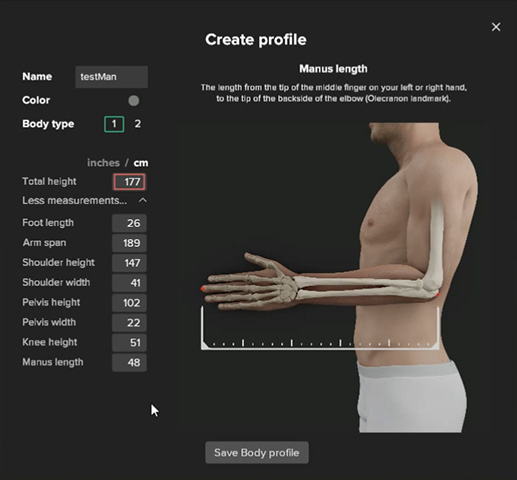
- Rename the new profile, set the height of the performer and the length of the performer's body parts. Click the Save Body Profile button.
- Drag and drop the hands and body to the profile.
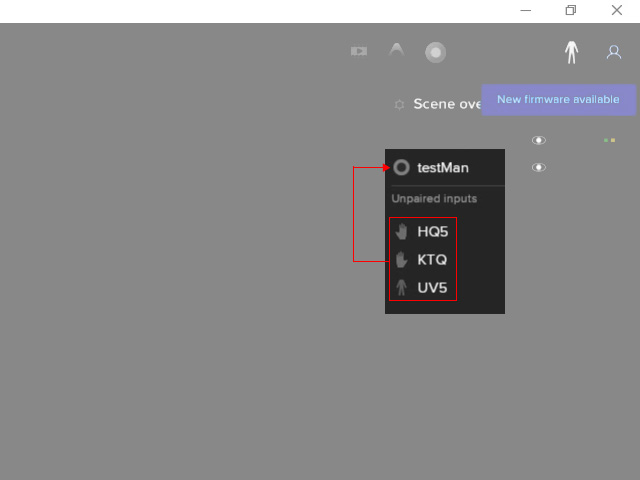
These node will become the profile's sub-nodes.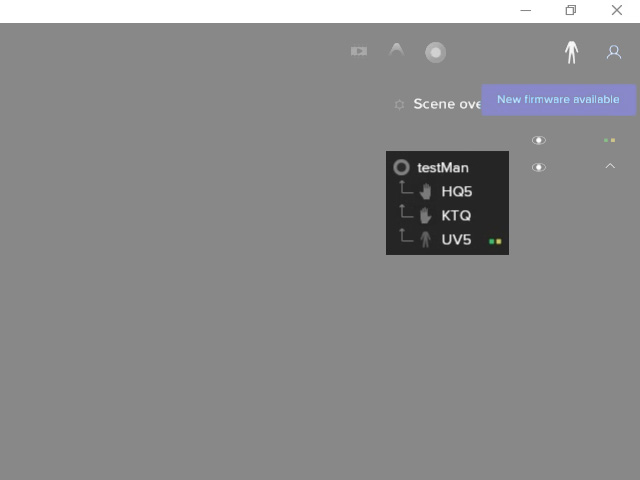
- Click the Perform Calibration pose on all live inputs button at the top of the application.
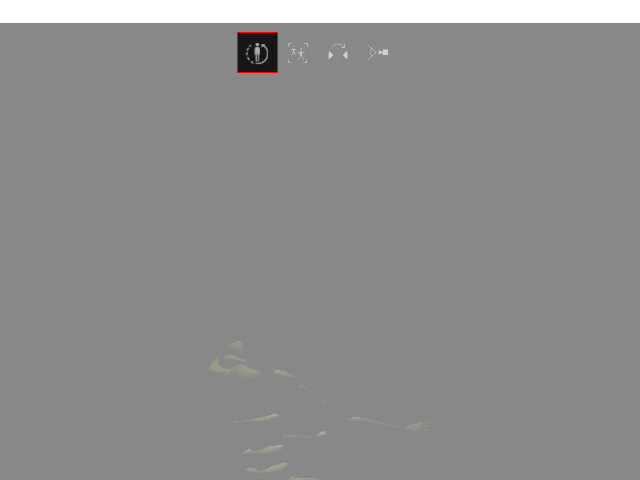
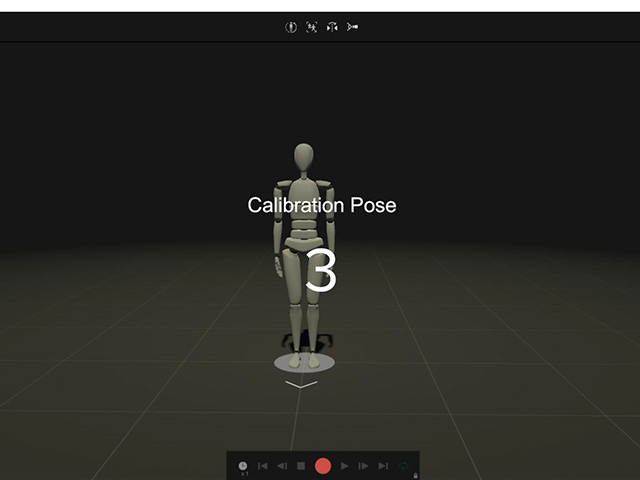
- The application starts to countdown, stand still till the calibration finishes.
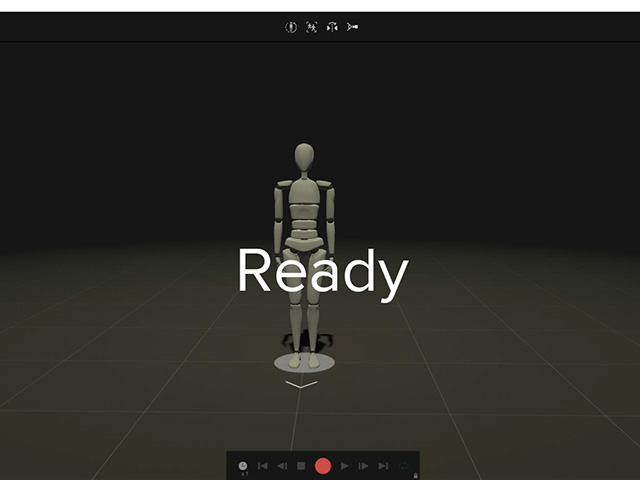
- When the screen shows Ready, then the calibration is finished and you can start to capture the performer's motions.
 Note
Note
If you find any exclamation mark shows as the following illustration: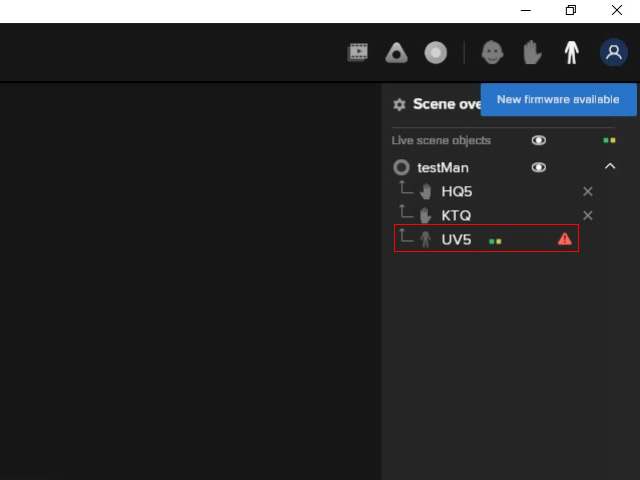
click on the node to show the sensors on the Smartsuit and check if any sensor is weak or malfunctioning.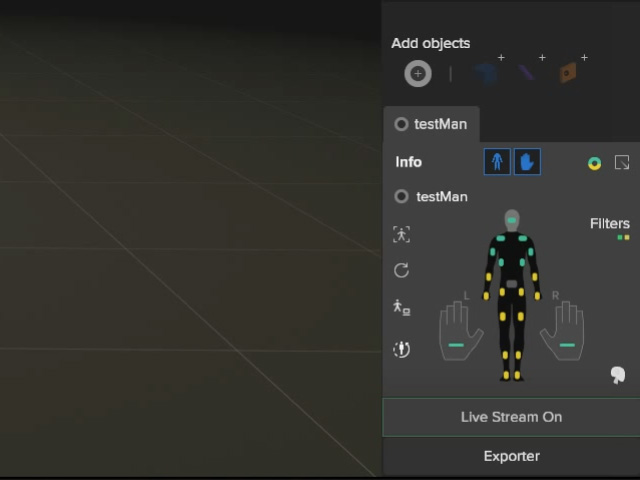
For Sending Streaming Data to iClone
- After your actors have put on the suit and Smartsuit studio
is launched, click the Live Stream On button.
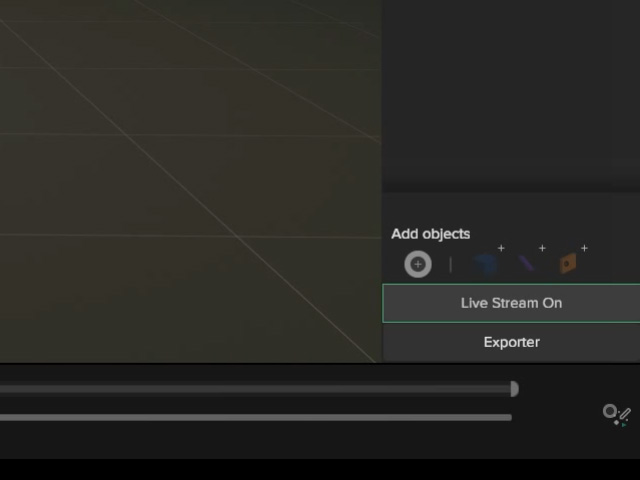
A page of tiles will appear.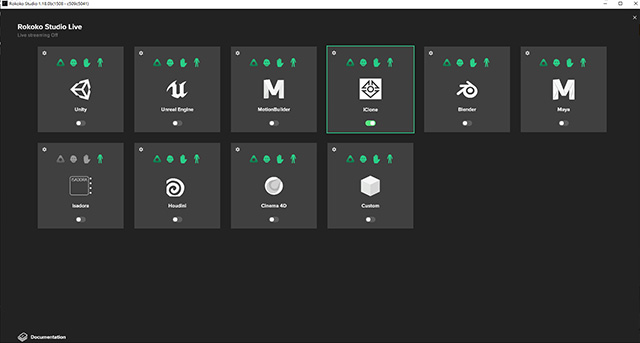
- Click the Gear icon button of the iClone tile-block.
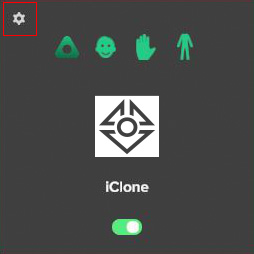
Remember the IP Addresses and Port numbers. Notice that one of the port number is for the hands and the other is for the body.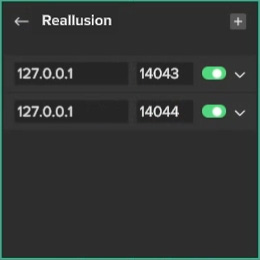
- To connect the Motion LIVE plug-in in iClone, add the gear to the Gear List and set the IP:Port to the same ones at last step.
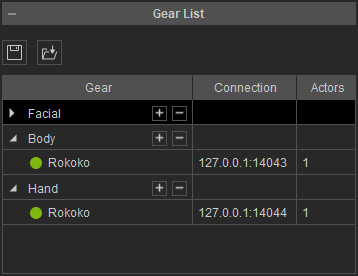
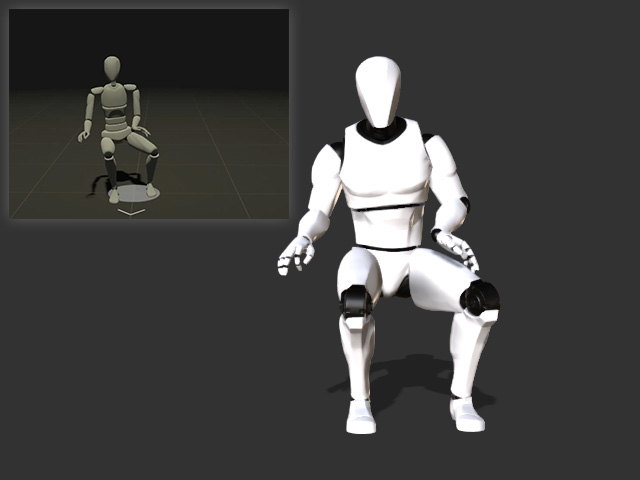
- Now the Rokoko Smartsuit Pro streamed data can be transferred to
characters in iClone.
More About Rokoko Smartsuit Pro
- Textile Suits: Smartsuit Pro
- Sensors: 9-DoF Inertial Measurement Unit
- Standalone Program: Smartsuit Studio (Must)
- Tutorials for Calibration: How to Perform a Straight Pose
- Export: *.FBX, *.BVH, *.CSV
- Rokoko Official Website
