Grabbing Neutral Pose for Specific Parts
Set Neutral (Partial) allows you to capture the neutral state of specific facial areas instead of the entire face. This helps adapt the facial mocap result to the actor’s unique facial structure by redefining selected areas as their neutral reference. It is particularly useful in VIDEO mode, where the performer cannot adjust their pose in real time.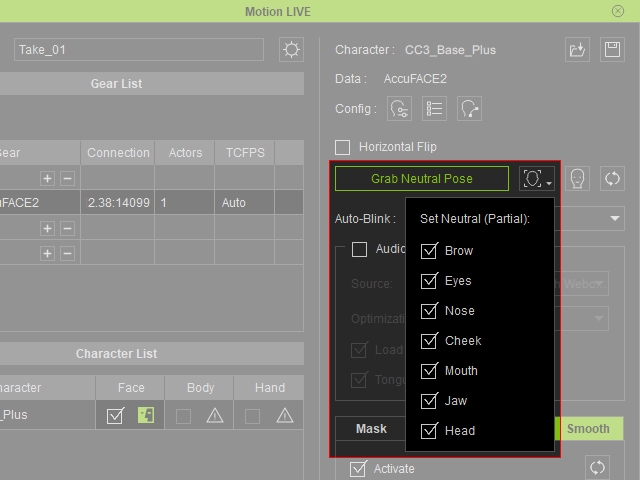
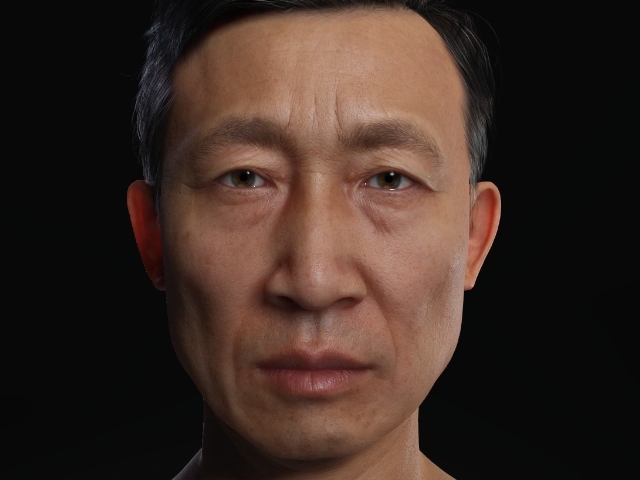
- Prepare a character in iClone.
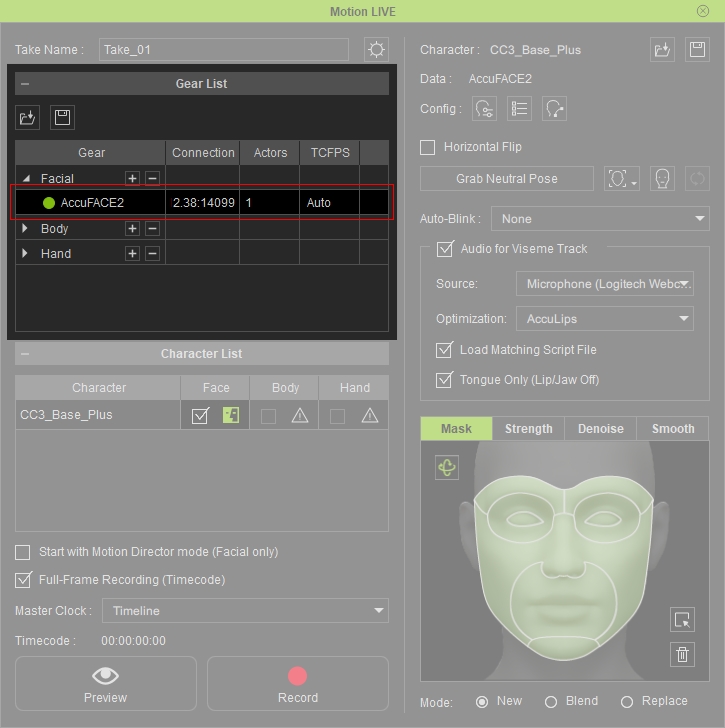
- Open Motion LIVE panel and make sure it is connected to the facial mo-cap device (AccuFACE2, for example).
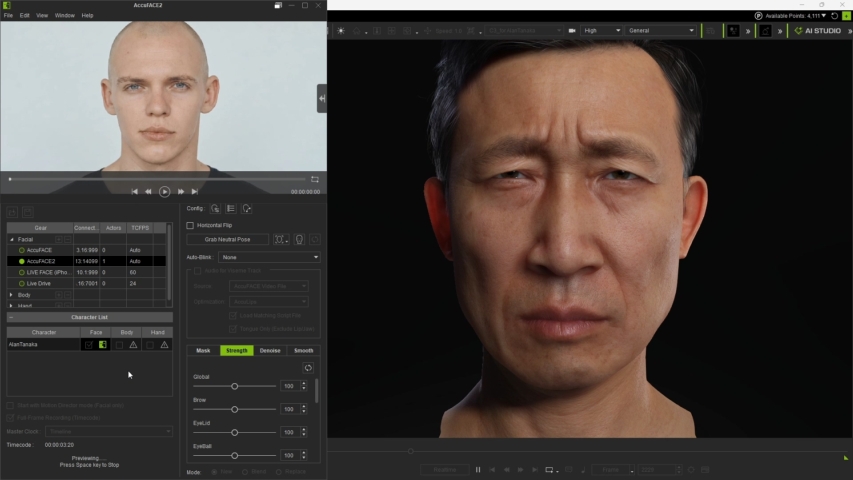
- Start previewing the facial mocap result. Notice that some facial features do not accurately match the performer. In this example, the inner brows appear overly furrowed, and the eyes appear smaller than the performer's.
- Locate a frame where the performer has a neutral pose.
- Click on the Set Neutral (Partial) icon button.
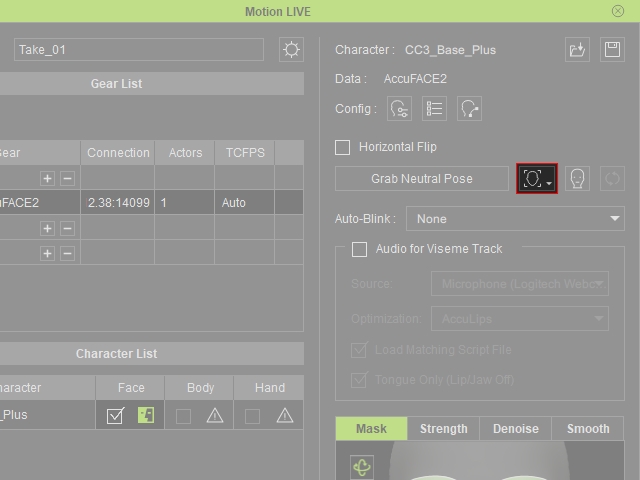
Select the parts you want to set neutral. In this case, only Brow and Eyes.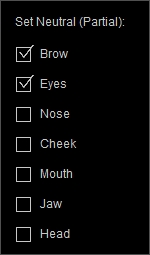
 Note:
Note:Inside Set Neutral (Partial), the value of the unselected parts will be reset back to default.
- Click Grab Neutral Pose to confirm the set neutral parts.
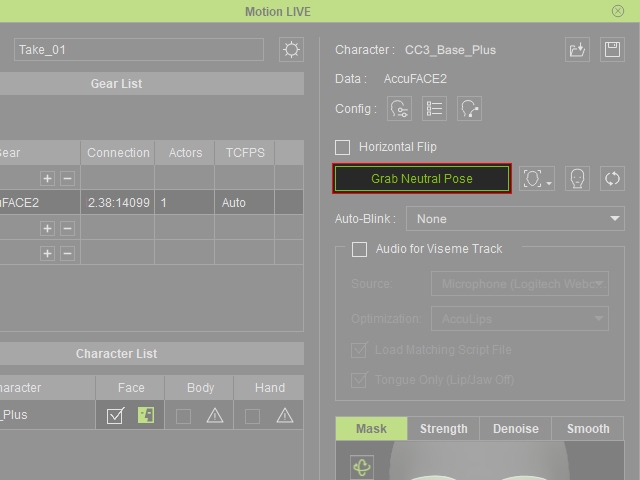
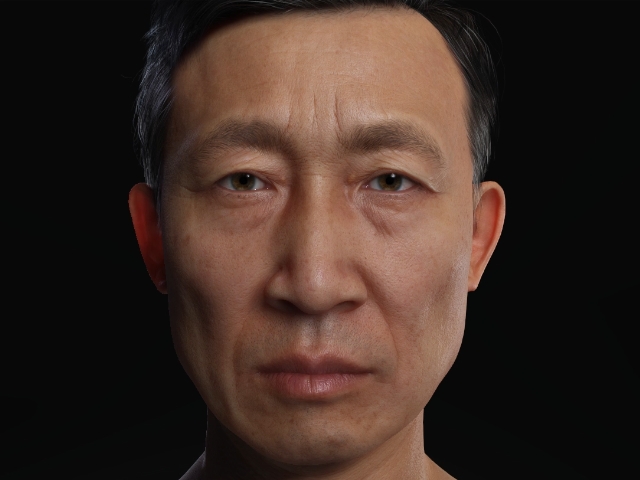
The angle offsets of the selected parts are neutralized.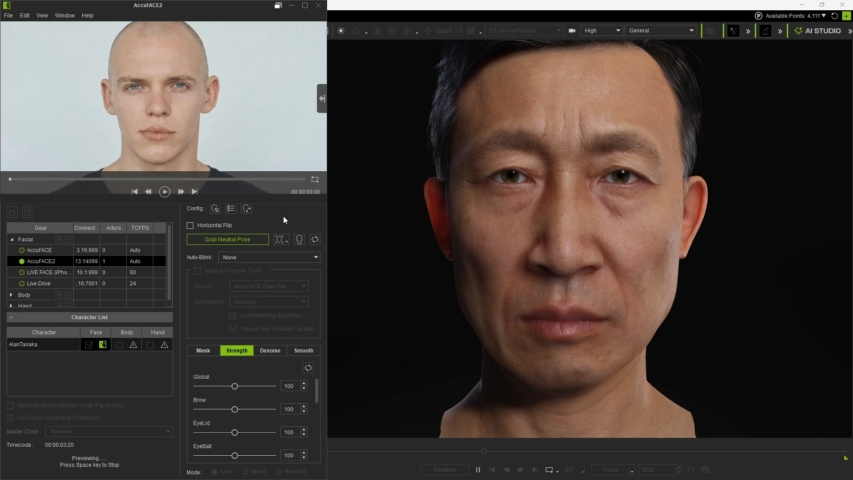
- Compare the facial mo-cap results, before and after grabbing neutral parts.
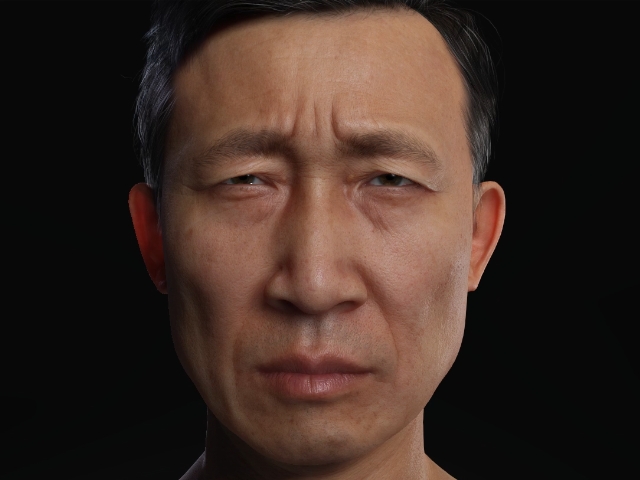
Before grabbing the neutral pose
After grabbing the neutral pose
- Playback to view the final result.
