VIDEO Mode Workflow (New for v 1.1)
Capture your facial performances with AccuFACE using recorded footage and seamlessly transfer the captured calibrations to your chosen character model in iClone .
- Open AccuFACE and iClone.
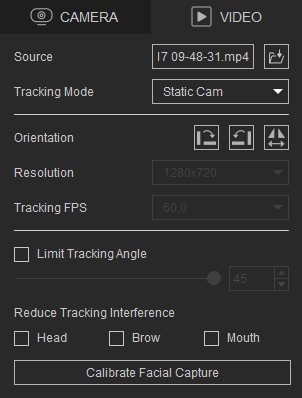
- In AccuFACE, select the VIDEO mode.
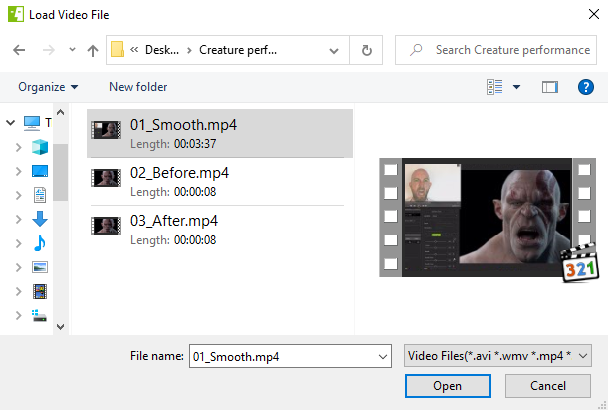
- The Load Offline Video file dialog will appear. Select the recorded footage you want to import and click Open.
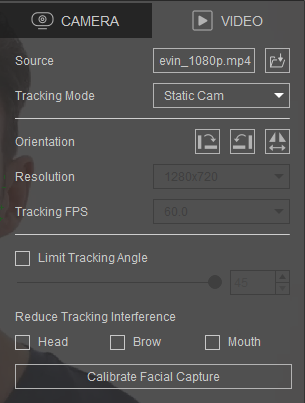
- In the Source field, you will see the name of the video.

- For Tracking Mode, select the option that matches your camera setup.

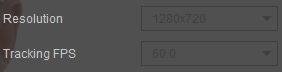
- The Resolution and Tracking FPS will be disabled in VIDEO mode. AccuFACE will utilize the resolution and FPS settings of your imported video for capturing facial performance calibrations.
 Note:
Note:For the best quality, is it recommended to use video footage captured at 30 FPS.
- In the Source field, you will see the name of the video.
- After you have finished configuring your VIDEO settings, click the Calibrate Facial Capture button to improve the accuracy of your facial mocap.
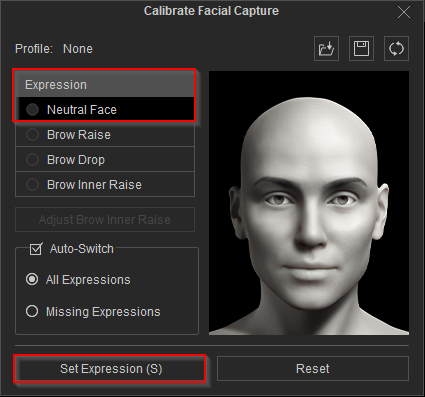
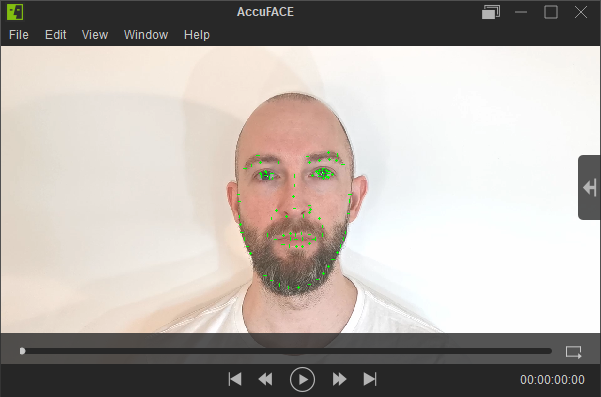
- Choose Calibrate Facial Capture > Expression > Neutral Face, and play the recorded video until the desired expression appears. Pause the video and click the Set Expression (S) button to save the expression calibration data.
 Note:
Note:If the loaded video lacks the expression you need for calibration, consider using similar videos for facial capture calibration. Ensure the performer’s distance, facing angle, and lighting remain consistent across these videos to achieve accurate expression results.
After saving the Neutral Face expression, play the video to save the rest of the expressions. Once completed, you can close the Calibrate Facial Capture window.
Connecting AccuFACE to Motion Live
- To initiate the connection between AccuFACE and Motion Live, begin by selecting a character model in iClone.
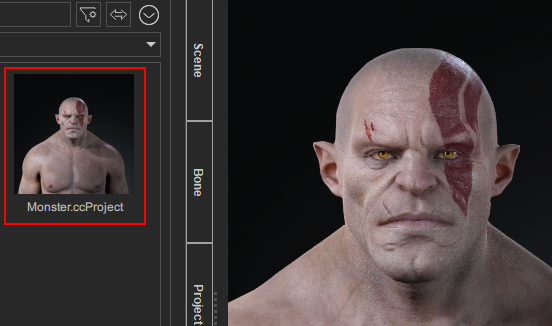
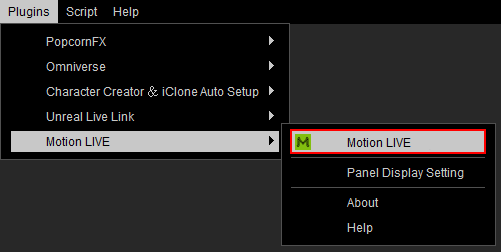
- Perform Plugins > Motion LIVE> Motion LIVE.
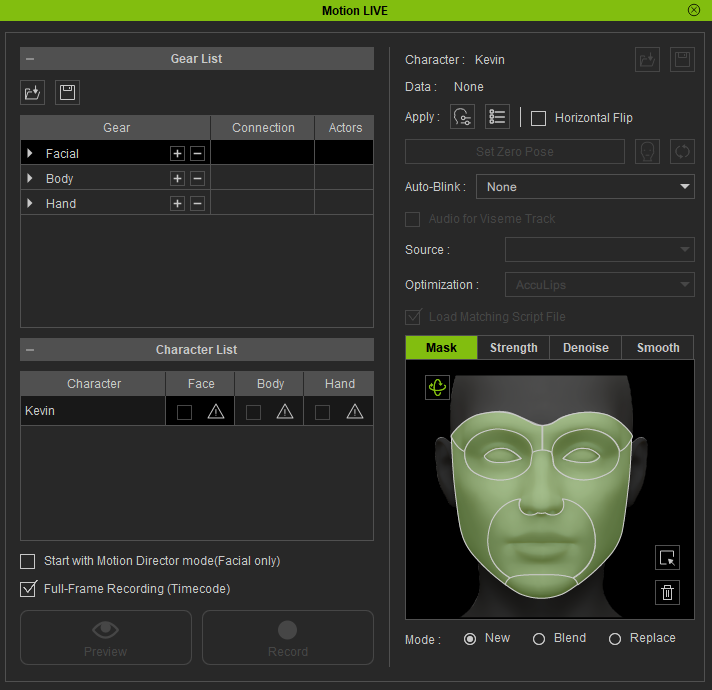
- The Motion LIVE panel will appear. Select the facial row under the Gear List section.
- Under Gear List, click the + button in the ‘Facial’ row to show the supported default devices.
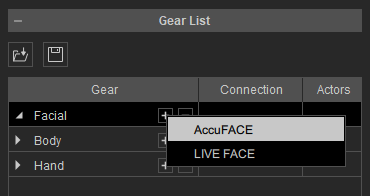
Select ‘AccuFACE’ from the dropdown menu. You will see the device is now under the ‘Facial’ group with a green hollow circle.
- Type the IP address shown in your AccuFACE application into Motion LIVE > Gear List > Connection and activate the hollow circle beside it.
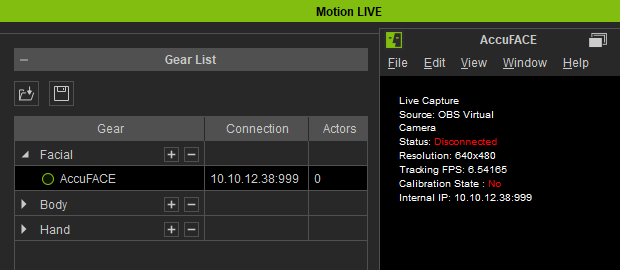
The green circle will become solid, indicating that AccuFACE has successfully connected to the Motion Live plugin.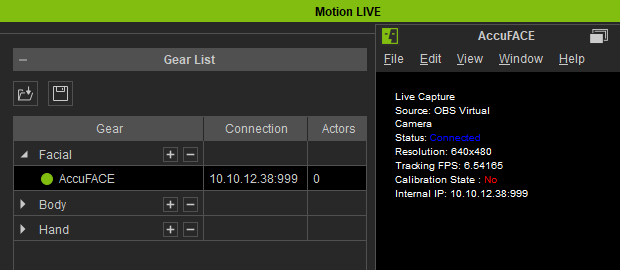
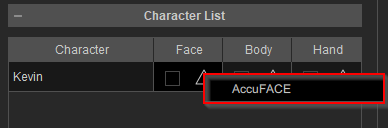
- Click on the hazard sign under Character List > Face for the character you want to puppet and select ‘AccuFace’.
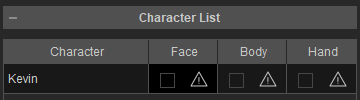
Before establishing the connection.
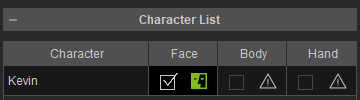
After establishing the connection.
- Click the Preview button and press the SpaceBar to preview the facial expressions of the performer in the video on the virtual character. For better capture results, click the Set Zero Pose button to initialize the facial expression.
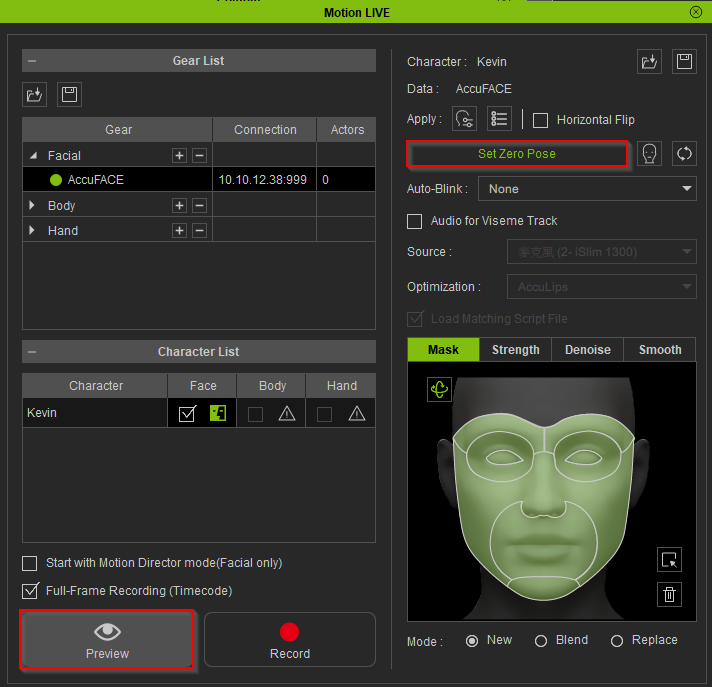
Click the Record button and press the SpaceBar to start recording.
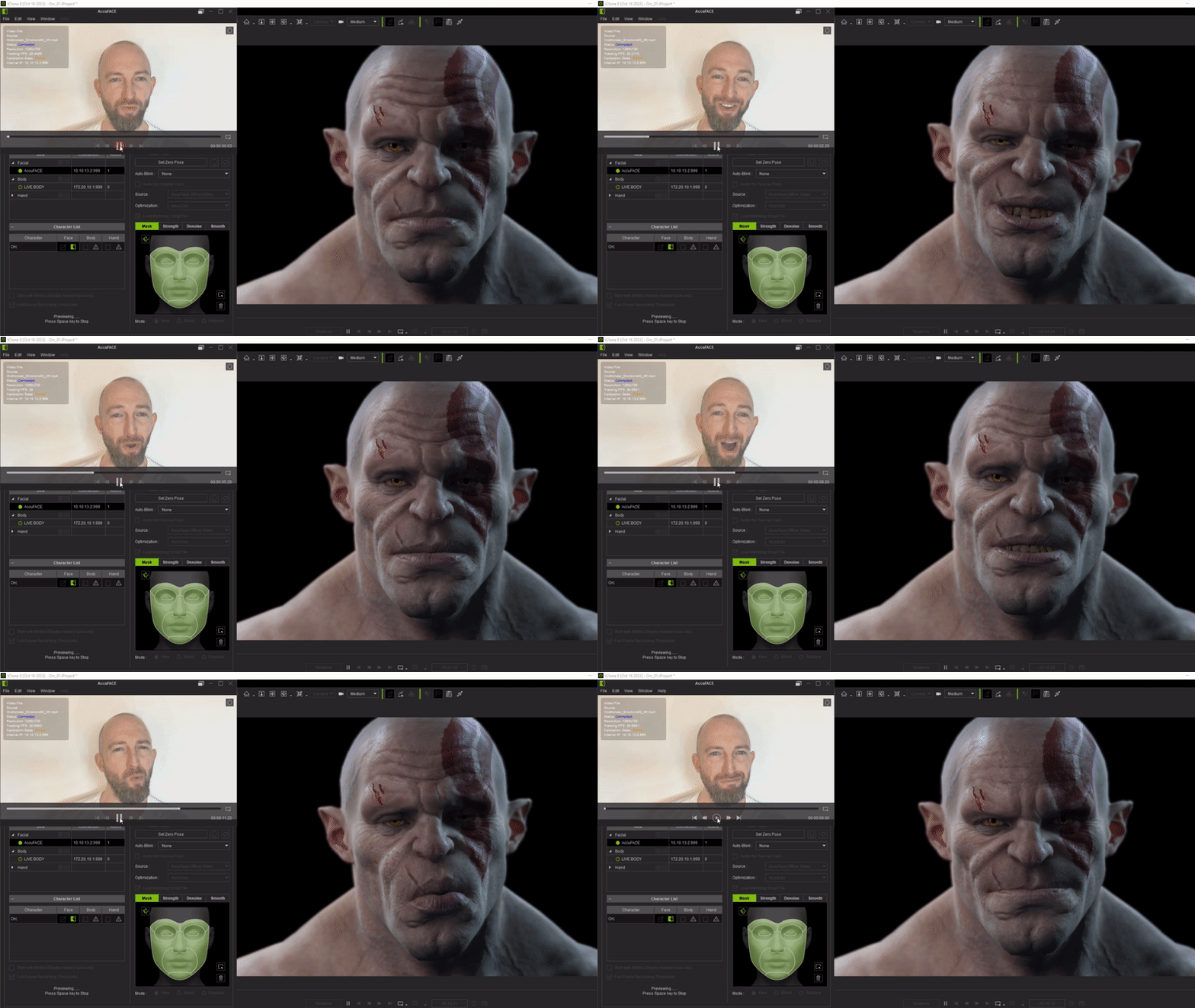 Note:
Note:- If your facial capturing process involves a wide range of head angle movements, it is recommended to activate the Limit Tracking Angle feature. This feature restricts AccuFACE from receiving tracking data beyond a designated rotation angle (adjustable from 30° to 45°). This helps prevent the transfer of potentially inaccurate tracking data to Motion Live, ensuring a more precise result.

- Prior to recording your facial performance, it is recommended to utilize the Acculips option to improve the precision of your character's mouth and lip movements.

- When using AccuFACE and IC on different computers, you can still transfer facial calibration data. However, please note that the Audio for Viseme Track will be disabled because audio information cannot be transferred.
- If your facial capturing process involves a wide range of head angle movements, it is recommended to activate the Limit Tracking Angle feature. This feature restricts AccuFACE from receiving tracking data beyond a designated rotation angle (adjustable from 30° to 45°). This helps prevent the transfer of potentially inaccurate tracking data to Motion Live, ensuring a more precise result.
