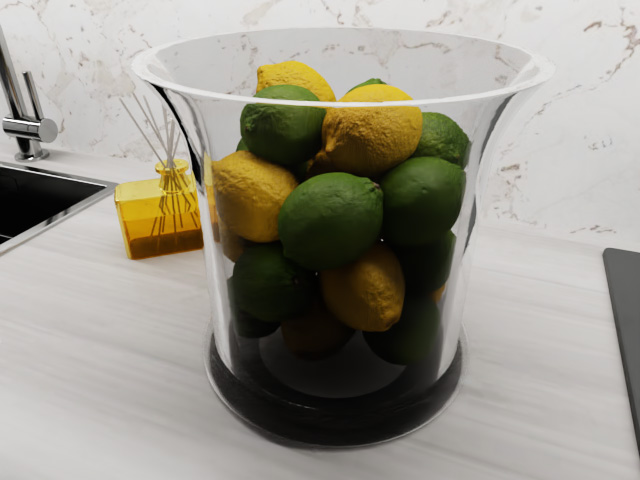
Creating Transparent Props in Omniverse Applications
(New for iC v.7.93, CC v.3.44)
To create transparent props in Omniverse applications (Create, View...), you must first set the props in iClone or Character Creator to SSS shader, and then, in Omniverse applications, manually adjust the transmission-related parameters that do not exist in iClone or Character Creator.
- Create a project in iClone or Character Creator.
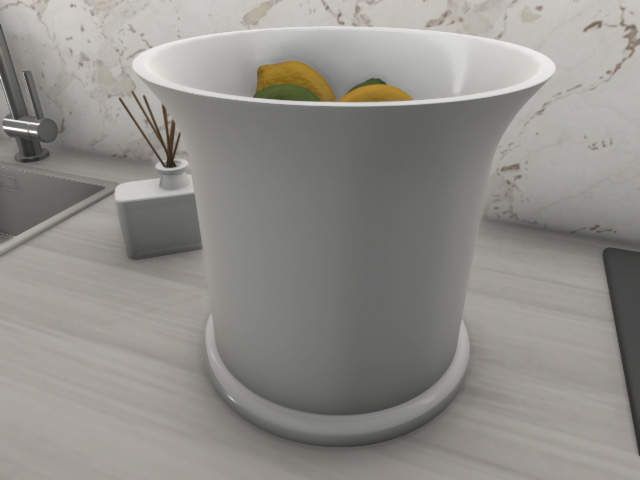
- Set the props that you want to make transparent in Omniverse to SSS shader, in this case, the jar and the fragrance bottle.
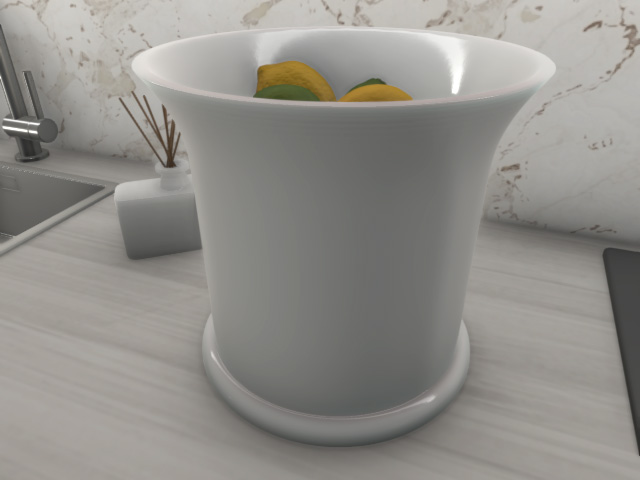
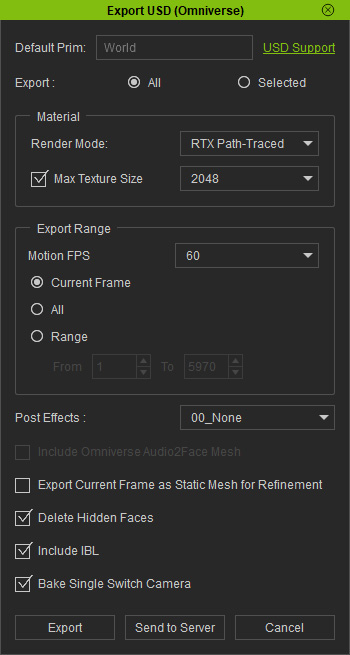
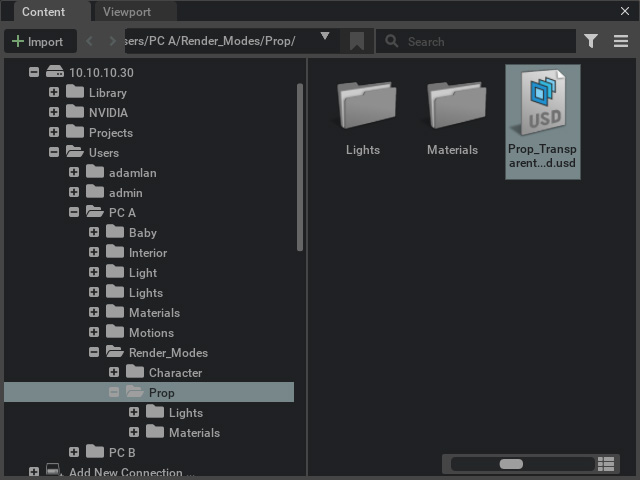
- Export the entire scene into USD file via the Export USD panel. Make sure you choose the RTX Path-Traced render mode.
- Open the exported USD file in one of the Omniverse applications, for example, Create.
As you can see the props are already translucent.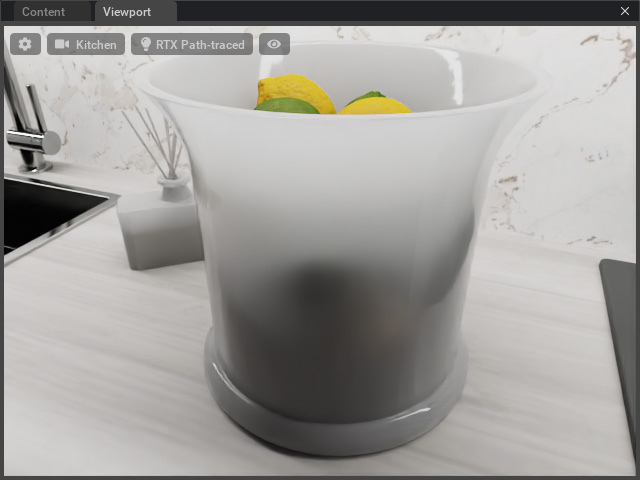
- Select one of the translucent props.
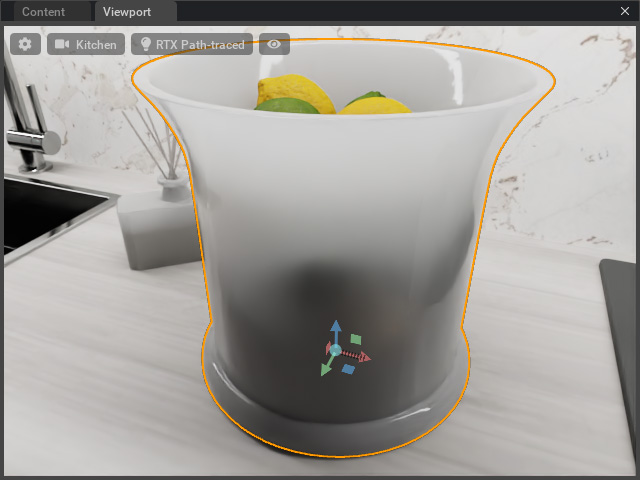
- Click on the material ball in the Property panel.
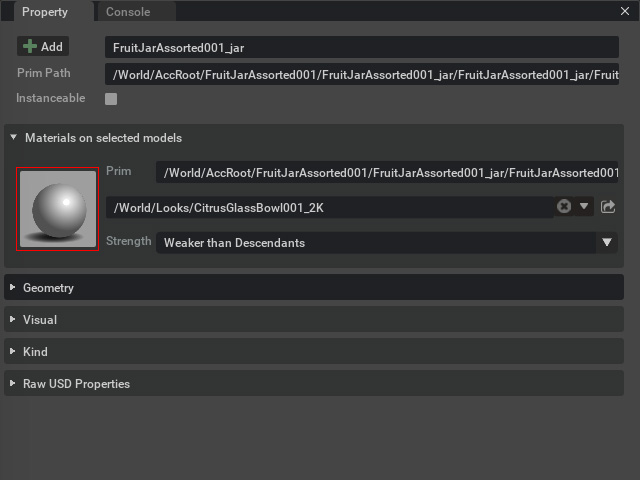
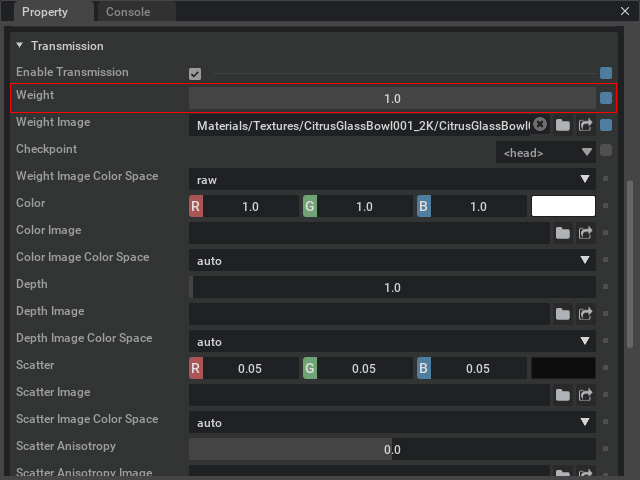
- In the Transmission sub-section, increase the Weight to 1.
The prop becomes completely transparent.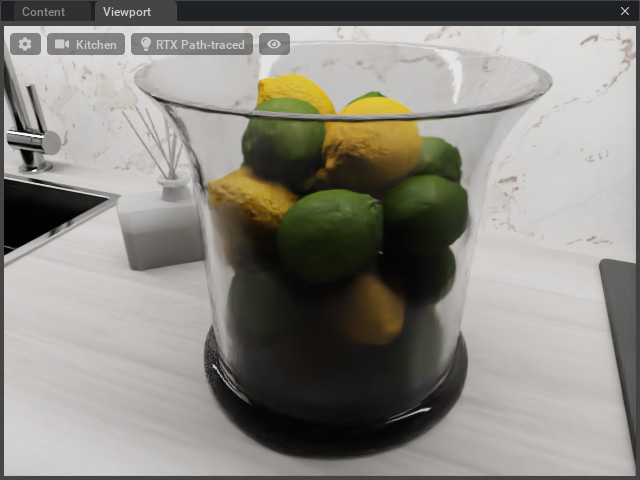
- Increase or decrease the IOR value in the Specular sub-section to adjust the refraction and reflection effect on the edges of the prop, in this case, 1.35 to 0.95.
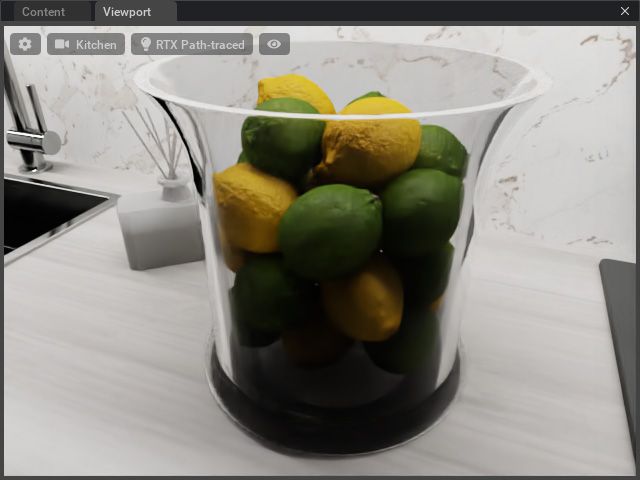
- Repeat the same steps for the other prop with slightly different value and color settings.
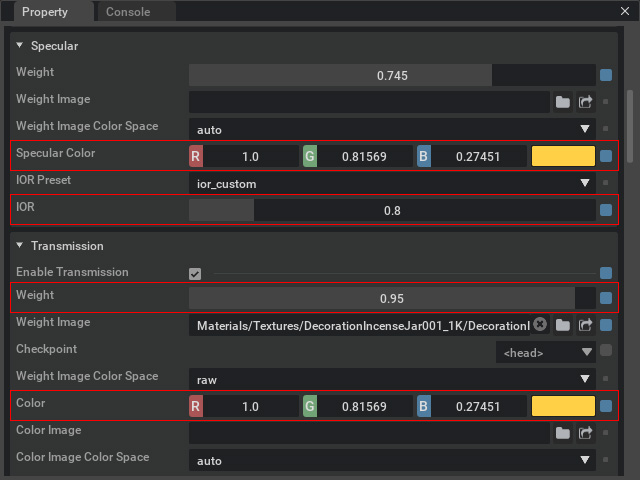
The prop becomes transparent with yellowish color.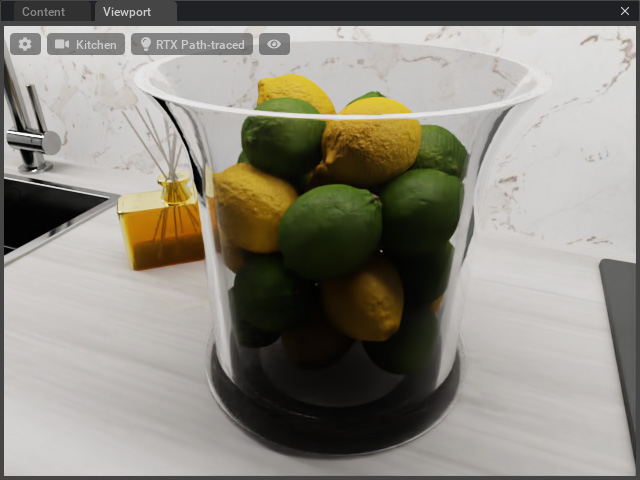
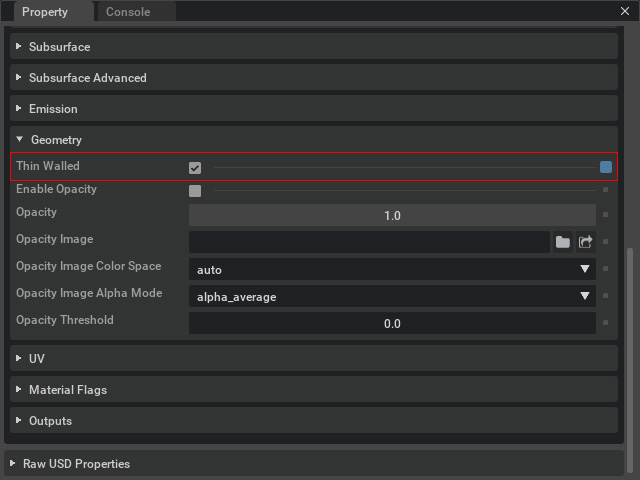
- You can also activate the Thin Walled checkbox in the Geometry sub-section.
The prop becomes a container instead of a solid mass.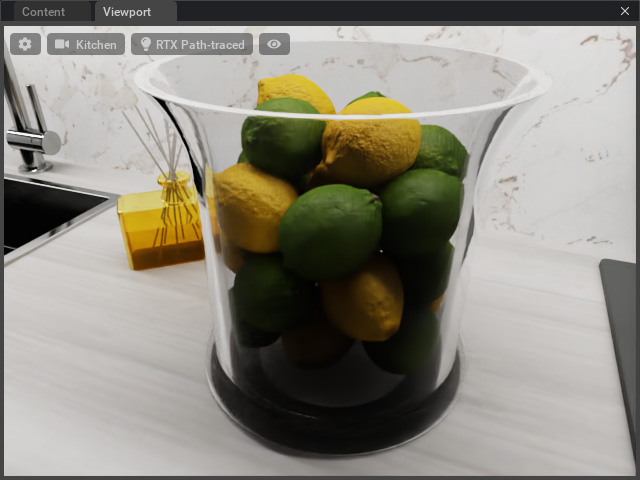
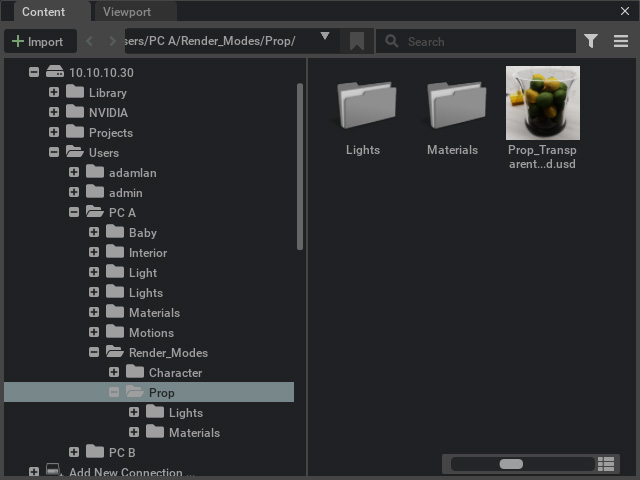
- Save the project to create a final rendered thumbnail.
- Render the scene with the Rendering > Movie Capture panel.
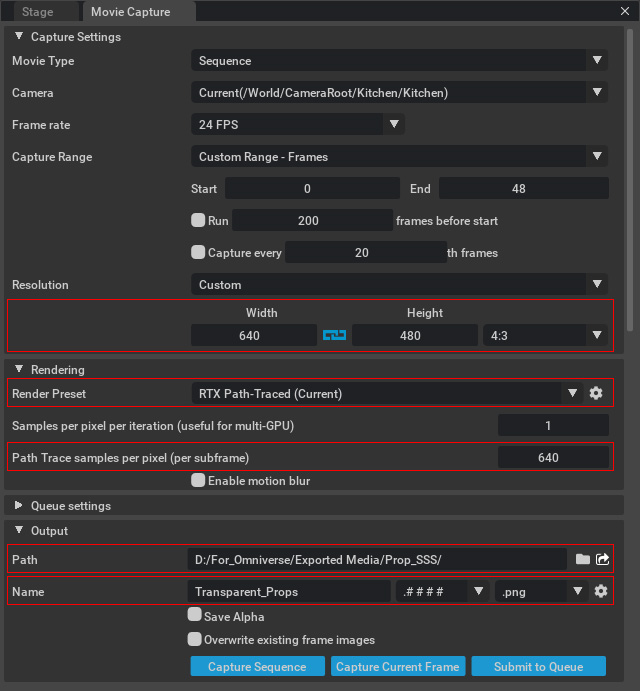
- Resolution: Set the resolution for the exported media.
- Render Preset and Path Trace samples per pixel: Set the rendering mode and the sampling times per pixel.
- Path: Set the directory for saving the exported media.
- Name: Naming the exported media. A suffix number will be automatically added. You can also set the exported format from the drop-down list.
- Capture Sequence: Click this button to export video or sequential images.
- Capture Current Frame: Click this button to export one image of the current frame.
- In this case, click the Capture Current Frame button to render the scene.