Installation Guide for Using NVIDIA Omniverse
For successful connection between NVidia Omniverse and Reallusion products (Character Creator, iClone, ActorCore), you'll need to install plug-ins and connectors for both sides.
** If you installed Omniverse Launcher before October 1, 2025, then no action is required — you can continue using it as usual.
** This document provides installation instructions for the following application:
- USD Composer 2023.2.5 / Kit App Template 105, including Nucleus 2023.2.3 (4.72 GB ZIP file)
- USD Composer 2023.2.5 / Kit App 109, including Nucleus 2023.2.3 (2.84 GB ZIP file)
- A2F 2023.2.0, including Nucleus 2023.2.3 (4.58 GB ZIP file)
Live Sync for Kit 109 is largely operational, with full support for PBR rendering, meshes, and animations. A current limitation is the inability to operate expression keys. Reallusion does not plan to maintain Kit 109 at this time, and future NVIDIA releases will be reviewed for potential inclusion.
For maximum compatibility and stability, we recommend using Kit 105 instead.
Downloading and Install USD Composer
- Go to Reallusion Omniverse download web sites:
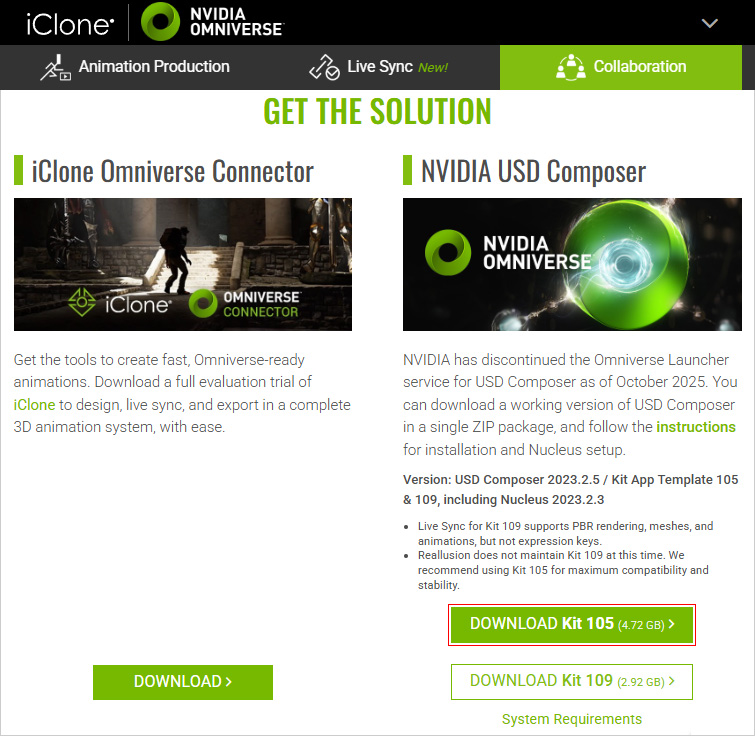
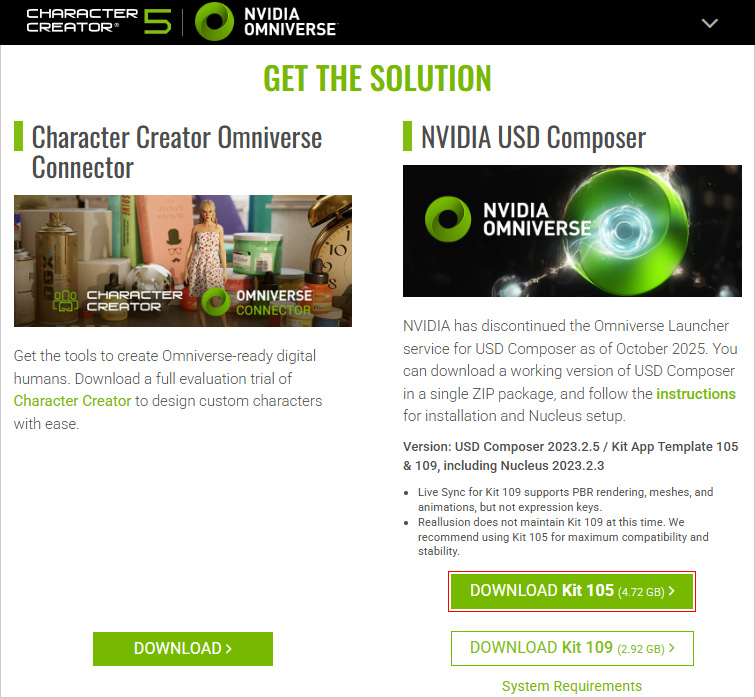
- Click the DOWNLOAD button under the NVIDIA USD Composer (either Kit 105 or Kit 109).
- For iClone Users:
- For Character Creator Users:
- For iClone Users:
- Log in to your Reallusion account and complete the survey, then click the Submit to Download button.
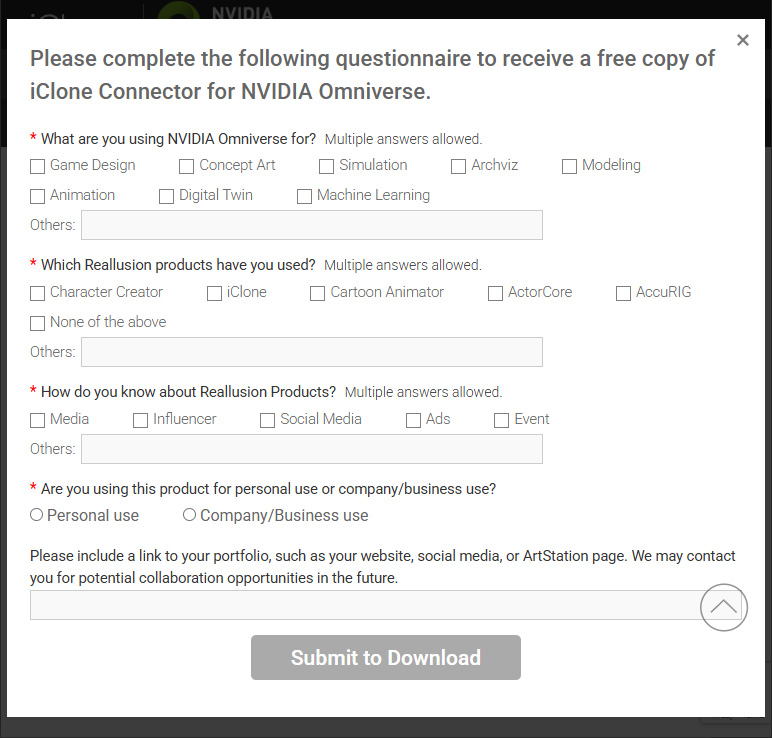
You will get a Composer.zip file.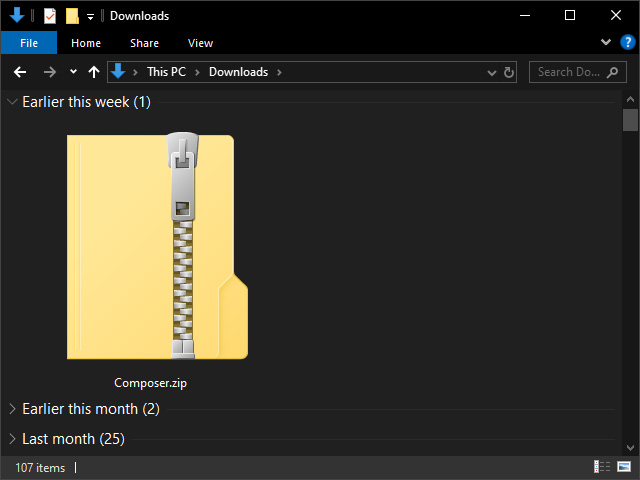
- Decompress the Composer.zip file, which contains three items.
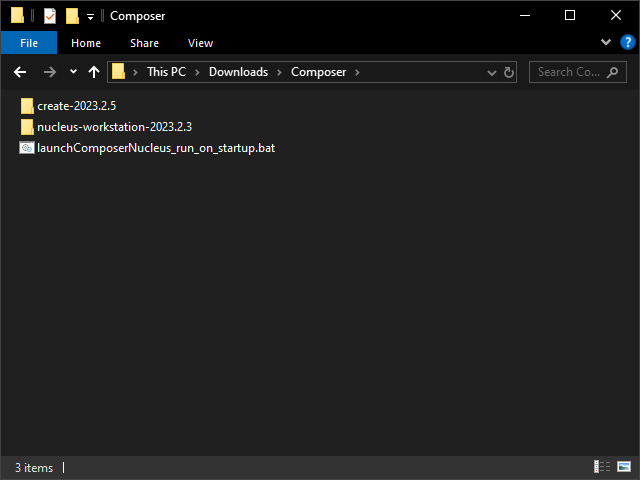
- A folder for "create-2023.3.5" and another for "nucleus-workstation-2023.2.3"
- A batch file, "launchComposerNucleus_run_on_startup.bat".
- Store the extracted folders and files in a desired directory for easy access.
- To run USD Composer, simply double-click the BAT file.
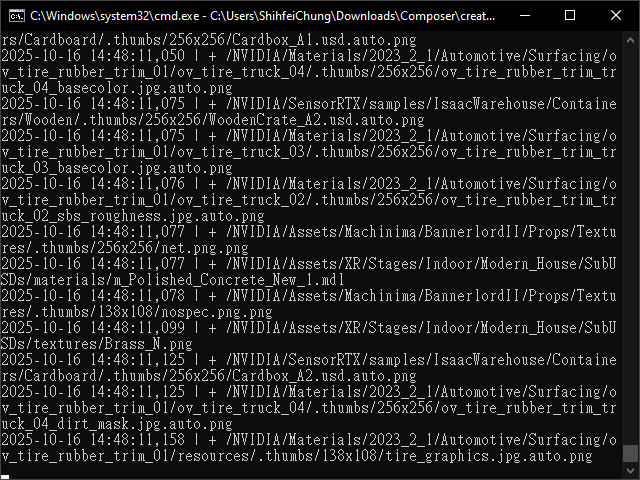
** It is normal for the application to run for 10 to 20 minutes during its initial setup. For more details, please refer to the FAQ.
Manually Creating Sever on Local Machine
To use the iClone Live Sync feature, you must first create a local virtual server in USD Composer.
- Launch USD Composer as described in the previous section.
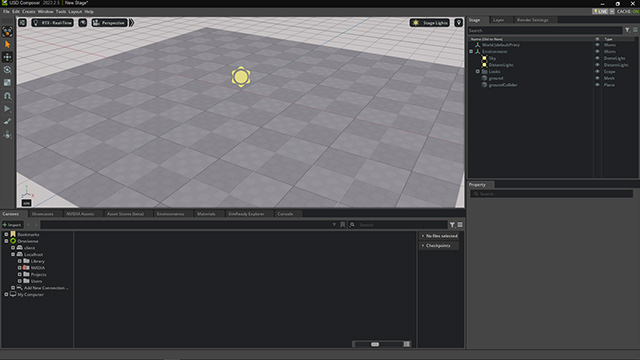
When your web browser displays the Applications page, make sure all services are running. If any of them are STOPPED, click the Start button to change their status.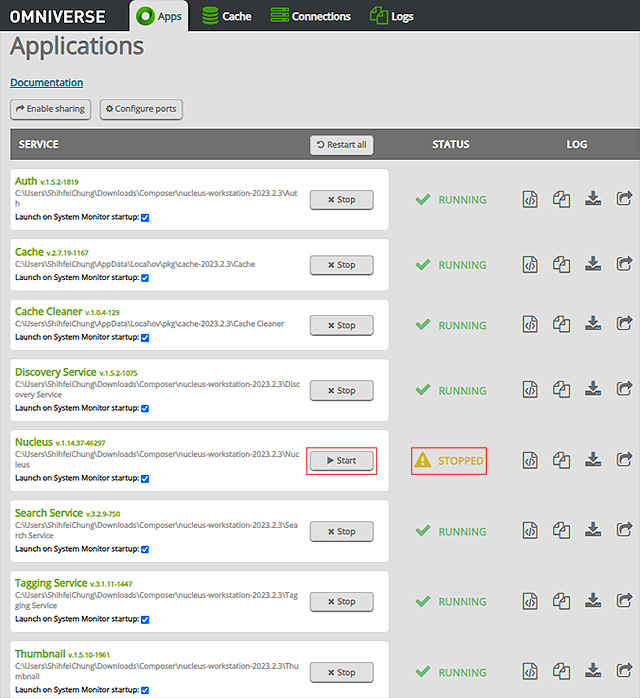
- Click the Add New Connection... on the tree view of the Content panel.
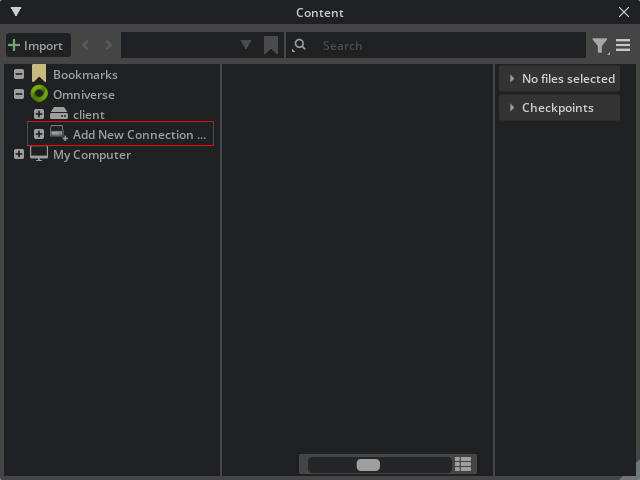
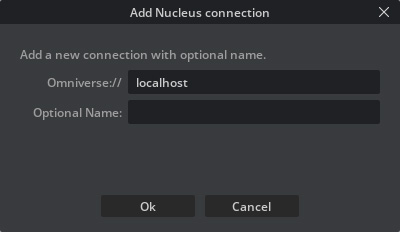
- In the Add Nucleus Connection panel, manually enter the information according to your Kit version.
- Kit 105: Manually enter localhost in the Omniverse:// field. The Optional Name field can be filled in with any desired name.
- Kit 109: Choose Omniverse from the service drop-down list. The connection path will be automatically filled with omniverse://; manually enter localhost after it.
- Choose Omniverse from the Service drop-down list.
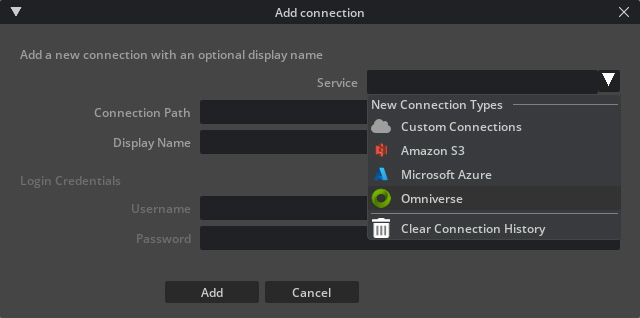
The connection path is automatically filled in with omniverse://.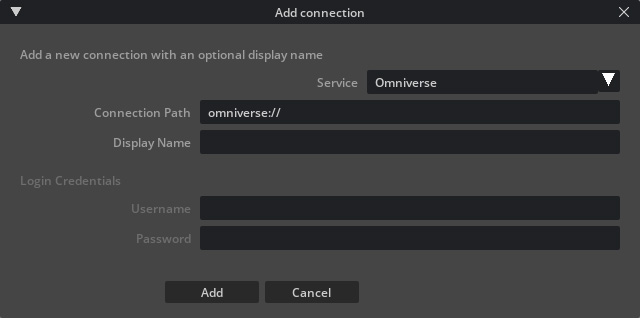
- Manually type in localhost after it. And the Display Name field can be filled in with any desired name.
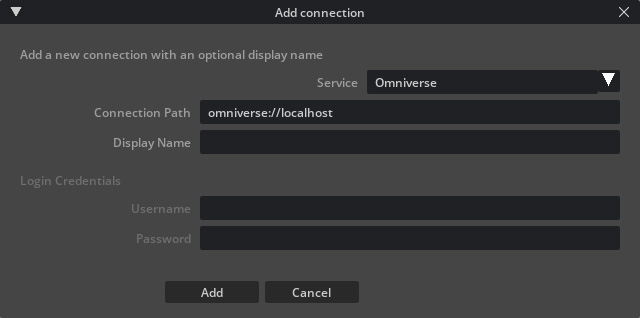
- Fill in the remaining fields and click the Add button.
- Choose Omniverse from the Service drop-down list.
- Kit 105: Manually enter localhost in the Omniverse:// field. The Optional Name field can be filled in with any desired name.
- In your browser, log in to the virtual disk with the account set
up in step 3 (currently, It must be "admin" for both the username and password).
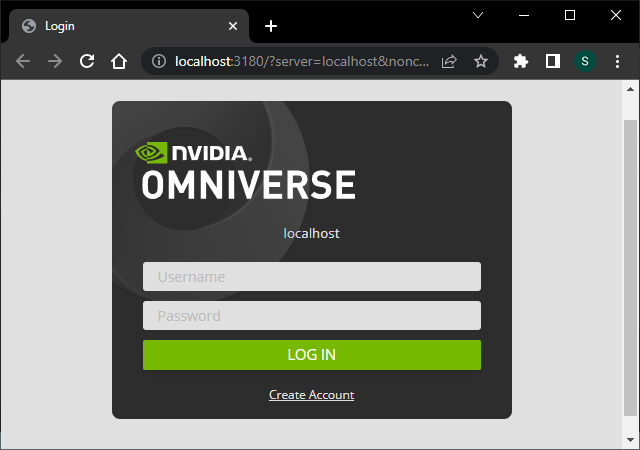
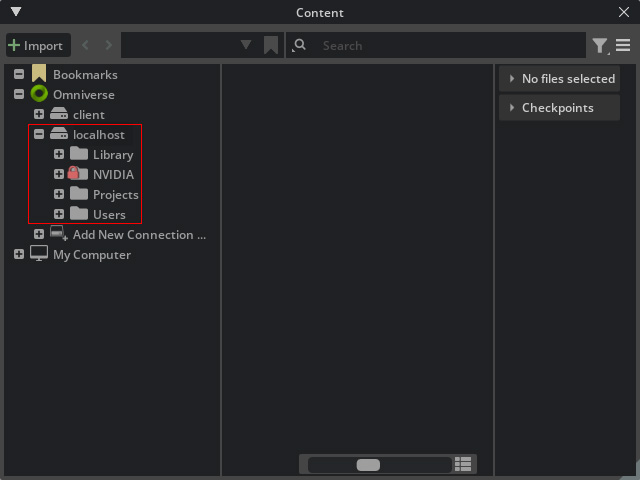
- You will see the structure of this virtual disk.