Moving Assets to Any Location (New for v1.2)
For packs in the Pack view or Custom node, or for items listed in the Single Item category, you can move them to any other directory in order to free up the hard drive
space for installing other assets.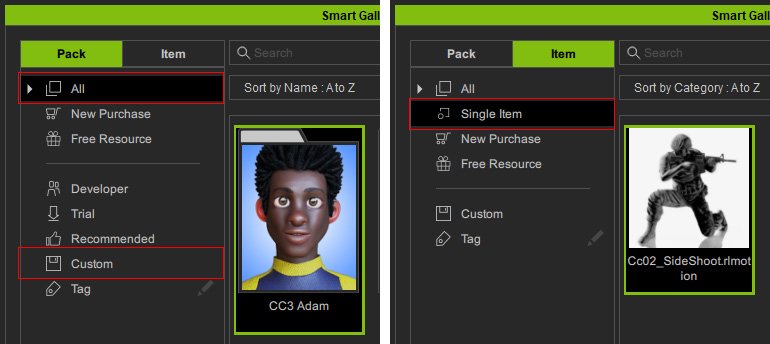
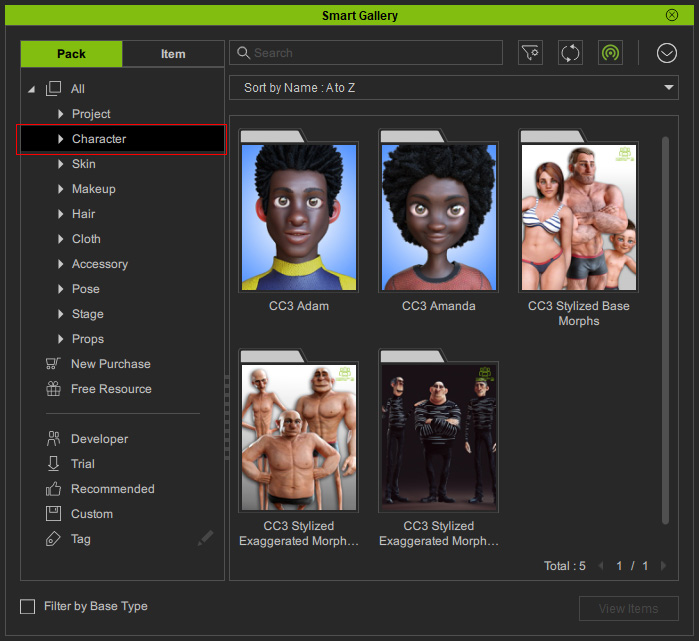
- Open the Smart Gallery and switch to either node mentioned above (in this case, the Avatar node of the Pack view).
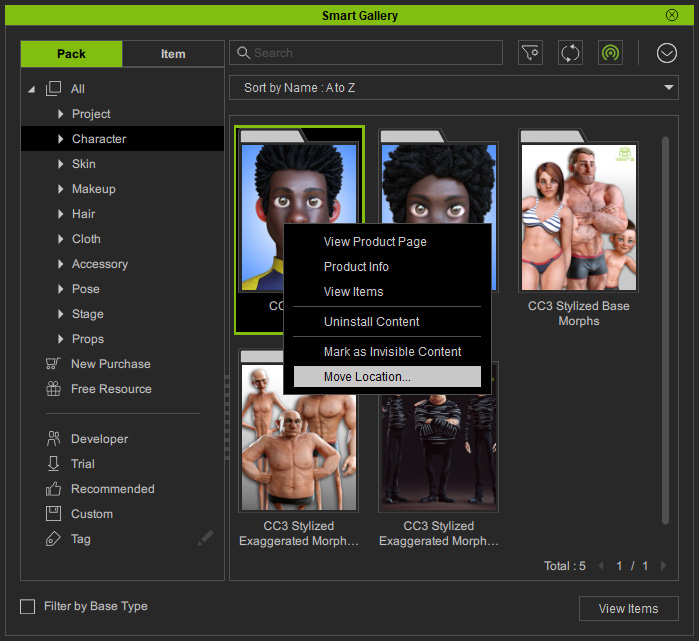
- Right-click on the pack that you want to move. Choose the Move Location... command from the context menu.
- In the Export Data panel, choose the Metadata only radio button because moving the entire hard drive does not change the file structures.
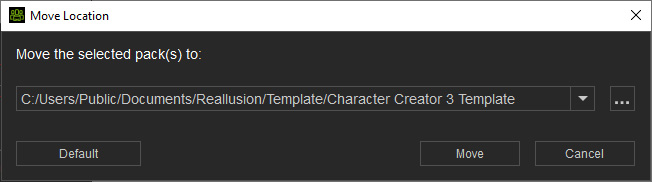
- You can press the down arrow button to change the target folder.
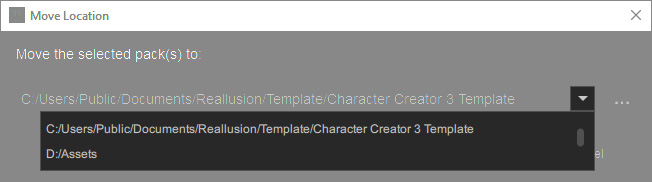
- Click the ... button to access to any other folder as the target.
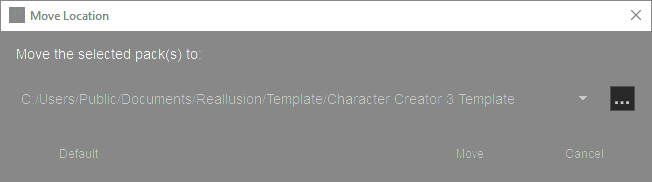
- You can press the down arrow button to change the target folder.
- Click the Move button to start moving the asset.
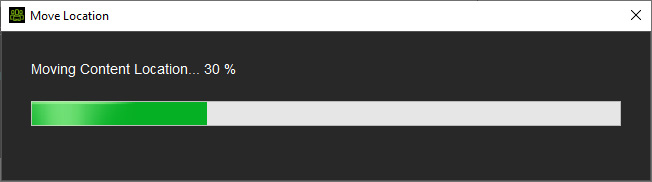
- When the procedure is done, you will see the following panel.
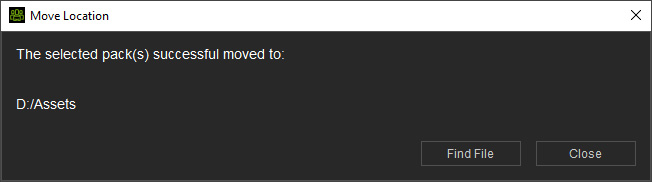
- Find File: Click this button to show the content in the system explorer.
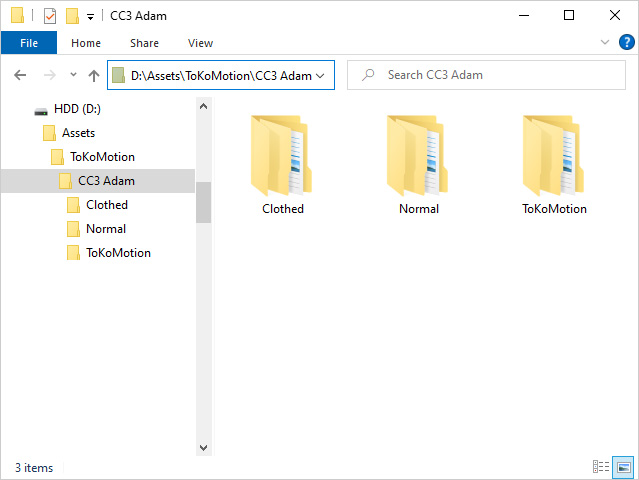
The new path will be: [specified folder] \ [Author Name] \ [Pack Name] \ [structure in pack] - Close: Click this button to close the panel.
- Find File: Click this button to show the content in the system explorer.
