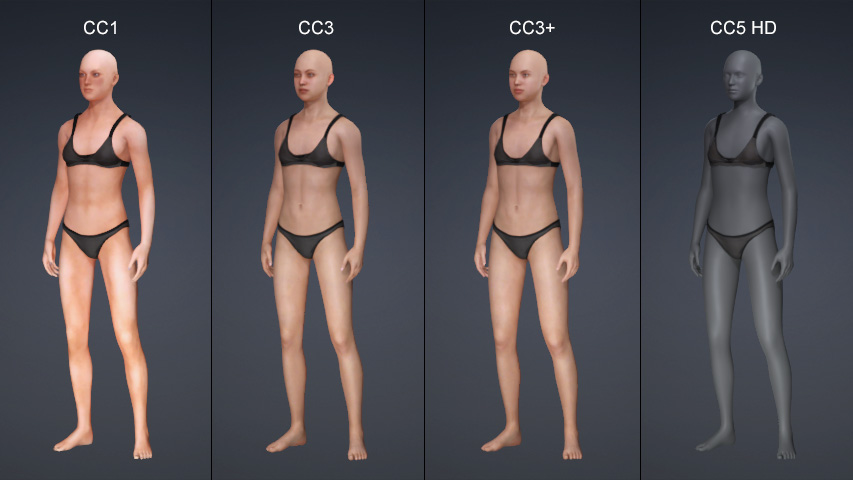
Loading Neutral Base Characters of Different Generations
Under normal circumstances, one can change to the Currently Used Morphing Sliders mode rever the character to the neutral shape by clicking on the Reset button at the bottom of the Modify panel. However, if the morph sliders have been baked at any point in time, then the neutral shape can't be recovered.
In order to retrieve the initial shape of the character, Character Creator provides the Load Neutral Base feature. You can execute this command any time to re-initialize the default body shape of CC1, CC3, CC3+ and CC5 HD.
Baking Morph Result
-
Create a new project.
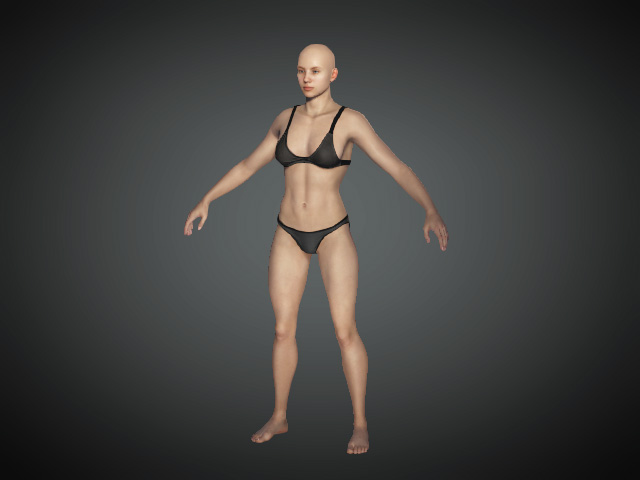
-
Freely morph the character to the desired body shape.
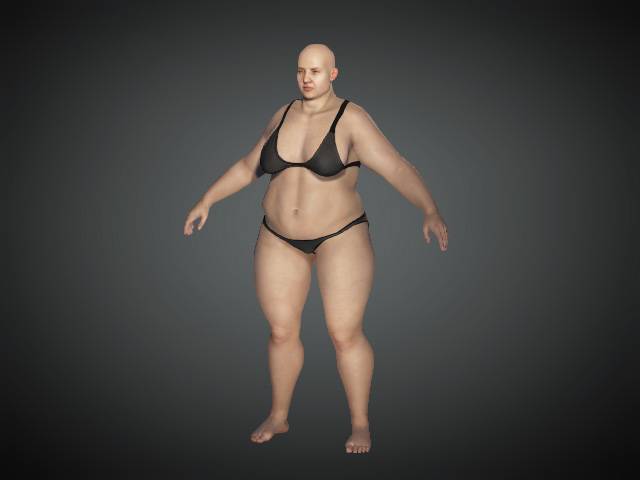
-
Click the Bake button under the morphing sliders.
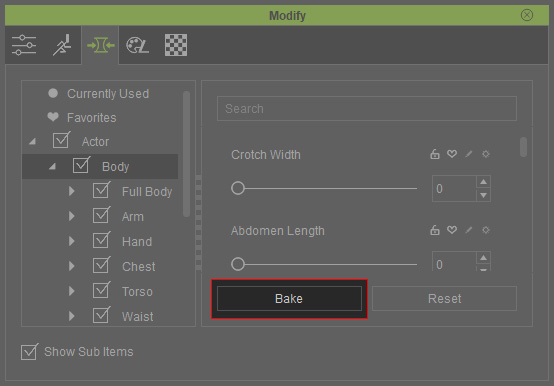
You will see that the morph is kept while the modified sliders in the modify panel are re-initialized to 0.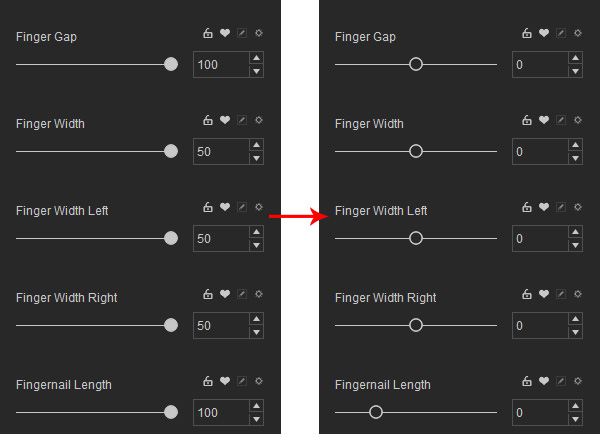
-
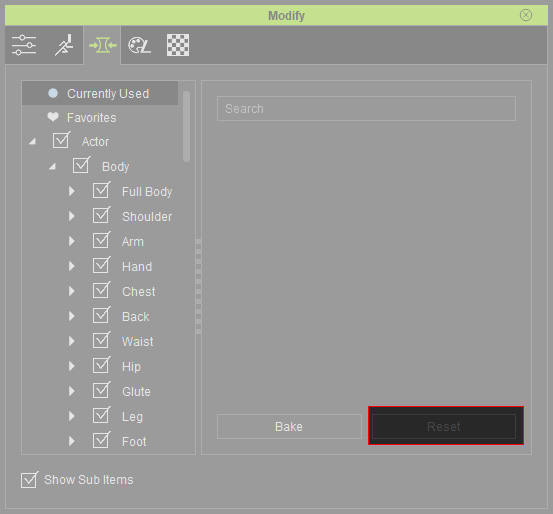
The Reset button at the bottom of the modify panel is disabled
since the values are all baked and there are no active morph sliders.
Loading Neutral Base
- Execute the Modify > Load Neutral Base command.
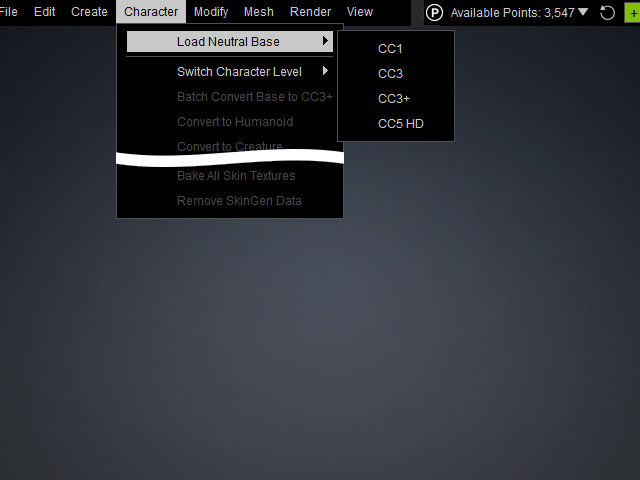
- Choose either one of the neutral base characters from the sub-menu, you will be asked to specify the replacement method.
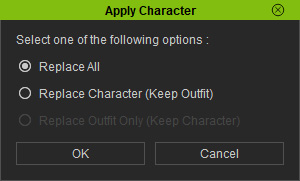
- Replace All: Discard the current character and load the neutral character directly.
- Replace Character (Keep Outfit): Replace the character with the neutral base character and keep the current clothing.
- Replace Outfit Only (Keep Character) (disabled in this process): Replace the clothing of the current character only with the one from the source character.
- In this case, Replace Character (Keep Outfit) is chosen. Click the OK button.
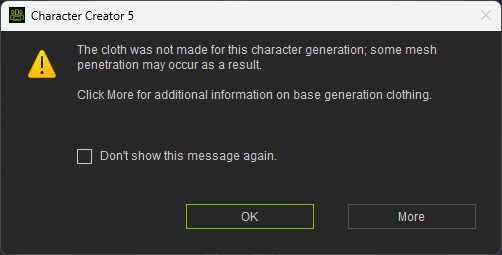
- If the generations of the character and clothes are not identical, then you will see the
following warning message about possible mesh penetration. Click the OK button.
The neutral CC1 Base, CC3 Base, CC3 Base+ or CC5 HD character will now be available.