Skin Weight Brush
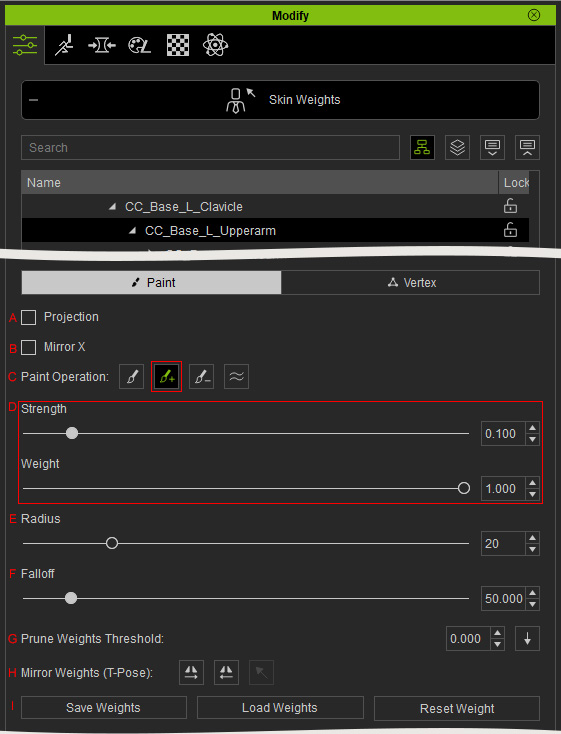
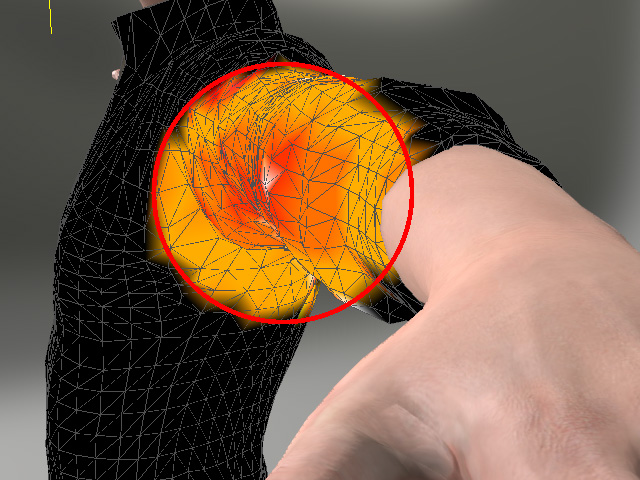
- Projection: Forces the brush to align with the normals of the surfaces or to the camera perspective.
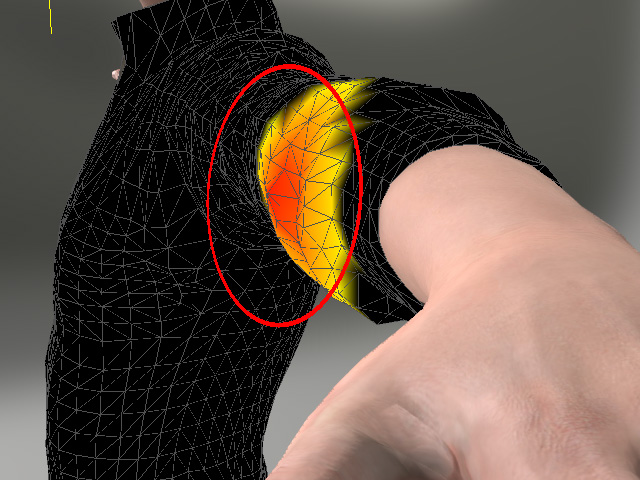
Projection = OFF (Normal mode)
Projection = ON
- Mirror X: Paints skin weights symmetrically on X axis.
- Paint Operation: Uses different brush to paint the skin weights.
- Replace: Uses the absolute value (Weight x Strength) to paint and replace the existing skin weights on the surface.
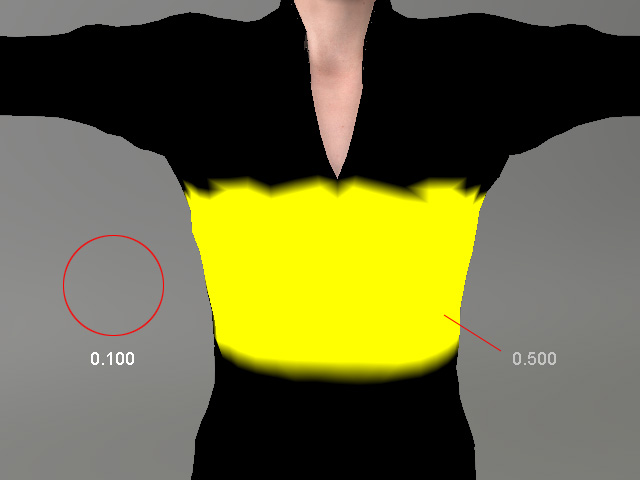
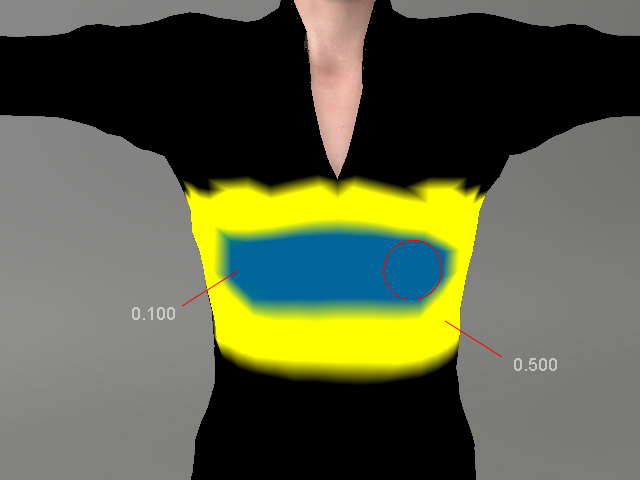
- Add: Increases value (Weight x Strength) onto the current skin weight.
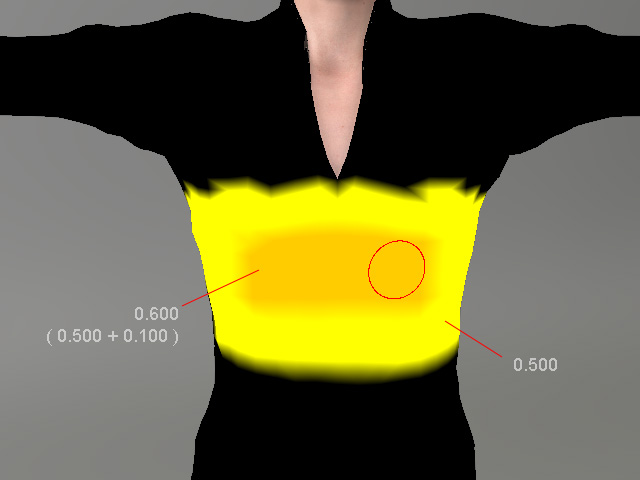
- Subtract: Subtracts value (Weight x Strength) from the current skin weight.
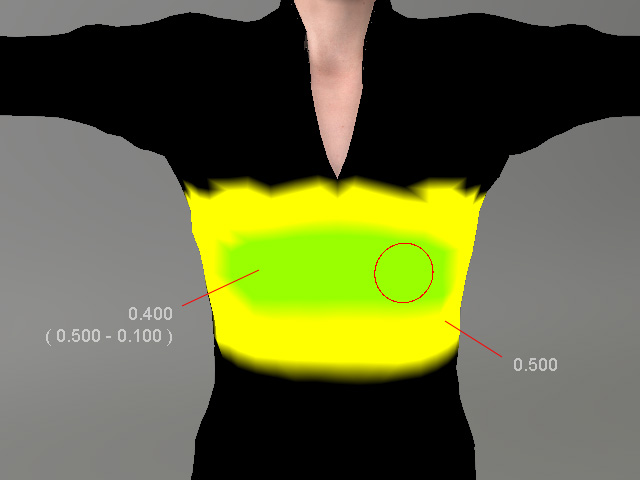
- Smooth:
Smooths the skin weights.
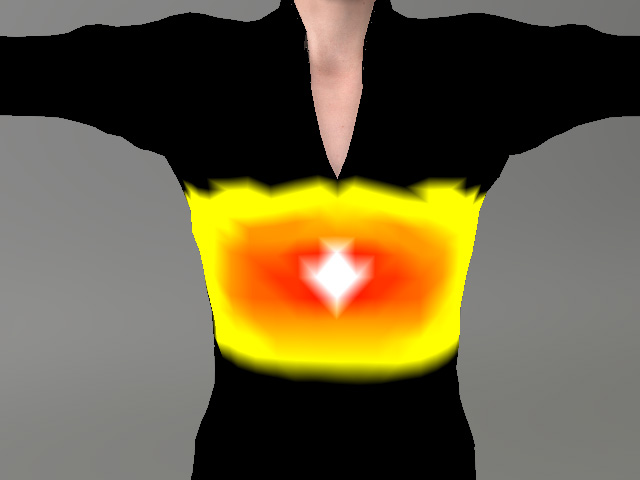
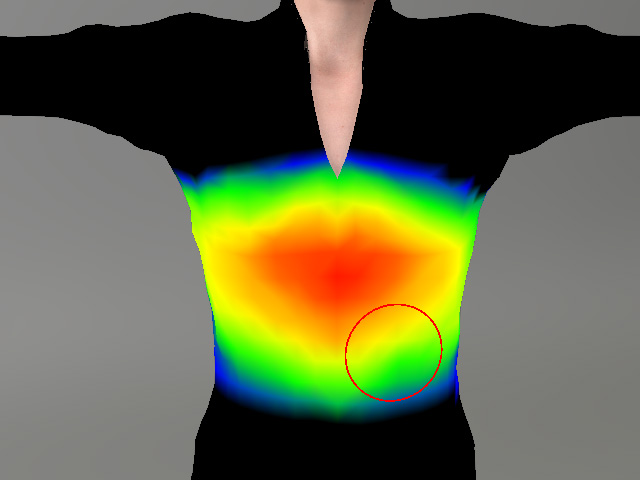
Before
After
- Replace: Uses the absolute value (Weight x Strength) to paint and replace the existing skin weights on the surface.
- Strength (Shortcut: B key + drag with left mouse button) and Weight (smooth brush is excluded): These two values determine the final weight painted on the surface. And the formula is Strength x Weight.
- Radius (Shortcut: B key + drag with right mouse button): The diameter of the brush.
- Falloff (Shortcut: B key + drag with middle mouse button): The status of the color gradient on the edge for each brush stroke.
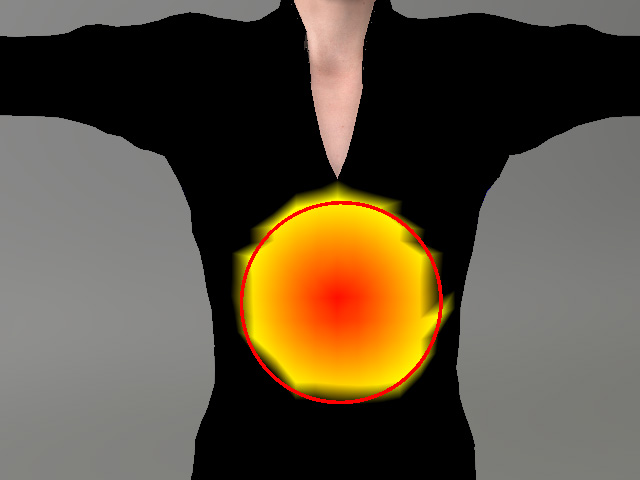
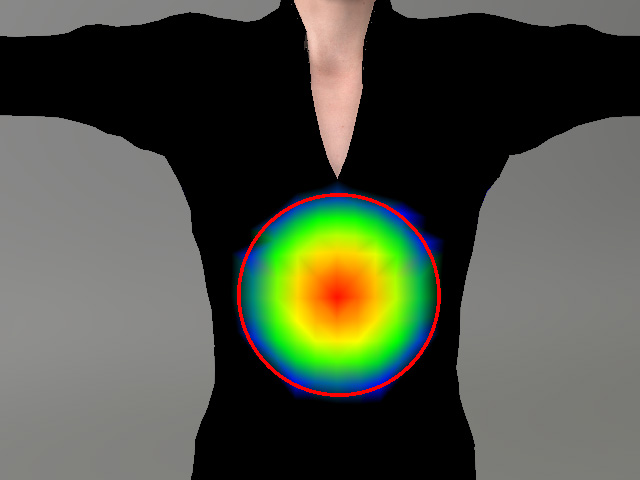
Falloff = 50
Falloff = 100
- Prune Weights Threshold: Sets all skin weights below the specified Threshold to zero, helping quickly remove insignificant weights and clean up the mesh's skin weight data.
- Mirror Weights (T-Pose) — Copies the skin weights from one side of the clothing to the corresponding vertices on the opposite side.
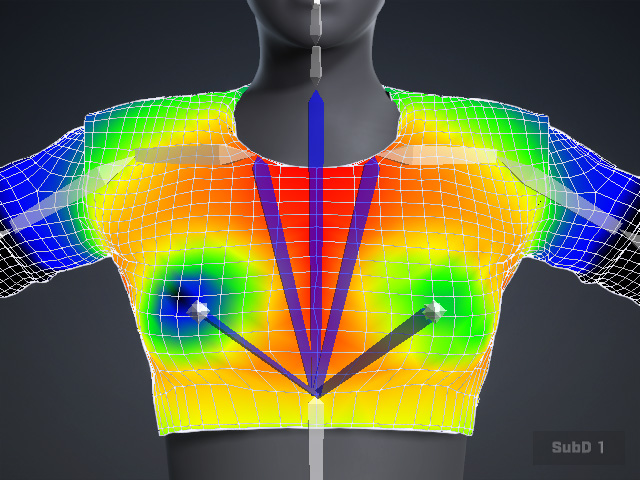
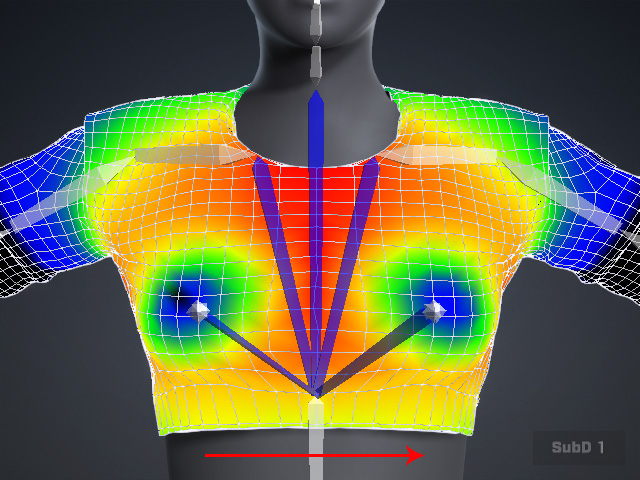
Initial skin weights
Copy from Right to Left
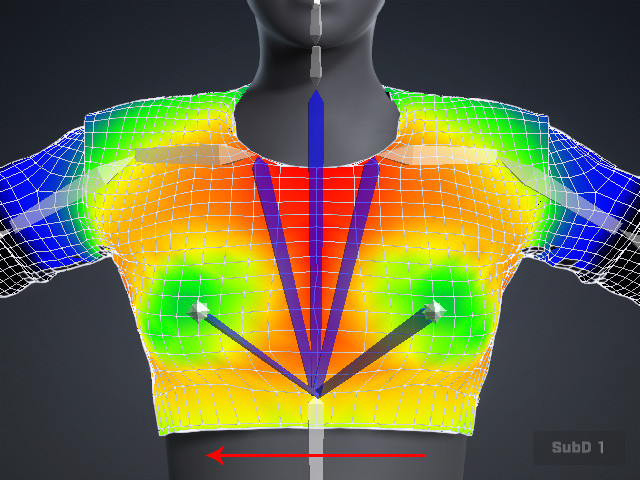
Copy from Left to Right
- Save / Load / Reset Weight:
- Save Weight — Saves all current skin weight settings of the clothing.
- Load Weight — Loads previously saved skin weight settings to the clothing.
- Reset Weight — Resets all skin weights to their initial state when entering Edit Skin Weight, allowing you to quickly restore the original weights after manual editing.
