Using Prompt Presets
Prompt Presets provide predefined prompts that help you quickly add inspiration and visual styles to the Prompt Text field. You can insert, preview, and customize preset prompts to create the desired results.
The Prompt Text field provides three buttons for quickly adding or managing prompt presets: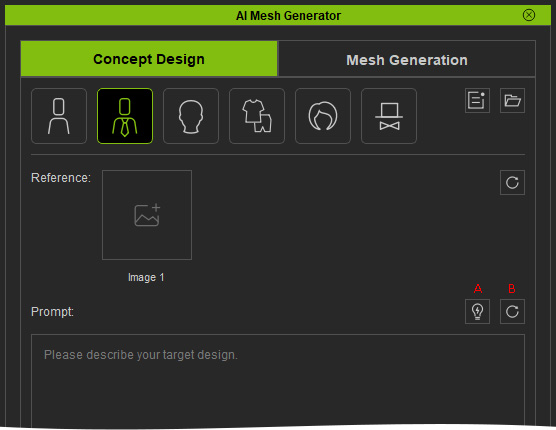
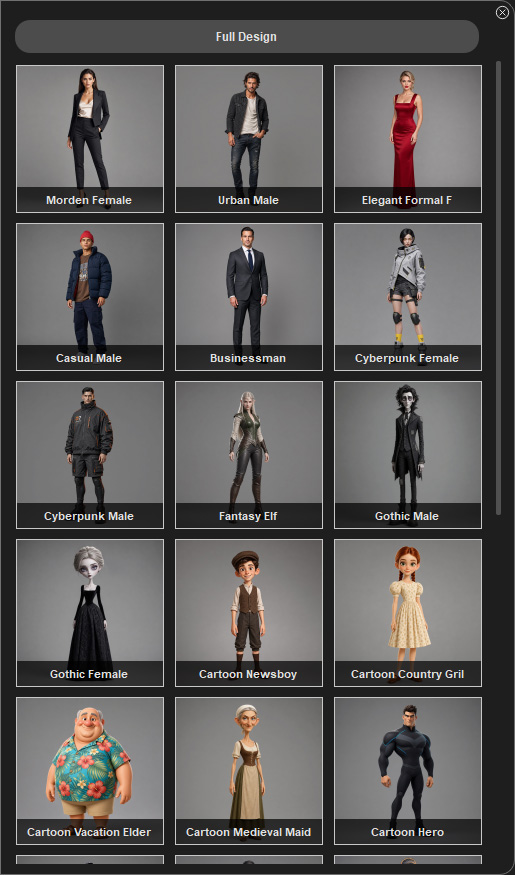
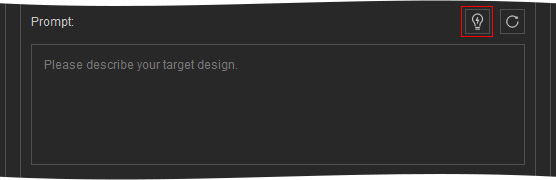
- Inspirations — Displays Inspiration Presets based on the selected Mesh Type or Clothes Part.
- Clear Prompt — Clears all content from the Prompt Text field, including preset tags and manually entered text.
Inserting a Preset Prompt
- Click either of the Inspirations buttons.
- Select a desired preset. The selected preset is added to the Prompt Text field as a tag.
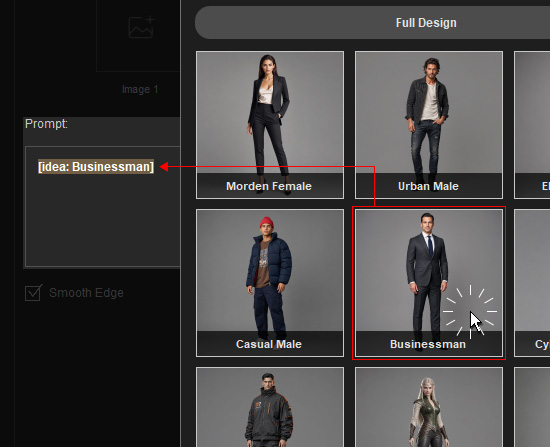
- Hover over the tag to display its full prompt content in a tooltip.
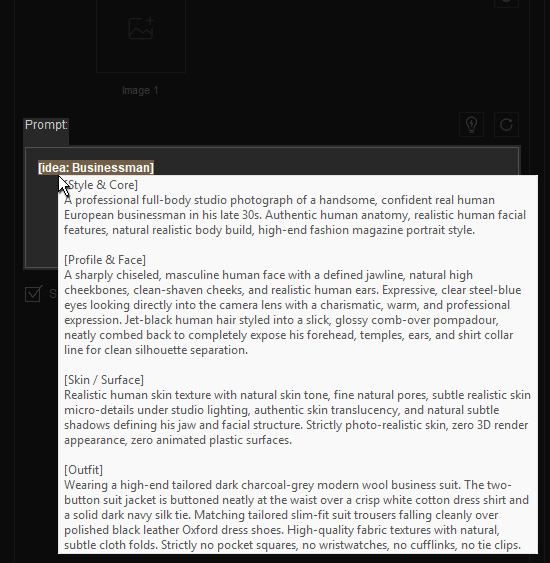
Editing a Preset Prompt
You can expand a preset tag into editable text when you need to customize its prompt content.
- Right-click the preset tag in the Prompt Text field. Select Expand Prompt.
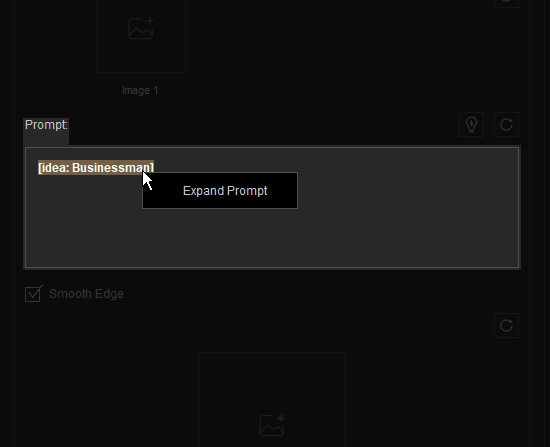
The tag expands into its full text content.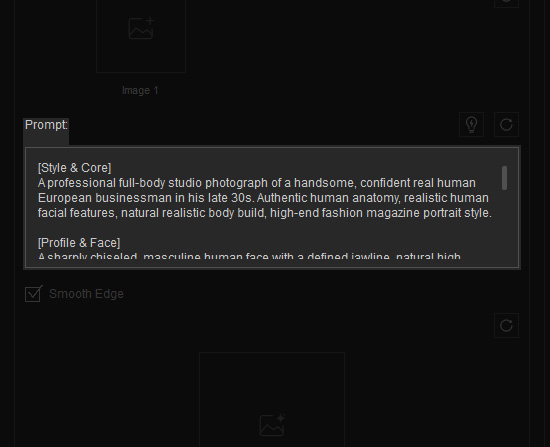
- Edit the text manually to customize the prompt as needed.
