Changing Pose
The Change Pose options allow you to switch the character between different poses while editing skin weights.
Changing the Pose
Select one of the following radio buttons to change the character's pose:
- Keep Original — Keeps the character in its original pose.
- T-Pose — Changes the character to the standard T-pose.
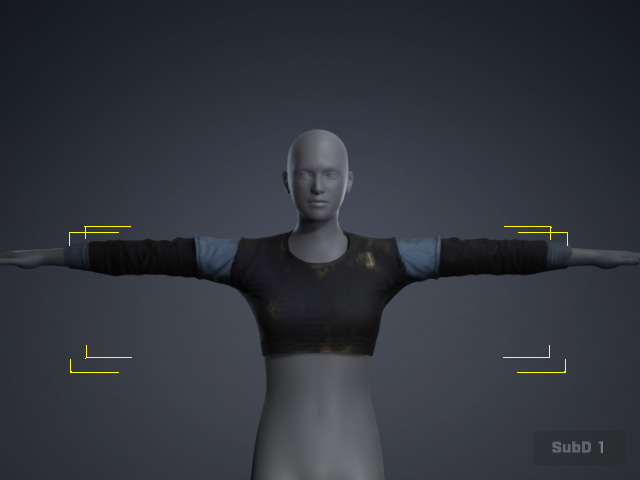
- Character Bind Pose — Changes the character to the pose used when the character's skin was bound.
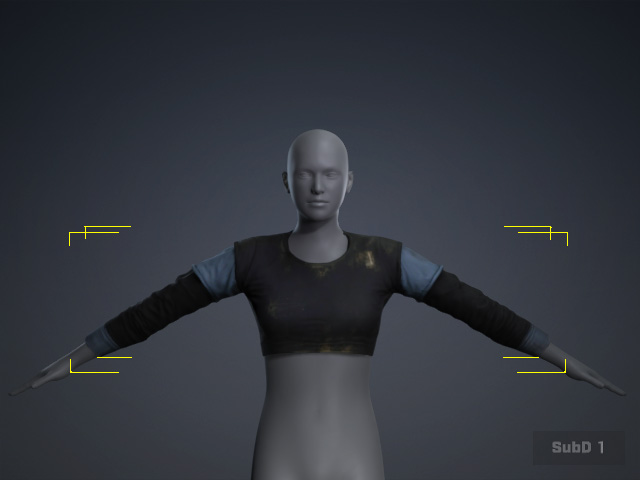
- Cloth Bind Pose — Changes the character to the pose used when Transfer Skin Weight was performed. The character's limbs are adjusted to better match the clothing's shape during weight transfer.
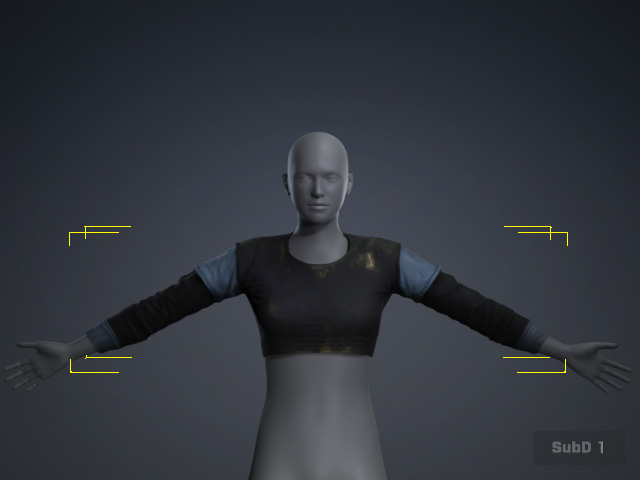
 Notes for Cloth Bind Pose and High-Heels:
- Cloth Bind Pose is available only for clothing generated with the latest version of Transfer Skin Weight. It is disabled for clothing without Cloth Bind Pose data.
- For characters wearing high heels, the heel height is temporarily removed when using Cloth Bind Pose to ensure the original skinning pose is maintained. Cloth Bind Pose is the only pose option that removes the high-heel height.
Rotating Bones (Enabled for Keep Original Pose Only)
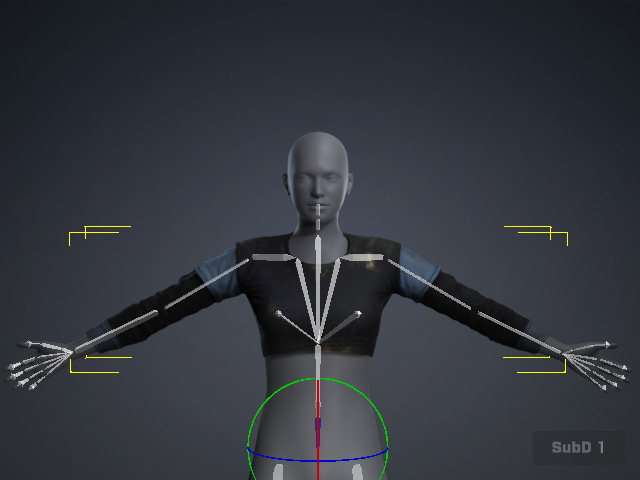
Click Rotate Bone to enter Bone Rotate mode. This mode helps check skin weights for clothing that is expected to deform with Twist and Share bones. When Bone Rotate mode is active:
- The Bone List automatically locks Upperarm, Forearm, Thigh, and Calf bones.
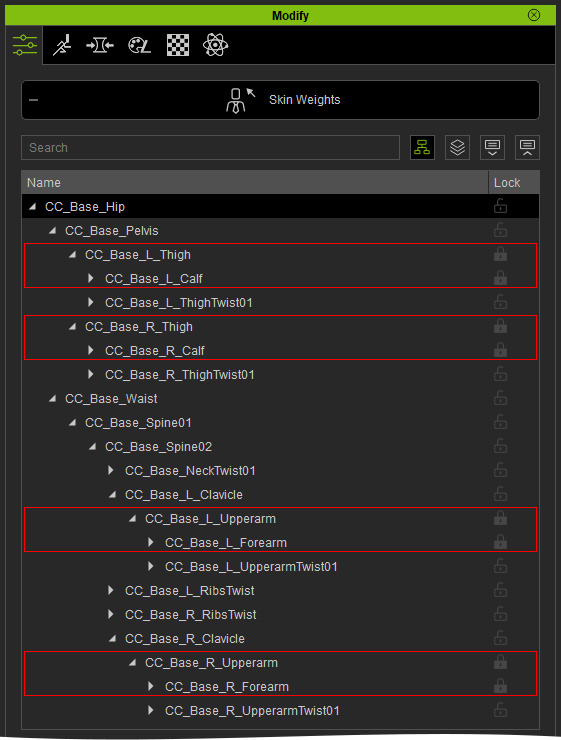
- Locked bones cannot be selected or painted in the normal skin-weight editing workflow.
- Twist and Share bone dummies are also hidden to prevent them from being accidentally picked when adjusting the pose.
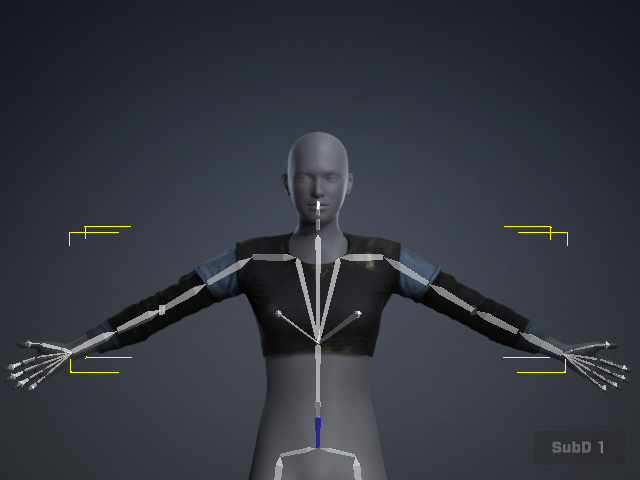
Rotate Bone: Off
Rotate Bone: On
Important:
The Bone List lock only affects bone selection and painting. It does not lock the actual skin weight data. The weights of locked bones can still be modified through Reset, Save / Load, or direct value entry in the Weight Table.
This allows you to rotate the appropriate motion bones and inspect how the clothing deforms without the viewport being obstructed by non-motion bones.
