Aligning Points
The Align Points step allows you to match corresponding points between the CC5 HD character and the imported model. These Align Points are used to guide the subsequent surface alignment process.
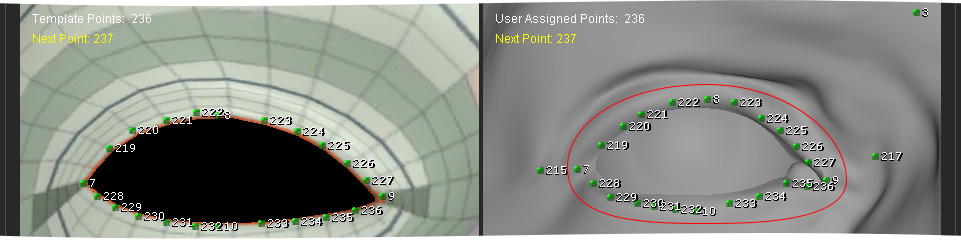
The left viewport displays the CC5 HD character, while the right viewport displays the imported model.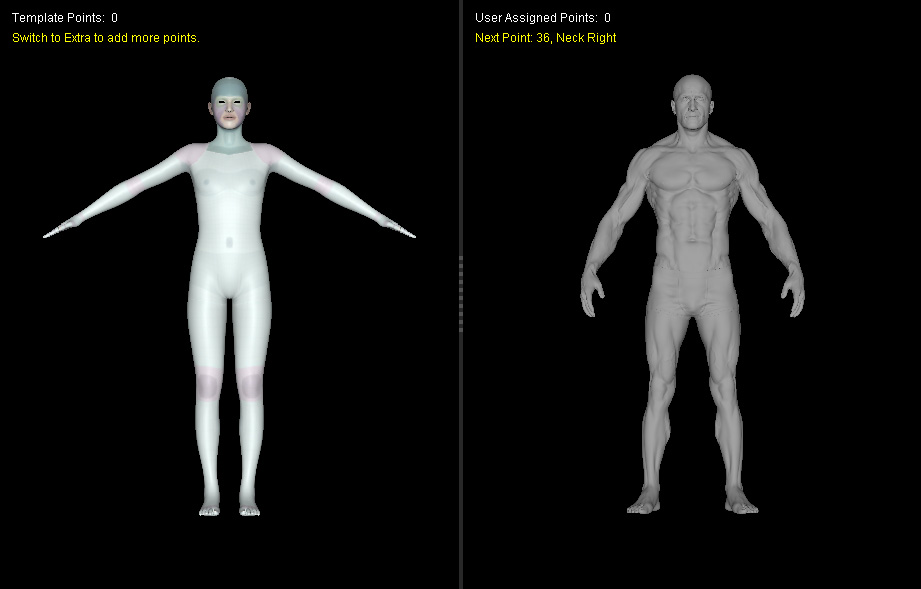
Understanding Align Point Colors
Align Points use different colors to indicate their current state: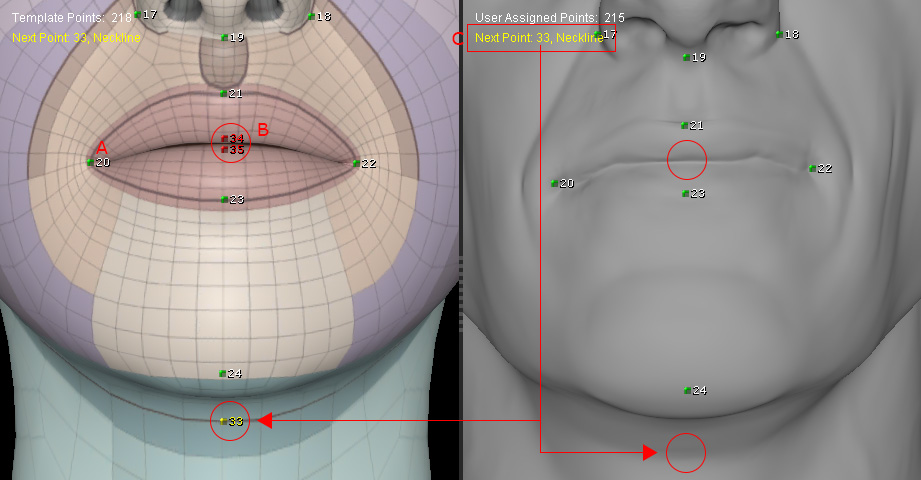
- Green — The corresponding Align Point exists in both viewports.
- Red — The Align Points exist in only one viewport.
- Yellow — Indicates the next Align Point to be added.
Assigning Align Points
- Select Full Body, Head, or Body mode to begin assigning Align Points. The following example uses Head mode.

- Observe the points displayed in the left and right viewports.
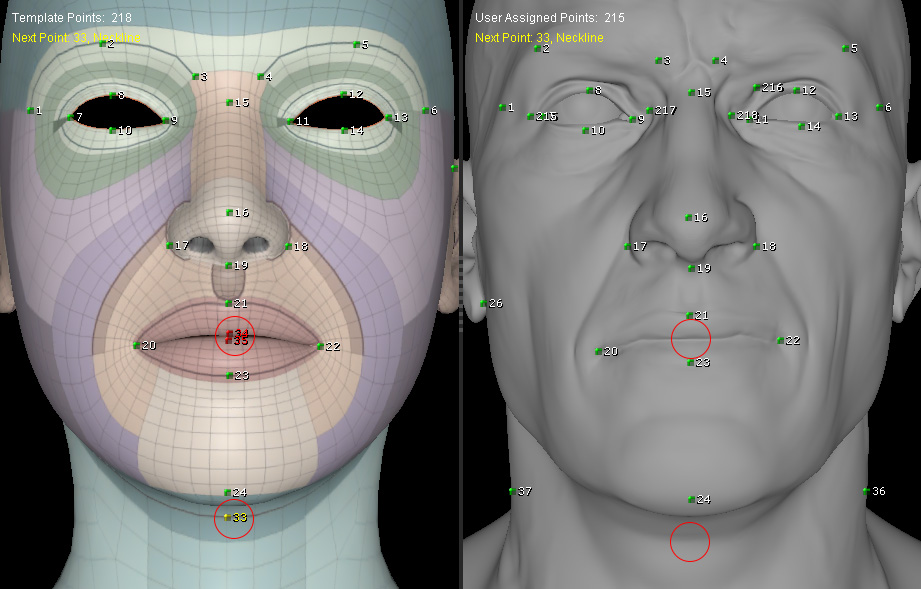
- Check the Next indicator in the upper-left corner to identify the number of the next Align Point to be added. The next point is highlighted in yellow.
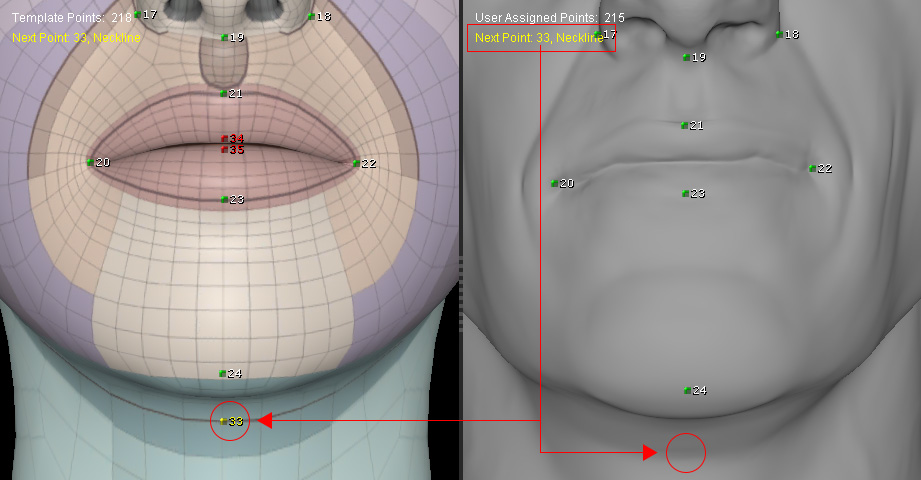
- Click the appropriate location on the model to add the yellow Align Point.
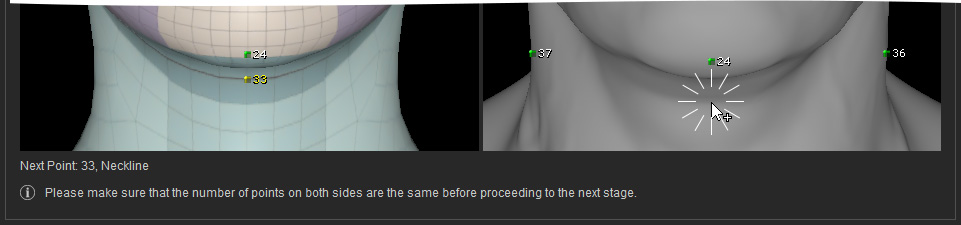
The point with the number shown in Next will be added.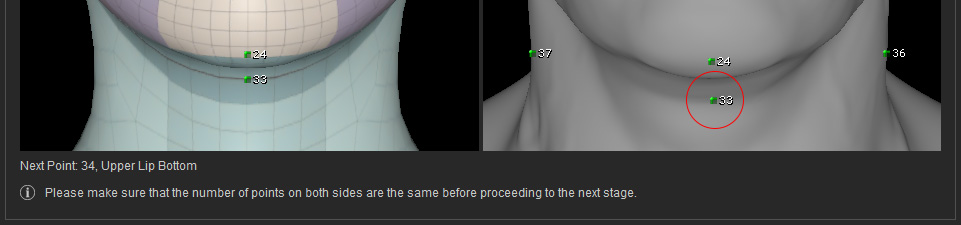
- Continue adding points until the corresponding points in both viewports are shown in green.
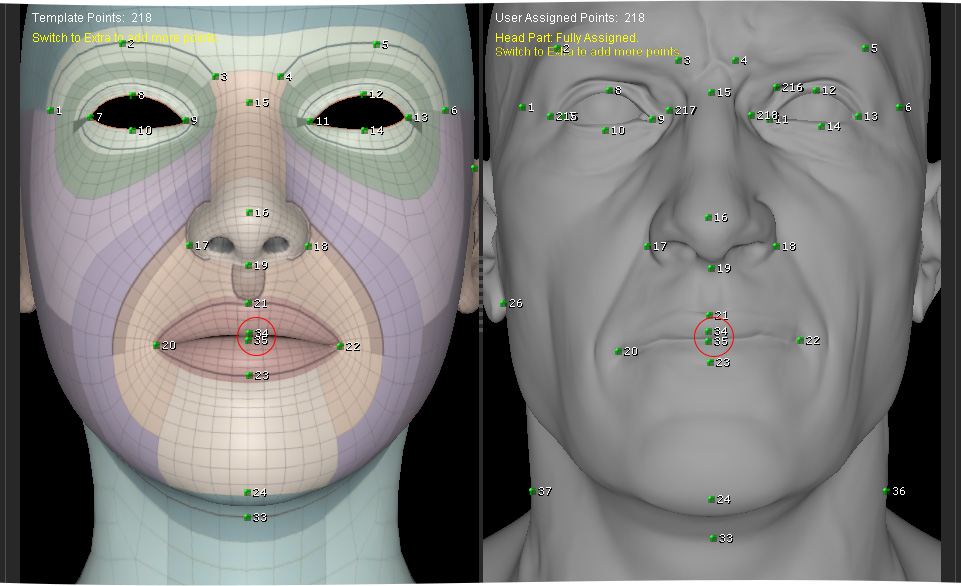
- Drag the Align Points in either viewport to reposition them. Place corresponding green points at similar locations on the surfaces of the two models.
- Continue assigning and positioning points until all points available in the selected mode have been assigned.
- For Head mode, points can be assigned from 1 to 35.
- For Body mode, points can be assigned from 36 to 218.
- The information is displayed in the upper-left corner of the viewport when the maximum number of alignment points is reached.

The corresponding Align Points should be positioned on similar locations of the two model surfaces. This allows the system to use the relationship between the points to conform the CC5 HD character's surface toward the imported model.
Adding Extra Align Points
Extra mode allows you to manually add as many Align Points as needed. Make sure that every point is assigned in both viewports so that no red points remain.
- For more precise alignment, use the Extra Part mode to manually add additional Align Points.

- In one of the viewports, click along the model's surface details to generate Align Points.
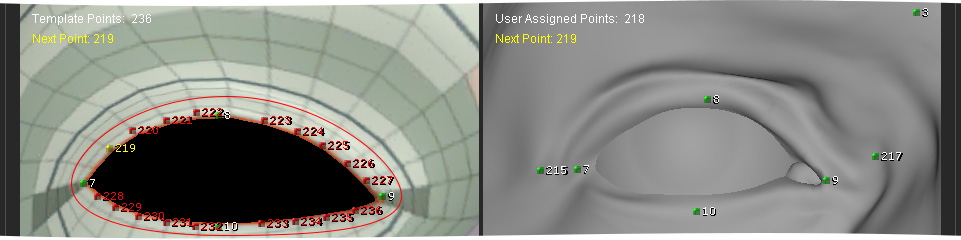
- In the other viewport, click to generate the same number of Align Points, then drag and place them on the corresponding model details.
 Tip:
Tip:
Place additional Align Points in areas where the shape changes significantly to provide more control over the surface alignment.
