Using Auto Projection
The Auto Projection function automatically wraps the CC5 HD character surface to the surface of the imported character model. You can select a projection mode and use masks to exclude specific areas from automatic projection.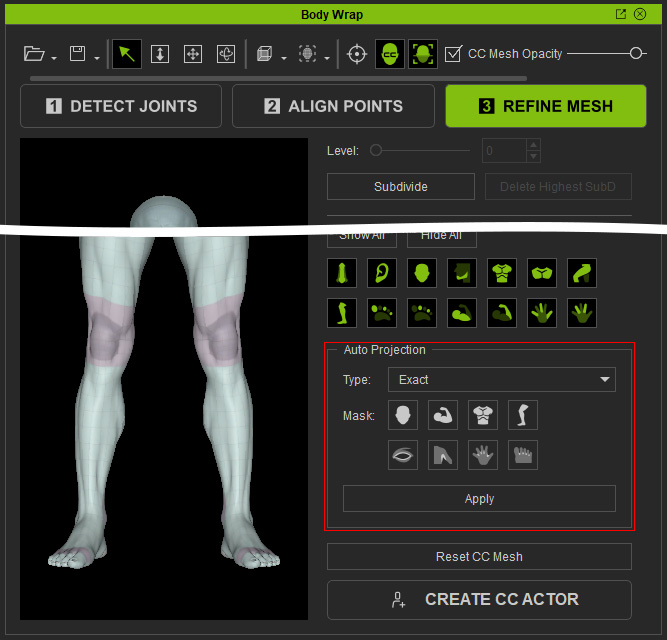
- Type: The projection type provides three options: Exact, Inside, and Outside.
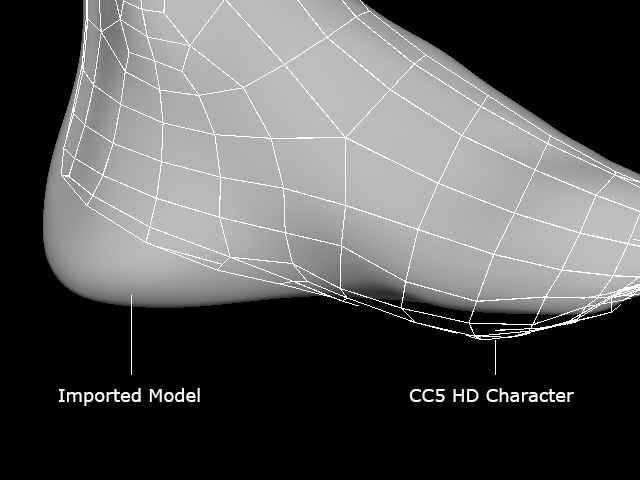
- Exact: Wraps the CC5 HD character surface to match the surface of the imported character model.
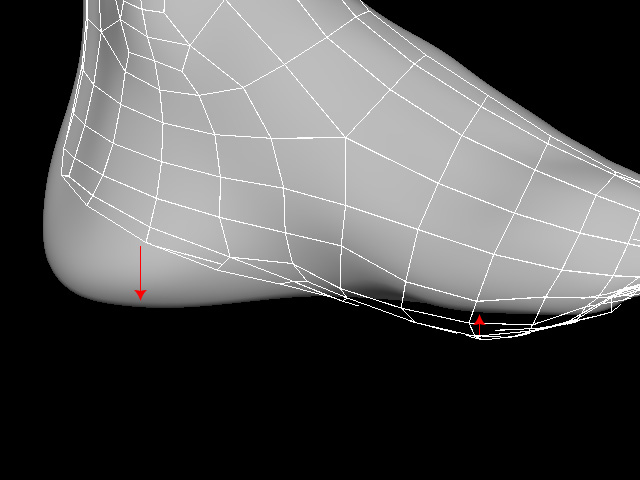
- Inside: Wraps only the parts of the CC5 HD surface that protrude beyond the imported model's surface. Parts that are inside the imported model remain unchanged.
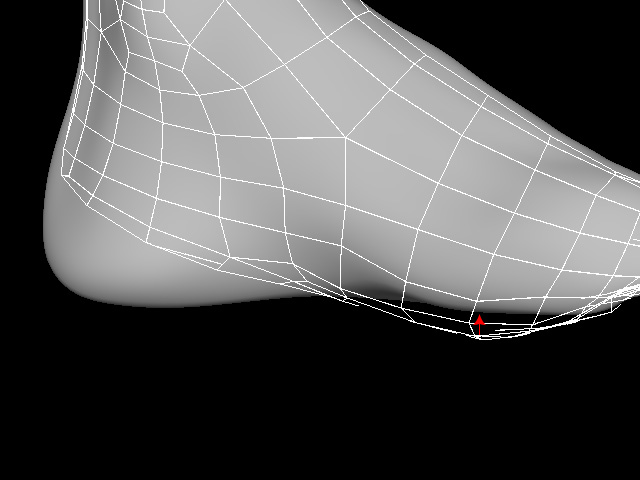
- Outside: Wraps only the parts of the CC5 HD surface that are inside the imported model's surface. Parts that protrude beyond the imported model's surface remain unchanged.
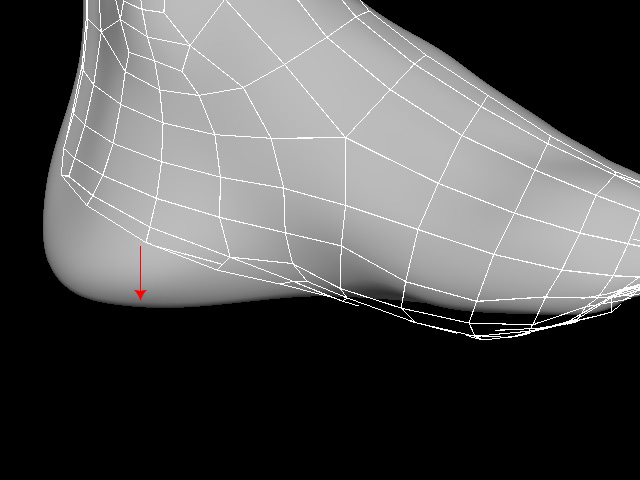
- Exact: Wraps the CC5 HD character surface to match the surface of the imported character model.
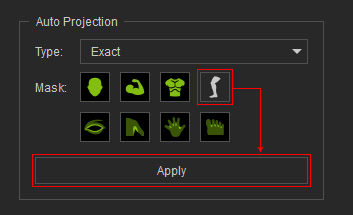
- Mask: Eight body-part masks are available:
- On: The corresponding area is excluded from automatic projection.
- Off: The area is included in the automatic projection.
- Apply: Automatically wraps the unmasked areas of the CC5 HD surface to the imported model.
Applying Auto Projection
- Switch to the Refine Mesh step. Increase the Subdivision Level to 2.
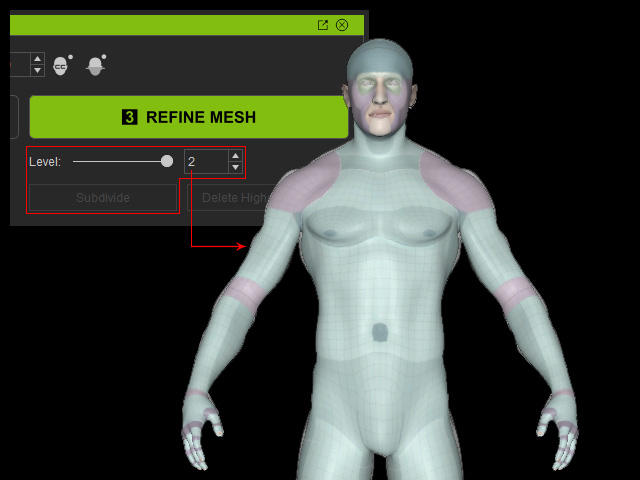
- In Auto Projection, select a projection mode from the drop-down menu (default: Exact). Then click the Apply button.
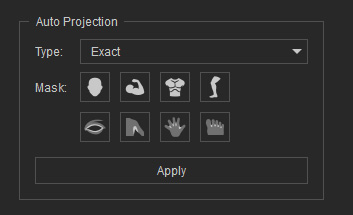
** Note that all parts are set to Mask Off at this point, meaning the entire body will undergo Auto Projection. - Check the CC5 HD character and imported model in the viewport.
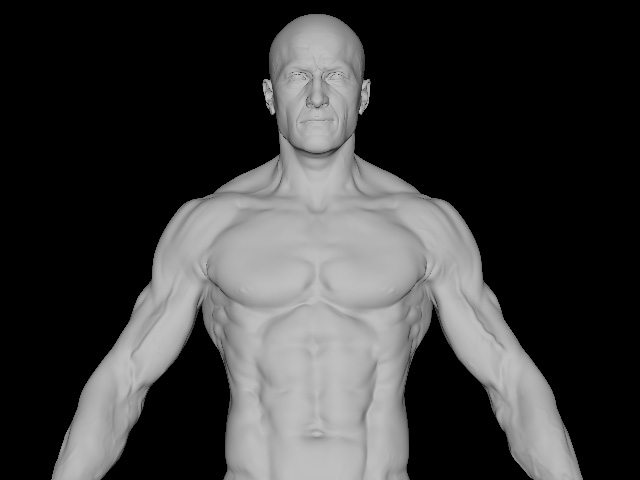
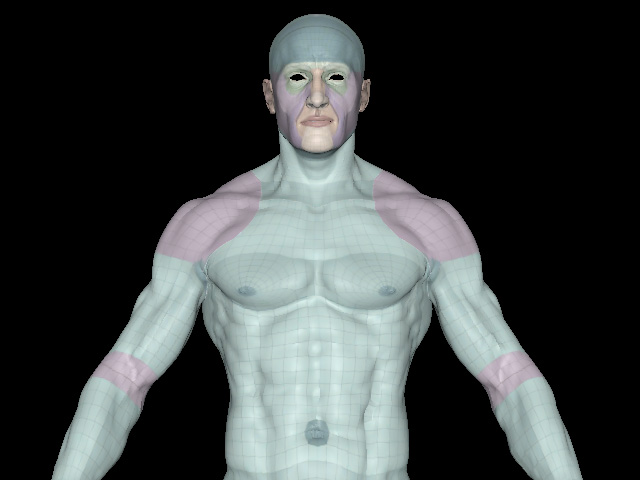
Imported model
Wrapped CC5 HD Character
- Adjust the camera in the viewport (shortcut: Alt + RMB) to inspect the CC5 HD character surfaces that were not wrapped correctly.
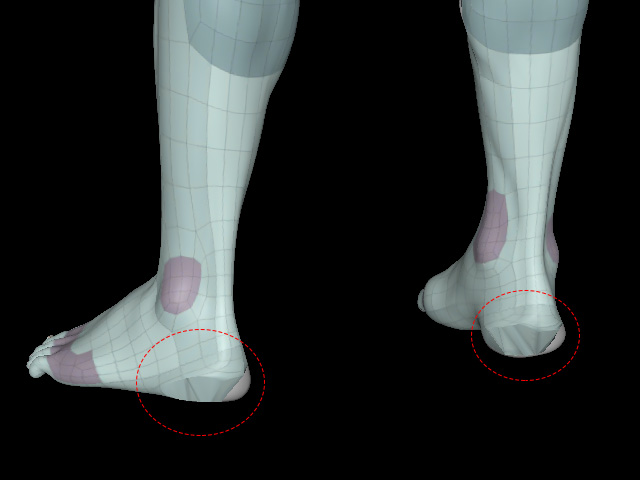
- Use the Clone brush to restore the surface to its default state.
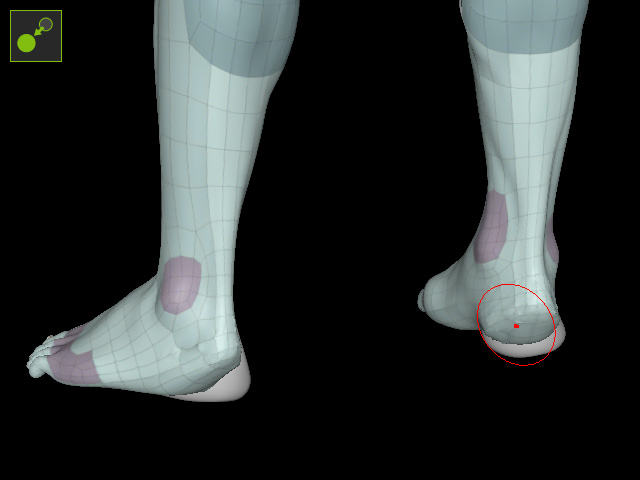
- Use the Move brush to move the CC5 HD surface beyond the imported character model's surface.
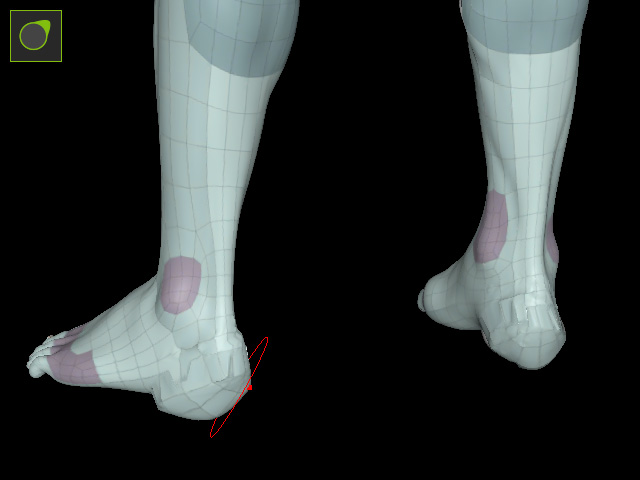
- Use Mask On to mask the surfaces you do not want to affect, then click Apply again.
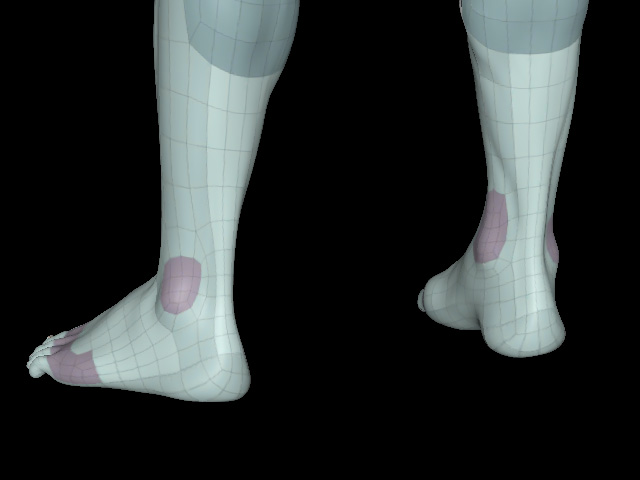
- Check the result in the Viewport.
 Tip:
Tip:
Use masks to protect areas that require manual refinement. After changing the mask settings, click Apply again to reproject the areas with Mask Off.
