Expanding Selection by Angle
The Expand Selection by Angle function selects connected faces based on the angle between their surfaces. It can be used in both Face and Vertex selection modes.
Selecting Faces by Angle
Create an object first (by loading external file or from AI Mesh Generator).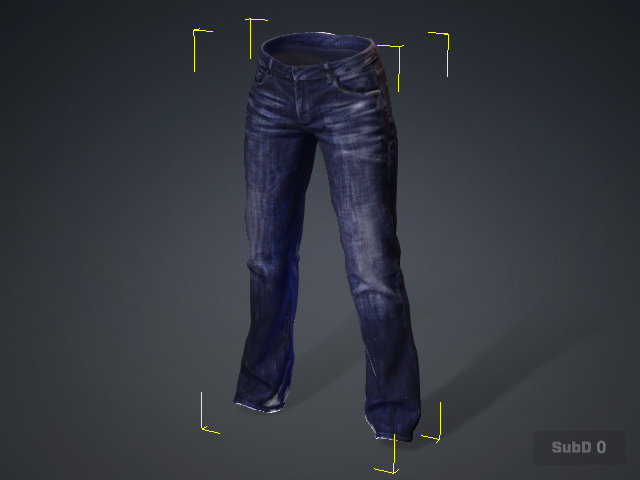
- Select the object, change the camera perspective.
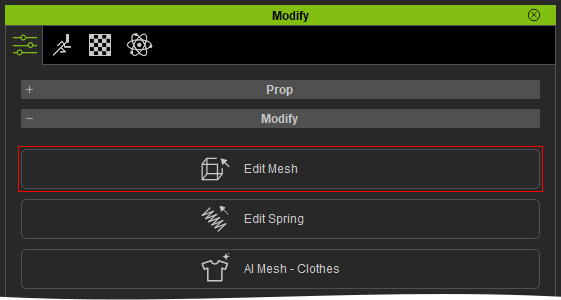
- Enter the Edit Mesh mode.
- Switch to the Face or Vertex page (in this case, Face).
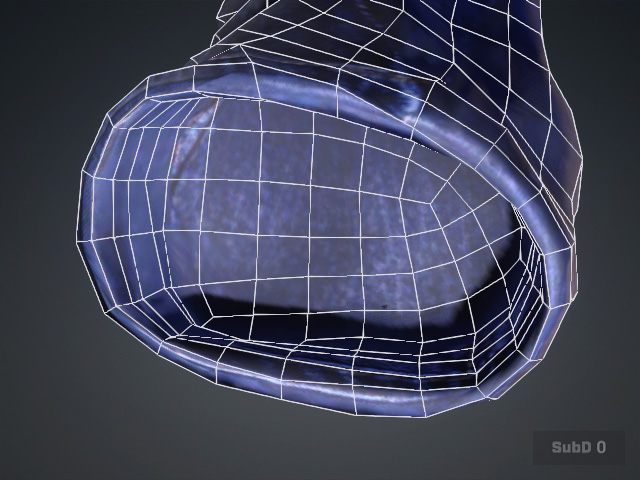
- Select a triangle face to use as the starting face.
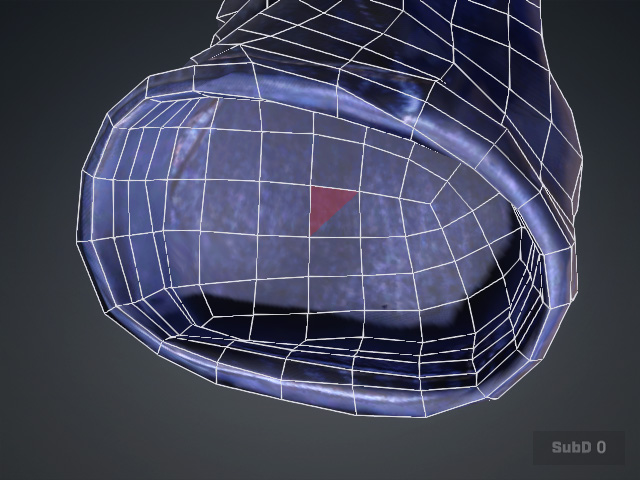
- Click Expand Selection by Angle. The Angle slider becomes available.
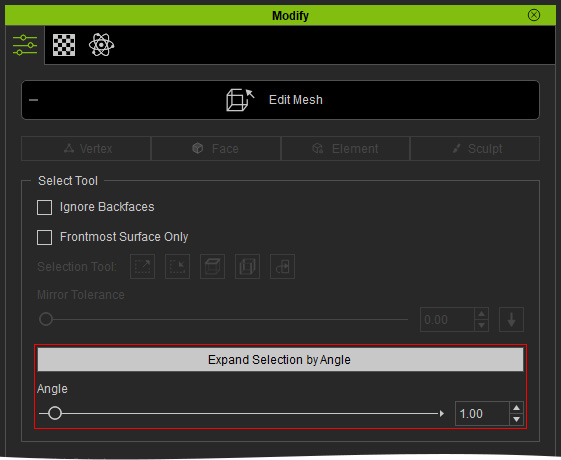
- Adjust the Angle value. The faces that will be selected later are highlighted in yellow.
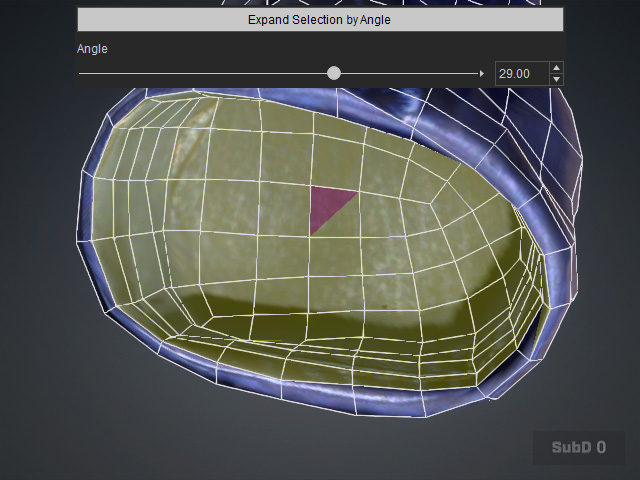
- When the desired area is highlighted, click Expand Selection by Angle again to confirm the selection. The highlighted faces turn red to indicate that they are selected.
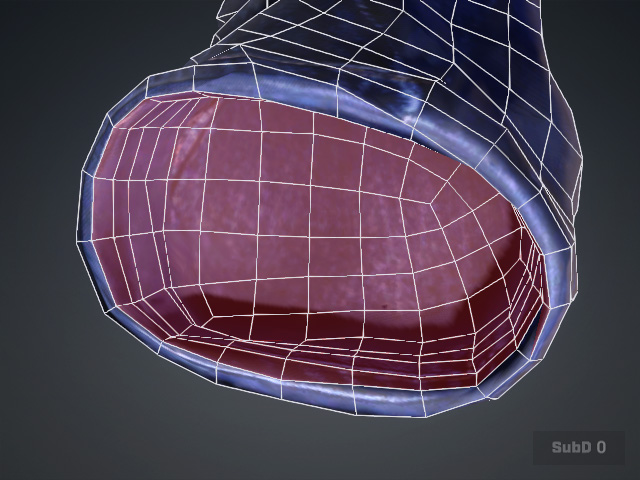
- Use Grow or Shrink Selection to edit the selection range further if needed.
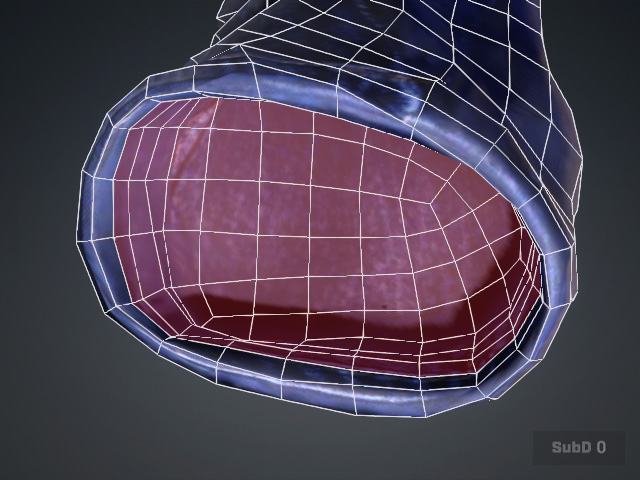
- Hold Ctrl and click individual faces to remove unnecessary faces from the selection as needed.

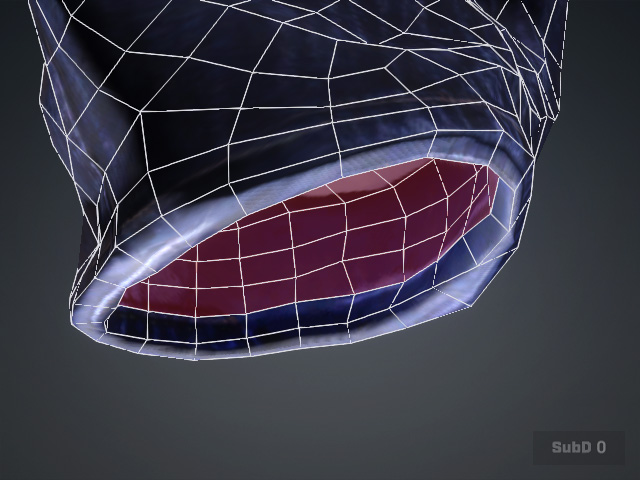
Before
Deselect the unnecessary faces by Ctrl + Click
 Note:
Note:- The Angle value determines the range of faces included in the selection.
- Allowed Face Angle= Faces with an angle difference greater than the Angle value will be included in the selection.
Editing the Selected Faces
Once the desired faces are selected, you can use other Edit Mesh functions to modify them, such as Move, Rotate, Scale, Extract, Delete (in this case) or Transfer Skin Weight the selected faces.