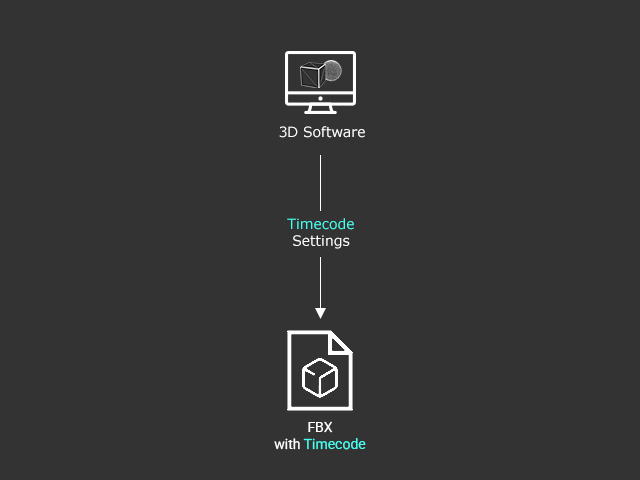
Timecode Settings for FBX File
Export Settings for FBX Files
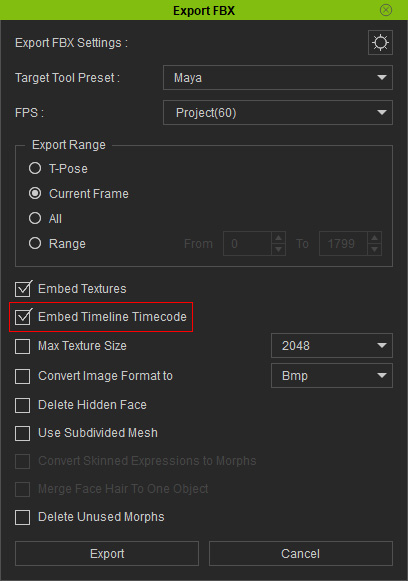
- You can include timecode data during the FBX export process in iClone (File > Export > Export FBX > Embed Timeline Timecode):
- For Unreal Editor, you'll want to activate FBX Export Options > Animation > Export Local Time.
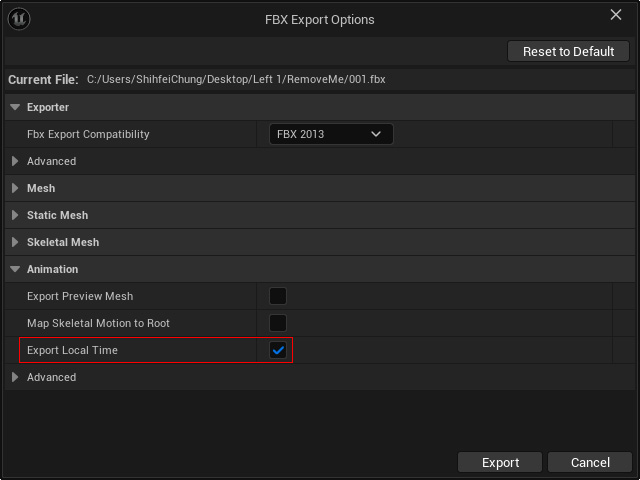
- When Export Local Time is enabled, the timecode of the imported file will be overwritten with the local system time, otherwise the source timecode is left unchanged.
- For Maya and Motion Builder, there are not options for timecode export, they are included automatically with FBX exports.
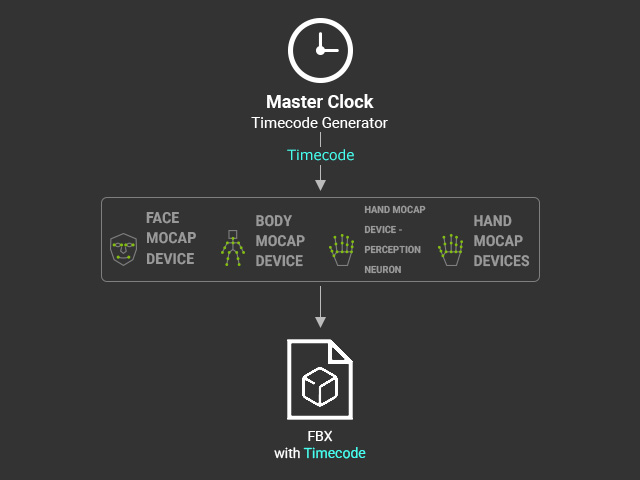
Export FBX with Mocap Software
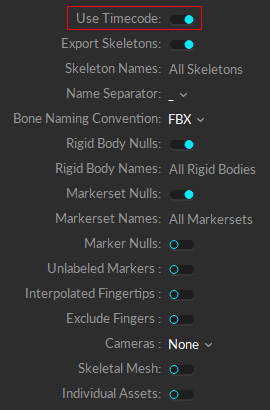
- OptiTrack: Activate the Use Timecode option in the Export FBX panel.
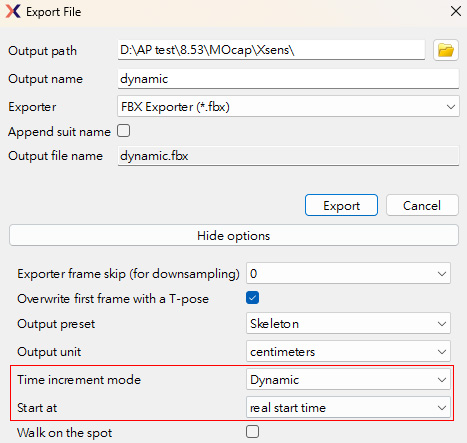
- Xsens: Set the Time increment mode to "Dynamic" and Start at to "real start time".
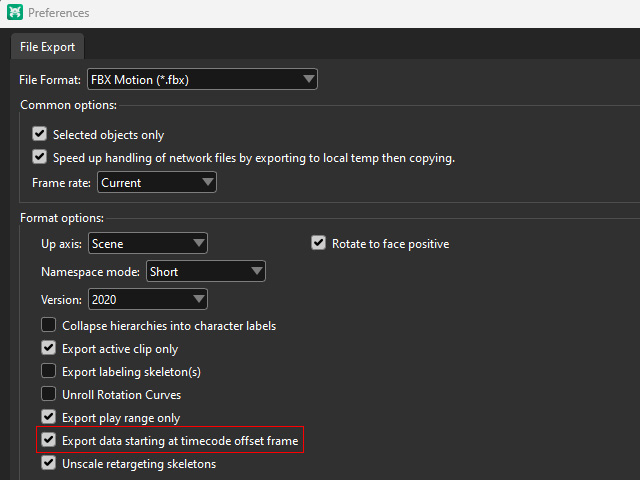
- For Vicon (Shogun Post): In the Preferences, activate Export data starting at timecode offset frame to include the timecode in the FBX file.
- For Rokoko: No specific settings are needed, however, only Pro and Enterprise versions support timecode settings.
- For Perception Neuron: Under the Export Settings, activate the Timecode checkbox.
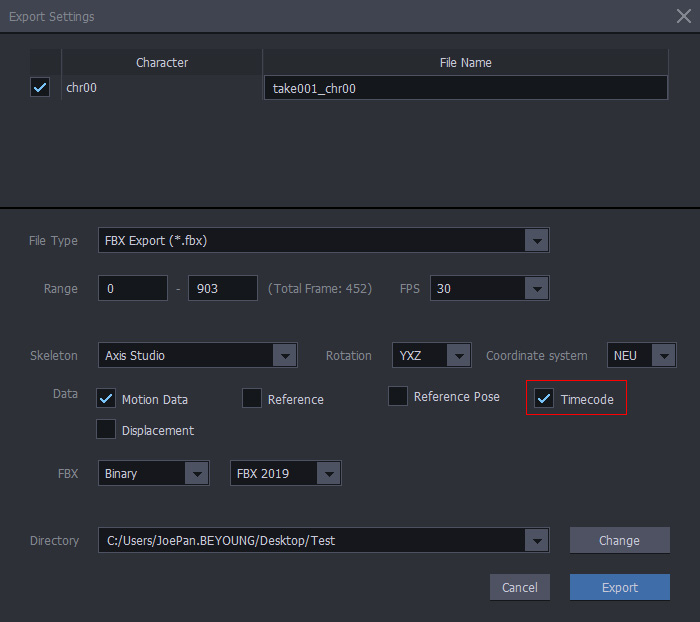
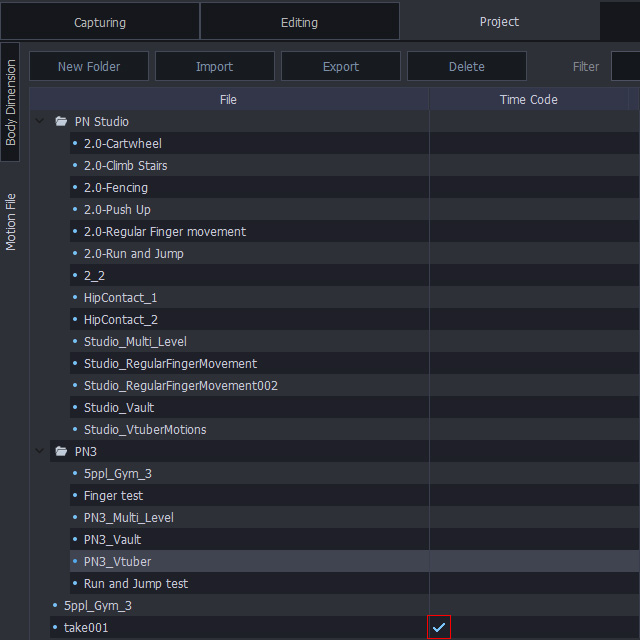
The Time Code column for the take will be checked, indicating its inclusion.