Aligning Clips to Accurate Timecode
You can use the Align to Timecode feature to automatically snap multiple clips with different timecodes into place, eliminating the need for manual positioning in the timeline.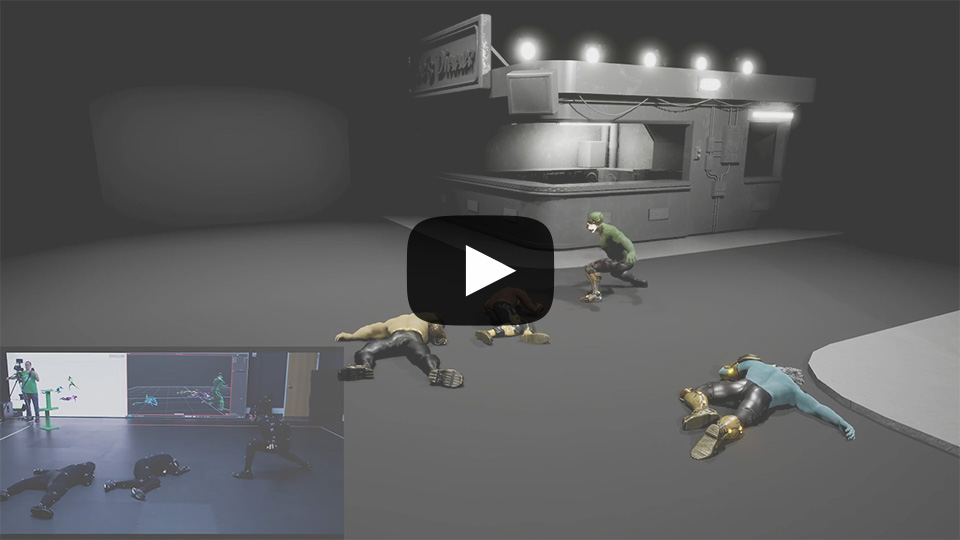
- Import a timecoded media, such as audio, FBX motion, or video as backdrop.
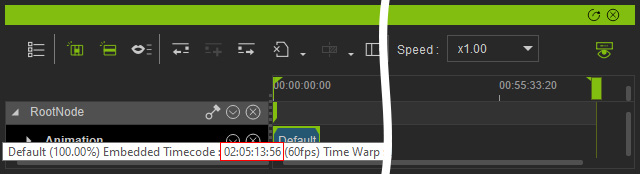
iClone has a one-hour limit to the timecode, with the final max frame set to 01:00:00:00. - Align the project start timecode to the imported media.
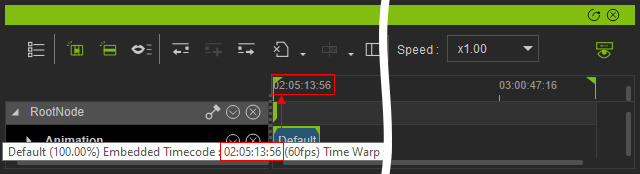
Differences in the final digits signify fps discrepancies between the media and the native fps in iClone (set to 60 by default).
E.g. 20 / 60 (fps in iClone) = 08 / 24 (fps of the medium)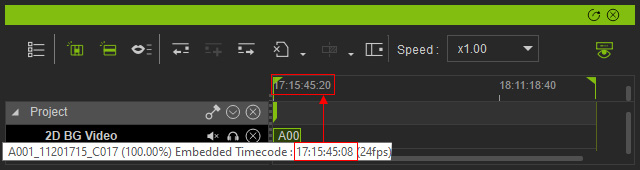
- Import another timecoded media and check its timecode.
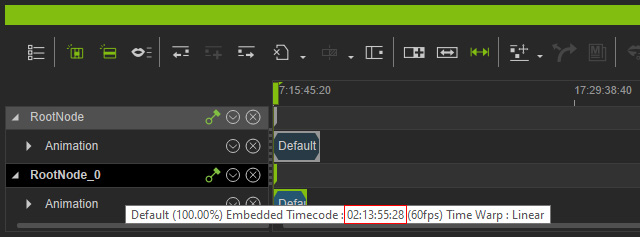
If it falls within the project range (one hour), then execute the Align to Timecode feature in the context menu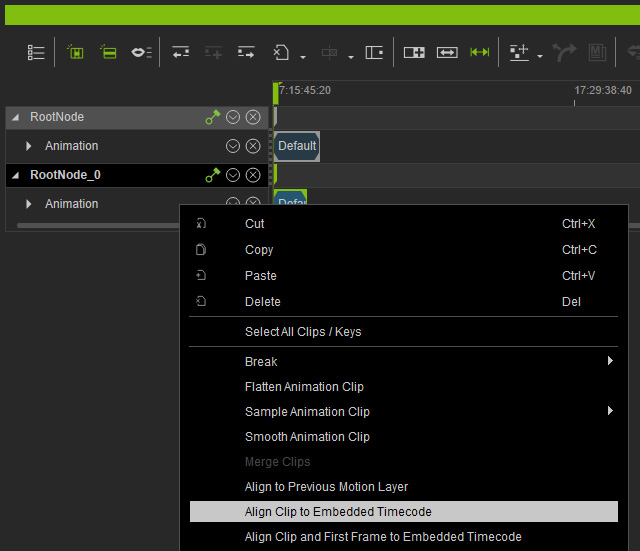
Otherwise, the command will be disabled. - The medium will be aligned to the accurate timeframe.
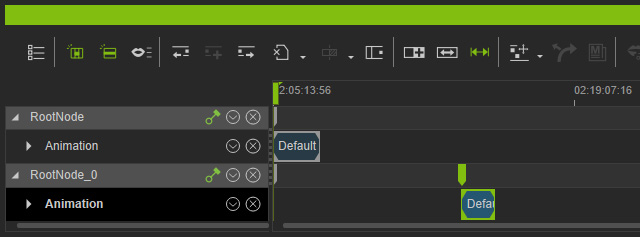
- You can repeat the same steps to align more media to their respective timeframes.
 Note:
Note:The fourth digit of the timecode may misalign the media due to differences between the project and media fps value.
(Project FPS:12, Motion Clip FPS: 60)
