Base vs Wrinkle Diffuse
The Face Tools plugin provides two distinct types of diffuse maps available for your character model. The Base diffuse map encompasses the base model's diffuse color, while the Wrinkle diffuse map holds color information specifically for wrinkles.
 Base Diffuse Map
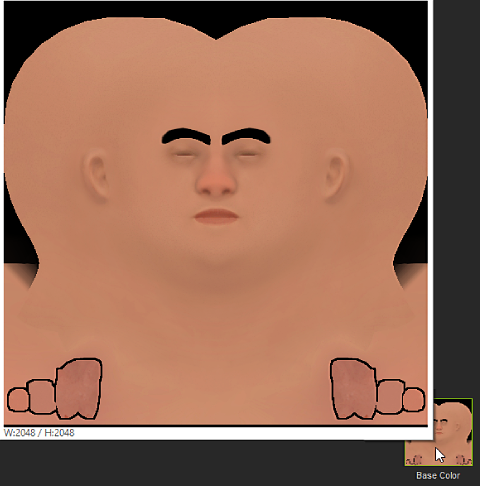
In Character Creator (CC), the Base diffuse map serves as the primary diffuse map for your character model. Any polypaint information applied to the base model in ZBrush will be converted into the Base diffuse map upon transfer to CC.
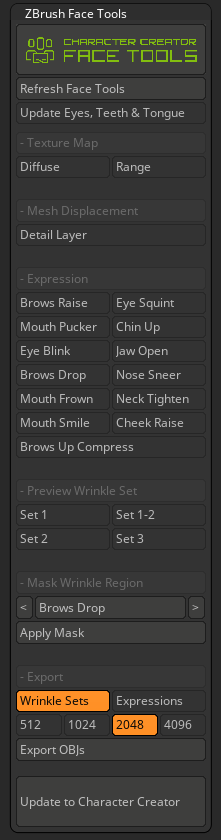
- In ZBrush, deactivate all the layers in the Face Tools plugin panel.
Apply polypaint to the base model in ZBrush.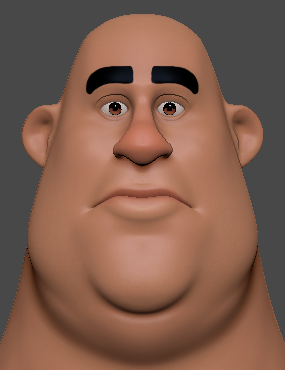
- Click the Update to Character Creator button at the bottom of the ZBrush Face Tools plugin panel.

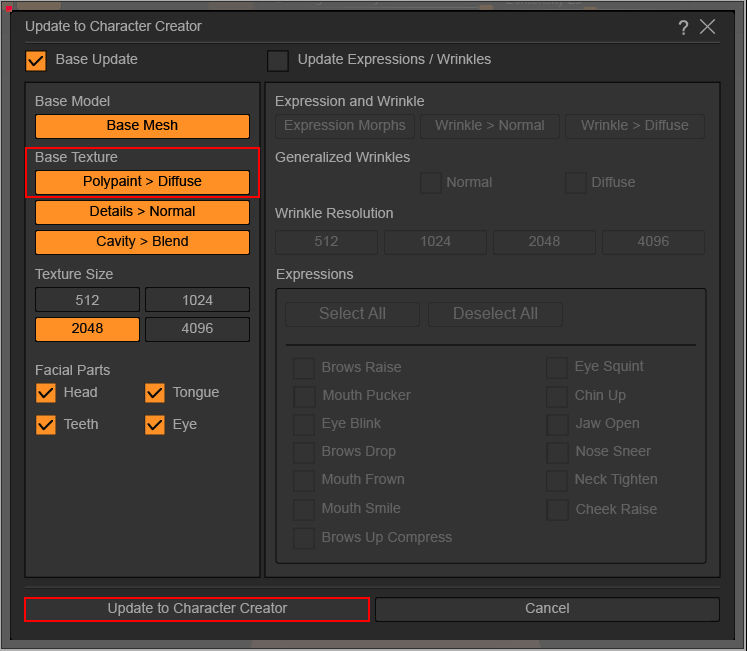
- A dialog box will emerge; here, in Base Texture activate the Polypaint > Diffuse, and click Update to Character Creator.
- In CC, go to Modify > Material List > Std_Skin_Head > Texture Settings.
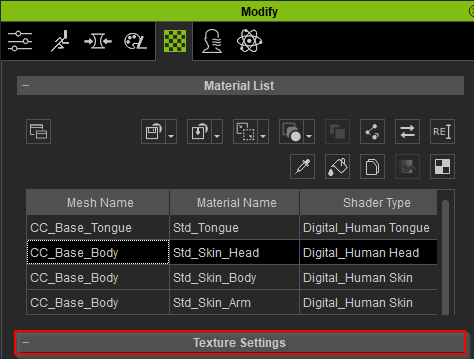
You’ll notice that the polypaint in ZBrush has successfully been converted to a Base diffuse map in CC (under Texture Settings).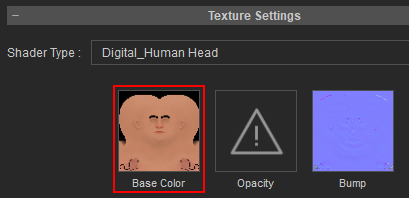
Wrinkle Diffuse Map
Within CC, the visibility of the Wrinkle diffuse map is contingent upon the activation of specific expressions. In ZBrush, each expression is associated with its own polypaint.
In CC, open your CC3+ (or later) character project.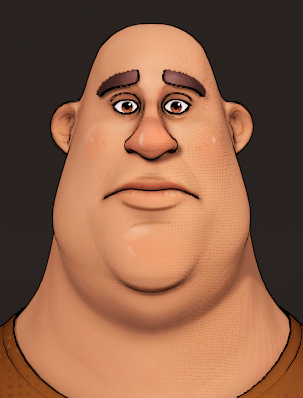
Under the Texture Settings section, make sure the diffuse maps are all set to Individualize to yield more accurate facial details and polypaint.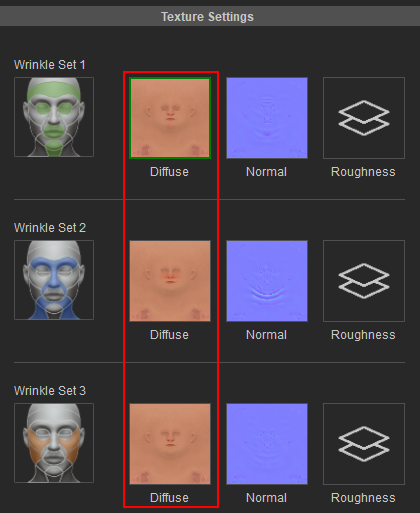
After enabling Active Expression Wrinkles, click on Modify > Attribute > ZBrush GoZ > Face Tools GoZ.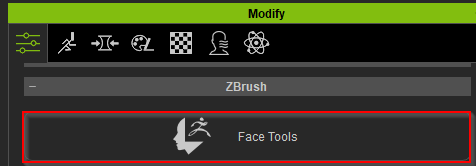
- Within the dialog box, activate the Include Wrinkles in Polypaint.
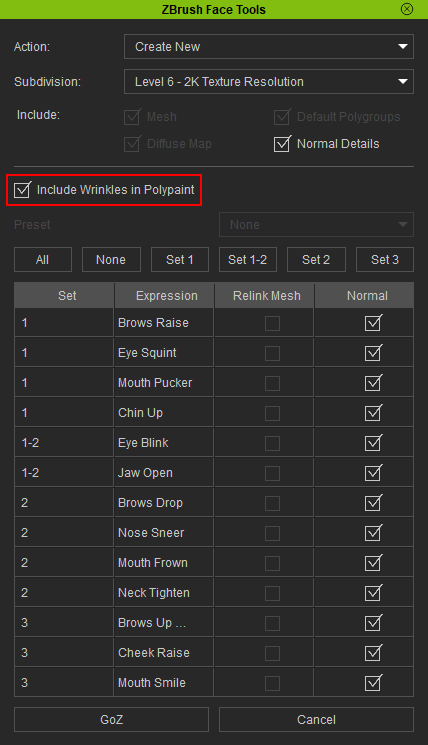
- Leave the rest of the setting as default and click the GoZ button at the bottom to send your character to ZBrush.

- Within the Facial Expression section, choose the expression to which you intend to apply polypaint.
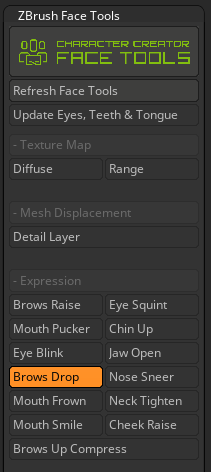
With the selected expression activated, apply polypaint to the base model of the expression.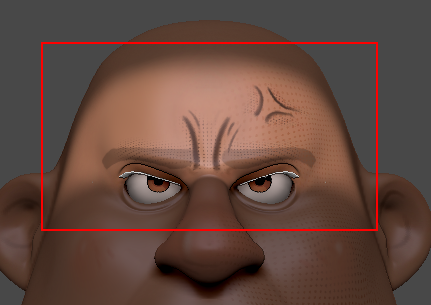
- Once your editing is finalized, click the Update to Character Creator button at the bottom of the ZBrush Face Tools plugin panel.
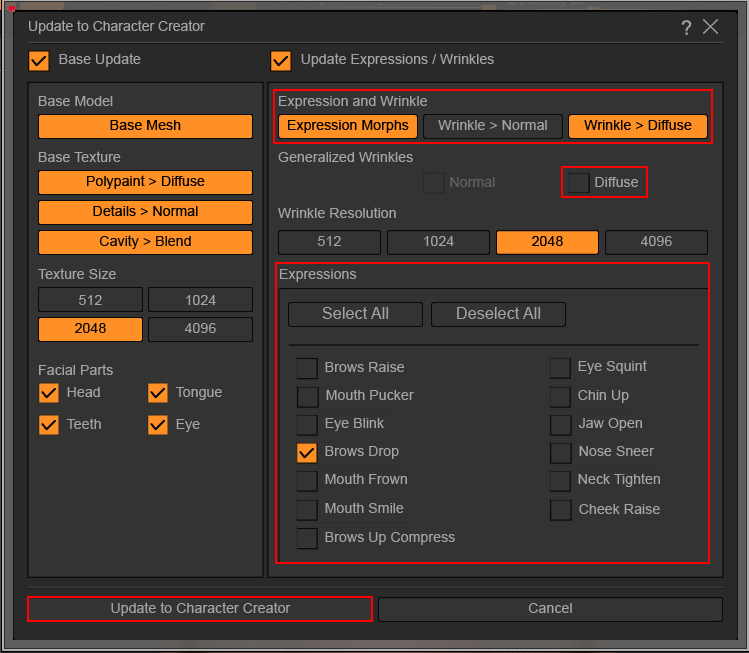
- A dialog box will appear. In the Expressions and Wrinkle section, activate Wrinkle > Diffuse, and deactivate Diffuse under Generalized Wrinkles. Choose the Expressions you have edited, then proceed to click Update to Character Creator.
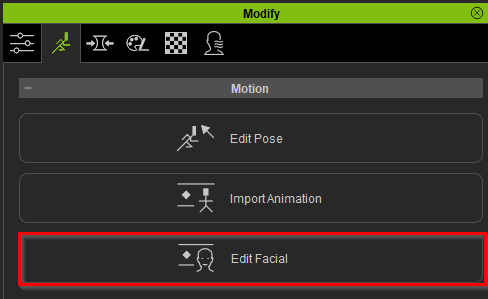
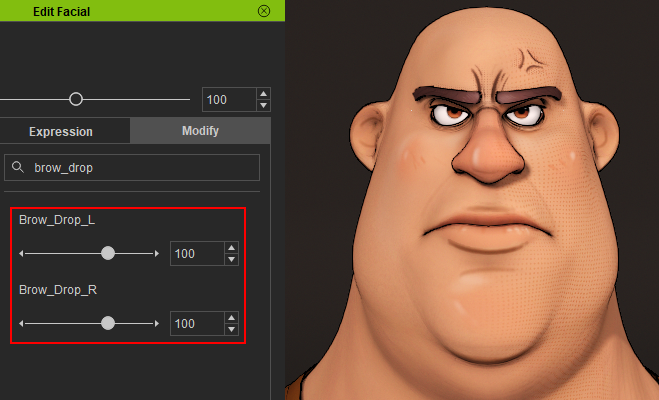
- Go to Modify > Motion Pose > Motion > Edit Facial.
- Within the Edit Facial control panel, navigate to any of the three options in the menu bar to test your character's edited facial expressions.
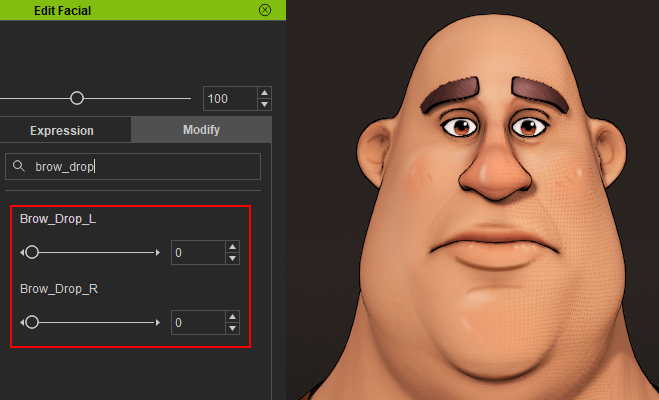
Zero expression
Expression activated
