Finding Similar Models
Deep Search allows you to further find online content with images similar to the template content in the scene or from the Smart Search, Content Manager and Scene Manager. It's especially useful when you want to find substitution items.
This feature can be accessed from multiple interfaces.
 Via the Smart Search panel
After performing a text or image search in the Smart Search panel, you can then find similar content.
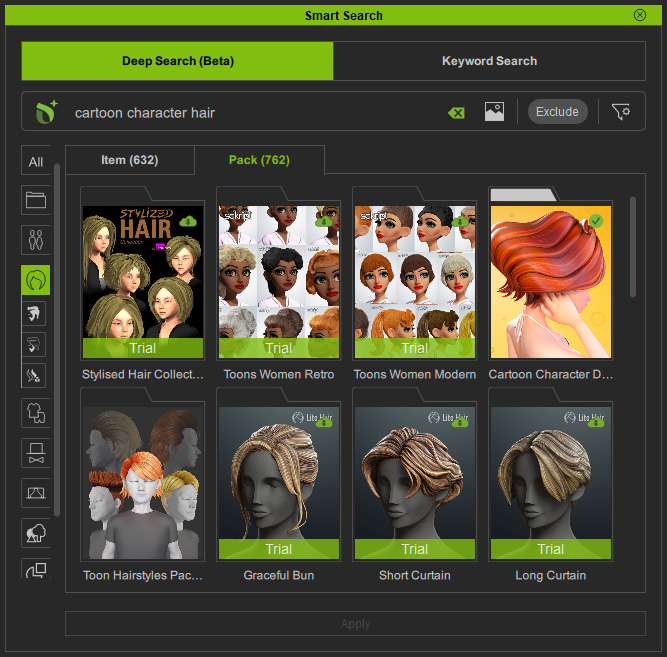
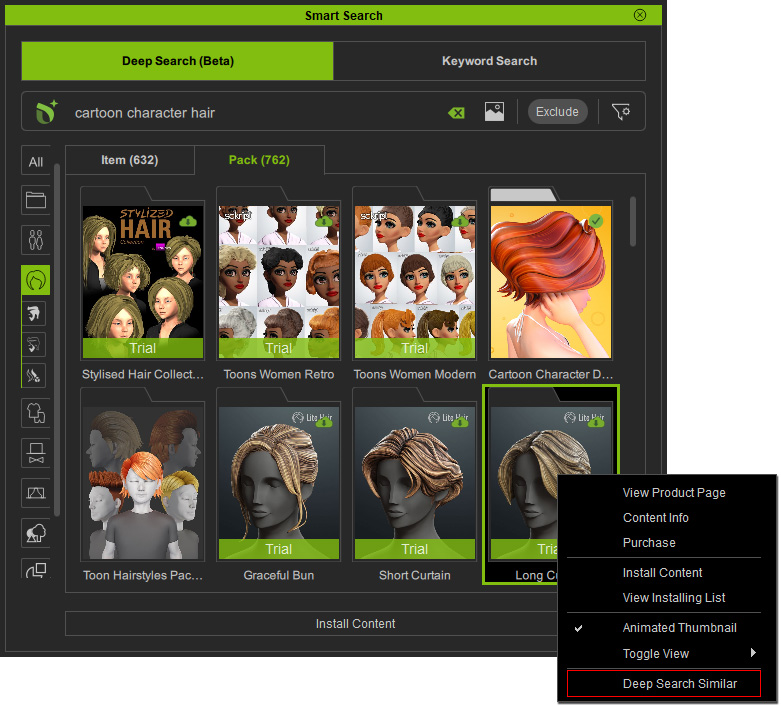
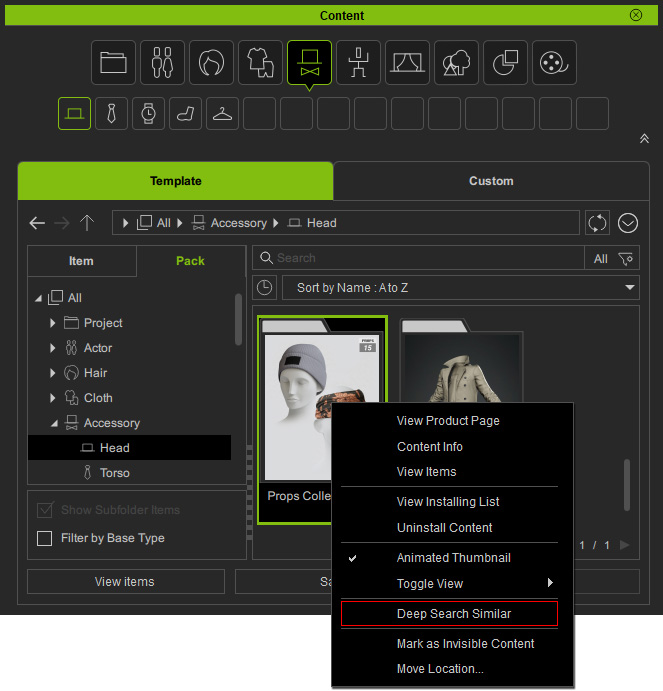
In the search results of the Smart Search panel, right-click on a content and choose the Deep Search Similar command from the context menu.
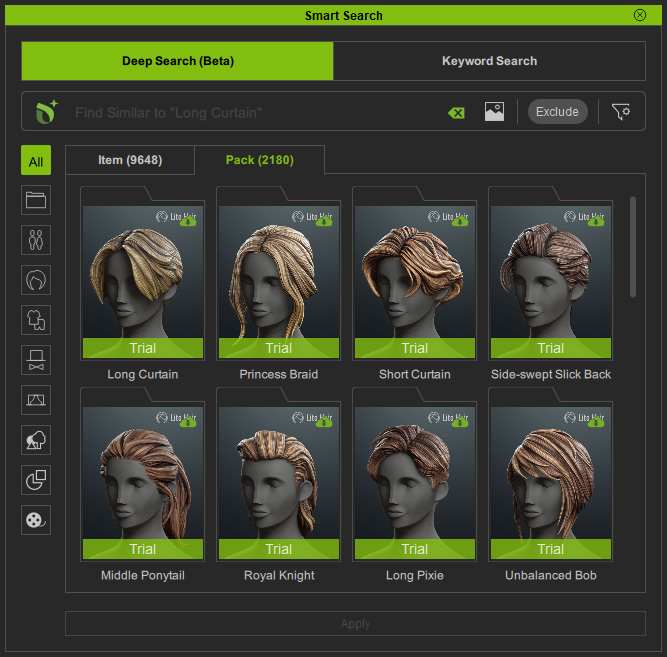
The content image will be compared to the asset libraries of the Reallusion online stores, and return similar content under the Asset Store tab.
From the scene or Scene ManagerBy exploring other content, a scene object can be replaced with something more suitable.
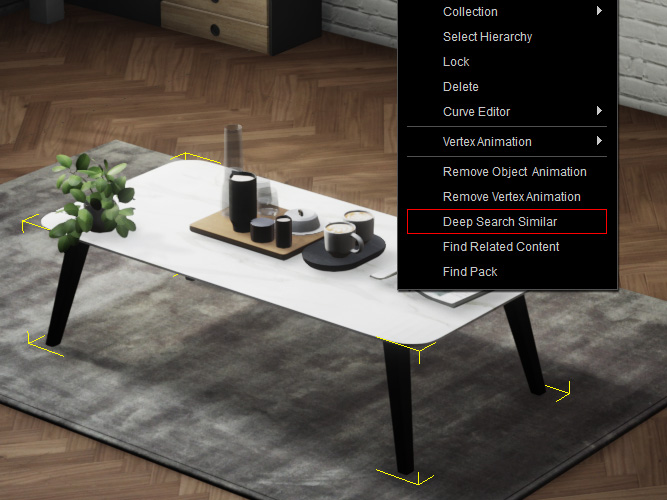
Pick a template object in the viewport and right-click on it to perform the Deep Search Similar command.
Alternatively, right-click on a template item in the Scene Manager and choose Deep Search Similar from the context menu.
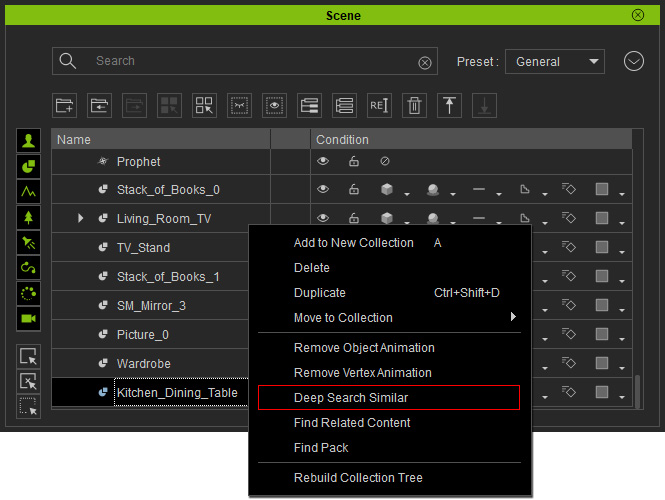
* For Cartoon Animator, select the object's root node, and then execute the Deep Search Similar command from the menu drop-down list.
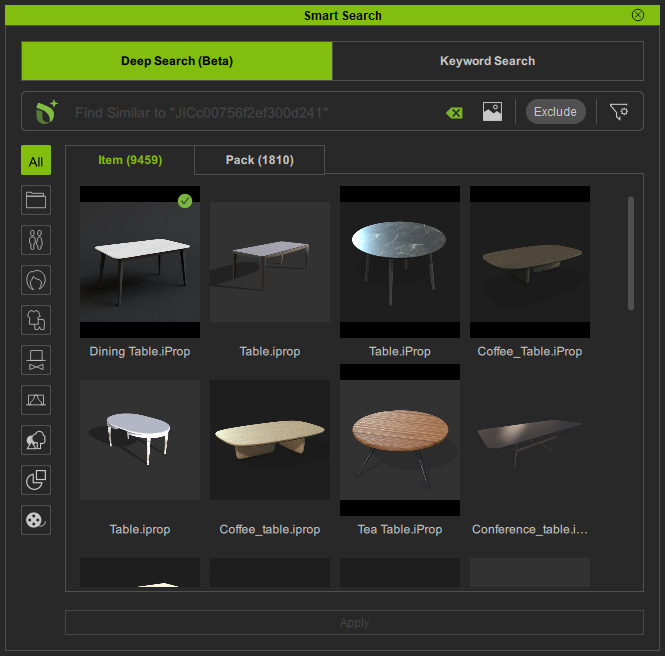
After comparing the product images in Reallusion online stores, the Smart Search panel launches with similar content displayed in the Asset Store tab.
From Content ManagerThe existing items or packs under the Template tab of Content Manager (whether or not downloaded) can be used to search similar content.
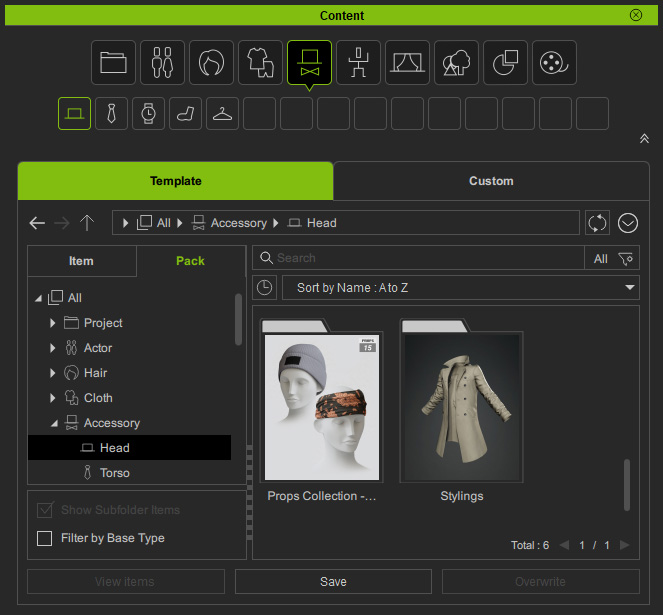
Right-click on a content and execute the Deep Search Similar command from the context menu.
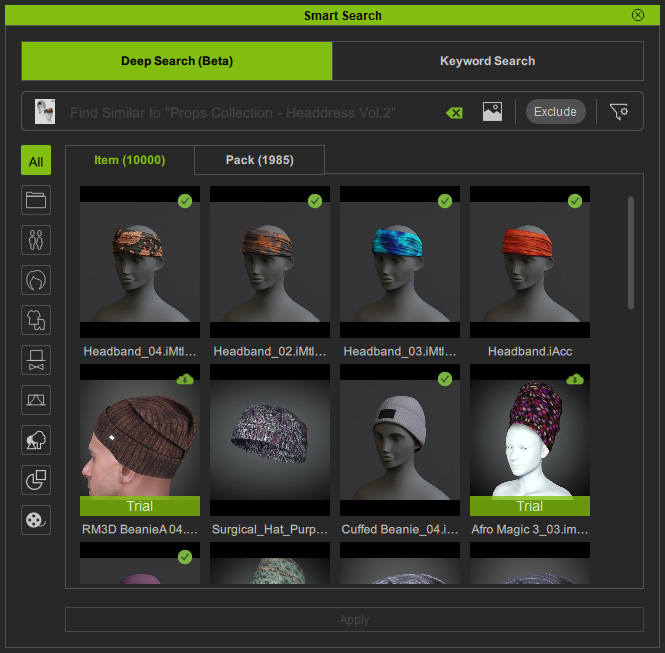
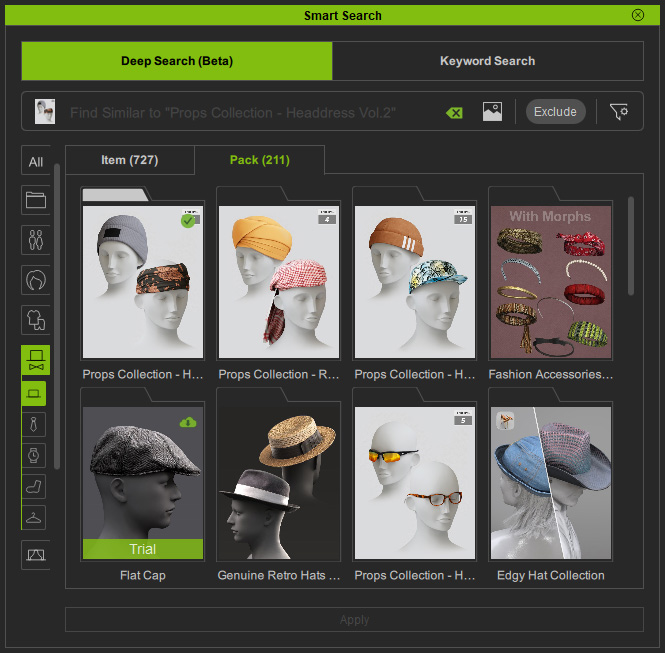
The Smart Search panel launches with the Asset Store tab to show online content with similar product images.
The content category will be synchronized automatically, in this case, Accessory > Head.
Drag and dropping content to the drop area of the Asset Store tab is also supported.
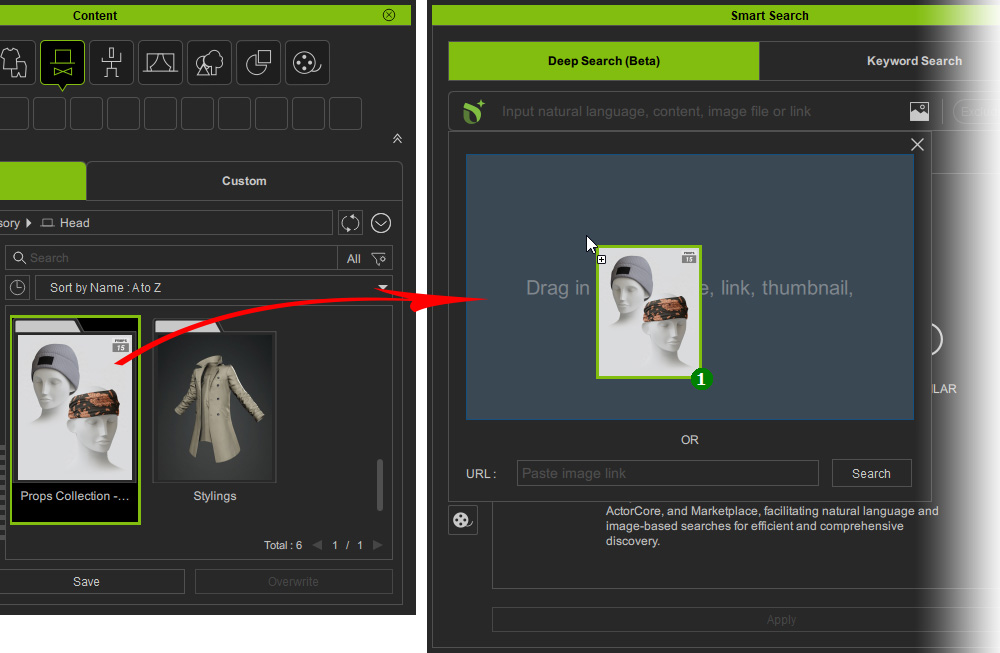
Smart Search will return visually-similar content after comparing product images in Reallusion online stores.