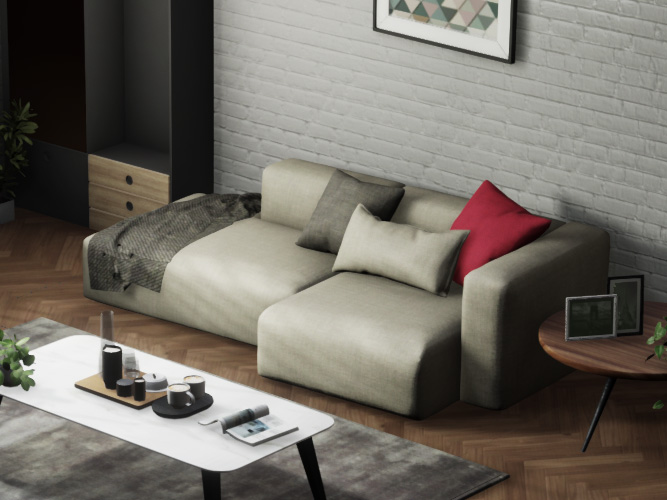
Adding to Store Cart
If you prefer to purchase from Reallusion online stores, you can add packs or items to the store cart and complete the checkout process. Sometimes there are discounts or coupons available for you to use. Content existing in multiple stores will be prioritized by Reallusion Content Store, ActorCore, and finally, the Marketplace.
You can add content to your store cart under the either view of the Smart Search panel.
- Right-click on a pack or item, and perform Add to Store Cart > Buy Item or Buy Pack.
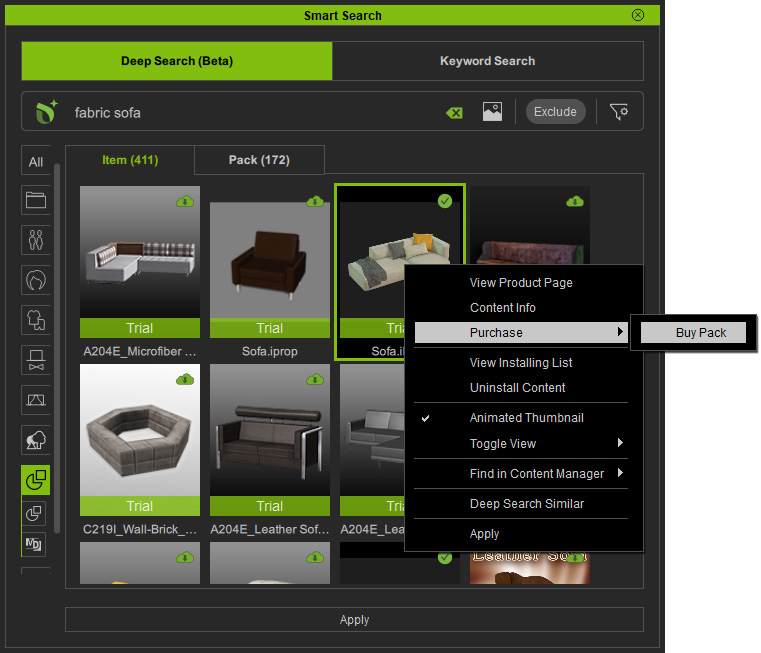
* The Buy Item option is not available in the Item View for items that can't be sold separately. - Log in the Reallusion online store with the same sign-in account.
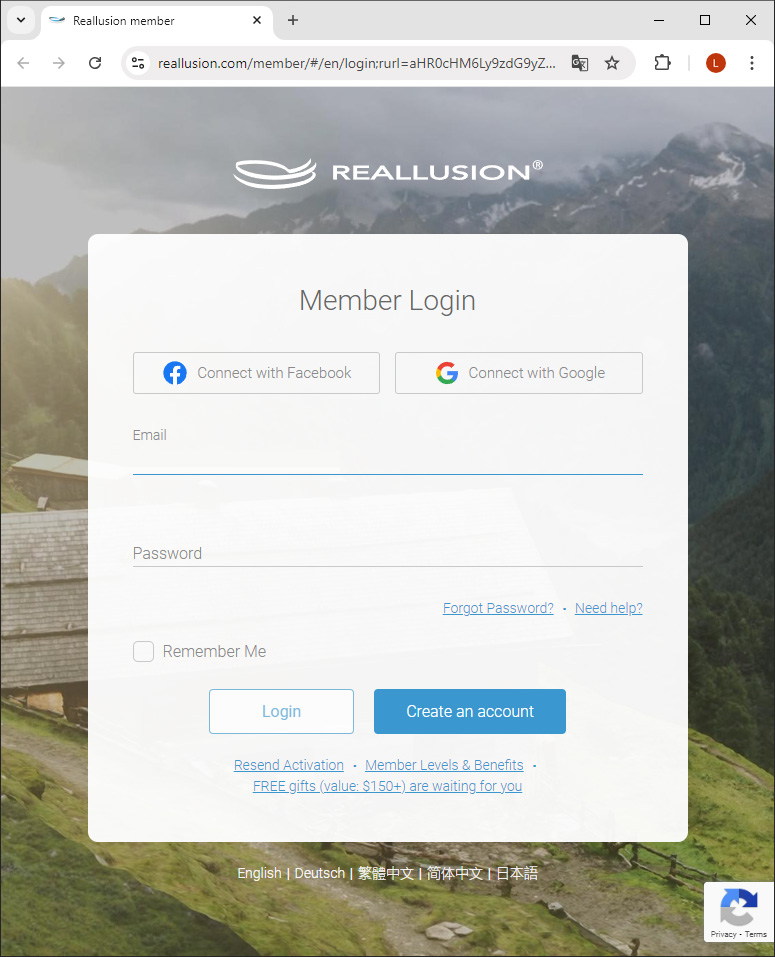
 Sign In / Out
- From Reallusion Hub, you can check the e-mail account signed into the program.
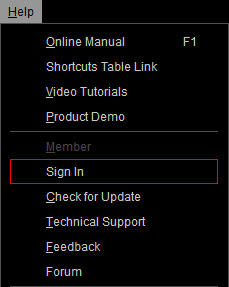
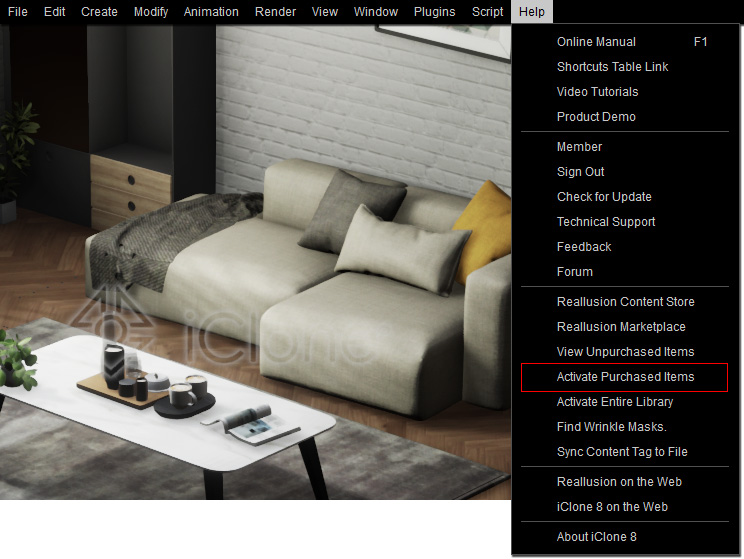
- For iClone and Character Creator users, you can directly sign in / sign out the program from the Help menu.
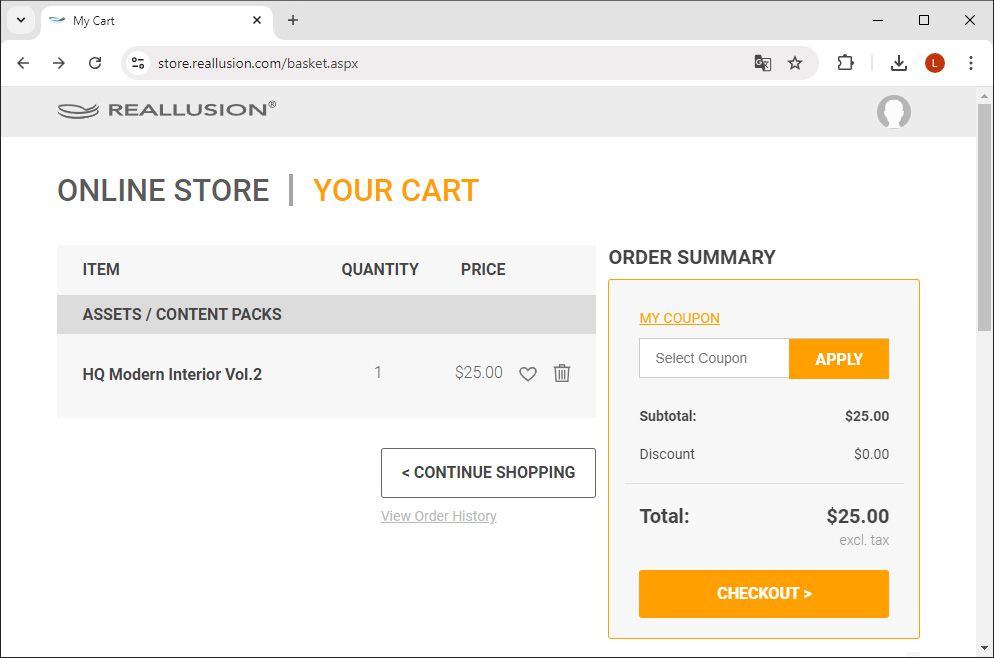
- You will be led to the online shopping cart page.
When items in a pack cannot be sold separately, the selling price is the Standard license price of the entire pack.
Click the Checkout button.
- Determine to use DA Points or Credit Card for checking out and fill in your billing information.
Click the Place Order button to confirm.
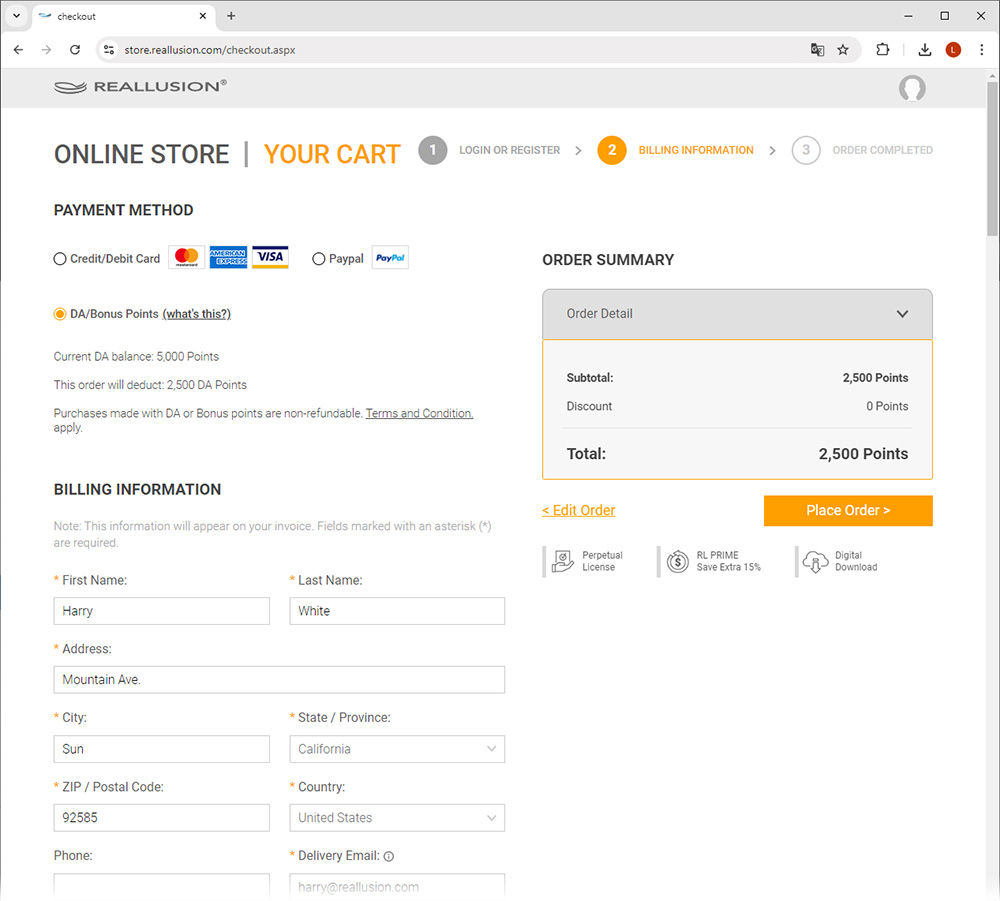
* The DA Points is highly recommended for the following benefits:- DA Points do not have expiration dates.
- DA Points can be used across all Reallusion online stores, including the Software Store.
- In the case of purchasing low-priced content.
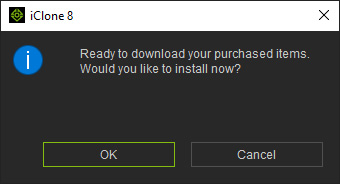
- Content Manager will instantly pop up a message.
Click OK to view the purchased content in the Content Manager.
- The purchased content will appear in the New Purchase filter.
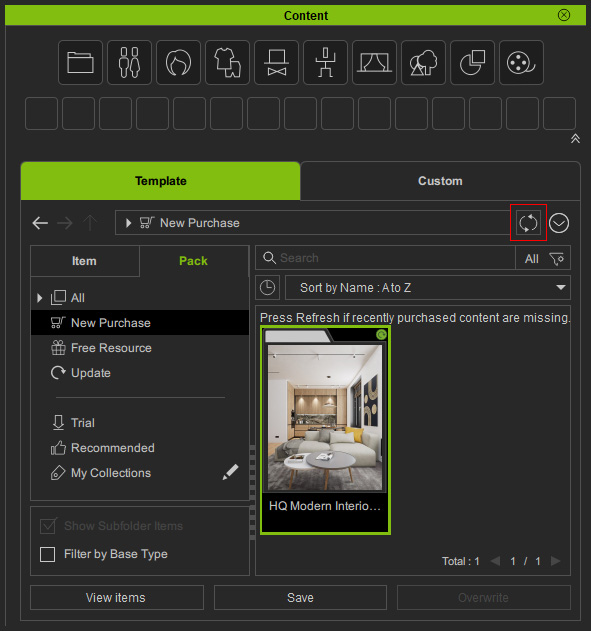
* Click the Refresh button in the Content Manager to manually sync with the purchased online content, if it is the case that:
- You didn't receive the instant notice from Content Manager after making a purchase in the online store.
- You deleted the content files accidentally.
- You changed to a new computer.
- You are a workgroup member and want to download and install the template content shared by the other members.
- Double-click to install and view items inside the purchased pack, and you will see the overlaid "Trial" text on the thumbnail is now removed.
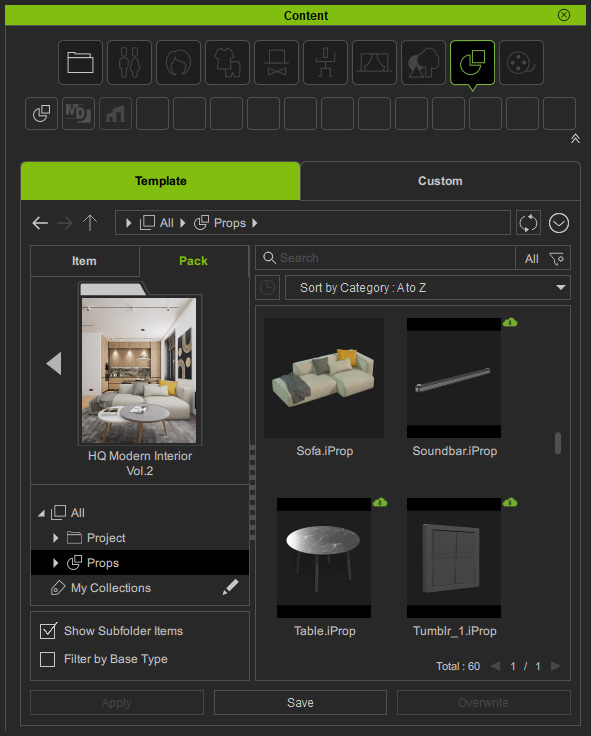
* When opening the pack, you will be prompted to update content in order to download and install all the other items in this pack. - The watermark should disappear automatically after purchase (otherwise, perform Help > Activate Purchased Items to do so manually).
- Now you can render images and videos, or export the objects to other 3D tools at anytime.