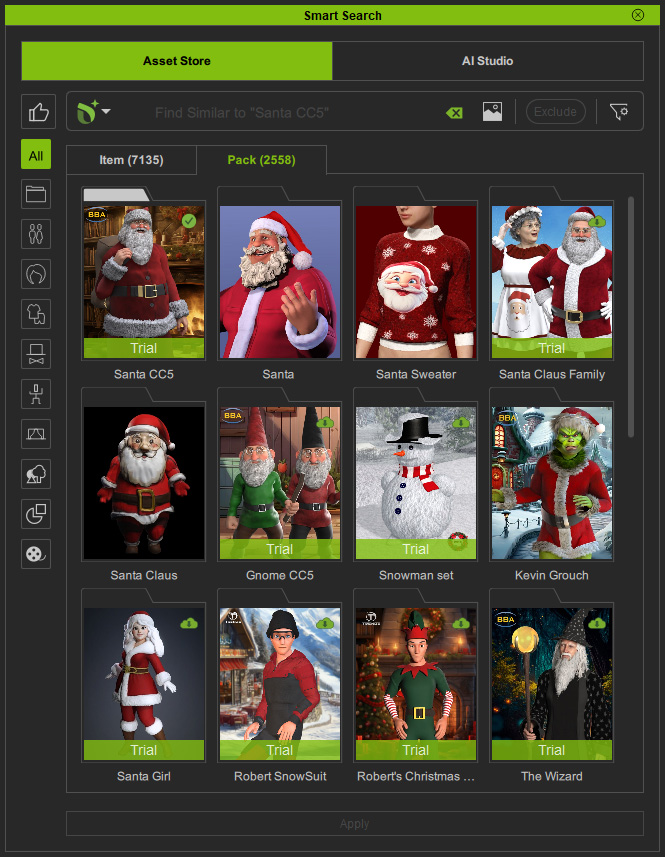
Pack View
Browsing content under the Pack tab can help to find all items that belong to a series or certain theme.
You can double-click on the thumbnail to view the pack's product page and all items within.
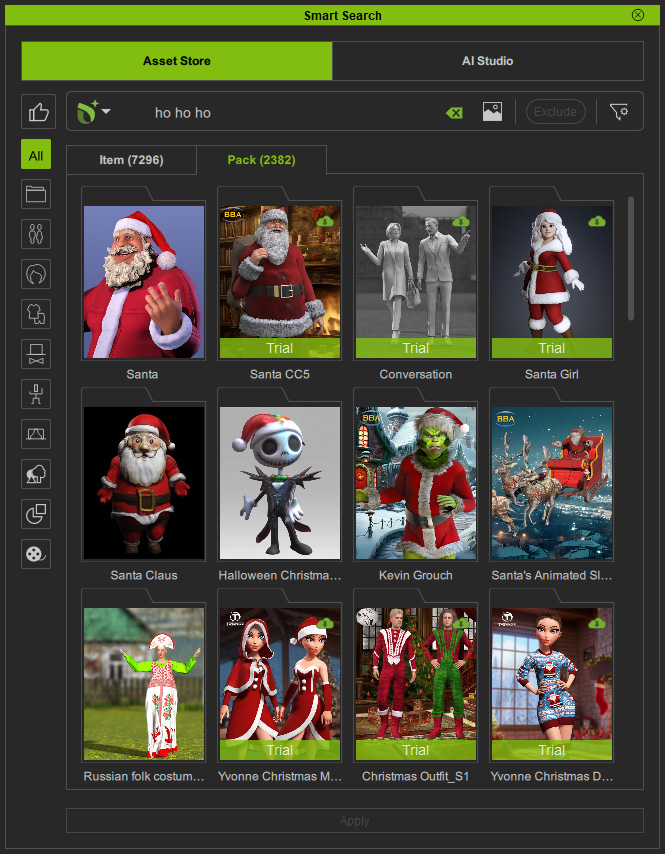
| Thumbnail | Description |
 | Packs matching your search terms. You can double-click on the thumbnail to view the product page. |
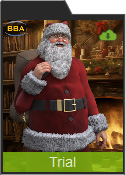 | Packs available for download (free resource, trial or purchased pack) are marked with an |
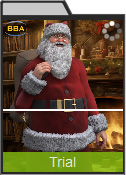 | Installing status: You can right-click on the thumbnail to cancel installation using the context menu. |
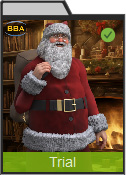 | Installed pack is marked with an |
 icon on the top-right.
You can double-click on the thumbnail to start installing the item.
icon on the top-right.
You can double-click on the thumbnail to start installing the item. icon on the top-right.
You can double-click on the thumbnail to find it in the Content Manager or uninstall it with the context menu.
icon on the top-right.
You can double-click on the thumbnail to find it in the Content Manager or uninstall it with the context menu.By taking advantage of the Pack View, you can:
- Find All Required Items in One Pack: Quickly find all the items you need for your project in a single content pack.
- View Pack Items
 : Double-click an installed pack, or right-click it and use the context menu, to open its contents in a new tab.
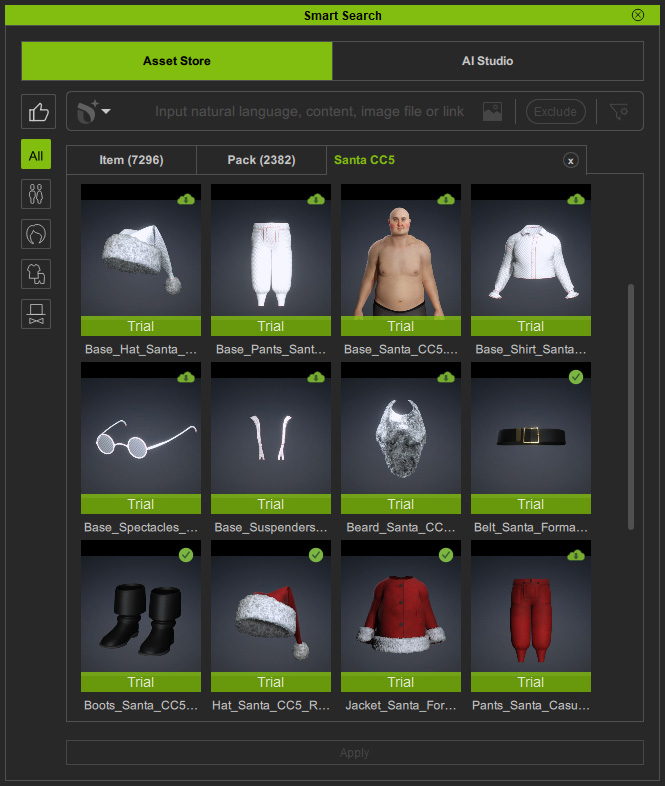
- Find Similar Content: Right-click a search result and choose Deep Search Similar to find content packs with similar product images.
The matching results are displayed under the Asset Store tab.