Thumbnail View Mode
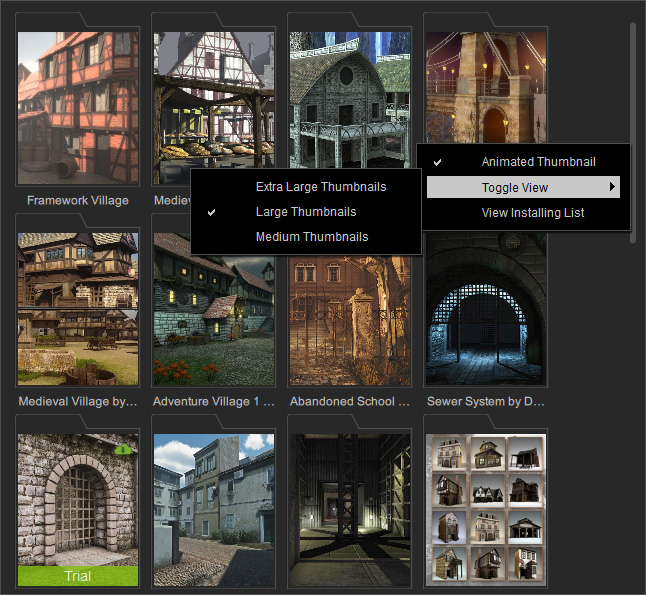
There are three display options: Extra Large Thumbnails, Large Thumbnails and Medium Thumbnails.
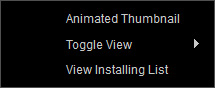
You can toggle the view mode of the listed content by right-clicking on any item or empty area in the content list.
Then choose any of the view options available under the Toggle View command.
Alternatively, use the hotkey: Ctrl + 1 to cycle through the view options.
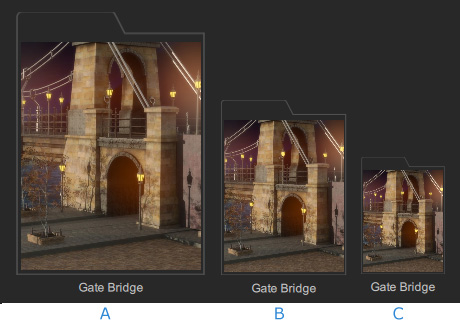
 Extra Large Thumbnails
If you are using a display with 4K resolution, you can change the view mode to Extra Large Thumbnails.
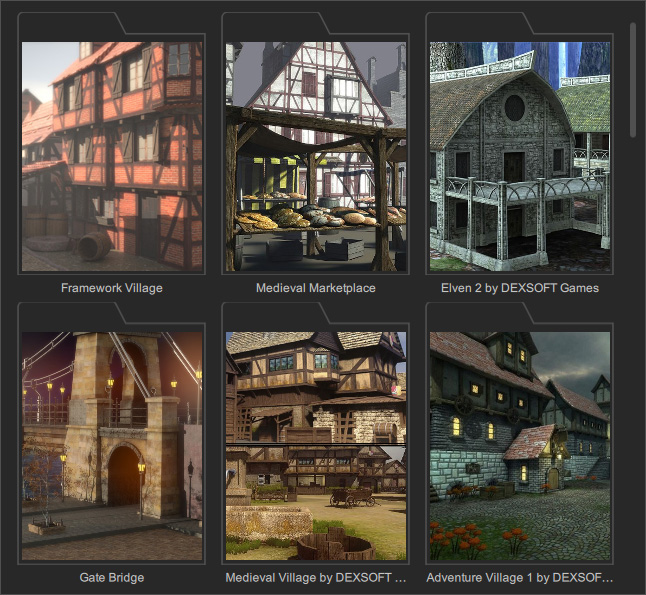
- Large Thumbnails
The Large Thumbnails is the default view mode for content display.
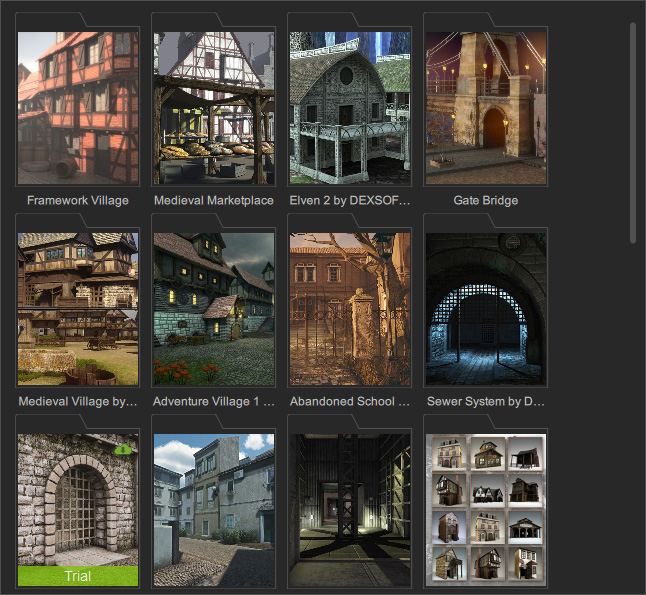
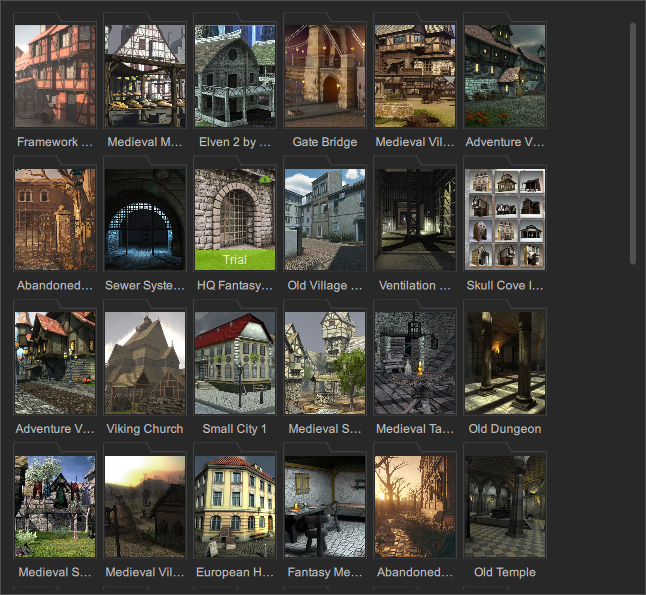
- Medium Thumbnails
In this view, the thumbnails are scaled to fit more within the panel.
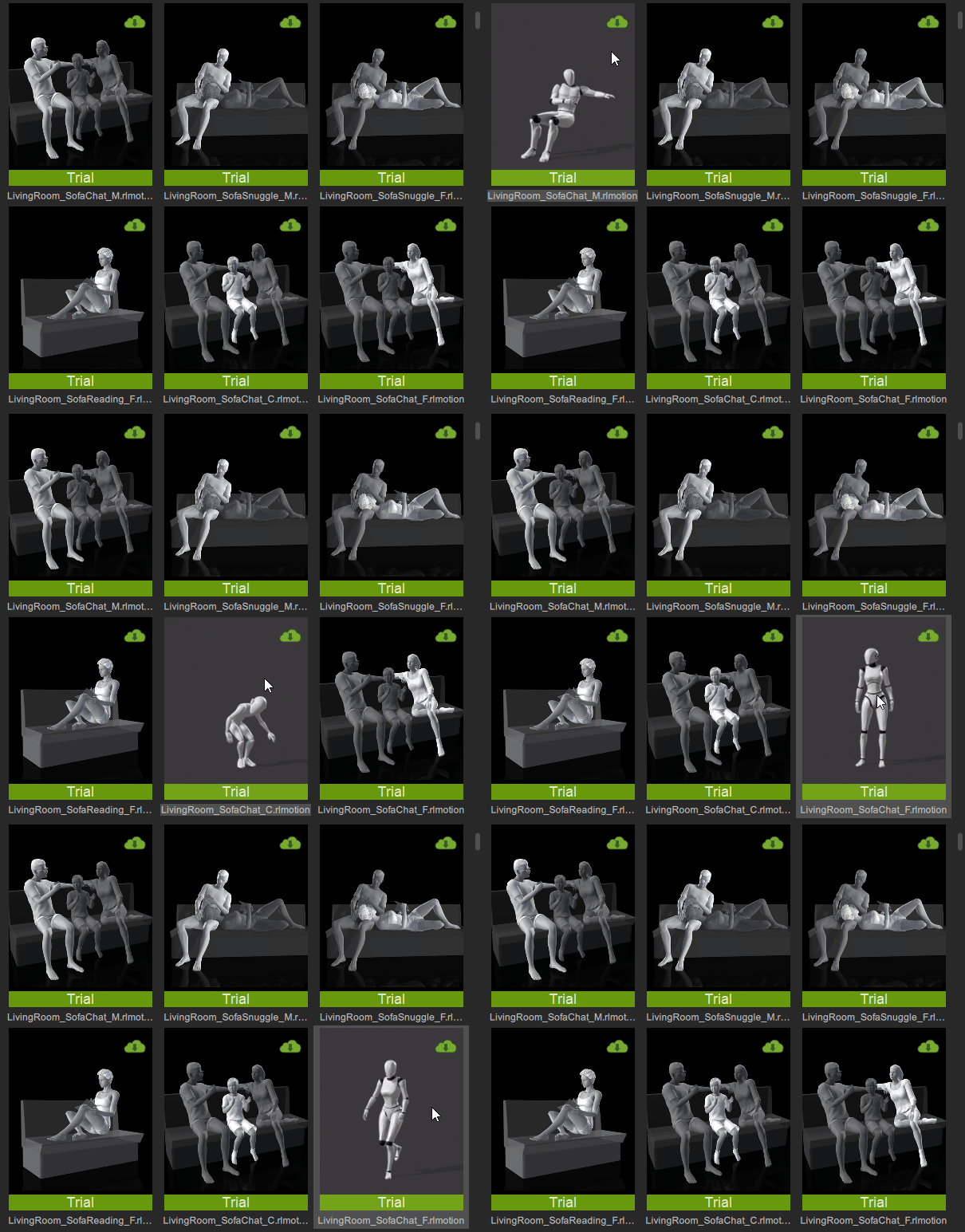
Animated ThumbnailThe thumbnail images of certain motion items are made with an animated GIF for better demonstration. Toggle the Animated Thumbnail on or off by right-clicking on any item or empty area in the content list.
- Animated Thumbnail is On to play GIF animation automatically.
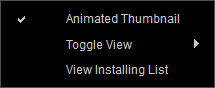
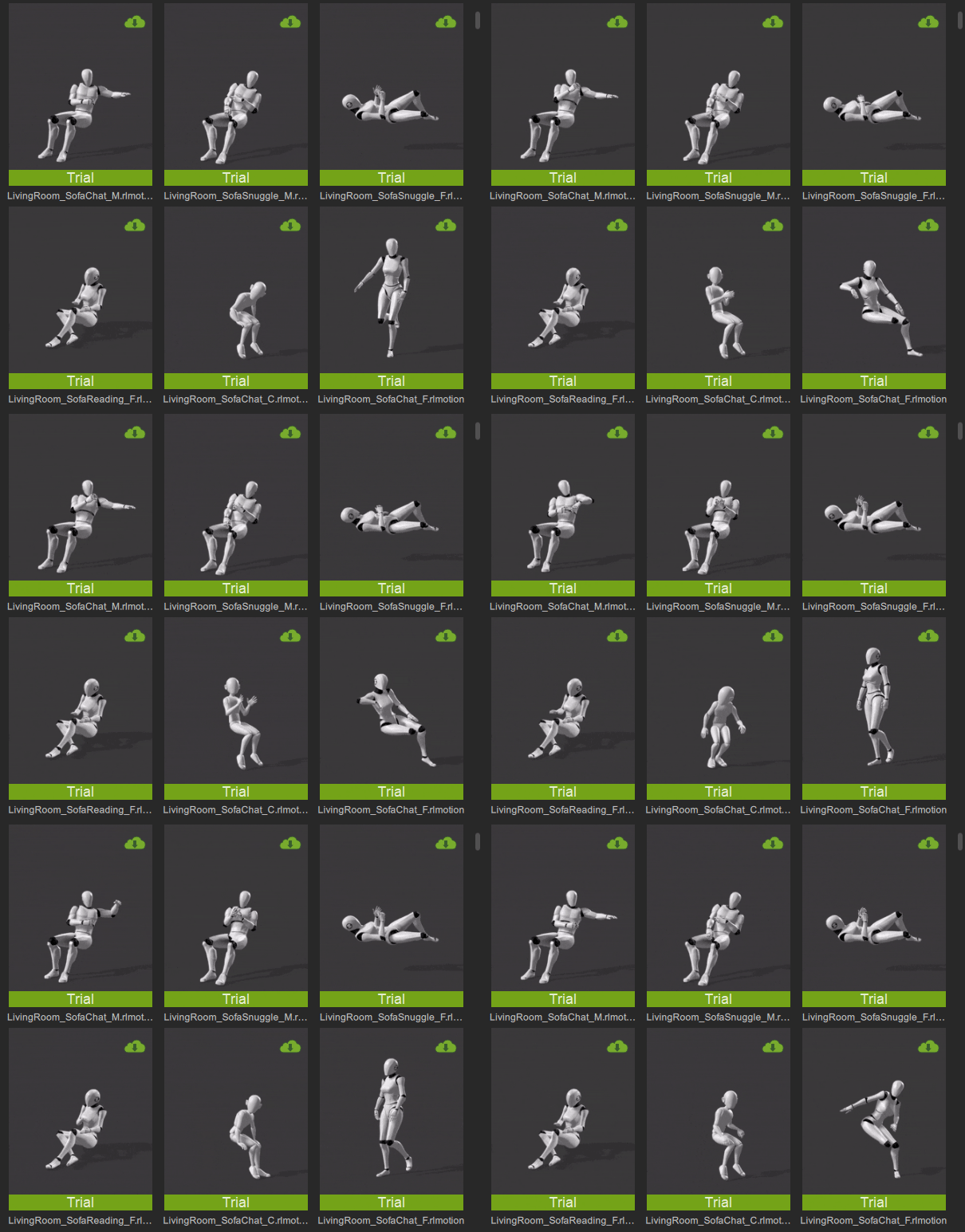
- Animated Thumbnail is Off to play GIF animation by hovering over the thumbnail.