Copying Image to Clipboard (v1.1.2)
After image generation, select a region of the AI-generated image in AI Render View to copy it as a full-resolution PNG. Paste the copied image into any image slot in AI Tools or other applications that accept image input. The copied region can be used as a source image for Start Frame, End Frame, or References when generating or editing images, videos, or AI Actors.
Enabling Copy to Clipboard Mode
Select an image from the History panel on the right to display it in AI Render View, then click the Select tool to display an adjustable selection area over the image and the Copy to Clipboard toolbar at the bottom.
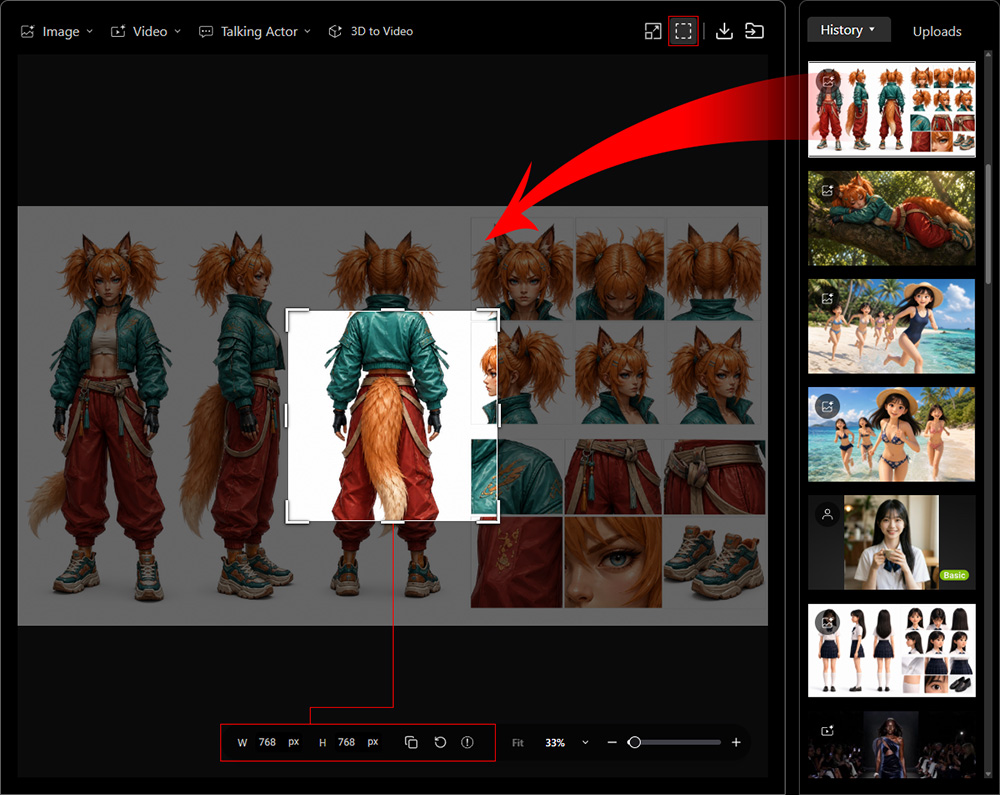
Panning the Image
Place the cursor outside the selection area and drag to pan the image, positioning the desired region for copying.
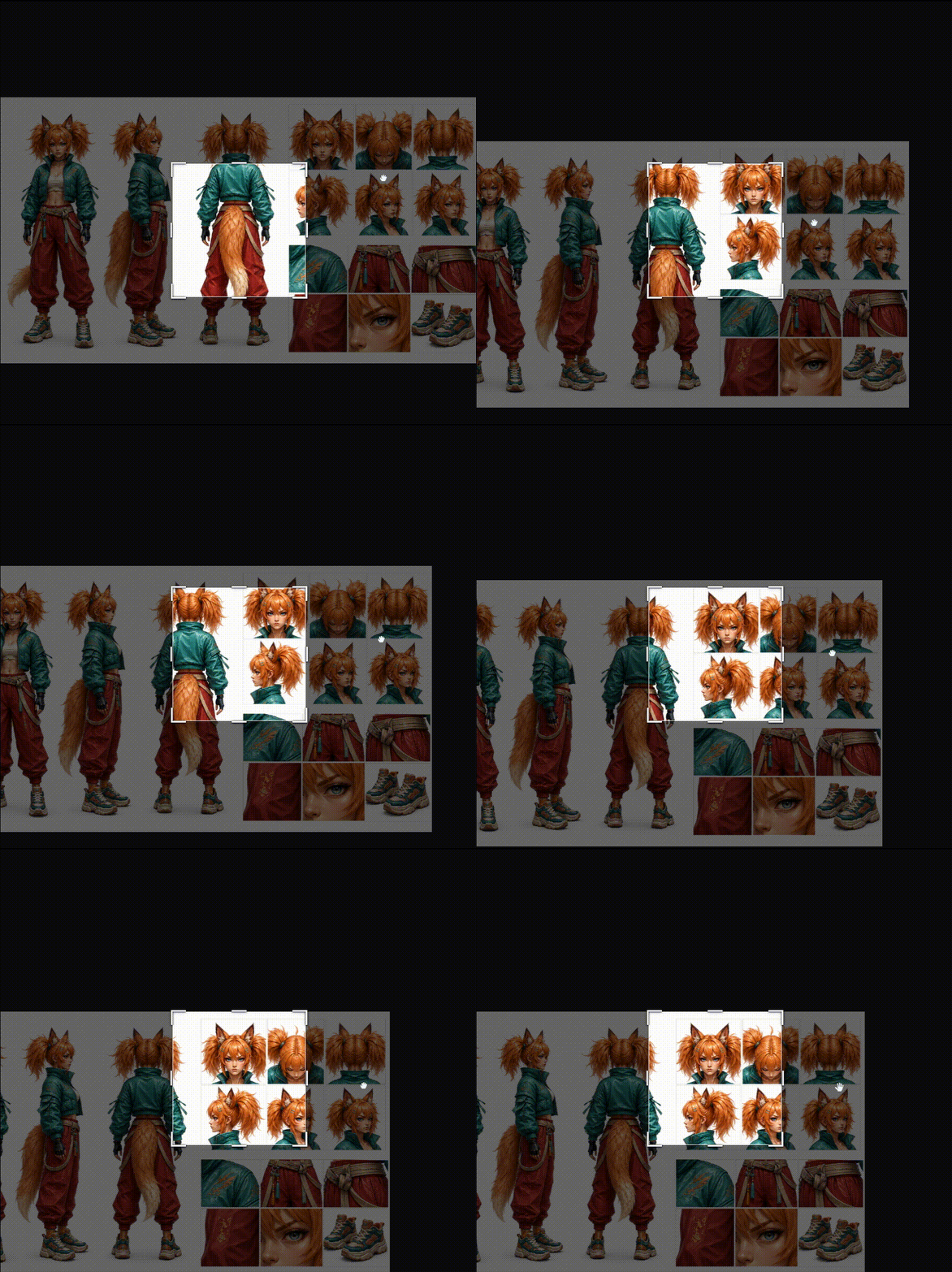
Zooming the Image
Place the cursor inside the selection area over the desired region, then scroll the mouse wheel to zoom in or out.
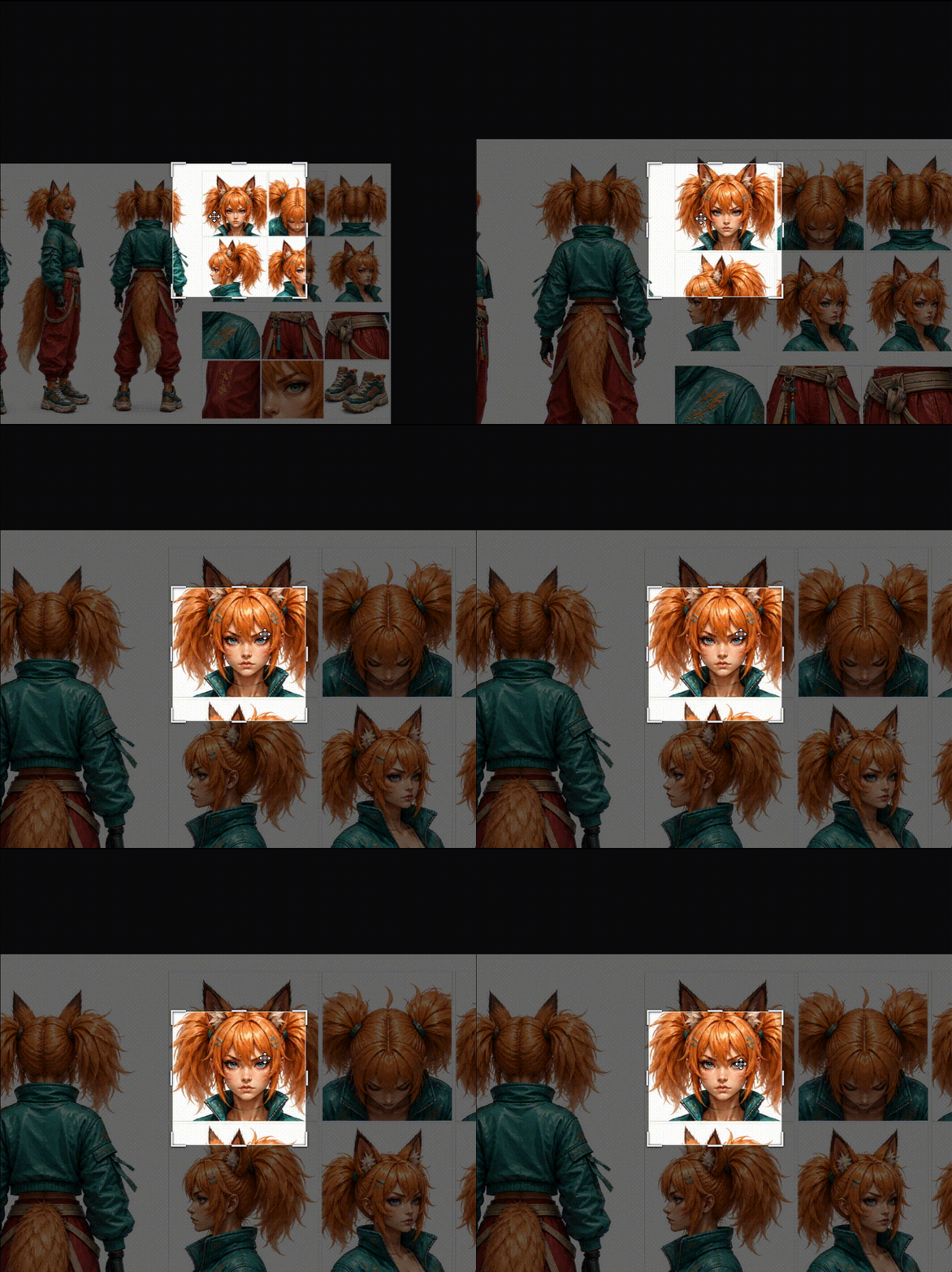
Moving the Selection Area
Drag inside the selection area to reposition it over the desired region.
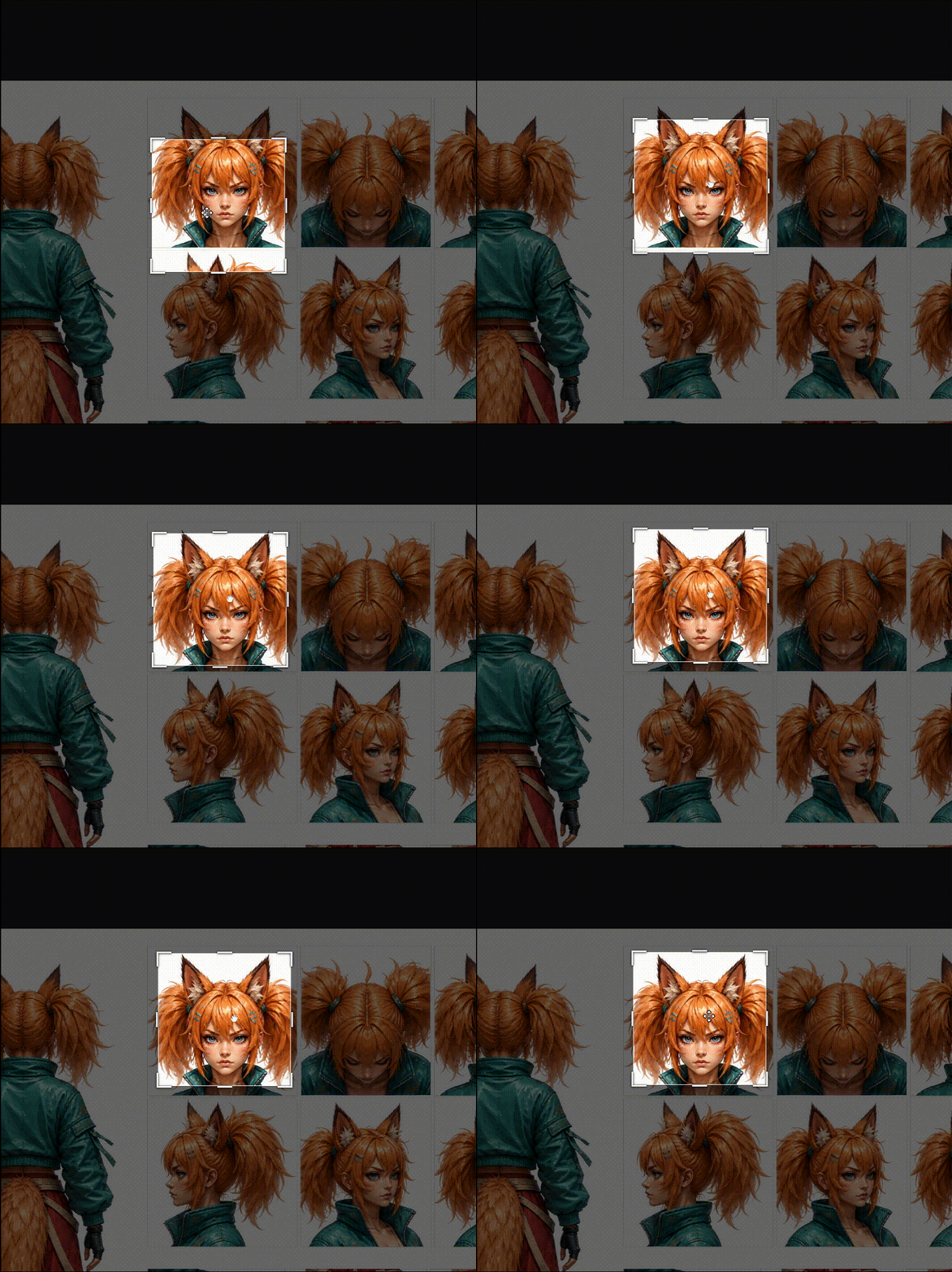
Alternatively, click inside the selection area and use the arrow keys to move it 1 px per press, or hold Shift while pressing an arrow key to move it 10 px per press.
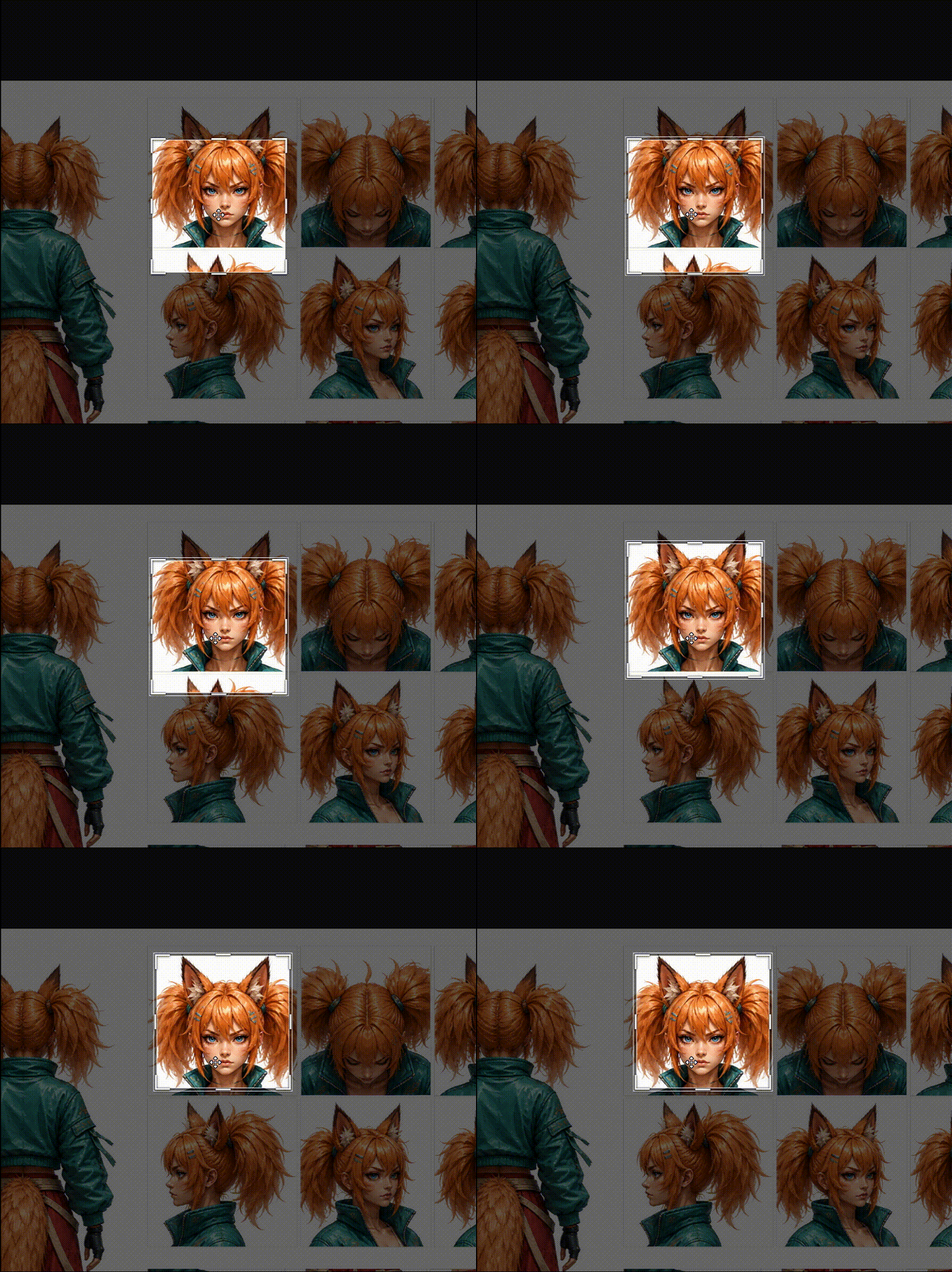
Resizing the Selection Area
Drag any of the four side or corner handles to resize the selection area.
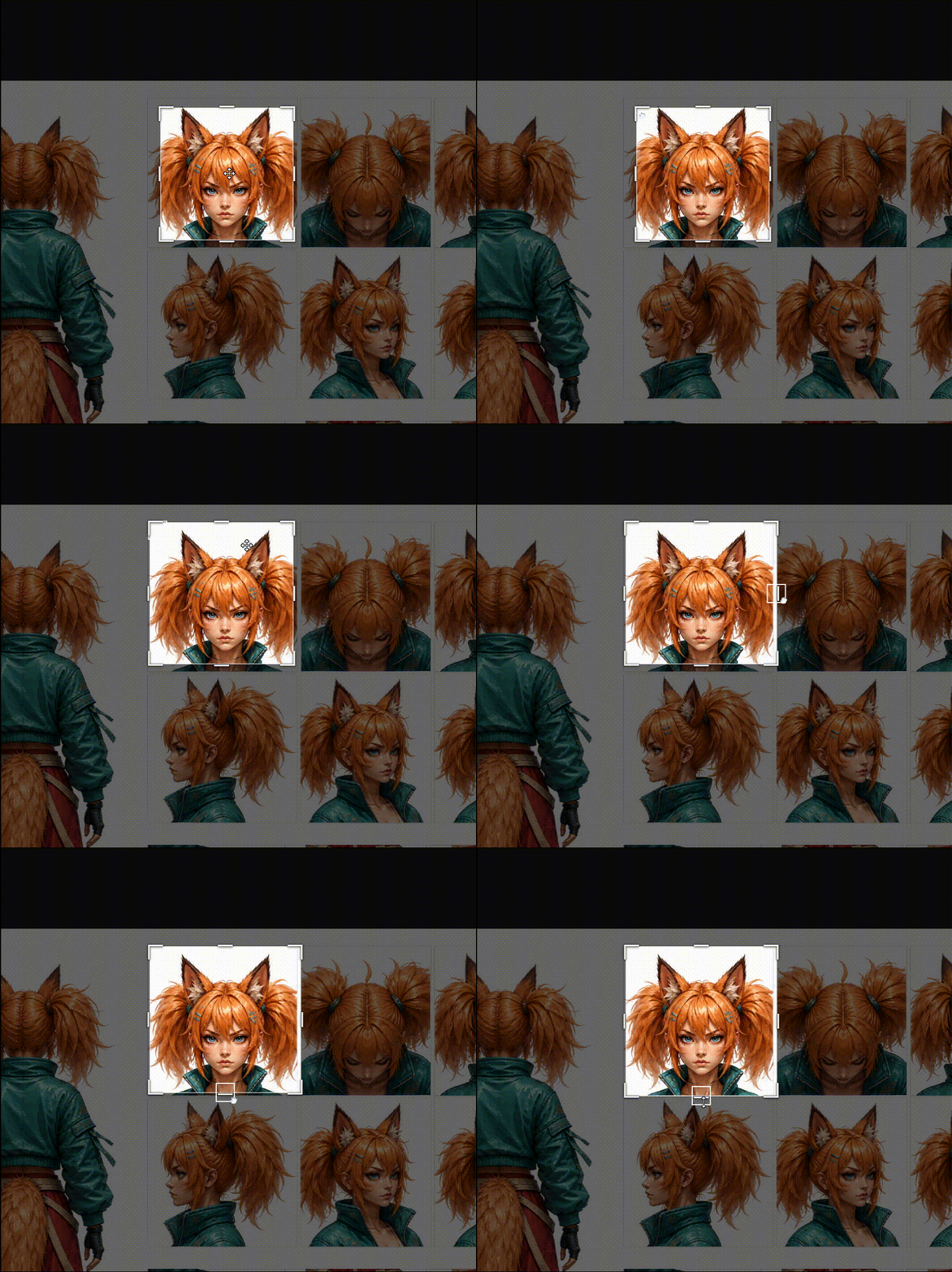
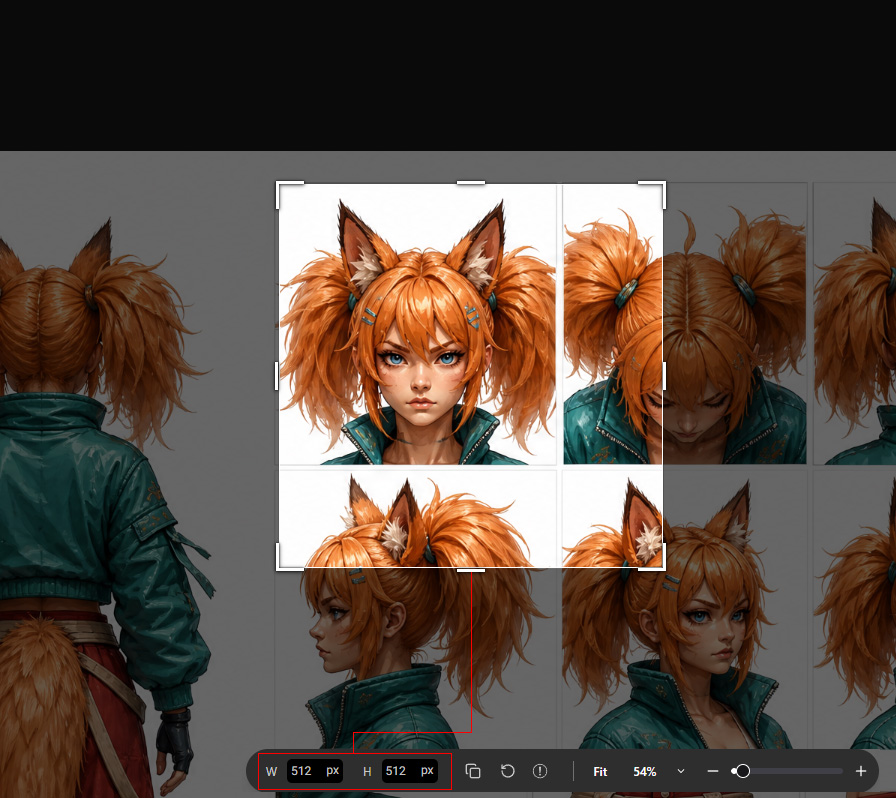
For precise resizing, enter pixel values in the Width and Height fields in the bottom toolbar.
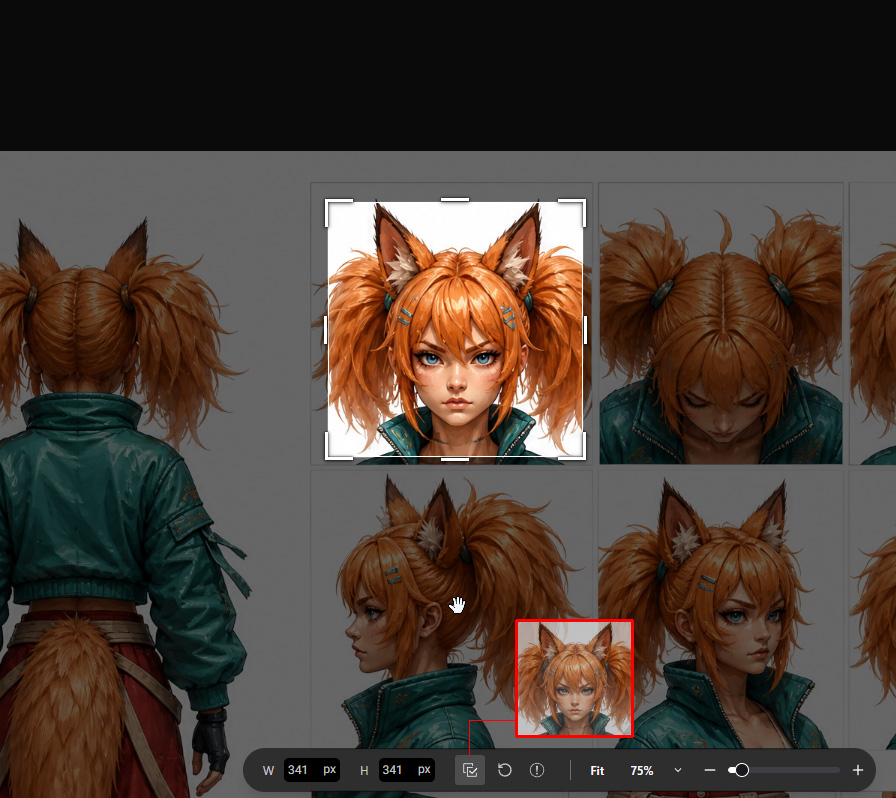
The selection area's dimensions, displayed in the bottom toolbar, update in real time as you resize it.
To ensure optimal AI generation results, the selection area must be at least 20% of the image's shorter side.
For example, if the original image is 1920 × 1080 px, the shorter side is 1080 px, so the selection area must be at least 216 px along its shorter side.
Copying and Pasting
Press Ctrl + C or click Copy to Clipboard (Full Resolution)  in the bottom toolbar to copy the image within the selection area to the clipboard.
The button changes to Copied
 , and a semi-transparent preview of the selected region follows the cursor.
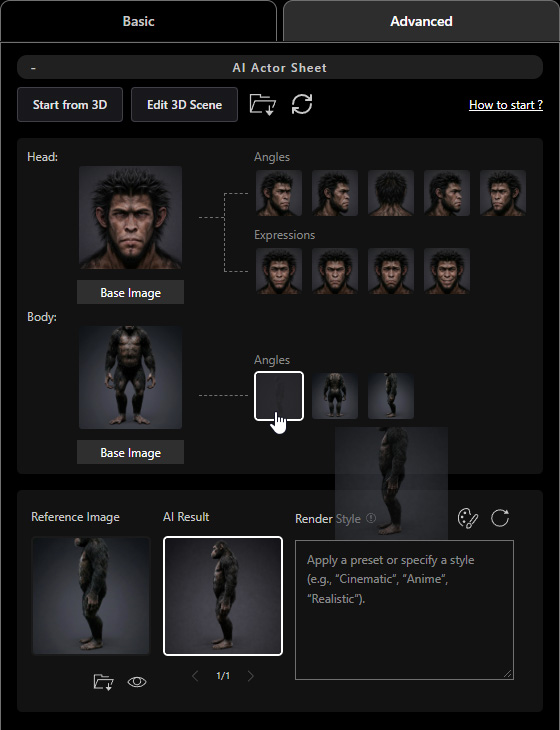
While the preview is visible, click an image slot in AI Tools to paste the image directly, such as the image slot for the AI Actor thumbnail.
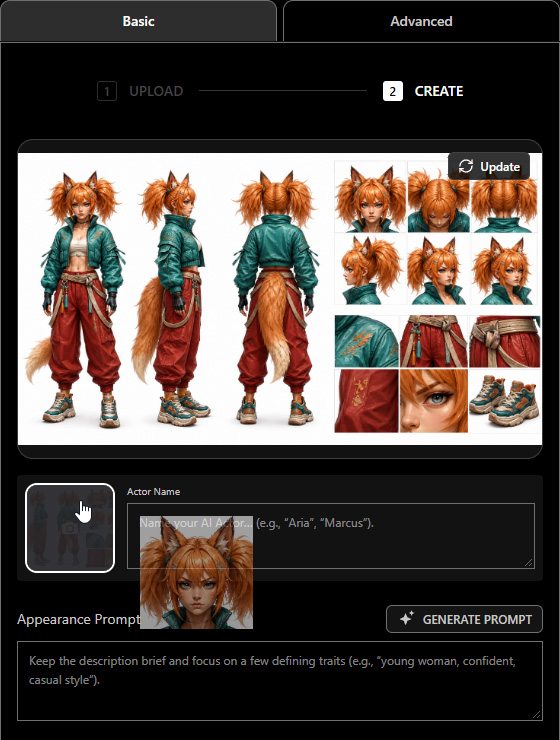
When switching to another AI Tool, press Ctrl + V or click Copied again to restore the semi-transparent preview and paste the image into another image slot.
 Image EditingPaste the cropped image into the Reference slot to add it as a reference.
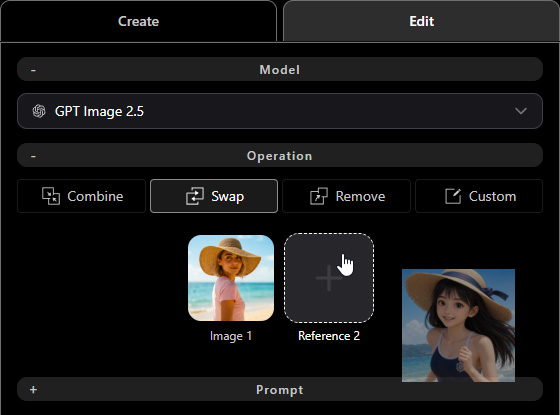
- Video GenerationPaste the cropped image into the Start Frame slot to set it as the video's starting frame.
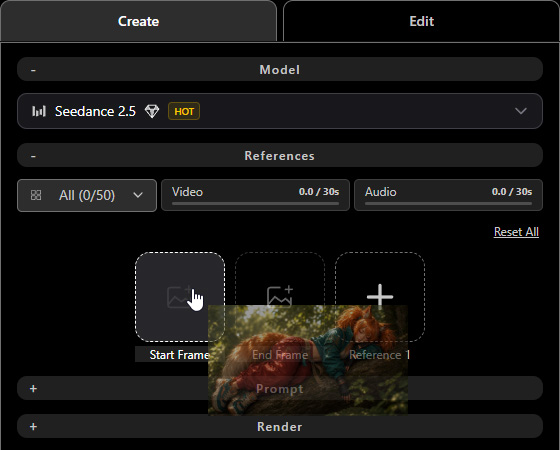
- Video EditingPaste the cropped image into the Reference slot to add a reference image.
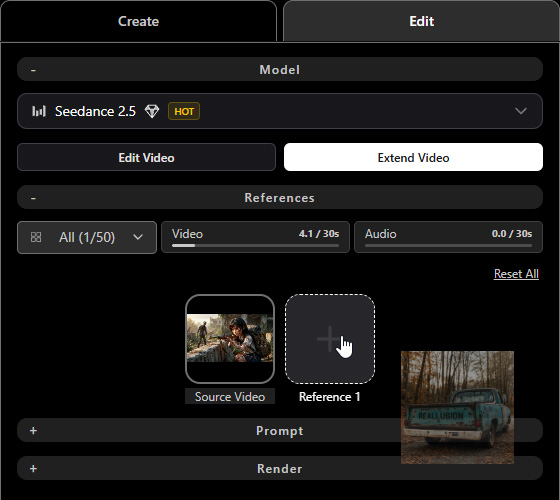
- 3D Guided GenPaste the cropped image into the Reference slot to replace the current image.
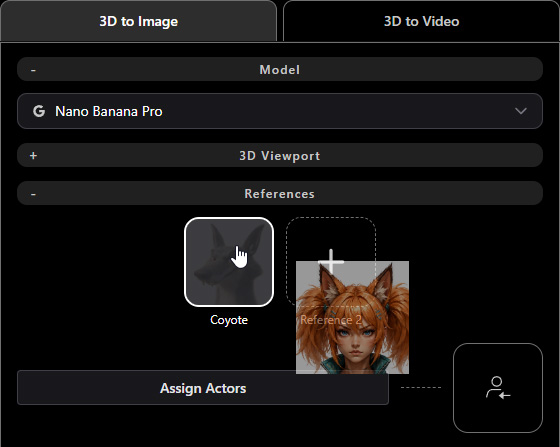
- AI Actor CreationPaste the cropped image into an angle image slot on the AI Actor Sheet to improve generation accuracy and resolve unexpected results.
Even if the cursor preview disappears, you can still press Ctrl + V to paste the copied image into any image slot in AI Tools or an external application that accepts image input.
Resetting to Default
Click Reset in the bottom toolbar to restore the image and selection area to their default positions and sizes, with the image fitted to the window.
On-Screen Help
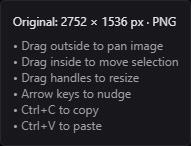
Hover over the  icon to view the original image dimensions and instructions for using Copy to Clipboard mode.
Exiting Copy to Clipboard Mode
- Press Esc or click the Select
 tool again to exit the mode.
- Switch away from the current image preview in AI Render View, such as by selecting another item in History or opening the full History page.
