Using Two-Stage Draft-to-Final Rendering (v1.1.2)
Seedance 2.5 Draft offers a cost-effective, two-stage video generation workflow that lets you preview your ideas at a lower resolution (480p) before committing to the final 1080p render.
Draft generation costs approximately one-fifth of the regular generation cost.
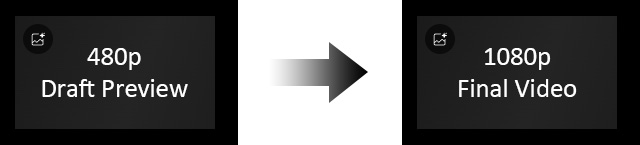
Unlike conventional upscaling, which enlarges existing low-resolution footage through interpolation, Seedance 2.5 Draft regenerates the video at native 1080p using the original generation settings.
This helps maintain the original composition, structure, and character performance while delivering richer details and higher-fidelity textures.
Stage 1 – Generate a Draft Preview (480p)
Use the 480p draft to evaluate the video's composition, character motion, subject positioning, camera movement, audio synchronization, and visual pacing before generating the final version.
- Select Seedance 2.5 Draft from the Model list in the video creation, editing, or 3D-to-Video workflow.

AI models marked with a diamond icon require an AI Service subscription. Click Upgrade at the bottom to subscribe and access the AI settings. - Add the Start / End Frame, Source Video, references, and prompt as required by your workflow.
- In the Render section, the Resolution is fixed at 480p.

- Click GENERATE to create the draft at approximately one-fifth the regular generation cost.
Stage 2 – Generate the Final Video (1080p)
Once you are satisfied with the draft, you can generate the final 1080p version within 7 days of creating the preview.
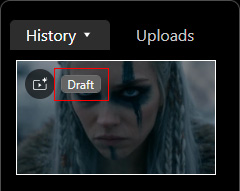
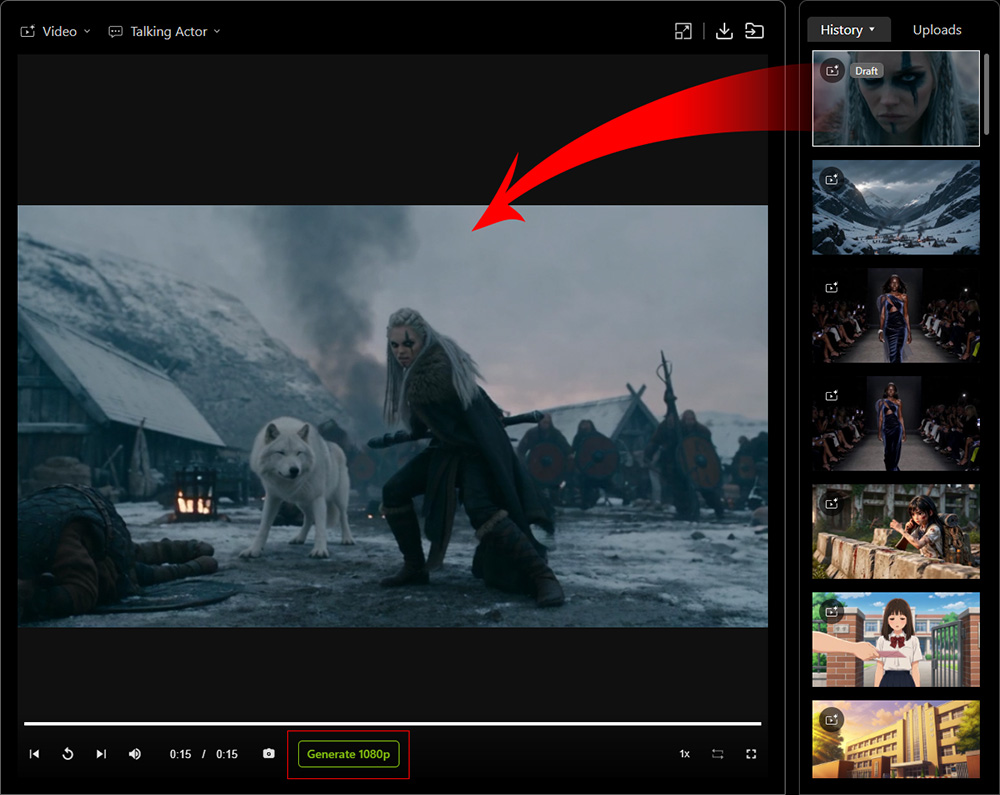
- In History, select the draft to display it in AI Render View or open it in the History Detail window.
Draft videos are identified by a Draft label beside the video icon in the top-left corner of their thumbnails.
- Click Generate 1080p on the AI Render View Playbar to open the Draft to 1080p Video window.
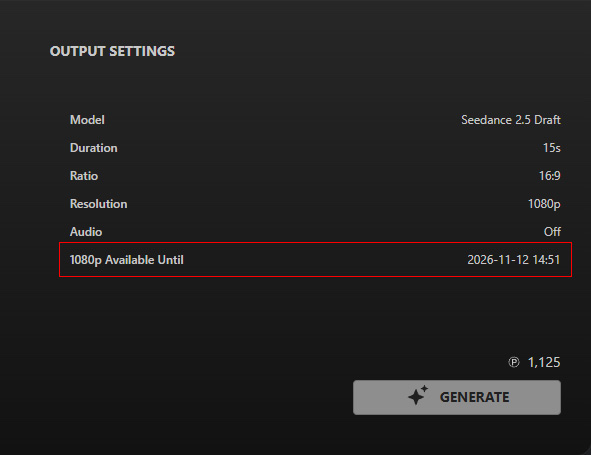
- Review the generation settings.
The original settings are retained, including aspect ratio, duration, and audio settings.
Only the resolution is upgraded to 1080p.
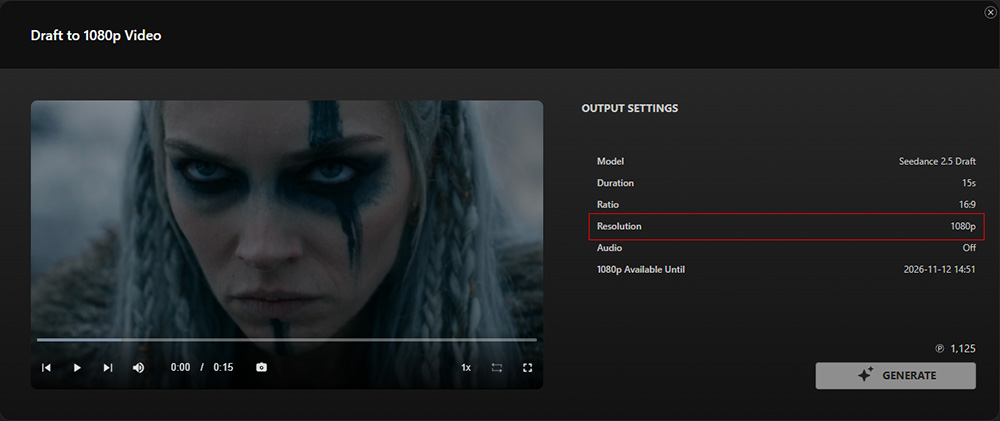
- Click GENERATE to create the final video at native 1080p resolution.
Draft Expiration
Each 480p draft is eligible for 1080p rendering for 7 days after generation.
Check the expiration date displayed in the Draft to 1080p Video window.
Once the draft expires, it can no longer be used to generate the final video.