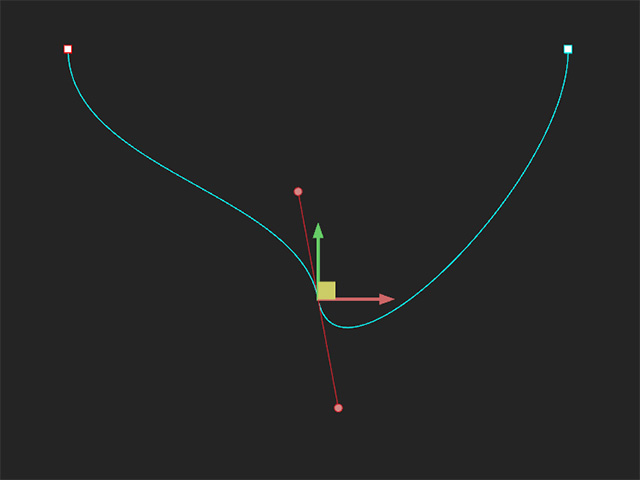
Unifying or Breaking Bezier Handles
Besides the start and end points, each anchor point has its own set of Bezier handles. The two handles on either side can be adjusted together or separately to smooth out or straighten the selected anchor point.
Unifying / Breaking Tangents
There are two ways to unify and break anchor point tangents. One is to focus on the selected anchor points and the other is to process all anchor points on the path. Start by creating a path and enter path-editing mode.
For the Selected Anchor Points:
- Select the desired anchor point (multi-selection
is allowed).
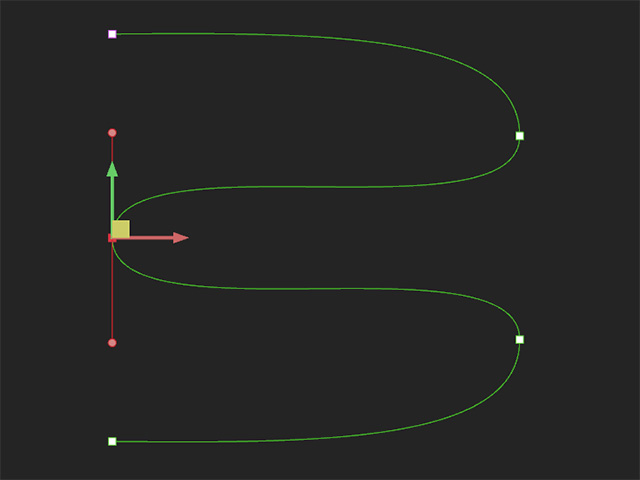
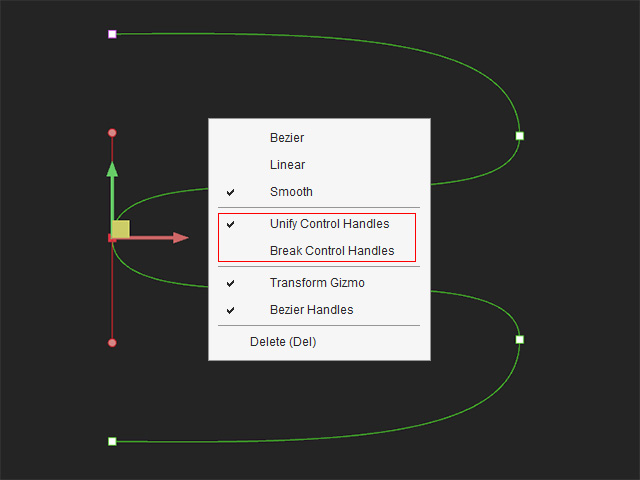
- Right-click
and choose Unify Tangents or Break Tangents
from the context menu.
-
Select all anchor points. Notice that only the anchor point
selected in the previous step is affected.
Using Unified Tangents
- Create a path.
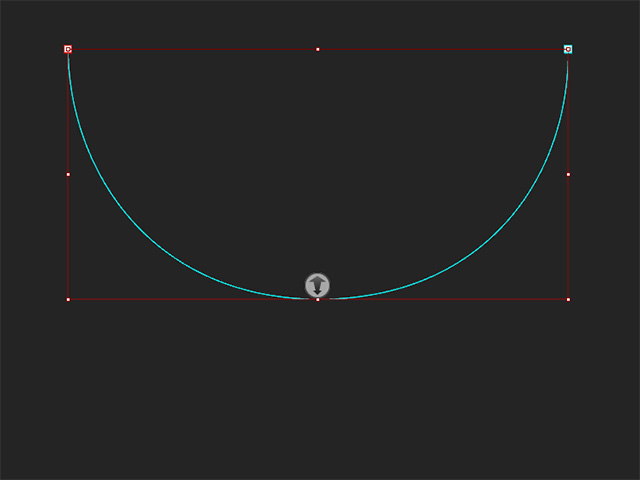
- Select the path and enter the path-editing mode by launching the Path Properties panel.
- Click on the desired anchor point and Bezier handles on both
sides will appear.
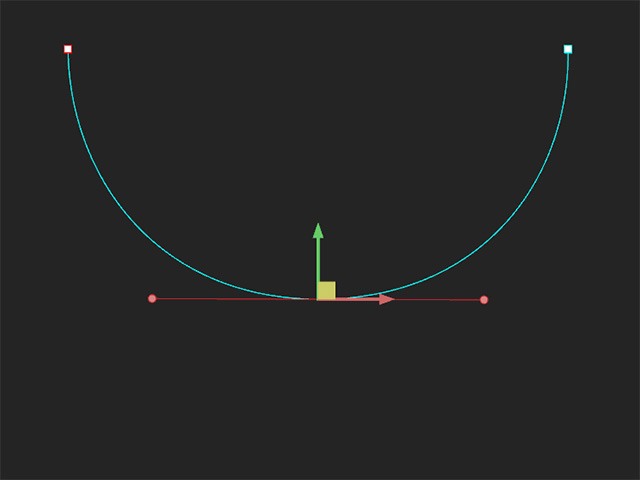
- Drag a Bezier handle to modify the curvature of the segment it
controls.
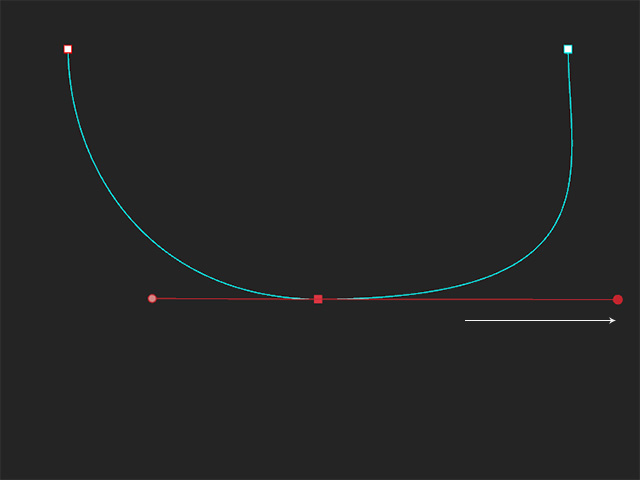
If you hold the SHIFT key and extend the length of one handle, the other one will be extend automatically.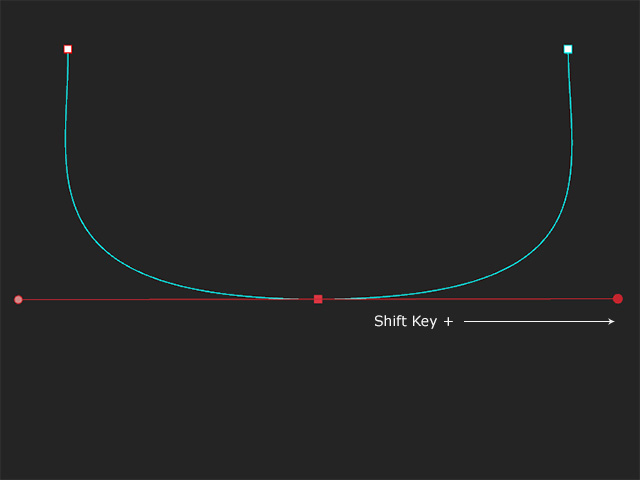
- Move the end circle of the handle to modify the curve of the path. You will see the other side will be adjusted
as well.
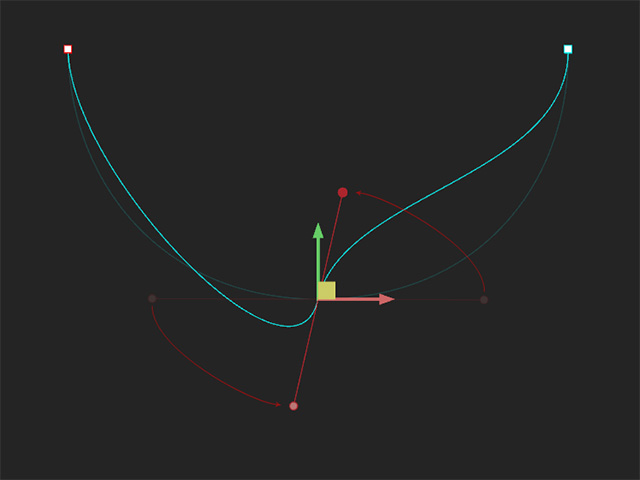
Adjusting Path with Broken Tangent
- Using the final result in the previous section, right-click and choose
Break Tangents from the context menu.
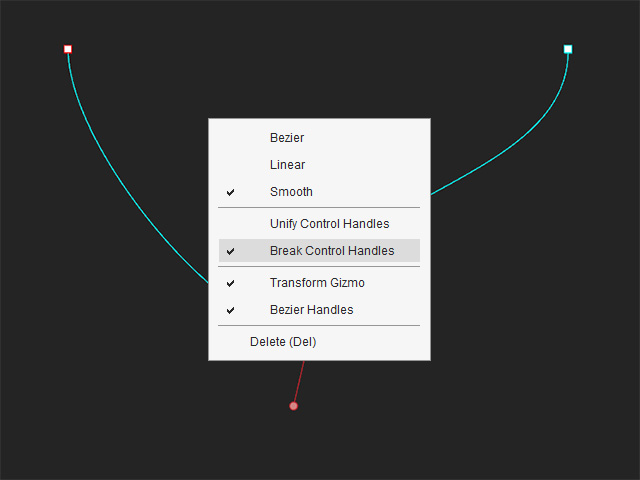
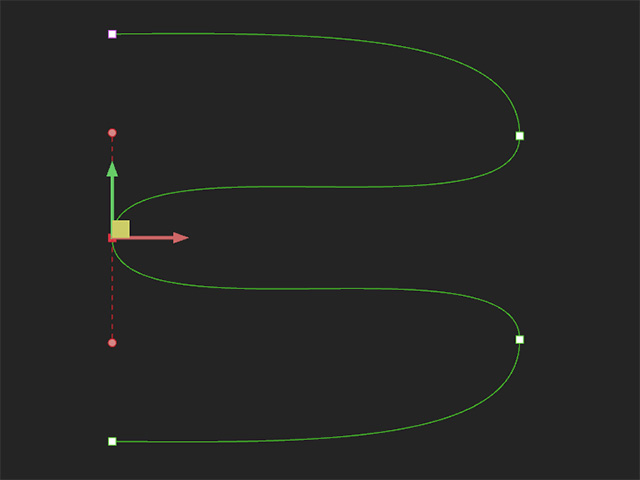
- The Bezier handles will become dotted.
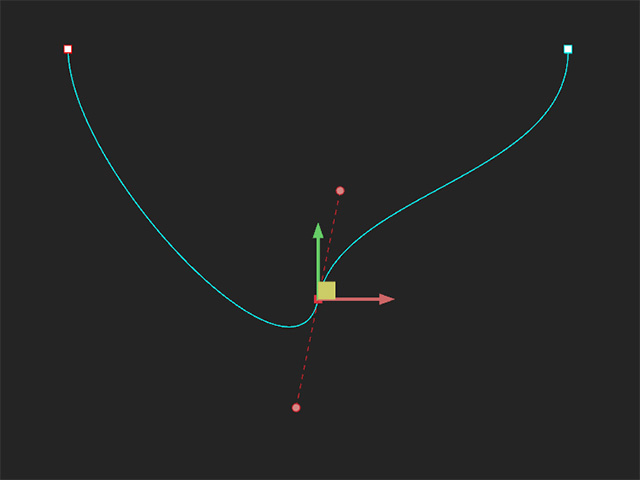
- Drag on one handle and observe how both ends can differ
independently.
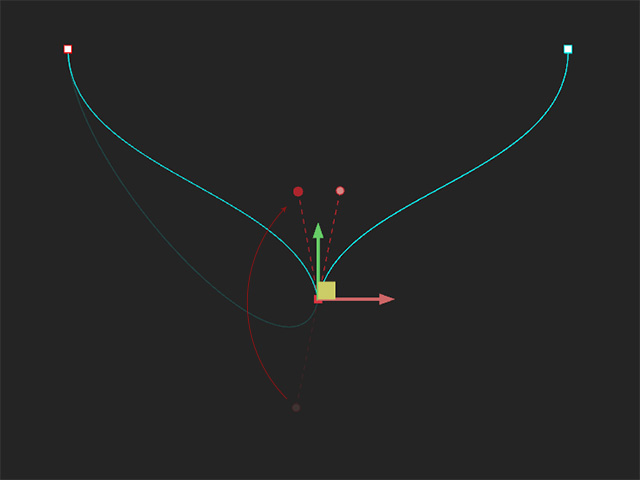
- If you choose Unify Tangent from the context menu, then
the handles will straighten out.