Using Text Bubbles with Serial Text Dialogs
Each text bubble can be given multiple text elements, and you are able to show each one at different times by setting the Replace switches.
 Preparing Texts
-
Load or create a project.

-
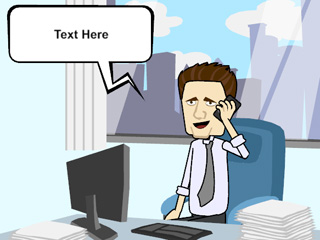
In the Stage Mode, apply a text bubble template.
-
Double-click on the text bubble (or click the
 Text Editor button)
to show the Text Editor.
Text Editor button)
to show the Text Editor.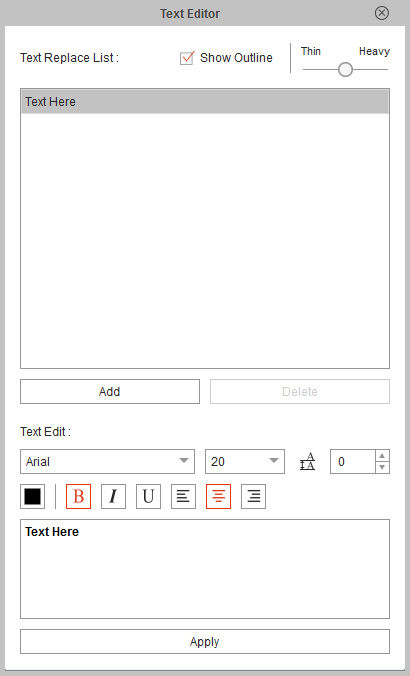
-
Modify the text (words and font styles) and click the
 Apply and Add Key button.
-
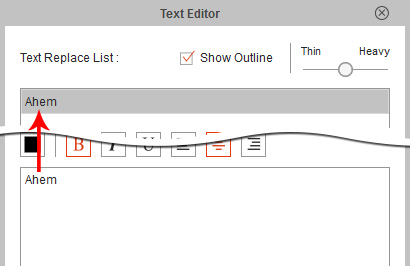
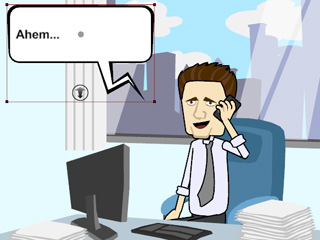
The modified text will now appear in the Text Place List and in
the text bubble on the stage.
-
Go to another time frame when the character is ready to speak another sentence.
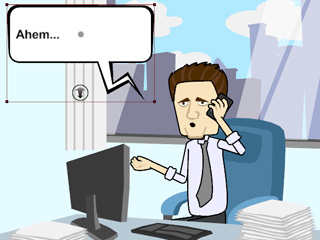
-
Click the
 Add Text button to add a new line of text.
-
Modify the text and then click the Apply and Add Key button
again to apply the text to the text bubble.
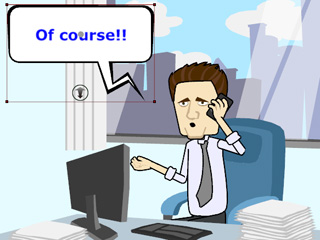 Note:
Note:-
You may remove a line of words in the list by
selecting it and clicking the
 Delete Text button.
-
You may remove a line of words in the list by
selecting it and clicking the
-
Repeat step 5 to 7 to add as many lines as you want. The list will
contain all the lines you have entered.
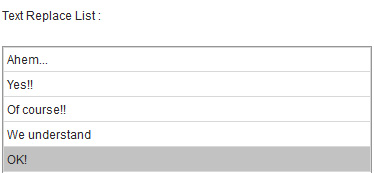
-
Play back to view the text sequentially showing the result.
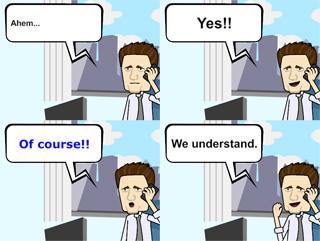
Editing and Reusing Text Instances with Timeline
If the text elements you have set up show at improper times or the character says identical phrases more times than once, then you may adjust the Replace keys of the text bubble within the Timeline.
-
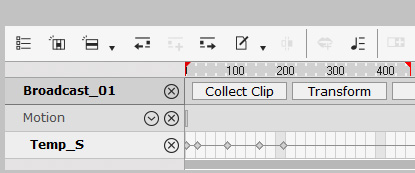
Select the text and show the Replace track of the text bubble.
You will see the switches you have applied in the previous sections are in the track.
-
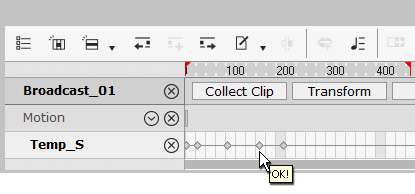
Move your cursor over the switch keyframes to see the text that they represent.
- Drag the switches to the appropriate time to match the timing of the character's voice.
-
If you want to reuse the same text from the text list, you may either:
-
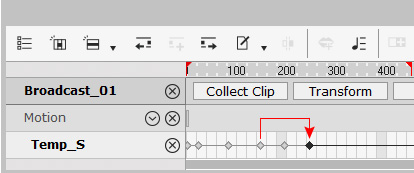
Copy the target Replace switch and paste it to another
desired time frame.
-
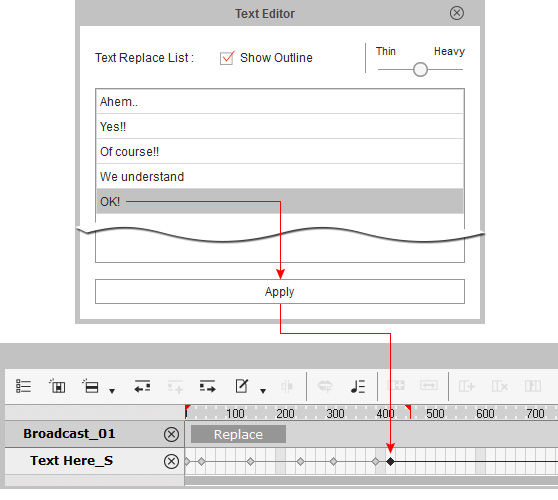
Go to a desired time frame, pick the text in the list and then click
the Apply and Add Key button to add another switch to the frame.
-
Copy the target Replace switch and paste it to another
desired time frame.
-
These two methods add text instances to different time frames. You may
then play back to see the result.
