Motion Layer Tracks
The Motion Layer tracks are important tracks for fine-tuning an actor's motion.
You may generate simple Key Frame Animation or add Animation Layers to an existing animation clip.
Basically, all the sub-tracks under the main Motion track, are motion layer tracks.
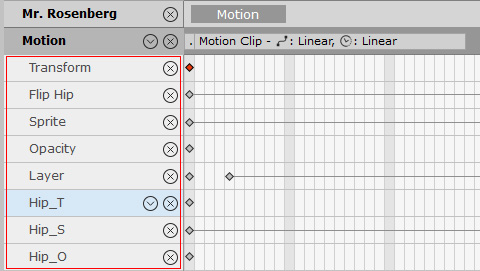
 Motion Layer Concept
You may use F3 to toggle the visibility of the Timeline panel.
Motion Clip and Transform Key
Given a motion on a character- before the motion is modified with a Transform key.
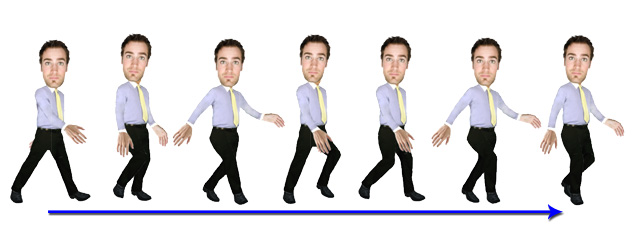
The motion will be modified after being affected by a Transform key.
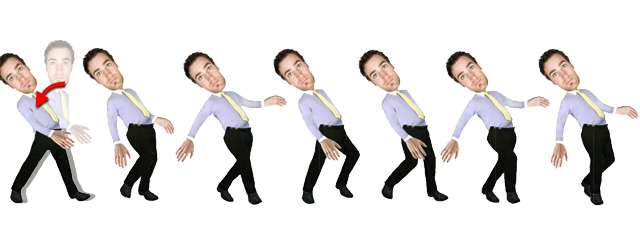
Motion Clip and Sprite Switch
Given an existing motion of a character before the motion is modified with a Sprite switch.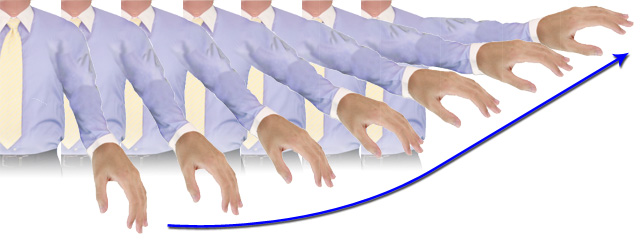
The motion will be modified after being affected by a Sprite switch.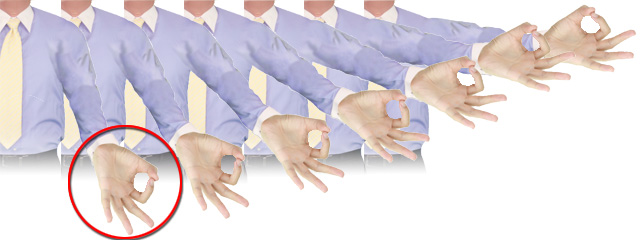
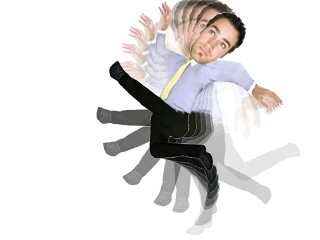
Key Frame Animation
To fully understand Key Frame Animation, you will need to remove all the motion clips in the Motion main track.
Then create your own key by key motion for the actor.
Follow the steps below to generate Key Frame Animation.
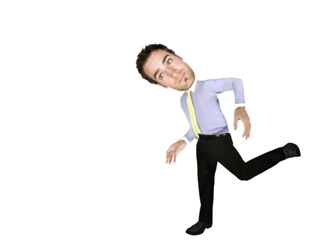
- Select a character, and go to the desired time frame to create the first motion key with the 2D Motion Key Editor.
-
In the 2D Motion Key Editor window, utilize the controls to set a motion key.
-
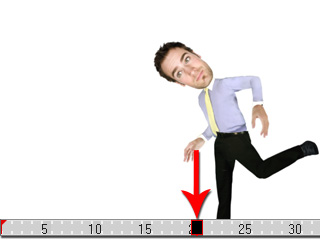
Go to another time frame.
-
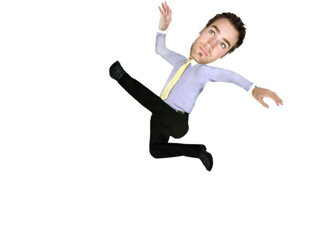
Add another key.
-
Play the project to see the results. The transition effect will automatically be generated between these two keys.
Layered Animation
Another powerful feature of the Motion Layer is to fine-tune the motion clips on the Motion main track. The keys on the Motion Layer track have the highest priority for the bone offset.
-
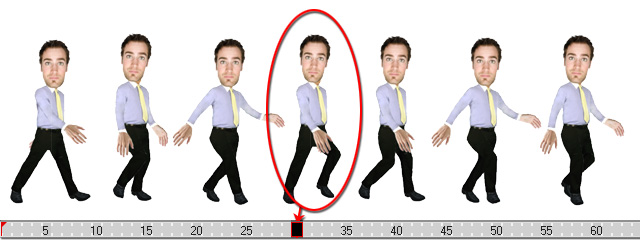
Apply a motion clip to the character.
-
Go to the middle time frame of this motion.
-
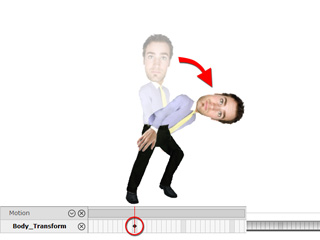
In the Transform main track, add a motion layer key to any desired time frame.
-
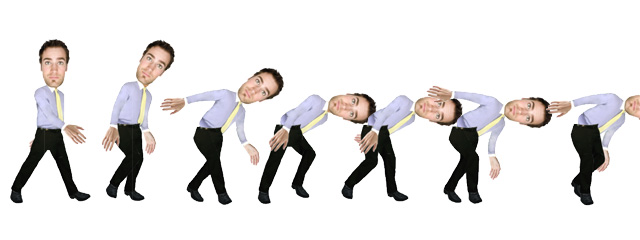
The key will influence the entire motion clip unless another key is added afterward.
Restoring Animation from Motion Layer Keys
If you need to eliminate any influence from previous transform layer keys, then you may use the Reset feature to set an initial data to all the virtual bones, so that the original pose can be retrieved.
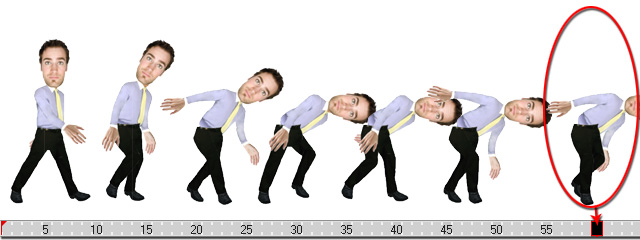
In the last example, the character bends from the middle of the motion up until the end of the clip. Please follow the steps below to reset its pose at the end of the motion:
-
Go to the end time frame of the motion.
-
In the 2D Motion Key Editor, click the
 Reset button to set initial keys to all the virtual bones.
 -
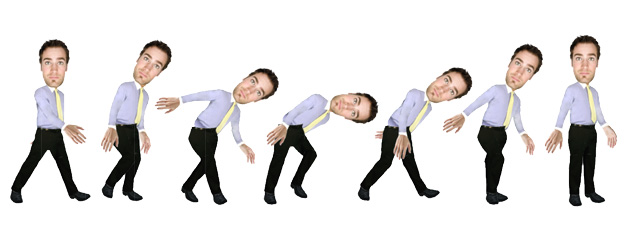
The character will gradually return to the up straight pose at the end of the motion.
* For G2 or G1 Characters, refer to the Cartoon Animator 4 Online Manual.
